
1. Introduction
This manual provides comprehensive instructions for the installation, configuration, operation, and maintenance of the Grandstream GWN7664ELR Outdoor Long Range AX6000 Wi-Fi 6 Access Point. The GWN7664ELR is an enterprise-grade 802.11ax Wi-Fi 6 access point designed for outdoor environments requiring extensive wireless coverage for medium-to-large businesses and enterprises.
2. Product Overview
The Grandstream GWN7664ELR is engineered to deliver high-performance Wi-Fi 6 connectivity with a focus on long-range outdoor deployment. It supports advanced features for robust and secure wireless networks.
2.1 Key Features
- 6 Gbps aggregate wireless throughput, featuring 2.5 Gbps RJ45 and 2.5 Gbps SFP wireline ports.
- Dual-band 4x4:4 MU-MIMO with DL/UL OFDMA technology for enhanced capacity and efficiency.
- Provides up to a 300-meter coverage range, suitable for large outdoor areas.
- Supports up to 512 concurrent Wi-Fi client devices.
- Includes two 2.5 Gigabit Ethernet ports.
- Advanced Quality of Service (QoS) to prioritize low-latency applications.
- Enhanced security with anti-hacking secure boot, digital signatures, and unique security certificates/random default passwords per device.
- Self-power adaptation upon auto-detection of Power over Ethernet (PoE) or PoE+.
- Integrated controller manages up to 50 local GWN Access Points; GWN.Cloud offers unlimited cloud-based AP management, and GWN Manager provides on-premise software management.
2.2 Package Contents
The GWN7664ELR package typically includes:
- GWN7664ELR Outdoor Wi-Fi 6 Access Point
- Mounting Kit (brackets, screws)
- Quick Installation Guide
Note: A power adapter is not included. The device is powered via PoE or PoE+.
2.3 Device Views
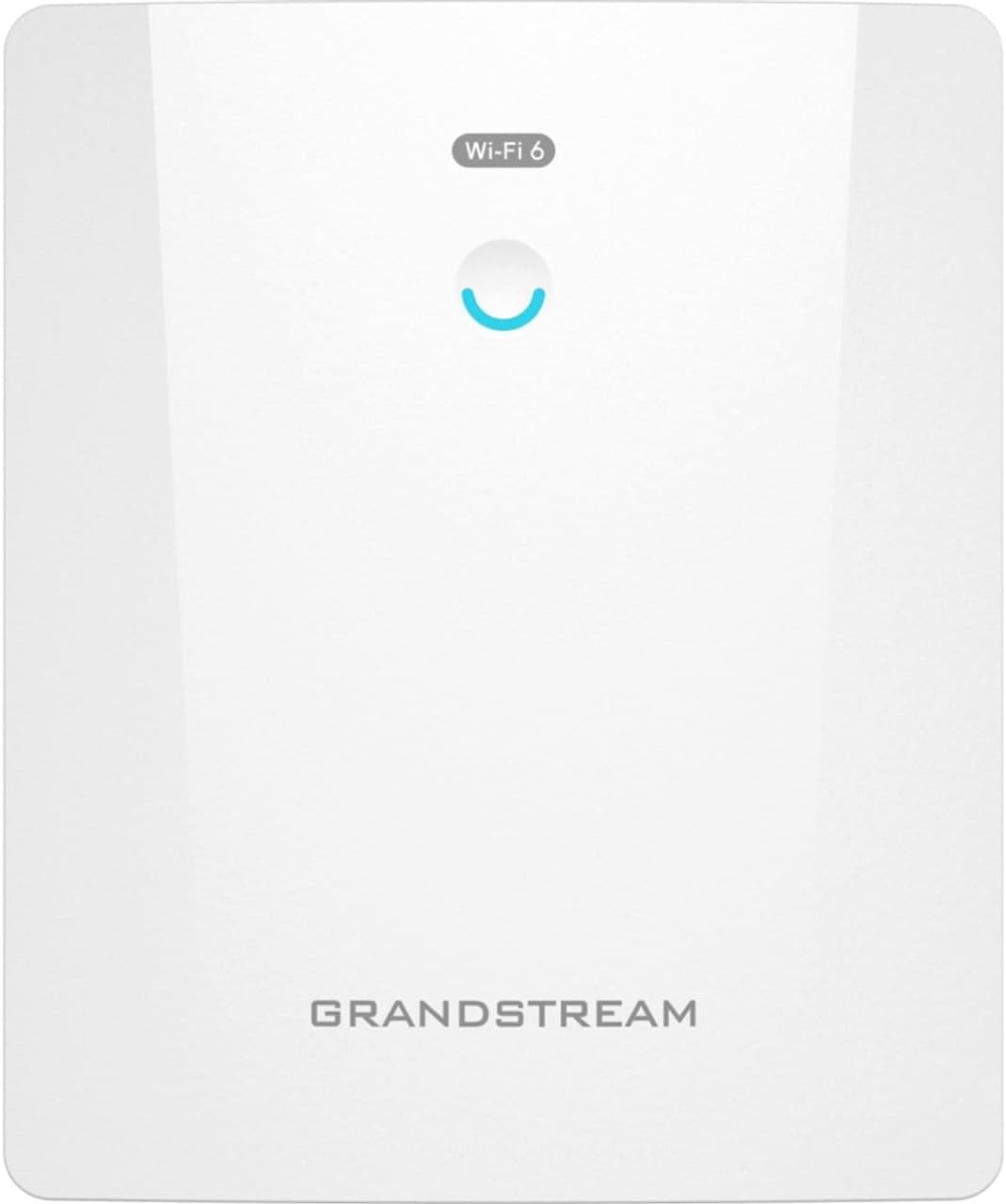
Figure 1: Front view of the GWN7664ELR Access Point, showing the Wi-Fi 6 indicator and Grandstream logo.

Figure 2: Rear view of the GWN7664ELR Access Point, illustrating the integrated mounting points for secure installation.

Figure 3: Bottom view of the GWN7664ELR Access Point, highlighting the 2.5G RJ45 port, SFP port, and reset button.
3. Safety Information
Please read and follow these safety instructions carefully to prevent damage to the device and ensure user safety.
- Do not expose the device to water or moisture.
- Do not attempt to open, disassemble, or modify the device.
- Ensure proper grounding during installation to prevent electrical hazards.
- Use only power sources compliant with PoE or PoE+ standards.
- Install the device in a location that can support its weight and is free from obstructions.
- Keep the device away from heat sources and direct sunlight.
4. Installation and Setup
4.1 Physical Installation
The GWN7664ELR is designed for outdoor mounting. Consider the following during installation:
- Location: Choose a central location for optimal Wi-Fi coverage. Ensure a clear line of sight to areas requiring connectivity.
- Mounting: Use the provided mounting kit to securely attach the access point to a pole or wall. Refer to the Quick Installation Guide for detailed mounting instructions.
- Cabling: Route Ethernet cables securely and protect them from environmental elements. Use outdoor-rated Ethernet cables.
4.2 Powering the Device
The GWN7664ELR supports Power over Ethernet (PoE) and PoE+ for power delivery. Connect an Ethernet cable from a PoE/PoE+ enabled switch or injector to the RJ45 port on the access point. The device will automatically adapt to the detected power standard.
4.3 Initial Configuration
After powering on, the GWN7664ELR can be configured via its embedded web interface, GWN.Cloud, or GWN Manager.
- Connect: Connect a computer to the same network segment as the GWN7664ELR.
- Discover: Use the Grandstream GWN Discovery Tool or check your DHCP server for the access point's assigned IP address.
- Access Web UI: Open a web browser and enter the access point's IP address. Log in using the default credentials (typically found in the Quick Installation Guide or on the device label).
- Configure: Follow the on-screen prompts to set up Wi-Fi SSIDs, security settings, and other network parameters.
For centralized management of multiple GWN Access Points, consider using the embedded controller feature (up to 50 local APs), GWN.Cloud for cloud-based management, or GWN Manager for on-premise software management.
5. Operation
5.1 Connecting Client Devices
Once the GWN7664ELR is configured and broadcasting Wi-Fi networks (SSIDs), client devices such as smartphones, tablets, and laptops can connect by selecting the appropriate SSID and entering the configured password.
5.2 Management Interface
The web-based management interface allows for detailed configuration and monitoring of the access point. Features include:
- Network settings (IP address, VLANs)
- Wireless settings (SSIDs, security, radio power)
- Client monitoring and management
- Firmware upgrades
- System logs and diagnostics
Regularly access the management interface to ensure optimal performance and security.
6. Maintenance
6.1 Firmware Updates
Grandstream regularly releases firmware updates to improve performance, add features, and address security vulnerabilities. It is recommended to keep the device's firmware up-to-date.
- Download the latest firmware from the official Grandstream website.
- Access the GWN7664ELR's web management interface.
- Navigate to the firmware upgrade section and follow the instructions to upload and install the new firmware.
Caution: Do not power off the device during a firmware upgrade.
6.2 Resetting the Device
If the device is not functioning correctly or if you need to restore factory default settings, you can perform a factory reset.
- Soft Reset: Through the web management interface, navigate to the system settings and select the option to restore factory defaults.
- Hard Reset: With the device powered on, use a paperclip or similar pointed object to press and hold the reset button (refer to Figure 3) for approximately 10 seconds. The device will reboot with factory default settings.
Warning: A factory reset will erase all custom configurations.
7. Troubleshooting
This section provides solutions to common issues encountered with the GWN7664ELR.
- No Power: Ensure the Ethernet cable is securely connected to a PoE/PoE+ source. Verify the PoE/PoE+ source is active and functioning.
- Cannot Access Web UI: Confirm your computer is on the same network segment as the AP. Verify the AP's IP address. Try clearing your browser's cache or using a different browser.
- No Wi-Fi Signal: Check if the SSIDs are enabled in the configuration. Ensure the radio is not disabled. Verify antenna connections (if applicable, though this model has internal antennas).
- Poor Performance: Check for channel interference using a Wi-Fi analyzer. Ensure the AP is optimally placed. Verify firmware is up-to-date.
- Forgotten Password: Perform a factory reset (see Section 6.2) to restore default login credentials.
If issues persist, consult the Grandstream support website or contact technical support.
8. Specifications
Below are the technical specifications for the Grandstream GWN7664ELR Access Point.
| Model Name | GWN7664ELR |
| Brand | Grandstream |
| Wireless Standard | 802.11ax (Wi-Fi 6) |
| Frequency Band Class | Dual-Band |
| Aggregate Wireless Throughput | 6 Gbps |
| Ports | 2x 2.5G RJ45, 1x 2.5G SFP |
| Coverage Range | Up to 300 meters |
| Concurrent Clients | Up to 512 |
| MIMO Technology | 4x4:4 MU-MIMO with DL/UL OFDMA |
| Security Protocol | WPA2, WPA3 |
| Power Input | PoE/PoE+ (Power Adapter Not Included) |
| Operating System | Linux |
| Special Features | QoS, Anti-hacking Secure Boot, Self Power Adaptation, Embedded Controller, GWN.Cloud, GWN Manager |
| Item Weight | 6.78 pounds (3.08 Kilograms) |
| Package Dimensions | 18.11 x 14.96 x 5.51 inches |
9. Warranty and Support
For warranty information, please refer to the warranty card included with your product or visit the official Grandstream website. Technical support resources, including FAQs, documentation, and support tickets, are available on the Grandstream support portal.
Grandstream Website: www.grandstream.com
10. Regulatory Information
This device complies with relevant regulatory standards. For detailed compliance information, including FCC and CE statements, please refer to the full product documentation available on the Grandstream website.


