
1. Introduction
This manual provides instructions for the installation, operation, and maintenance of your ADATA Legend 860 PCIe Gen4 x4 M.2 2280 Solid State Drive (SSD). The Legend 860 is designed to offer high-speed storage performance for compatible desktop computers, laptops, and Sony PlayStation 5 consoles.

Image 1.1: Front view of the ADATA Legend 860 M.2 SSD, showing the ADATA logo and model name on the heat spreader.
2. Package Contents
Verify that your package contains the following items:
- ADATA Legend 860 PCIe Gen4 x4 M.2 2280 SSD (Solid State Drive NVMe)

Image 2.1: Retail packaging for the ADATA Legend 860 SSD, displaying the product and its capacity.
3. Setup and Installation
Before installation, ensure your system is powered off and disconnected from the power source. It is recommended to wear an anti-static wrist strap to prevent electrostatic discharge (ESD) damage.
3.1. Desktop/Laptop Installation
- Locate M.2 Slot: Identify an available M.2 slot on your motherboard. The Legend 860 is a 2280 form factor SSD, requiring a compatible M.2 2280 slot.
- Insert SSD: Gently insert the ADATA Legend 860 SSD into the M.2 slot at a 30-degree angle. Ensure the gold contacts are fully seated.
- Secure SSD: Press the SSD down until it is parallel with the motherboard. Secure it with the M.2 screw provided with your motherboard or system.
- Close System: Reassemble your computer and reconnect the power.

Image 3.1: The ADATA Legend 860 SSD correctly installed in an M.2 slot on a computer motherboard.
3.2. PlayStation 5 (PS5) Installation
The ADATA Legend 860 is compatible with the PlayStation 5 console for storage expansion. Refer to the official PlayStation 5 user guide for detailed instructions on how to open the console and access the M.2 expansion slot. Ensure the SSD meets all PS5 requirements, including physical dimensions and performance specifications.
- Prepare PS5: Power off your PS5 console and disconnect all cables. Allow it to cool down.
- Remove Cover: Carefully remove the PS5 console cover to expose the expansion slot.
- Access M.2 Slot: Unscrew and remove the expansion slot cover.
- Insert SSD: Insert the ADATA Legend 860 SSD into the expansion slot. Align the notch on the SSD with the ridge on the expansion slot.
- Secure SSD: Secure the SSD with the screw and spacer provided with your PS5 console.
- Reassemble: Replace the expansion slot cover and the PS5 console cover. Reconnect all cables and power on the console.
- Format SSD: Follow the on-screen prompts on your PS5 to format the newly installed SSD.
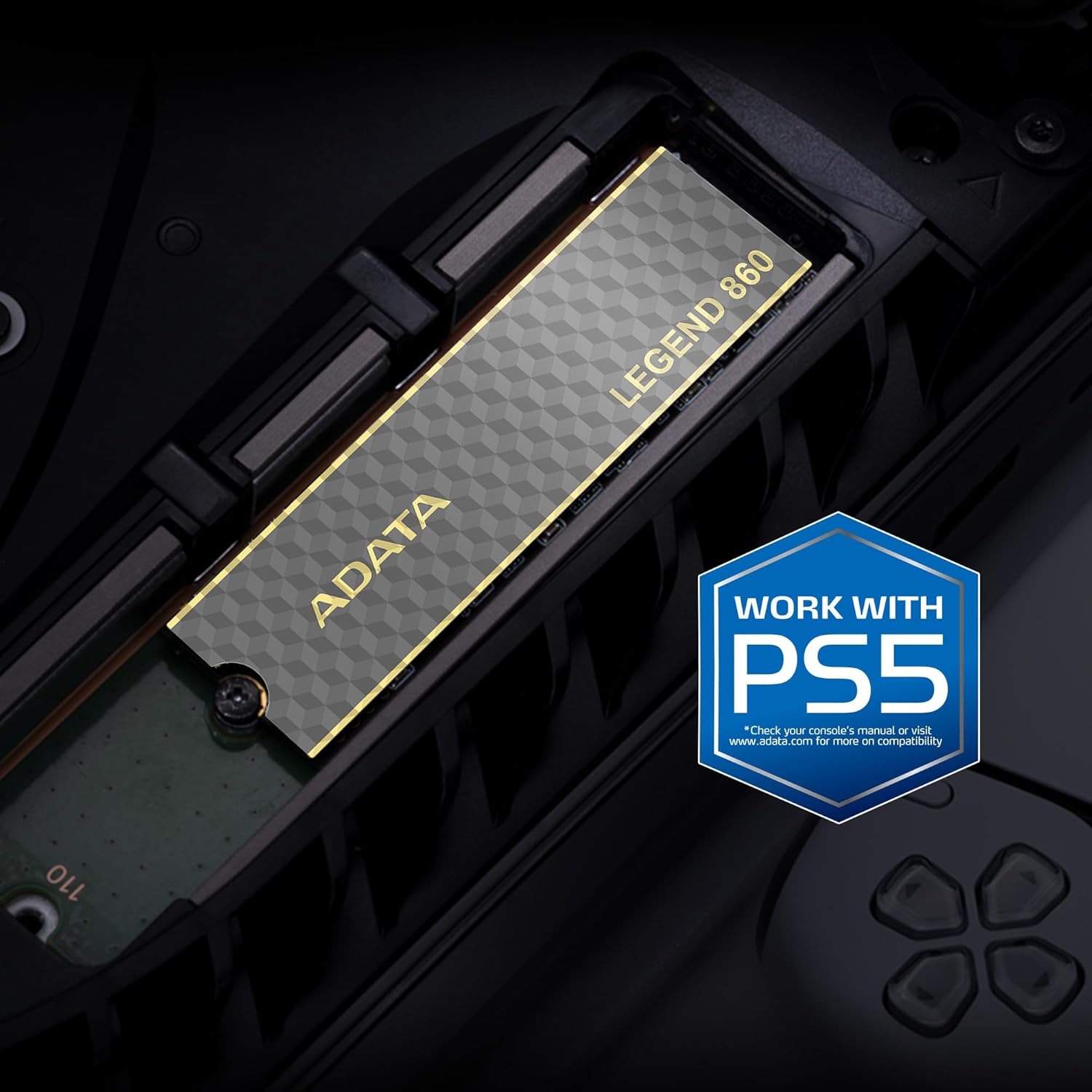
Image 3.2: The ADATA Legend 860 SSD installed within the M.2 expansion slot of a PlayStation 5 console.
4. Operating the SSD
After successful installation, your operating system (Windows, macOS, Linux) or PlayStation 5 console should detect the new storage device. You may need to initialize and format the SSD before it can be used for data storage.
4.1. Initializing and Formatting (Windows)
- Open Disk Management: Right-click on the Start button and select "Disk Management."
- Initialize Disk: Locate your new SSD (it may appear as "Disk 1" or similar and be marked as "Unallocated"). Right-click on the disk number and select "Initialize Disk." Choose GPT (GUID Partition Table) for modern systems.
- Create New Simple Volume: Right-click on the "Unallocated" space on your new SSD and select "New Simple Volume." Follow the wizard to assign a drive letter and format the drive (NTFS is recommended for Windows).
4.2. Performance Considerations
The ADATA Legend 860 utilizes PCIe Gen4 x4 interface for high-speed data transfer. Actual performance may vary depending on your system's hardware, software, and usage patterns. Ensure your motherboard supports PCIe Gen4 for optimal speeds. The SSD also features SLC caching and Host Memory Buffer (HMB) for improved responsiveness.
5. Maintenance
To ensure the longevity and optimal performance of your ADATA Legend 860 SSD, consider the following maintenance practices:
- Firmware Updates: Periodically check the official ADATA website for firmware updates for your SSD. Firmware updates can improve performance, stability, and compatibility.
- TRIM Command: Ensure your operating system has TRIM enabled. TRIM helps maintain the performance of SSDs over time by allowing the operating system to inform the SSD which data blocks are no longer in use and can be wiped.
- Avoid Full Capacity: While SSDs perform well even when nearly full, maintaining some free space (e.g., 10-15%) can help sustain optimal performance and extend lifespan.
- Data Backup: Regularly back up important data to another storage device. While SSDs are reliable, no storage device is immune to failure.
- LDPC Data Protection: The Legend 860 incorporates Low Density Parity Check (LDPC) error correction, which enhances data integrity and transmission accuracy.
6. Troubleshooting
If you encounter issues with your ADATA Legend 860 SSD, refer to the following common troubleshooting steps:
- SSD Not Detected:
- Ensure the SSD is correctly seated in the M.2 slot.
- Check your motherboard's BIOS/UEFI settings to confirm the M.2 slot is enabled and configured correctly (e.g., PCIe mode).
- Verify that your motherboard supports M.2 NVMe SSDs.
- For PS5, ensure the console cover is properly reattached and the SSD is secured.
- Slow Performance:
- Confirm your system's M.2 slot supports PCIe Gen4 speeds. If it's a Gen3 slot, the SSD will operate at Gen3 speeds.
- Ensure your operating system is up-to-date and TRIM is enabled.
- Check for background processes that might be consuming disk I/O.
- Ensure the SSD is not excessively full.
- Data Corruption/Errors:
- Run a disk check utility (e.g., CHKDSK on Windows).
- Update SSD firmware.
- Ensure proper system cooling to prevent overheating, which can affect SSD stability.
7. Specifications
| Feature | Specification |
|---|---|
| Model Name | LEGEND 860 |
| Model Number | SLEG-860-2000GCS |
| Digital Storage Capacity | 2000 GB (2TB) |
| Hard Disk Interface | PCIe Gen4 x4 |
| Form Factor | M.2 2280 |
| Read Speed (Max) | Up to 6000 MB/s |
| Write Speed (Max) | Up to 5000 MB/s |
| NAND Flash | 3D NAND |
| Error Correction | LDPC (Low Density Parity Check) |
| Features | SLC Caching, Host Memory Buffer (HMB), Shock Resistant |
| Compatible Devices | Desktop PCs, Laptops, Sony PlayStation 5 |
| Dimensions (L x W x T) | 5.51" x 1.57" x 0.31" (140mm x 40mm x 7.9mm approx.) |
| Item Weight | 11 Grams |
8. Warranty and Support
ADATA Technology Co., Ltd. provides a limited warranty for its products. For specific warranty terms, conditions, and duration applicable to your ADATA Legend 860 SSD, please refer to the warranty information included with your product packaging or visit the official ADATA website.
For technical support, driver downloads, firmware updates, or further assistance, please visit the official ADATA support website:
ADATA Official Support Website
When contacting support, please have your product model number (SLEG-860-2000GCS) and proof of purchase readily available.


