
Introduction
Welcome to the user manual for your Maxcom Celin FW27 Smartwatch. This guide provides essential information on how to set up, operate, and maintain your device. The FW27 combines elegant design with advanced technology, offering features such as health monitoring, sports tracking, and smart notifications. Please read this manual thoroughly to ensure proper use and to maximize your smartwatch experience.
Package Contents
Upon opening your Maxcom Celin FW27 Smartwatch package, please verify that all the following items are included:
- Maxcom Celin FW27 Smartwatch
- Charging Cable
- User Manual (this document)
- Additional Fabric Strap
- Extra Glass Protector
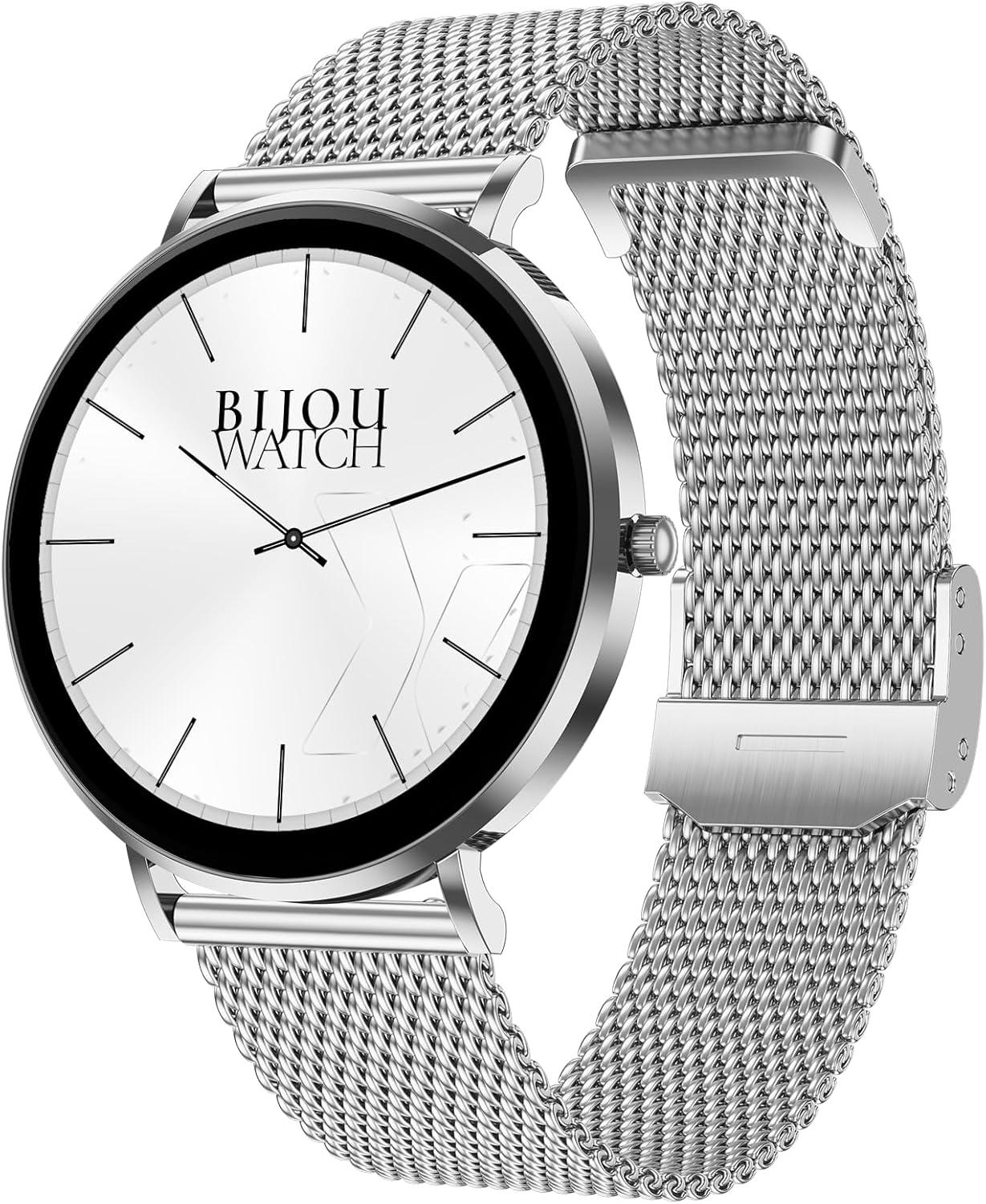
Image: The Maxcom Celin FW27 Smartwatch with its elegant silver mesh strap.
Product Overview
The Maxcom Celin FW27 Smartwatch features a sleek, ultra-slim stainless steel design with a vibrant AMOLED display. It is designed for comfort and durability, making it suitable for daily wear and various activities.
Key Components:
- AMOLED Display: High-resolution 1.35-inch screen (466x466 pixels) for clear visuals and vibrant colors, supporting Always-On Display (AOD).
- Side Button/Crown: Used for navigation, power on/off, and accessing menus.
- Sensors: Located on the back for heart rate, blood oxygen, and blood pressure monitoring.
- Charging Contacts: Magnetic contacts on the back for connecting the charging cable.
- Speaker/Microphone: For Bluetooth calling functionality.

Image: The smartwatch displaying a digital watch face with time.
Setup
1. Charging the Smartwatch
Before first use, fully charge your smartwatch.
- Connect the charging cable to a USB power adapter (not included) or a computer's USB port.
- Align the magnetic pins of the charging cable with the charging contacts on the back of the smartwatch. The cable will snap into place.
- The watch display will show a charging indicator. Allow approximately 2 hours for a full charge.
2. Powering On/Off
- Power On: Press and hold the side button for a few seconds until the Maxcom logo appears.
- Power Off: From the watch face, swipe down to access quick settings, or navigate to the settings menu. Select "Power Off" and confirm. Alternatively, press and hold the side button and select "Power Off".
3. Installing the Da Fit App
To unlock the full potential of your smartwatch, download and install the "Da Fit" app on your smartphone.
- Scan the QR code provided in the quick start guide (if available) or search for "Da Fit" in your smartphone's app store (App Store for iOS, Google Play Store for Android).
- Install the app and grant necessary permissions.
4. Pairing with Your Smartphone
- Ensure Bluetooth is enabled on your smartphone.
- Open the "Da Fit" app.
- Follow the on-screen instructions to add a new device. The app will search for your FW27 smartwatch.
- Select "FW27" from the list of available devices to pair.
- Confirm the pairing request on both your smartphone and the smartwatch.
- For calling functionality, you may need to pair the watch a second time via your phone's Bluetooth settings (look for "FW27_CALL" or similar).
Operating the Smartwatch
Basic Navigation
- Swipe Up: Access notifications.
- Swipe Down: Access quick settings (brightness, DND, battery, settings).
- Swipe Left/Right: Cycle through widgets (activity, heart rate, weather, music control, etc.).
- Press Side Button: Return to the watch face from any screen, or open the app menu from the watch face.
- Long Press Watch Face: Change watch faces.
Health and Fitness Tracking
The FW27 smartwatch is an effective health and sports tracker. It monitors various metrics to help you stay informed about your well-being.
- Heart Rate Monitoring: Continuously tracks your heart rate. Access this feature from the app menu or a dedicated widget.
- Blood Oxygen (SpO2) Monitoring: Measures your blood oxygen saturation levels.
- Blood Pressure Monitoring: Provides estimates of your blood pressure.
- Sleep Tracking: Automatically monitors your sleep patterns, including deep sleep, light sleep, and wake times.
- Activity Tracking: Records steps taken, distance covered, and calories burned throughout the day.
- Sports Modes: Supports over 70 sports modes, including cycling, running, yoga, and cardio training. Select a mode before starting your workout to track specific metrics.

Image: The smartwatch displaying a watch face with step count and battery status.
Customization (Watch Faces)
The Celin FW27 offers exclusive watch faces that can be changed to match your outfit, occasion, or mood.
- On-Watch: Long-press the watch face and swipe left/right to select from pre-installed faces.
- Via Da Fit App: Open the "Da Fit" app, navigate to the "Watch Faces" section. Choose from over 100 free watch faces or customize your own using personal photos.

Image: The smartwatch displaying an analog watch face with additional health metrics like steps and heart rate.
Calling and Notifications
With the FW27, you can answer and make calls directly from your watch. It also keeps you informed of new messages and app notifications.
- Making/Answering Calls: Ensure the watch is properly paired for calls (refer to Setup section). You can dial numbers or answer incoming calls directly on the watch.
- Notifications: The watch will alert you to new messages and app notifications (e.g., WhatsApp). Manage which app notifications appear on your watch through the "Da Fit" app settings.
Battery Life
The Maxcom Celin FW27 Smartwatch offers an extended battery life. With average use, the smartwatch can provide up to 10 days of operation on a single charge. This reduces the need for frequent charging.
Maintenance
Cleaning
- Wipe the watch screen and body with a soft, lint-free cloth.
- For stubborn dirt, slightly dampen the cloth with water. Avoid using harsh chemicals or abrasive materials.
- Clean the charging contacts regularly to ensure efficient charging.
Strap Care
- The metal mesh strap can be cleaned with a soft brush and mild soapy water, then rinsed and dried thoroughly.
- The fabric strap can be hand-washed with mild soap and water, then air-dried.
- Ensure straps are completely dry before reattaching to the watch.
Water Resistance (IP68)
The FW27 smartwatch has an IP68 rating, meaning it is resistant to dust and can withstand immersion in water up to 1.5 meters for up to 30 minutes.
- It is suitable for daily use, such as hand washing or light rain.
- Avoid using it in hot water, saunas, or during diving, as steam and high pressure can compromise the seal.
- After exposure to water, wipe the watch dry before charging or operating buttons.
Troubleshooting
| Problem | Possible Solution |
|---|---|
| Watch does not power on. | Ensure the watch is fully charged. Connect it to the charger for at least 30 minutes. |
| Cannot pair with smartphone. |
|
| Notifications are not received. |
|
| Inaccurate health data. |
|
Specifications
| Feature | Detail |
|---|---|
| Model Number | YG01010000262 |
| Brand | Maxcom |
| Display Type | AMOLED |
| Screen Size | 1.35 inches |
| Resolution | 466 x 466 pixels |
| Connectivity | Bluetooth |
| Water Resistance | IP68 |
| Special Features | Notifications, Health Tracking (Heart Rate, SpO2, Blood Pressure), Sports Modes, Bluetooth Calling, Always-On Display (AOD) |
| Battery Life | Up to 10 days (average use) |
| Material | Stainless Steel (case) |
| Shape | Round |
Warranty and Support
For warranty information and customer support, please refer to the documentation included with your purchase or visit the official Maxcom website. Keep your proof of purchase for warranty claims.
If you encounter any issues not covered in the troubleshooting section, please contact Maxcom customer service for assistance.


