
1. Product Overview
The Xmenha Wireless Touchscreen Earbuds with Smart Touch Screen Case offer an advanced audio experience with intuitive controls and superior sound quality. Featuring Bluetooth 5.4, Active Noise Cancelling (ANC), and a unique touchscreen charging case, these earbuds provide seamless connectivity and personalized listening.

Image: Xmenha Wireless Touchscreen Earbuds in their beige charging case, showcasing the integrated display.
Key Features:
- Smart Touch Screen Case: Control volume, EQ modes, time, battery level, and set alarms directly from the case's screen without needing your phone.
- Latest Bluetooth 5.4: Ensures faster transmission speed, wider range, and stronger anti-interference for a smooth music experience.
- HiFi Stereo Sound: Equipped with large 13mm speaker drivers for rich, high-fidelity audio.
- Clear Calls: Features CVC8.0 noise cancellation technology with dual HD microphones for clear communication in noisy environments.
- Ultra-Long Battery Life: Up to 5 hours of listening time on a single charge, extended to 25 hours with the charging case.
- Active Noise Cancelling (ANC): Provides deep noise cancellation for an immersive listening experience.
- Transparency Mode: Allows real-time perception of environmental sounds for safety and awareness.
2. What's in the Box
Please check the contents of your package to ensure all items are present:
- 1 x Pair of Xmenha Active Noise Cancelling Earbuds
- 1 x Smart Touch Screen Charging Case
- 1 x USB Charging Cable
- 1 x User Manual (this document)
- Ear Cushions (pre-installed or in various sizes)
3. Product Components
Familiarize yourself with the main components of your Xmenha Wireless Touchscreen Earbuds and charging case.
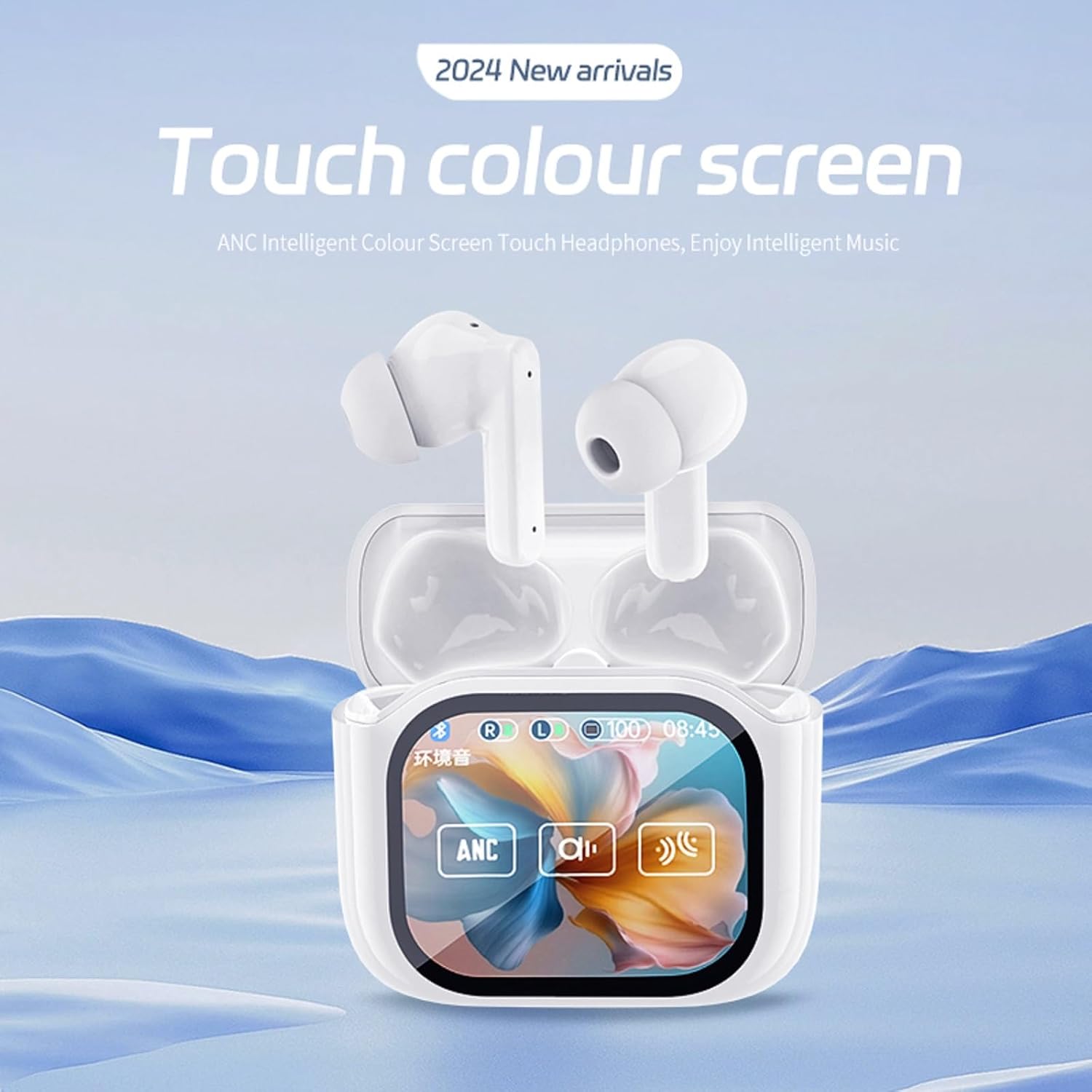
Image: White Xmenha Wireless Touchscreen Earbuds in their charging case, emphasizing the color touch screen display.
Earbud Components:
- Touch Control Area: For playback, call management, and voice assistant activation.
- Microphone: For calls and voice commands.
- Charging Contacts: Connects with the charging case.
- Speaker: Delivers audio.
Charging Case Components:
- Touch Screen Display: Interactive interface for controlling earbuds and case functions.
- Earbud Charging Slots: Securely holds and charges the earbuds.
- USB-C Charging Port: For charging the case.

Image: An exploded diagram illustrating the internal components of an earbud, including the speaker driver and circuit board.
4. Setup Guide
4.1 Charging the Earbuds and Case
- Place the earbuds into the charging case, ensuring they are correctly seated in their respective slots (L for left, R for right).
- Connect the provided USB charging cable to the USB-C port on the charging case and the other end to a compatible USB power source (e.g., wall adapter, computer USB port).
- The screen on the charging case will indicate the charging status. A full charge for the case takes approximately 1 hour.
Note: It is recommended to fully charge the earbuds and case before first use.
4.2 Initial Pairing (One-Step Connection)
- Ensure the earbuds are inside the charging case and the case is charged.
- Open the lid of the charging case. The earbuds will automatically power on and enter pairing mode.
- On your Bluetooth-enabled device (smartphone, tablet, laptop), go to the Bluetooth settings.
- Search for new devices and select "Xmenha JM19" (or similar name) from the list of available devices.
- Once connected, the earbuds will indicate successful pairing, and the case screen may show a connected icon.
The earbuds will automatically reconnect to the last paired device when removed from the case, provided Bluetooth is enabled on your device.
5. Operating Instructions
5.1 Earbud Touch Controls
The earbuds feature intuitive touch controls for various functions:
- Play/Pause: Single tap on either earbud.
- Next Track: Double tap on the right earbud.
- Previous Track: Double tap on the left earbud.
- Answer/End Call: Single tap on either earbud.
- Reject Call: Press and hold either earbud for 2 seconds.
- Activate Voice Assistant: Triple tap on either earbud.
5.2 Smart Touch Screen Case Functions
The charging case's integrated touch screen provides direct control over many features without needing your phone:
- Volume Control: Adjust audio volume directly from the screen.
- EQ Modes: Select from various equalizer presets to personalize your sound experience.

Image: A user adjusting the equalizer settings on the earbud charging case's touch screen, with options like 'prevalence', 'classical', and 'jazz'.
- Time Display: View current time.
- Battery Level: Monitor the battery status of both earbuds and the case.
- Alarm Settings: Set alarms directly from the case.
5.3 Active Noise Cancellation (ANC) and Transparency Mode
Switch between different listening modes using the touch screen on the charging case or earbud controls (refer to specific touch gestures if available in the product's quick start guide):
- Active Noise Cancellation (ANC): Reduces ambient noise, ideal for travel or noisy environments.
- Transparency Mode: Allows you to hear your surroundings while still enjoying your audio, enhancing awareness and safety.
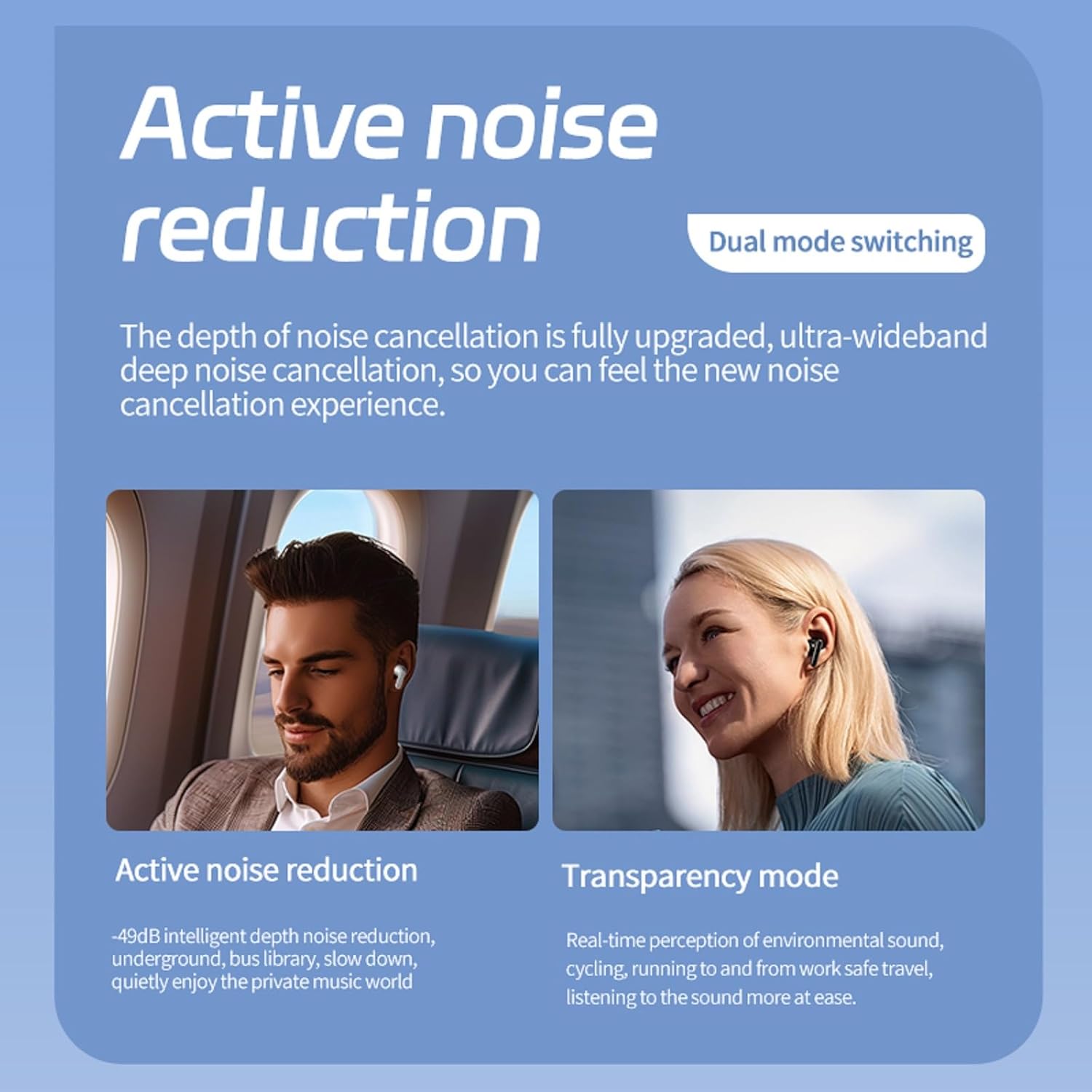
Image: Two scenarios demonstrating the benefits of active noise reduction and transparency mode, showing users in different environments.
5.4 Finding Your Headphones
If you misplace your earbuds, the charging case has a built-in buzzer function to help you locate them:
- On the charging case screen, navigate to the "Find My Headphones" feature.
- Tap the corresponding icon, and the earbuds will emit a beeping sound, making them easier to find.

Image: The charging case display showing the 'Can't find your headphones?' feature, with an icon to activate a sound to locate the earbuds.
5.5 Remote Camera Control
The earbuds are equipped with a remote control photo function, allowing you to trigger your phone's camera remotely:
- Ensure your earbuds are connected to your mobile phone via Bluetooth.
- Open your mobile phone's camera application.
- On the charging case screen, tap the camera icon or designated photo button. This will act as a remote shutter button for your phone's camera.

Image: The charging case display showing a camera icon, indicating its function as a remote shutter for a connected smartphone's camera.
6. Maintenance
6.1 Cleaning
- Regularly clean the earbuds and charging case with a soft, dry, lint-free cloth.
- Do not use abrasive cleaners, alcohol, or chemical solvents.
- Gently clean the charging contacts on both the earbuds and the case to ensure proper charging.
6.2 Battery Care
- Avoid exposing the device to extreme temperatures (hot or cold) as this can affect battery life.
- Store the earbuds and case in a cool, dry place when not in use.
- If storing for an extended period, charge the case and earbuds to at least 50% to prevent deep discharge.
7. Troubleshooting
If you encounter any issues with your Xmenha Wireless Touchscreen Earbuds, please refer to the following common solutions:
| Problem | Possible Cause | Solution |
|---|---|---|
| Earbuds not pairing/connecting. | Low battery; Bluetooth off on device; earbuds not in pairing mode; interference. | Charge earbuds and case. Ensure Bluetooth is on. Place earbuds in case, close, then open lid to re-enter pairing mode. Move closer to device. |
| No sound from one earbud. | Low battery; earbud not properly seated; connection issue. | Ensure both earbuds are charged. Place both earbuds back in the case, close the lid, wait a few seconds, then open again. Re-pair if necessary. |
| Charging case screen unresponsive. | Low battery; temporary software glitch. | Charge the case. If still unresponsive, try connecting/disconnecting the charging cable. |
| Poor sound quality. | Earbuds dirty; poor connection; audio source quality. | Clean earbuds. Ensure earbuds are within Bluetooth range. Try a different audio source. Adjust EQ settings on the case. |
If you receive a defective product or have any questions during use that are not covered here, please feel free to contact Xmenha customer support for assistance.
8. Specifications
Detailed technical specifications for the Xmenha Wireless Touchscreen Earbuds (Model JM19):
| Feature | Detail |
|---|---|
| Model Name | JM19 |
| Bluetooth Version | 5.4 |
| Transmission Distance | Approximately 10 meters (33 feet) |
| Earbud Play Time | 6-7 hours |
| Charging Time (Earbuds) | 1 hour |
| Total Play Time with Charging Case | Up to 30 hours |
| Audio Driver Size | 13 Millimeters |
| Noise Control | Active Noise Cancellation |
| Control Type | Touch Control |
| Water Resistance Level | Waterproof |
| Compatible Devices | All Bluetooth-enabled devices (iPhone, Android, Samsung, iPad, etc.) |
| Item Weight | 0.64 Ounces |
| Product Dimensions | 1 x 1 x 1 inches |
| Material | Plastic |
| Color | Beige |
9. Warranty and Support
Xmenha is committed to providing high-quality products. For any warranty claims, technical support, or questions regarding your Xmenha Wireless Touchscreen Earbuds, please contact the seller or manufacturer directly through the platform where you purchased the product.
Please retain your proof of purchase for any warranty-related inquiries.