
1. Introduction
Thank you for purchasing the GOLON RX-BT455 Portable Radio. This manual provides essential information for the safe and efficient operation of your device. Please read it thoroughly before use and retain it for future reference.
Safety Instructions
- Do not expose the unit to rain or moisture to prevent fire or electric shock.
- Do not open the casing. Refer all servicing to qualified personnel.
- Avoid placing the unit near heat sources or in direct sunlight for extended periods.
- Ensure proper ventilation around the unit.
- Use only specified power sources and batteries.
- Keep out of reach of children.
2. Package Contents
Please check that all items are present:
- GOLON RX-BT455 Portable Radio
- Charging Cable
- User Manual (this document)
3. Product Overview
Familiarize yourself with the various parts and controls of your GOLON RX-BT455 radio.

Figure 3.1: Front Panel Controls
This image displays the front of the GOLON RX-BT455 radio, highlighting the main speaker grille, the volume and tuning knobs, and various buttons for mode selection and media playback. An extendable antenna is visible at the top.
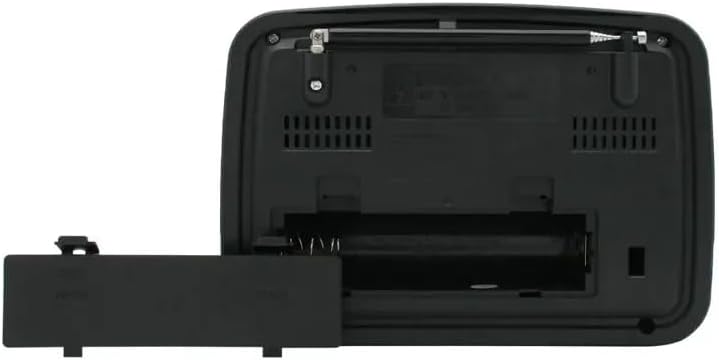
Figure 3.2: Rear Panel and Battery Compartment
This image shows the back of the radio, with the battery compartment cover removed, revealing the battery slots. Ventilation grilles are also visible.
Controls and Ports:
- Volume Knob: Adjusts audio output level.
- Tuning Knob: Selects radio frequencies.
- Function/Mode Buttons: Switches between AM, FM, SW, Bluetooth, USB, SD, AUX modes.
- Play/Pause/Next/Previous Buttons: For media playback.
- Power Switch: Turns the unit on/off.
- Torch Switch: Activates the built-in torch light.
- USB Port: For USB flash drive playback.
- SD Card Slot: For SD/TF card playback.
- AUX Input: For connecting external audio devices.
- AC IN Port: For connecting to mains power.
- LED Indicator: Indicates power or charging status.
- Antenna: Extendable for improved radio reception.
4. Setup
Powering the Radio
The GOLON RX-BT455 can be powered by batteries or via a corded electric connection.
- Battery Installation:
- Open the battery compartment cover on the rear of the unit (refer to Figure 3.2).
- Insert the required batteries (UM-1x2, not included) according to the polarity markings (+/-).
- Close the battery compartment cover securely.
- AC Power Connection:
- Connect the provided charging cable to the AC IN port on the side of the radio.
- Plug the other end of the cable into a standard wall outlet.
- The radio will operate on AC power and can charge rechargeable batteries if installed (rechargeable batteries not included).
5. Operating Instructions
5.1. Power On/Off
Slide the Power Switch to the "ON" position to turn on the radio. Slide it to "OFF" to power down the unit.
5.2. Radio Operation (AM/FM/SW)
- Extend the telescopic antenna for optimal reception.
- Press the "FUNCTION" button repeatedly to select the desired band: FM, AM, or SW.
- Rotate the "TUNING" knob to scan for radio stations.
- Adjust the "VOLUME" knob to your preferred listening level.
Note: For Shortwave (SW) reception, environmental factors can significantly affect signal quality. Try adjusting the antenna position or location for better results.
5.3. Bluetooth Mode
- Press the "FUNCTION" button until "BT" or "Bluetooth" mode is indicated (if applicable, some models may simply switch to Bluetooth audio).
- The radio will enter pairing mode, indicated by a flashing LED or an audible prompt.
- On your mobile device, enable Bluetooth and search for available devices.
- Select "GOLON RX-BT455" (or similar name) from the list to pair.
- Once paired, you can stream audio from your device to the radio. Use the radio's playback buttons (Play/Pause, Next, Previous) or your connected device to control media.
5.4. USB/SD Card Playback
- Insert a USB flash drive into the USB port or an SD/TF card into the SD card slot.
- Press the "FUNCTION" button to select "USB" or "SD" mode. The radio will automatically begin playing compatible audio files.
- Use the Play/Pause, Next, and Previous buttons to control playback.
5.5. AUX Input
- Connect an external audio device (e.g., smartphone, MP3 player) to the AUX IN port using a 3.5mm audio cable (not included).
- Press the "FUNCTION" button to select "AUX" mode.
- Audio from the connected device will now play through the radio's speaker. Control playback and volume from the external device.
5.6. Torch Function
Slide the "TORCH" switch (if present on your model) to activate the built-in LED torch light. Slide it back to turn off.
6. Maintenance
- Cleaning: Wipe the exterior of the radio with a soft, dry cloth. Do not use abrasive cleaners or solvents.
- Storage: If storing the radio for an extended period, remove the batteries to prevent leakage. Store in a cool, dry place away from direct sunlight.
- Antenna Care: Handle the telescopic antenna gently to avoid bending or breaking.
7. Troubleshooting
| Problem | Possible Cause | Solution |
|---|---|---|
| No power | Batteries are dead or incorrectly inserted; AC cable not connected. | Replace batteries or check polarity; ensure AC cable is securely plugged in. |
| Poor radio reception | Antenna not extended; weak signal; interference. | Extend antenna fully; reposition the radio; try tuning to a stronger station. |
| Bluetooth not pairing | Radio not in pairing mode; device too far; Bluetooth off on external device. | Ensure radio is in Bluetooth mode; bring devices closer; enable Bluetooth on your device. |
| USB/SD card not playing | Incorrect mode selected; unsupported file format; corrupted media. | Select correct mode; ensure files are compatible (e.g., MP3); try a different USB/SD card. |
8. Specifications
| Model | RX-BT455 |
| Brand | GOLON |
| Radio Bands Supported | AM, FM, SW3 |
| Connectivity Technology | Bluetooth |
| Media Playback | USB, SD Card, AUX Input |
| Power Source | Battery Powered (UM-1x2, not included), Corded Electric |
| Special Features | Portable, Built-in Torch |
| Item Dimensions (L x W x H) | 22L x 9W x 17H centimeters |
| Included Components | Charging Cable |
| Manufacturer | Golon |
| Country of Origin | China |
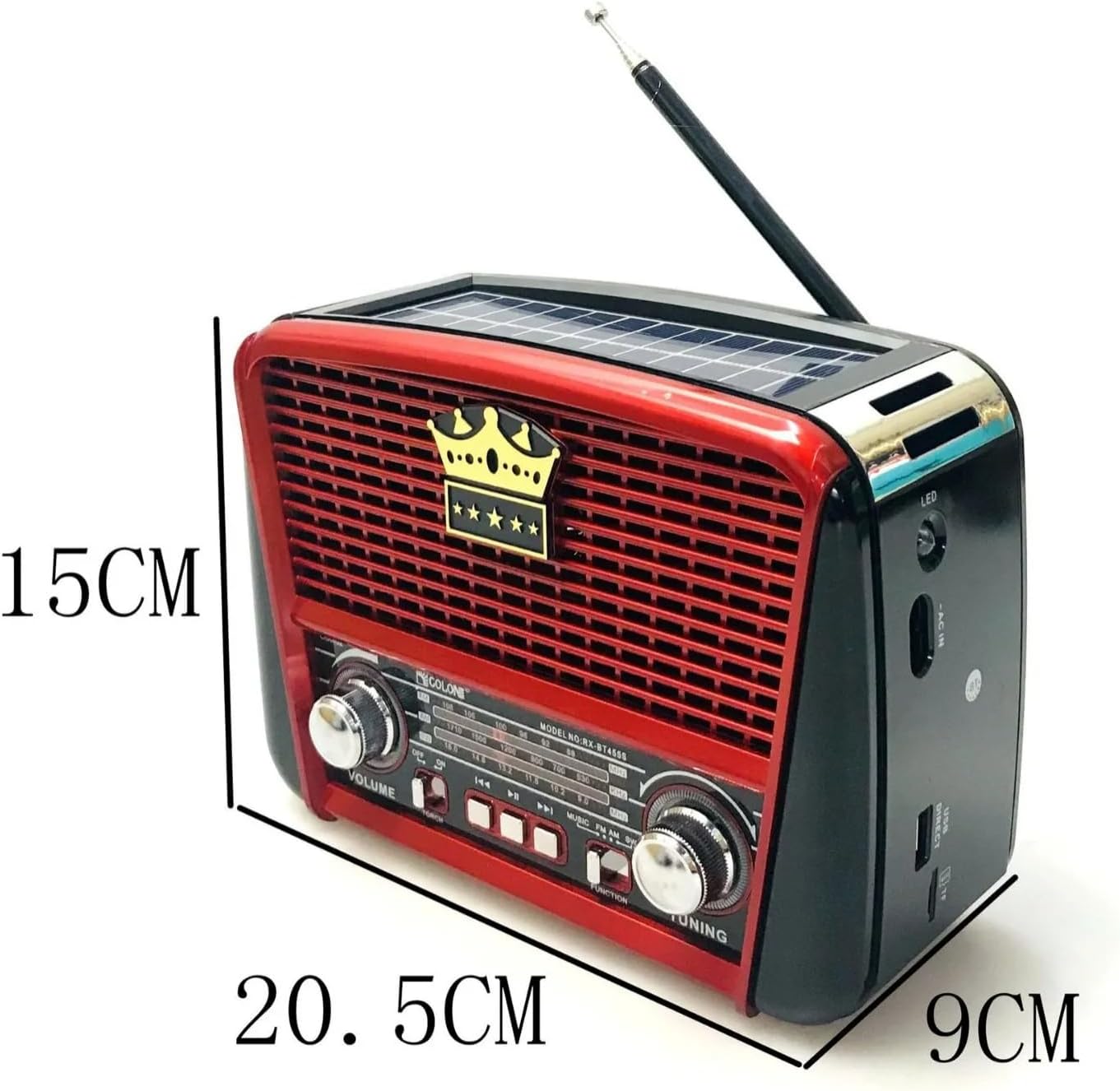
Figure 8.1: Product Dimensions
This image illustrates the physical dimensions of the GOLON RX-BT455 radio, showing its height, width, and depth for reference.
9. Warranty and Support
GOLON products are manufactured to high-quality standards. For warranty information or technical support, please refer to the documentation provided at the time of purchase or contact your retailer. Keep your purchase receipt as proof of purchase.
For further assistance, please visit the official GOLON website or contact customer service through your point of purchase.


