
Line 6 99-060-3300
Line 6 POD Express Black Instruction Manual
Model: 99-060-3300
Introduction
The Line 6 POD Express Black is a compact and portable amp and effects processor designed for guitarists. It provides a versatile toolkit of sounds, ranging from classic tones to modern high-gain sounds, all derived from Line 6's acclaimed HX family of processors. Its user-friendly interface ensures ease of use, making it suitable for practice, recording, and live performance.
This device offers seven distinct amp models, seven cabinet simulations, and 17 effects including distortion, modulation, reverb, and delay, along with a built-in looper. It can be powered by three AA batteries for ultimate portability or an optional 9-volt power supply. For deeper tone editing, preset management, and global settings, the free POD Express Edit app is available for computer and mobile devices.
Key features include stereo outputs, tap tempo functionality, an integrated tuner, a noise gate, a headphone output for silent practice, and a USB-C audio interface with re-amping capabilities. The unit also supports optional external expression pedals for volume control or up to two footswitches for preset selection or effect toggling.
Setup
Powering the Unit
- Battery Power: The POD Express Black can be powered by three (3) AA batteries (included). Insert them into the battery compartment located on the underside of the unit, ensuring correct polarity.
- External Power Supply: For extended use or when batteries are not preferred, connect an optional 9-volt DC power supply (center-negative, 500mA minimum) to the "DC IN" jack on the rear panel.
Connecting Your Equipment
Refer to the image below for port locations.

Image: Rear view of the Line 6 POD Express Black, highlighting the input, output, volume, USB-C, and DC IN ports for various connections.
- Instrument Input: Connect your guitar or other instrument to the "IN" jack using a standard 1/4-inch instrument cable.
- Audio Output: Connect the "L/MONO" output to your amplifier, mixer, or audio interface. For stereo output, also connect the "RIGHT" output. Use standard 1/4-inch instrument cables.
- Headphone Output: For silent practice, connect headphones to the 1/8-inch (3.5mm) headphone jack located on the side of the unit. Adjust headphone volume using the dedicated volume slider.
- USB-C Connection: Connect the USB-C port to your computer for recording, re-amping, and using the POD Express Edit app.
- External Footswitches/Expression Pedal: The "FS 3/4" jack allows connection of an optional expression pedal for volume control or up to two external footswitches for additional control over presets or effects. Consult the POD Express Edit app for configuration options.
Operating Instructions
The POD Express Black features intuitive controls for quick tone shaping. Familiarize yourself with the main controls shown below.

Image: Top view of the Line 6 POD Express Black, displaying all control knobs and footswitches for sound manipulation.
Control Knobs
- DIST GAIN: Controls the gain level of the selected distortion effect. Rotate to select between different distortion types:
- LED: LED clipping distortion.
- Distort: Classic distortion.
- Fuzz: Vintage fuzz effect.
- OpAmp: Op-amp based distortion.
- BOOST MID: Adjusts the boost level and mid-range characteristics. Rotate to select between different boost/EQ types:
- Mids: Mid-range boost.
- Dirty: Gritty boost.
- Clean: Transparent clean boost.
- Comp: Compression effect.
- AMP: Selects the amplifier model. Rotate to choose from various amp types:
- Anvil: High-gain metal amp.
- Slay: Modern high-gain amp.
- Mega: Aggressive high-gain amp.
- Pure: Clean, transparent amp.
- Avant: Boutique clean amp.
- Crux: Classic rock amp.
- Dirge: Vintage low-gain amp.
- MOD BASS: Controls modulation effects and bass response. Rotate to select modulation types:
- Chorus: Classic chorus effect.
- Flanger: Sweeping flanger effect.
- Phaser: Phasing effect.
- Tremolo: Volume modulation.
- DELAY/VERB TREBLE: Controls delay and reverb effects, and treble response. Rotate to select effect types:
- Tape: Tape echo delay.
- Digital: Digital delay.
- Ambience: Subtle room reverb.
- Hall: Large hall reverb.
- CH. VOL / SAVE: Adjusts the channel volume. Press and hold to save your current preset.
- ALT Button: Press this button to access alternate functions of the knobs and footswitches, indicated by the secondary labels.
- Volume Knob: Controls the overall output volume of the unit.
Footswitches
- Left Footswitch (ON / PRESETS):
- Single Press: Toggles the main effect on/off.
- Press with ALT: Cycles through presets.
- Right Footswitch (TUNER / TAP):
- Single Press: Activates the tuner.
- Press with ALT: Sets the tempo for delay effects (tap tempo).
Using the POD Express Edit App
The free POD Express Edit app, available for computer and mobile devices, provides comprehensive control over your POD Express Black. Connect your unit via USB-C to access a graphical interface for:
- Deeper tone editing and parameter adjustments.
- Managing and organizing presets.
- Configuring global settings and external footswitch assignments.
- Updating firmware.
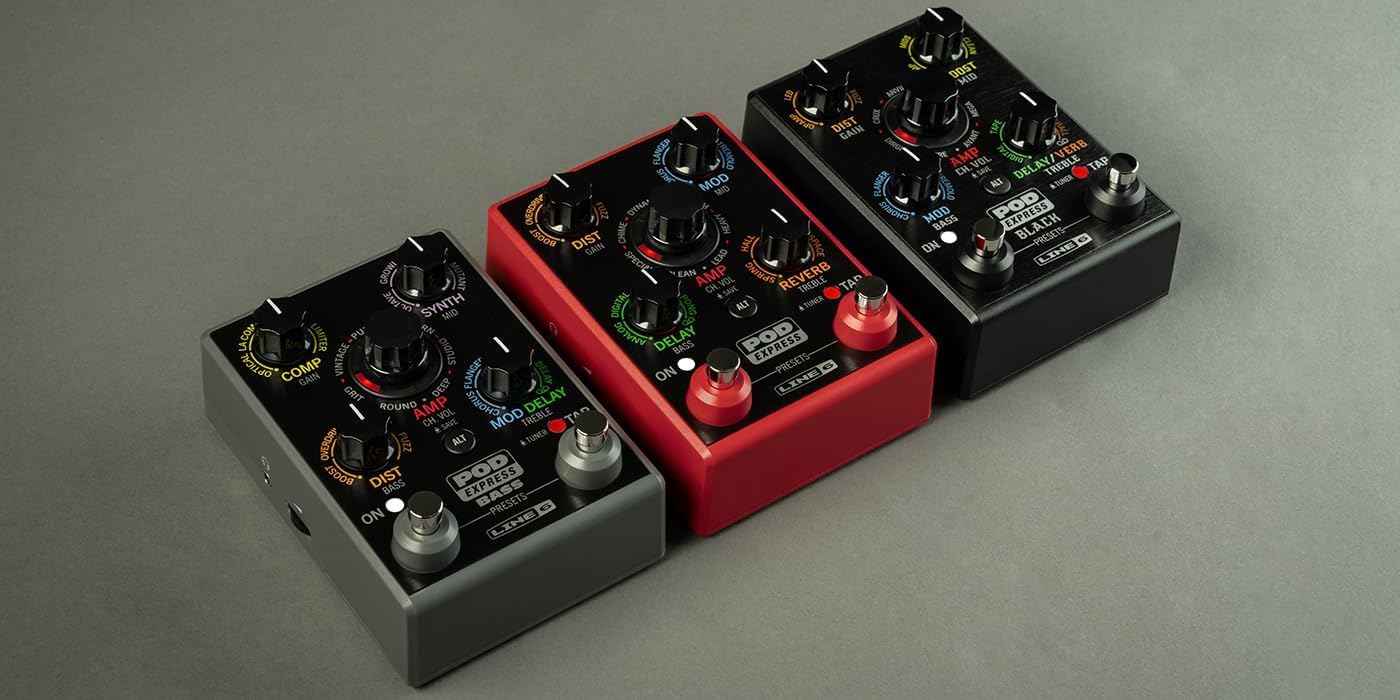
Image: The Line 6 POD Express Black connected to a guitar and headphones, illustrating a typical setup for practice or recording.
Maintenance
Cleaning
To clean the unit, use a soft, dry cloth. Do not use abrasive cleaners, waxes, or solvents, as these can damage the finish and internal components. Ensure the unit is powered off and disconnected from all power sources before cleaning.
Battery Replacement
When the unit's performance degrades or the power indicator light dims, it's time to replace the AA batteries. Open the battery compartment on the underside, remove the old batteries, and insert new ones, observing correct polarity (+/-). Dispose of used batteries responsibly.
Storage
If storing the POD Express Black for an extended period, remove the batteries to prevent leakage and potential damage. Store the unit in a cool, dry place away from direct sunlight and extreme temperatures.
Troubleshooting
| Problem | Possible Cause | Solution |
|---|---|---|
| No sound output. | Incorrect cable connections, low volume, dead batteries, unit off. | Check all cable connections (input, output, headphones). Ensure volume knobs are turned up. Replace batteries or connect external power. Verify the unit is powered on. |
| Sound is distorted or noisy. | Input signal too hot, incorrect gain settings, faulty cable. | Reduce the input volume from your instrument. Adjust the DIST GAIN and AMP settings. Try a different instrument cable. Ensure the noise gate is properly configured. |
| Unit does not power on. | Dead batteries, power supply issue. | Replace batteries. Ensure the external power supply is correctly connected and functioning (9V DC, center-negative). |
| Cannot connect to POD Express Edit app. | USB cable issue, driver not installed, app not running. | Ensure USB-C cable is securely connected. Download and install the latest drivers from the Line 6 website. Make sure the POD Express Edit app is open and running. |
Specifications
| Feature | Detail |
|---|---|
| Item Weight | 1.32 pounds (approx. 0.6 kg) |
| Package Dimensions | 7.56 x 6.42 x 2.91 inches (approx. 19.2 x 16.3 x 7.4 cm) |
| Hardware Interface | USB Type C |
| Signal Format | Digital |
| Power Source | Battery Powered (3x AA) or 9V DC Power Supply (optional) |
| Voltage | 9 Volts |
| Audio Output Effects | Distortion, Modulation, Reverb, Delay, Looper |
| Controls Type | Footswitch, Pedal, Rotary Knobs, Push Buttons |
Warranty and Support
For detailed warranty information, product registration, and technical support, please visit the official Line 6 website or contact Line 6 customer service. Keep your purchase receipt as proof of purchase for warranty claims.
Line 6 Official Website: line6.com
Related documents99-060-3300


Ask a question about this manual
Ask about setup, troubleshooting, compatibility, parts, safety, or missing instructions. Manuals+ will review the question and use this page’s manual context to help answer it.