1. Introduction
Thank you for purchasing the Samsung 50-inch Class DU6900 Series Crystal UHD 4K Smart Tizen TV. This television is designed to provide a rich viewing experience with vibrant colors and sharp 4K resolution. It features PurColor technology for a wide spectrum of colors, 4K Upscaling for enhanced clarity, and Motion Xcelerator for smooth motion. The integrated Tizen Smart Hub offers access to various streaming services and smart features.
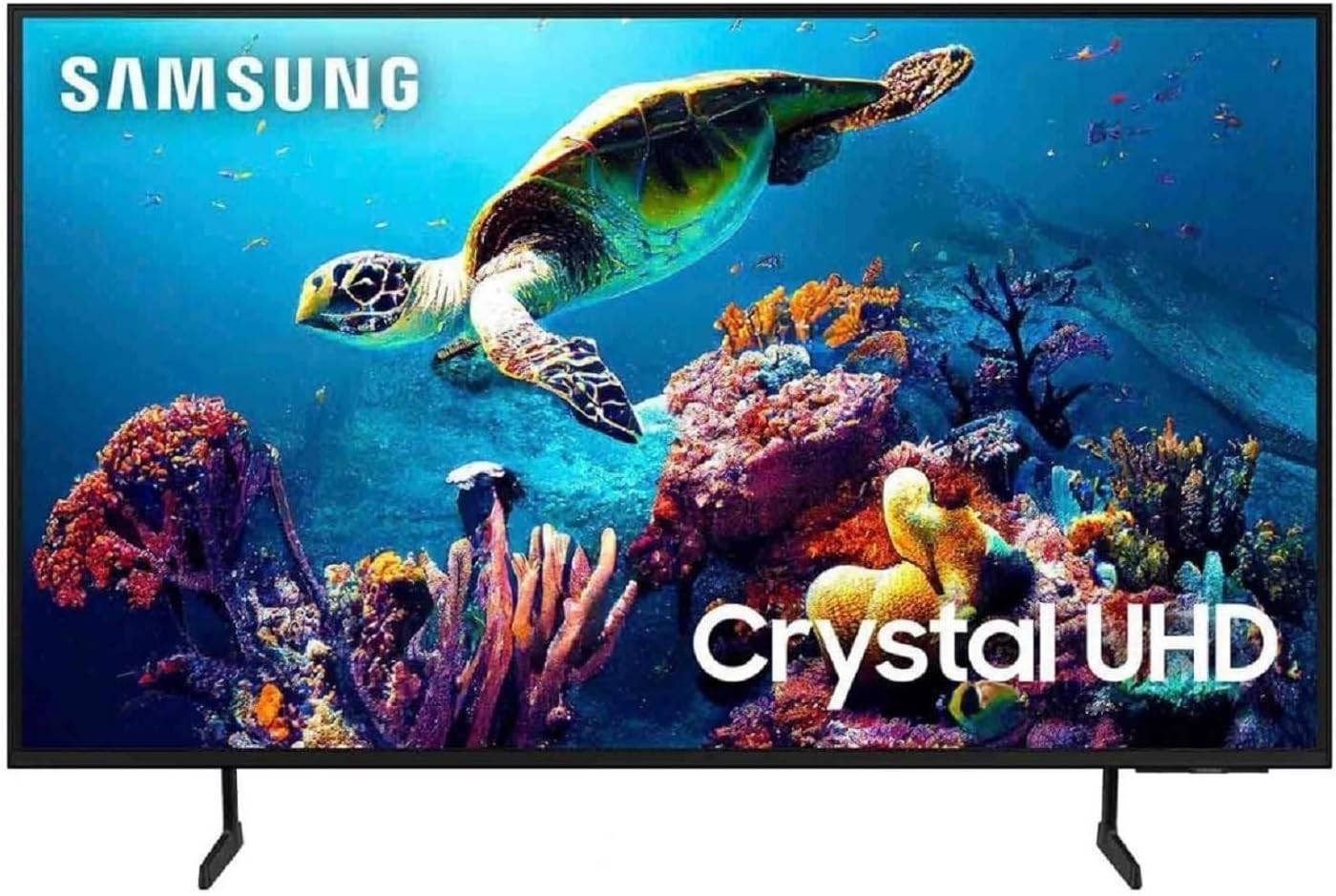
Figure 1.1: Front view of the Samsung 50-inch Class DU6900 Series Crystal UHD 4K Smart Tizen TV.
2. What's in the Box
Please check that all the following items are included with your television:
- Samsung 50" Crystal UHD 4K Smart Tizen TV
- Remote control with Batteries (2 AAA batteries required)
- AC Power cable
- Stand Feet
- User Guide (this document)
3. Setup Guide
3.1 Unpacking and Stand Installation
Carefully remove the TV from its packaging. Place the TV screen-down on a soft, flat surface to prevent damage. Attach the stand feet to the designated slots on the bottom of the TV, ensuring they are securely fastened with the provided screws.

Figure 3.1: Angled view of the TV with stand, illustrating proper placement.
3.2 Connecting Power and Devices
- Power Connection: Connect the AC power cable to the TV's power input and then to a wall outlet.
- External Devices: Connect your external devices (e.g., cable box, Blu-ray player, gaming console) to the HDMI ports on the back of the TV. Ensure cables are securely inserted.
- Antenna/Cable: If using an antenna or cable connection, connect the coaxial cable to the 'ANT IN' port.
3.3 Initial Setup and Smart Features
Once powered on, the TV will guide you through the initial setup process. This includes selecting your language, connecting to a Wi-Fi network, and agreeing to terms and conditions. Follow the on-screen prompts to configure your TV's basic settings and access the Tizen Smart Hub.
4. Operating Your Samsung TV
4.1 Remote Control Overview
The included remote control allows you to navigate the TV's interface, change channels, adjust volume, and access smart features. Familiarize yourself with the buttons for power, volume, channel, Smart Hub, and navigation.
4.2 Navigating Tizen Smart Hub
Press the Smart Hub button on your remote to access the Smart Hub. Here you can find installed apps, recommended content, and access to various streaming services. Use the directional pad to navigate and the 'Enter' button to select.
4.3 Picture and Sound Settings
To adjust picture and sound settings, press the Settings button on your remote. Navigate to 'Picture' or 'Sound' to customize options such as brightness, contrast, color, sound mode, and equalizer settings. The TV features Mega Contrast for optimized brightness and contrast levels.
4.4 Connectivity (Wi-Fi & Bluetooth)
Your TV supports Wi-Fi for internet access and Bluetooth for connecting compatible devices like headphones or soundbars. To manage these connections, go to Settings > General > Network for Wi-Fi, and Settings > Sound > Sound Output for Bluetooth audio devices.
5. Maintenance and Care
5.1 Cleaning Your TV
To clean the screen, gently wipe it with a soft, dry microfiber cloth. For stubborn marks, lightly dampen the cloth with water or a screen-specific cleaning solution. Avoid using harsh chemicals or abrasive materials. Clean the TV frame and stand with a soft, dry cloth.
5.2 Software Updates
Regular software updates ensure optimal performance and introduce new features. To check for updates, go to Settings > Support > Software Update > Update Now. Ensure your TV is connected to the internet for this process.
6. Troubleshooting Common Issues
- No Power: Ensure the power cable is securely connected to both the TV and the wall outlet. Test the outlet with another device.
- No Picture/Sound: Check that the correct input source is selected. Verify all external device connections. Restart connected devices.
- Remote Not Working: Replace the AAA batteries in the remote control. Ensure there are no obstructions between the remote and the TV's sensor.
- Wi-Fi Connection Issues: Restart your router and modem. Reconnect the TV to the Wi-Fi network via the settings menu. Ensure the TV is within range of your router.
- Picture Quality Issues: Adjust picture settings (brightness, contrast, sharpness). Ensure the input source is providing a high-quality signal.
7. Technical Specifications

Figure 7.1: Side profile of the Samsung DU6900 Series TV.
| Feature | Specification |
|---|---|
| Brand Name | Samsung |
| Model Number | UN50DU6900FXZA |
| Screen Size | 49.5 Inches (Visible screen diagonal: 50" / 126 cm) |
| Display Technology | LED |
| Resolution | 4K UHD |
| Refresh Rate | 60 Hz |
| Special Features | PurColor, 4K Upscaling, Motion Xcelerator, Object Tracking Sound Lite, Mega Contrast |
| Connectivity Technology | Bluetooth, Wi-Fi |
| Product Dimensions (D x W x H) | 9.3 x 44.1 x 27.3 inches |
| Item Weight | 21.8 pounds |
| On-mode power consumption | 89 watts |
| Voltage | 120 Volts (AC) |
8. Warranty and Customer Support
Samsung products are manufactured with quality and care. For information regarding your product's warranty, please refer to the warranty card included in your product packaging or visit the official Samsung website. For technical support, troubleshooting assistance, or service inquiries, please contact Samsung Customer Service through their official support channels. You can typically find contact information on the Samsung website or in your product documentation.
Online Support: Visit www.samsung.com/us/support/ for FAQs, manuals, and software downloads.


