
Introduction
Thank you for choosing the jely Wi-Fi Weather Station. This device provides comprehensive weather information, including indoor and outdoor temperature and humidity, a 5-day weather forecast, UV index, and serves as an alarm clock. With Wi-Fi connectivity, you can monitor data and control settings via the Tuya Smart app. This manual will guide you through the setup, operation, and maintenance of your weather station.
Video: Overview of the jely Wi-Fi Weather Station, demonstrating its features, external sensor installation, display functions, and app connectivity. This video provides a quick visual guide to the product's capabilities and initial setup steps.
What's in the Box
Please check the package contents carefully:
- 1 x jely Wi-Fi Weather Station
- 1 x External Sensor
- 1 x Power Adapter
- 1 x User Manual
Product Features
- Large Color Display: A 16.7*9.3 cm screen clearly shows time, date, indoor/outdoor temperature and humidity, comfort level, and weather forecasts.
- 5-Day Weather Forecast: Provides weather conditions, maximum and minimum temperatures, and UV index for the next five days.
- Wi-Fi Connectivity: Automatically adapts to local date and time and retrieves weather conditions via 2.4 GHz Wi-Fi. Remote monitoring is available through the Tuya Smart App.
- Adjustable Backlight: Offers 4 brightness levels (10%, 40%, 70%, 100%) when powered by the adapter. In battery mode, one brightness level is available, and the screen stays on for 15 seconds to conserve energy.
- Multiple Alarms: Supports up to 3 alarm settings.
- Long-Range External Sensor: Supports up to three external sensors (one included) with a transmission range of up to 100 meters in open areas.
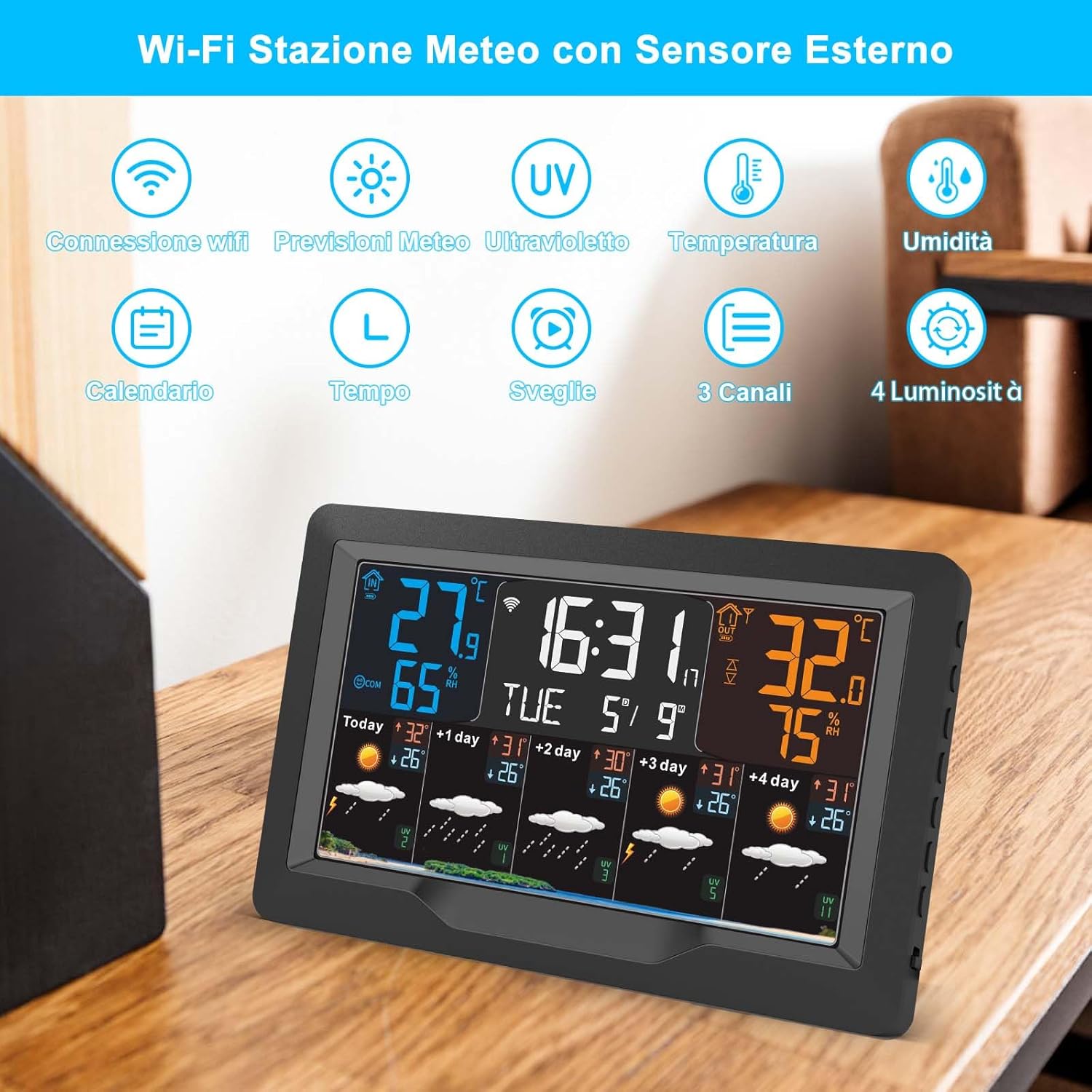
Image: The main display of the jely Wi-Fi Weather Station, highlighting its various data points including current time, date, indoor and outdoor temperature and humidity, and a visual representation of the 5-day weather forecast.

Image: A close-up of the weather station's display showing the detailed 5-day weather forecast. Each day includes high and low temperatures, a weather icon (e.g., sunny, cloudy, rainy), and the UV index.

Image: This image illustrates the four adjustable brightness levels of the weather station's display, from a dim 10% to a bright 100%, allowing users to customize visibility based on ambient light conditions.

Image: The weather station display with alarm icons visible, accompanied by an image of a person waking up, demonstrating the device's capability to support up to three distinct alarm settings.
Setup
1. Powering the Weather Station
Connect the provided power adapter to the weather station and plug it into a power outlet. The display will light up. Alternatively, you can use batteries for temporary power, but Wi-Fi functionality requires the power adapter.
2. Installing the External Sensor
Insert batteries into the external sensor. Place the external sensor in a dry, sheltered location outdoors, away from direct sunlight and rain, to ensure accurate readings. The sensor has a transmission range of up to 100 meters in open areas.
3. Placement Options
The weather station can be placed on a desktop or mounted on a wall using the hole on the back of the unit.
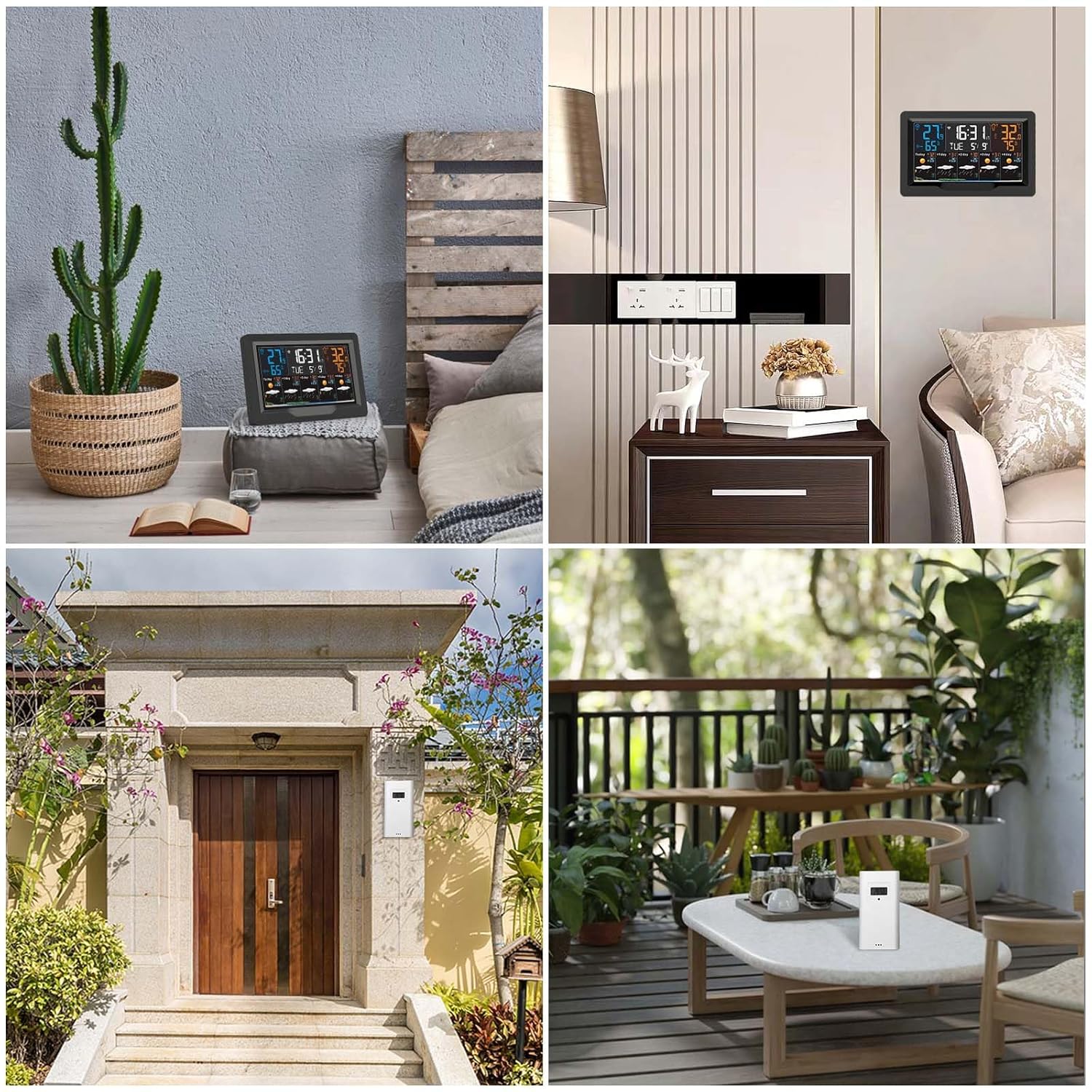
Image: This composite image displays two common installation methods for the weather station: one showing it resting on a bedside table, and another showing it securely mounted on a wall, illustrating its versatility in placement.

Image: A visual representation of the weather station's capability to support up to three external sensors across a transmission distance of up to 100 meters. The image shows sensors placed in various locations like a kitchen, a baby's room, and an outdoor patio, highlighting its multi-channel monitoring feature.
App Connection (Wi-Fi Setup)
To unlock the full potential of your jely Weather Station, connect it to the Tuya Smart app via Wi-Fi. Note: Wi-Fi connection is only supported when the weather station is powered by the adapter and operates on a 2.4 GHz Wi-Fi network.
- Ensure your smartphone is connected to a 2.4 GHz Wi-Fi network.
- Enable Bluetooth on your smartphone.
- Download the 'Tuya Smart' app from the App Store (iOS) or Google Play Store (Android).
- Open the Tuya Smart app, register or log in, and add a new device. The app will guide you through the pairing process. You will need to enter your Wi-Fi password.
- If your phone cannot find the device, press and hold the 'down' button on the right side of the weather station for 5 seconds until the Wi-Fi icon starts flashing.

Image: A visual guide detailing the steps to connect the weather station to your Wi-Fi network using the Tuya Smart app. It shows screenshots of the app interface for adding a device and entering Wi-Fi credentials.

Image: The jely Wi-Fi Weather Station displayed alongside a smartphone showing the Tuya Smart app interface. This illustrates the seamless connection and data synchronization between the device and the mobile application.

Image: Mobile device screens (smartphone and smartwatch) displaying the Tuya Smart app, which shows real-time weather data. This highlights the ability to view your weather station's information remotely, anytime and anywhere.
Operating Instructions
1. Display Information
The main screen displays the following information:
- Current Time and Date
- Indoor Temperature and Humidity
- Outdoor Temperature and Humidity (from external sensor)
- Comfort Level Indicator
- 5-Day Weather Forecast with icons, min/max temperatures, and UV index
- Wi-Fi Connection Status
2. Adjusting Brightness
When the weather station is powered by the adapter, you can cycle through 4 brightness levels (10%, 40%, 70%, 100%) using the dedicated button (refer to the user manual for button location). In battery mode, the screen will illuminate for 15 seconds when a button is pressed to save power.
3. Setting Alarms
The weather station supports up to 3 alarms. Refer to the detailed user manual for specific instructions on setting and managing alarms directly on the device or through the Tuya Smart app.
Maintenance
- Clean the weather station and external sensor with a soft, dry cloth. Do not use abrasive cleaners or solvents.
- Ensure the external sensor is kept in a dry location to prevent water damage.
- Replace batteries in the external sensor when indicated by the low battery icon on the main display.
Troubleshooting
- No Display: Ensure the power adapter is securely connected or that fresh batteries are installed.
- External Sensor Not Reading: Check if the sensor batteries are installed correctly and are not depleted. Ensure the sensor is within the 100-meter range and not obstructed by thick walls or metal structures. Verify the sensor is on the correct channel.
- Wi-Fi Connection Issues:
- Confirm your Wi-Fi network is 2.4 GHz. The device does not support 5 GHz Wi-Fi.
- Ensure the weather station is connected to the power adapter, as Wi-Fi functionality is disabled in battery mode.
- Check your Wi-Fi password for accuracy.
- If the app cannot find the device, press and hold the 'down' button on the right side of the weather station for 5 seconds until the Wi-Fi icon flashes to re-enter pairing mode.
- Inaccurate Readings: Ensure the external sensor is placed in a location free from direct sunlight, heat sources, or excessive moisture.

Image: A visual summary of important precautions and notes for the weather station, covering aspects like battery exclusion, brightness adjustment limitations, Wi-Fi connectivity requirements (2.4 GHz only, adapter needed), and a troubleshooting tip for Wi-Fi pairing.
Specifications
| Brand | jely |
| Model Number | B0D7W3MVKL |
| Display Type | Color Display |
| Connectivity Technology | Wi-Fi (2.4 GHz only) |
| Power Source | Corded Electric (Adapter included) |
| External Sensor Channels | 3 (1 sensor included) |
| External Sensor Transmission Range | Up to 100 meters (open areas) |
| Temperature Accuracy | 1 Degree Celsius |
| Operating Temperature (Upper) | 50 Degrees Celsius |
| Material | Acrylonitrile Butadiene Styrene (ABS) |
| Dimensions (DxWxH) | 7.3P x 22.9l x 15.5H cm |
Safety Information
- Do not expose the device or sensor to extreme temperatures, direct sunlight, or excessive moisture.
- Keep out of reach of children.
- Do not attempt to disassemble or repair the device yourself. Contact customer support for assistance.
- Use only the provided power adapter.
Warranty and Support
Your jely Wi-Fi Weather Station comes with a standard manufacturer's warranty. For warranty claims, technical support, or any questions regarding your product, please refer to the contact information provided in your original purchase documentation or visit the jely brand store on Amazon.
jely Brand Store: Visit jely Store
