
1. Introduction
Thank you for purchasing the Alwtniet L018 NTV Smart Projector. This manual provides essential information for the safe and efficient operation of your device. Please read it thoroughly before use and retain it for future reference.
The Alwtniet L018 NTV is a portable smart projector featuring Android 13, native 1080P resolution with 4K support, auto-focus, auto keystone correction, dual-band Wi-Fi, Bluetooth 5.2, and voice control. It is designed to deliver a versatile home theater experience.
2. Product Overview
Key Features:
- Android 13 OS: Access over 700 official TV applications and the Play Store for entertainment.
- Native 1080P Resolution & 4K Support: Delivers clear and vibrant images with 400 ANSI lumens brightness.
- Auto-Focus & 6D Keystone Correction: Automatic image adjustment within 3 seconds for a clear projection from various angles.
- 180° Rotation Stand: Flexible projection angles for ceiling, wall, or floor.
- Dual-Band Wi-Fi (2.4G/5G): Stable and fast wireless connectivity for streaming and screen mirroring.
- Bluetooth 5.2: Connect external speakers or use the projector as a standalone Bluetooth speaker.
- Voice Remote Control: Convenient control and navigation using voice commands.
- Built-in Hi-Fi Stereo Speakers: Provides immersive audio.
Components:
The projector package includes the Alwtniet L018 NTV projector, a power adapter, and a voice remote control.
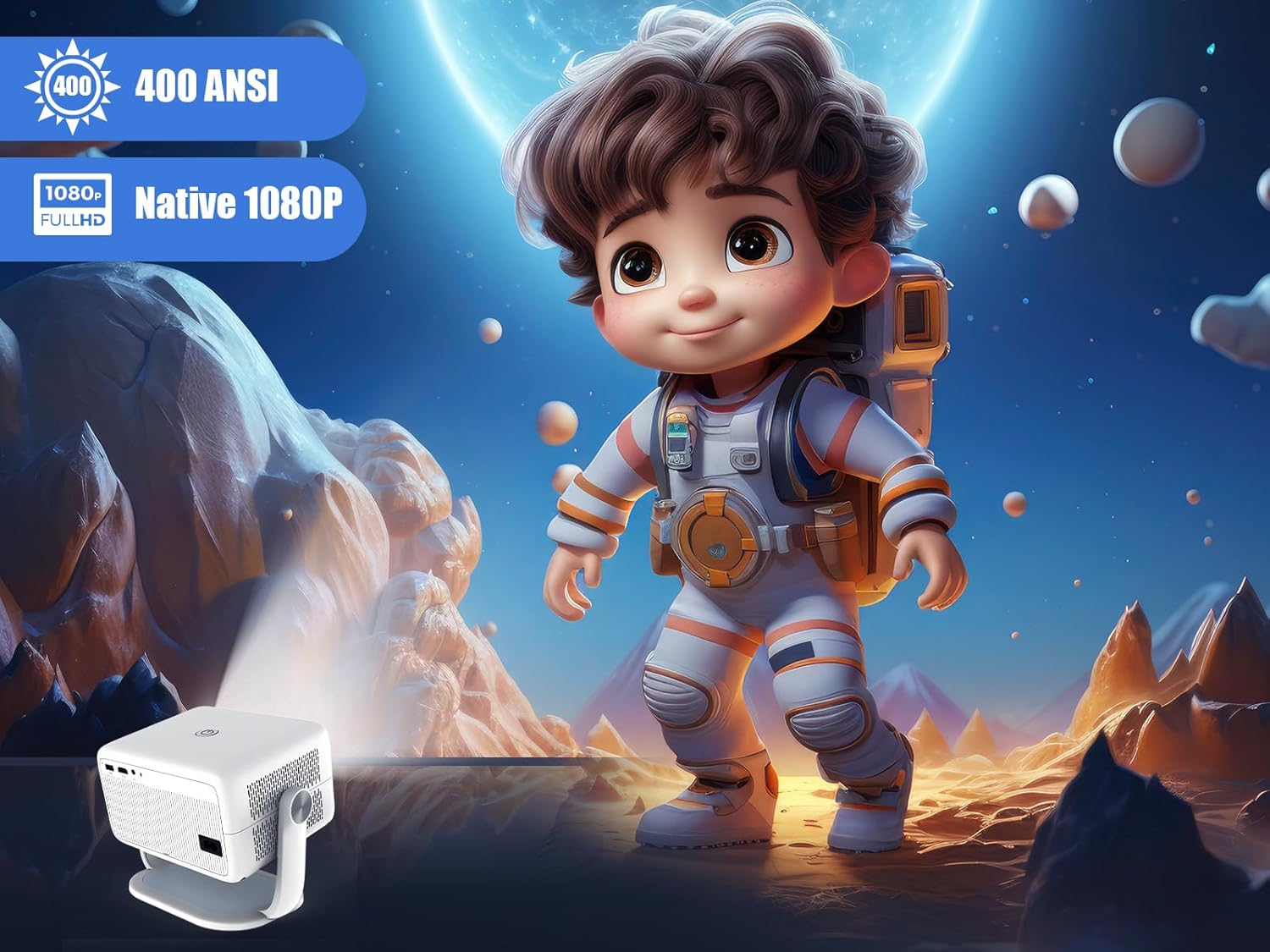
Figure 2.1: Alwtniet L018 NTV Smart Projector. This image shows the compact design of the projector, highlighting its portability and integrated stand.
3. Setup
3.1 Unboxing and Initial Power-On
- Carefully remove the projector and all accessories from the packaging.
- Connect the power adapter to the projector's power input port and then plug it into an electrical outlet.
- Press the power button on the projector or the remote control to turn on the device.
3.2 Placement and Projection Adjustment
Position the projector on a stable surface. The integrated 180° rotation stand allows for flexible placement, enabling projection onto walls, ceilings, or floors.
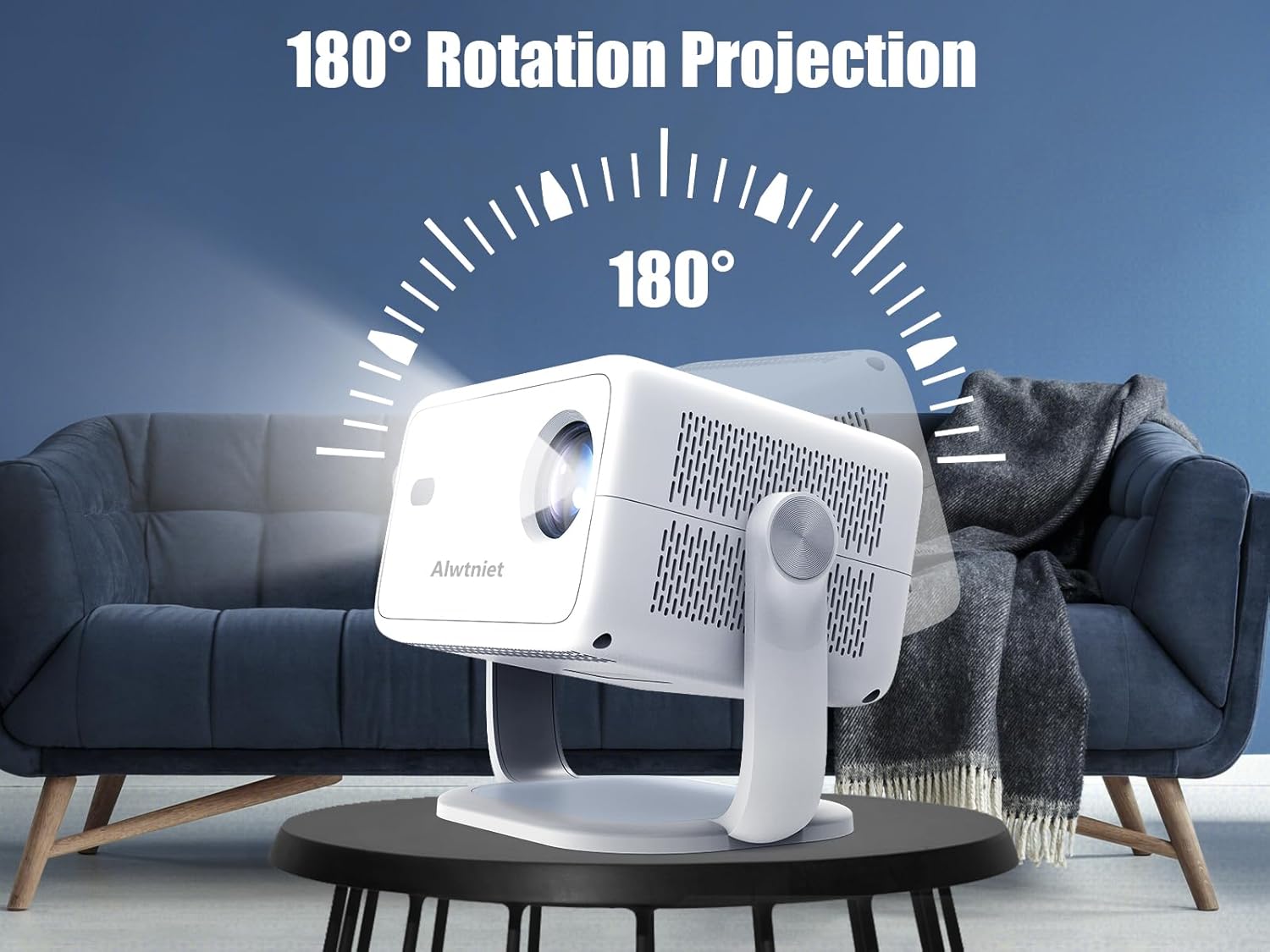
Figure 3.1: 180° Rotation Projection. This image illustrates the projector's ability to rotate on its stand, allowing for versatile projection angles.
The projector features Auto-Focus and 6D Keystone Correction. Upon startup or movement, the projector will automatically adjust the image focus and shape within approximately 3 seconds to ensure a clear and rectangular projection. Manual adjustments can also be made via the settings menu if needed.
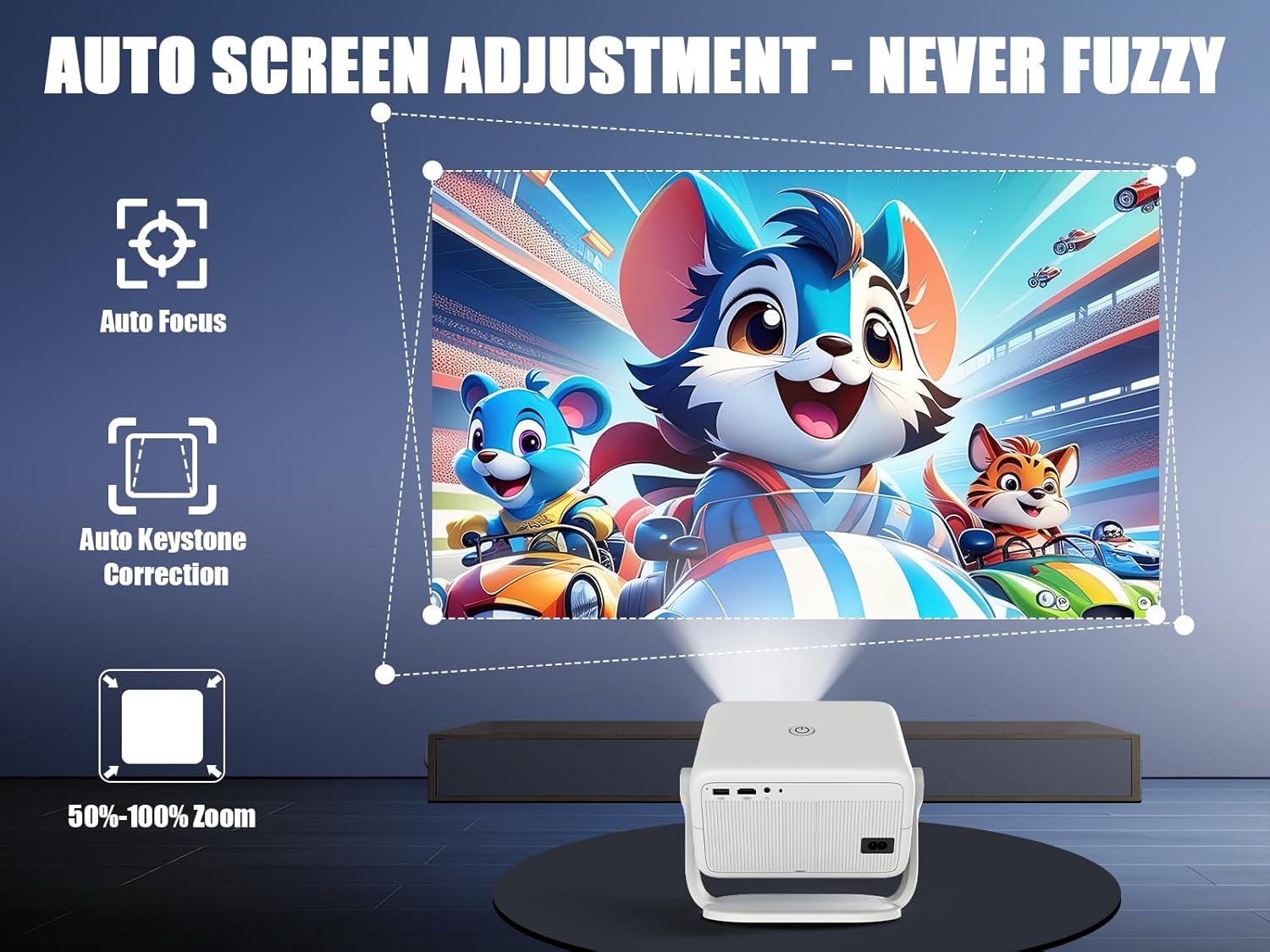
Figure 3.2: Auto Screen Adjustment. This image highlights the projector's automatic focus and keystone correction capabilities, ensuring a clear and properly shaped image.
3.3 Network Connection
- Navigate to the Settings menu on the projector's interface.
- Select Network & Internet.
- Turn on Wi-Fi and select your desired 2.4G or 5G network from the list.
- Enter the Wi-Fi password if prompted and connect.
4. Operating Instructions
4.1 Navigating the Android 13 Interface
The projector runs on Android 13, providing a user-friendly interface. Use the included voice remote control to navigate menus, select applications, and adjust settings.
4.2 Voice Control
The voice remote control allows for hands-free operation. Press the voice button on the remote and speak commands to open applications, search for content, or control playback.

Figure 4.1: Unique AI Intelligent Voice Control. This image demonstrates the voice control capabilities of the projector, showing examples of commands like 'Open Prime Video'.
4.3 Streaming Applications
The projector supports over 700 official TV applications and includes access to the Google Play Store. Popular streaming services like Netflix, Prime Video, and YouTube are pre-installed or available for download.

Figure 4.2: Compatible with Netflix, Powered by Whale OS. This image shows the projector's interface with various streaming applications, indicating its smart TV capabilities.
Note: A Netflix streaming membership is required to access Netflix content.
4.4 Screen Mirroring
The projector supports wireless screen mirroring for iOS, Android, and Windows devices. Refer to the on-screen instructions in the projector's menu for specific steps to connect your device.
4.5 Bluetooth Audio Connection
To connect external Bluetooth speakers or headphones:
- Go to Settings > Bluetooth.
- Enable Bluetooth and search for available devices.
- Select your desired audio device from the list to pair.
4.6 HDMI and USB Input
Connect external devices such as gaming consoles, laptops, or USB drives to the projector's HDMI or USB ports. Select the corresponding input source from the projector's main menu.
Note: To play 4K videos, ensure you are using 4K-compatible devices (e.g., a USB drive connected via HDMI). Videos labeled as 4K will be displayed at the projector's native 1080p resolution.
5. Maintenance
5.1 Cleaning
- Lens: Use a soft, lint-free cloth specifically designed for optical lenses. Do not use abrasive cleaners or cloths.
- Exterior: Wipe the projector's exterior with a soft, dry cloth. For stubborn dirt, slightly dampen the cloth with water. Avoid using chemical cleaners.
- Ventilation Ports: Regularly clean the ventilation ports with a soft brush or a vacuum cleaner on a low setting to prevent dust buildup, which can affect performance and lifespan.
5.2 Storage
When not in use, store the projector in a cool, dry place away from direct sunlight and extreme temperatures. If storing for an extended period, consider placing it in its original packaging or a protective case.
6. Troubleshooting
6.1 No Image or Dim Image
- Ensure the projector is powered on and the lens cap is removed.
- Check the power connection.
- Verify the input source is correctly selected (e.g., HDMI, USB, or internal apps).
- Adjust brightness settings in the projector menu.
6.2 Blurry Image
- Allow the auto-focus function to complete its adjustment.
- Ensure the projector is placed within the recommended projection distance (1 to 4 meters).
- Clean the projector lens if it appears dirty.
6.3 No Sound or Low Sound
- Adjust the volume on the projector and the connected source device.
- Check if external Bluetooth speakers are connected and functioning correctly.
- Ensure the audio output setting is correct in the projector's menu.
6.4 Connectivity Issues (Wi-Fi/Bluetooth)
- Ensure Wi-Fi or Bluetooth is enabled in the settings.
- Restart the projector and your router/Bluetooth device.
- Ensure the projector is within range of your Wi-Fi network or Bluetooth device.
- Verify the Wi-Fi password is correct.
6.5 Spots on Projection
- If persistent spots appear on the projection, this may indicate internal dust. Contact customer support for assistance.
7. Specifications
| Brand | Alwtniet |
| Model Name | L018 NTV |
| Recommended Product Use | Home Cinema |
| Connectivity Technology | Wi-Fi, Bluetooth |
| Display Resolution | 1920 x 1080 (Native) |
| Max Display Resolution | 1920 x 1080 Pixels (Supports 4K input) |
| Display Type | LCD |
| Product Dimensions | 18L x 13W x 19H cm |
| Form Factor | Portable |
| Mounting Type | Tabletop Mount |
| Brightness | 400 ANSI Lumens |
| Color | White |
| Controller Type | Voice Control, Remote Control |
| Compatible Devices | Smartphone, Tablet, Notebook, Speaker |
| Image Contrast Ratio | High |
| Max Projection Distance | 4 Meters |
| Max Image Size | 200 Inches |
| Light Source Power | 400 Watts |
| Hardware Interface | Bluetooth, USB |
| Min Projection Distance | 1 Meter |
| Min Image Size | 40 Inches |
| Video Codecs | H.264, H.265 |
| Image Enhancement Technology | Amlogic T950D4 |
| Item Weight | 1.2 Kilograms |
8. Warranty and Support
8.1 Warranty Information
The Alwtniet L018 NTV Smart Projector comes with a 2-year warranty from the date of purchase. This warranty covers manufacturing defects and malfunctions under normal use. Please retain your proof of purchase for warranty claims.
8.2 Customer Support
For technical assistance, troubleshooting not covered in this manual, or warranty inquiries, please contact Alwtniet customer support through the retailer's platform or the official Alwtniet website. Provide your model number (L018 NTV) and purchase details for faster service.


