
1. Product Overview
The Plaud NotePin S is a compact, wearable AI voice recorder designed to streamline note-taking and information management. It integrates advanced AI technology for transcription, summarization, and task list generation across 112 languages. The device offers multiple wearing options for convenience and features a simple one-press operation for recording.
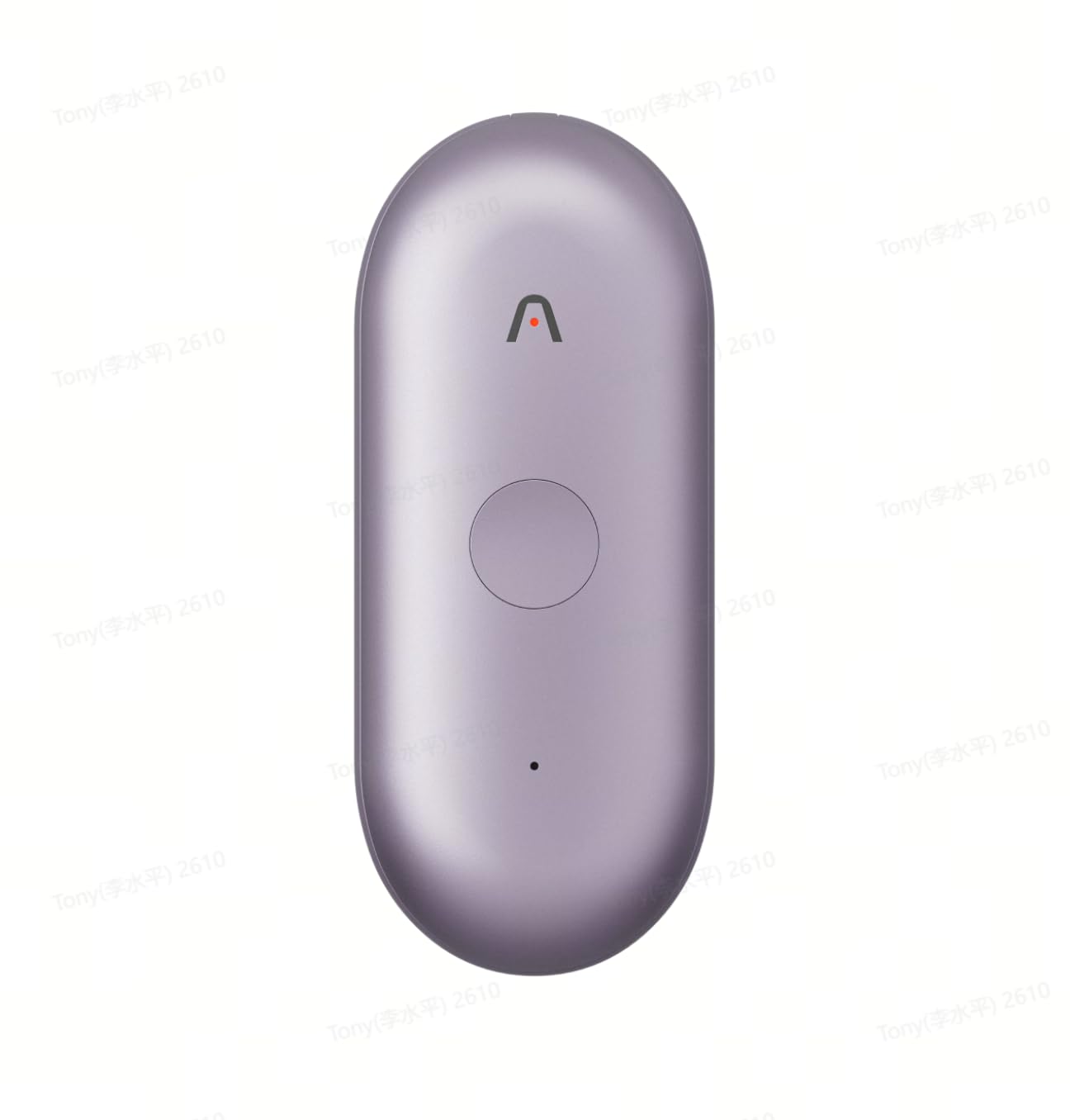
Figure 1: Plaud NotePin S AI Voice Recorder
The Plaud NotePin S is equipped with two high-fidelity microphones for HD recordings and a 270mAh battery providing up to 20 hours of continuous use. It includes 64GB of internal memory and offers unlimited free cloud storage for recordings, transcriptions, and summaries, ensuring data security through top-tier encryption.
2. Setup
2.1 Package Contents
Verify that all items are present in your Plaud NotePin S package:
- 1 Plaud NotePin Voice Recorder
- 1 Black Lanyard
- 1 White Wristband
- 1 Silver Clip
- 1 Charging Dock
- 1 USB-C Cable
2.2 Initial Charging
Before first use, fully charge your Plaud NotePin S. Connect the USB-C cable to the charging dock, then connect the other end to a power source. Place the NotePin S onto the charging dock. The device's indicator light will show charging status and turn off when fully charged. A full charge typically provides 20 hours of continuous recording.
2.3 Power On/Off
- To Power On: Press and hold the power button until the indicator light illuminates.
- To Power Off: Press and hold the power button until the indicator light turns off.
2.4 App Installation and Device Pairing
Download the official Plaud App from your device's app store. Follow the in-app instructions to create an account and pair your NotePin S via Bluetooth 5.0. This connection is essential for managing recordings, accessing AI features, and configuring device settings.
2.5 Wearing Options
The Plaud NotePin S offers four versatile wearing options:
- Magnetic Pin: Attach the device securely to clothing using the magnetic pin.
- Neck Strap: Use the black lanyard for hands-free carrying around your neck.
- Wristband: Secure the device to your wrist with the white wristband for easy access.
- Clip: Utilize the silver clip to attach the device to pockets, notebooks, or other surfaces.
3. Operating Instructions
3.1 Recording Audio
The Plaud NotePin S features a simple one-press operation:
- To Start Recording: Press the main button once. The indicator light will confirm recording has begun.
- To Stop Recording: Press the main button once again. The indicator light will change to indicate recording has stopped.
Recordings are stored on the device's 64GB internal memory and automatically sync to the cloud via the Plaud App when connected.
3.2 Highlighting Key Moments
During a recording, you can mark important sections for easy retrieval:
- Highlight Button: Press the dedicated highlight button on the device to mark a specific moment in the audio. These highlights will be timestamped in the transcription.
3.3 Capturing Images and Text
The Plaud App and Web portal allow for multimodal input, combining audio with visual and textual notes:
- Image Capture: Within the app, you can snap photos of whiteboards, documents, or presentations. These images are timestamped and linked to the corresponding audio segment.
- Text Input: Type additional notes or thoughts directly into the app, which will also be linked to the audio timeline.
3.4 Accessing Recordings and AI Features (Plaud App/Web)
All recordings and associated data are accessible through the Plaud App on your smartphone or the Plaud Web portal on your computer. The platform offers:
- Transcription: Powered by GPT-4o and Claude 3.5 Sonnet, the app provides fast and accurate transcriptions in 112 languages, with speaker labels and custom vocabulary support.
- Summarization: Generate intelligent summaries, meeting minutes, and to-do lists from your recordings.
- Organization: Easily manage, organize, and share audio files, transcriptions, and summaries.
Video 1: Introducing Plaud Intelligence - Demonstrates the AI capabilities for capturing, extracting, and utilizing information from conversations.
Video 2: Introducing Plaud Desktop - Shows how Plaud Desktop integrates with online meetings for seamless recording and note-taking.
3.5 Asking Plaud (AI Query)
Utilize the 'Ask Plaud' feature within the app or web portal to query your recorded content. This allows you to get specific answers, generate insights, and retrieve information based on your notes and conversations.
3.6 AutoFlow
Configure AutoFlow settings in the Plaud App to automate tasks. For example, you can set up rules to automatically transcribe and summarize new recordings upon sync, or send email notifications with summaries to team members.
4. Maintenance
4.1 Cleaning
Gently wipe the device with a soft, dry, lint-free cloth. Avoid using harsh chemicals, cleaning solvents, or abrasive materials, as these can damage the device's finish or internal components.
4.2 Battery Care
To maximize battery life, avoid exposing the device to extreme temperatures. Charge the device regularly, but do not leave it fully discharged for extended periods. The 270mAh battery is designed for long-term use.
4.3 Software Updates
Regularly check for and install software updates via the Plaud App. Updates often include performance improvements, new features, and security enhancements.
5. Troubleshooting
5.1 Device Not Powering On
- Ensure the device is fully charged. Connect it to the charging dock and a power source for at least 30 minutes.
- Try pressing and holding the power button for a longer duration (5-10 seconds).
5.2 Pairing Issues
- Make sure Bluetooth is enabled on your smartphone and the Plaud NotePin S is powered on.
- Ensure the device is within range of your smartphone.
- Restart both your smartphone and the Plaud NotePin S.
- If previously paired, try unpairing and re-pairing the device through your phone's Bluetooth settings and the Plaud App.
5.3 Poor Recording Quality
- Ensure the microphones are not obstructed.
- Record in a quiet environment to minimize background noise.
- Position the device optimally to capture audio from speakers.
5.4 Transcription Inaccuracies
- Verify that the correct audio language is selected in the Plaud App.
- Ensure clear audio input with minimal background noise.
- Utilize the custom vocabulary feature in the Plaud App for specialized terminology.
6. Specifications
| Feature | Detail |
|---|---|
| Model Number | PN0210 |
| Brand | Plaud |
| Memory Storage Capacity | 64 GB |
| Battery | 270mAh (up to 20 hours continuous use) |
| Product Dimensions (D x W x H) | 2.13" x 3.37" x 0.12" |
| Item Weight | 0.2 Kilograms |
| Hardware Interface | Bluetooth 5 |
| Microphone Form Factor | Built-in |
| Audio Format | Digital |
| Headphones Jack | No headphones jack |
| Transcription Languages | 112 languages supported |
7. Warranty and Support
For warranty information, technical support, or service inquiries, please refer to the official Plaud website or contact Plaud customer service directly. Keep your purchase receipt for warranty claims.


