
1. Introduction
This manual provides essential information for using your new Tecno Spark Go 1 smartphone. Please read this guide carefully to ensure proper operation, maintenance, and to fully utilize all features of your device. Keep this manual for future reference.

Image 1.1: Tecno Spark Go 1 Smartphone. This image displays the front and back of the Tecno Spark Go 1 smartphone, highlighting its design and camera module.
2. Setup
2.1. What's in the Box
- Tecno Spark Go 1 Smartphone
- Power Adapter
- USB Type-C Cable
- SIM Ejector Tool
- Quick Start Guide
- Warranty Card
2.2. SIM Card Installation
- Power off your device before inserting or removing the SIM card.
- Locate the SIM card tray on the side of the phone.
- Insert the SIM ejector tool into the small hole on the tray and press gently until the tray pops out.
- Place your Standard SIM card(s) into the tray with the gold contacts facing down. The Spark Go 1 supports Dual SIM.
- Carefully push the tray back into the slot until it is flush with the phone's body.
2.3. Charging the Battery
Before first use, fully charge the device. Use only the provided power adapter and USB Type-C cable.
- Connect the USB Type-C cable to the charging port at the bottom of the phone.
- Connect the other end of the cable to the power adapter, then plug the adapter into a power outlet.
- The charging indicator will appear on the screen.
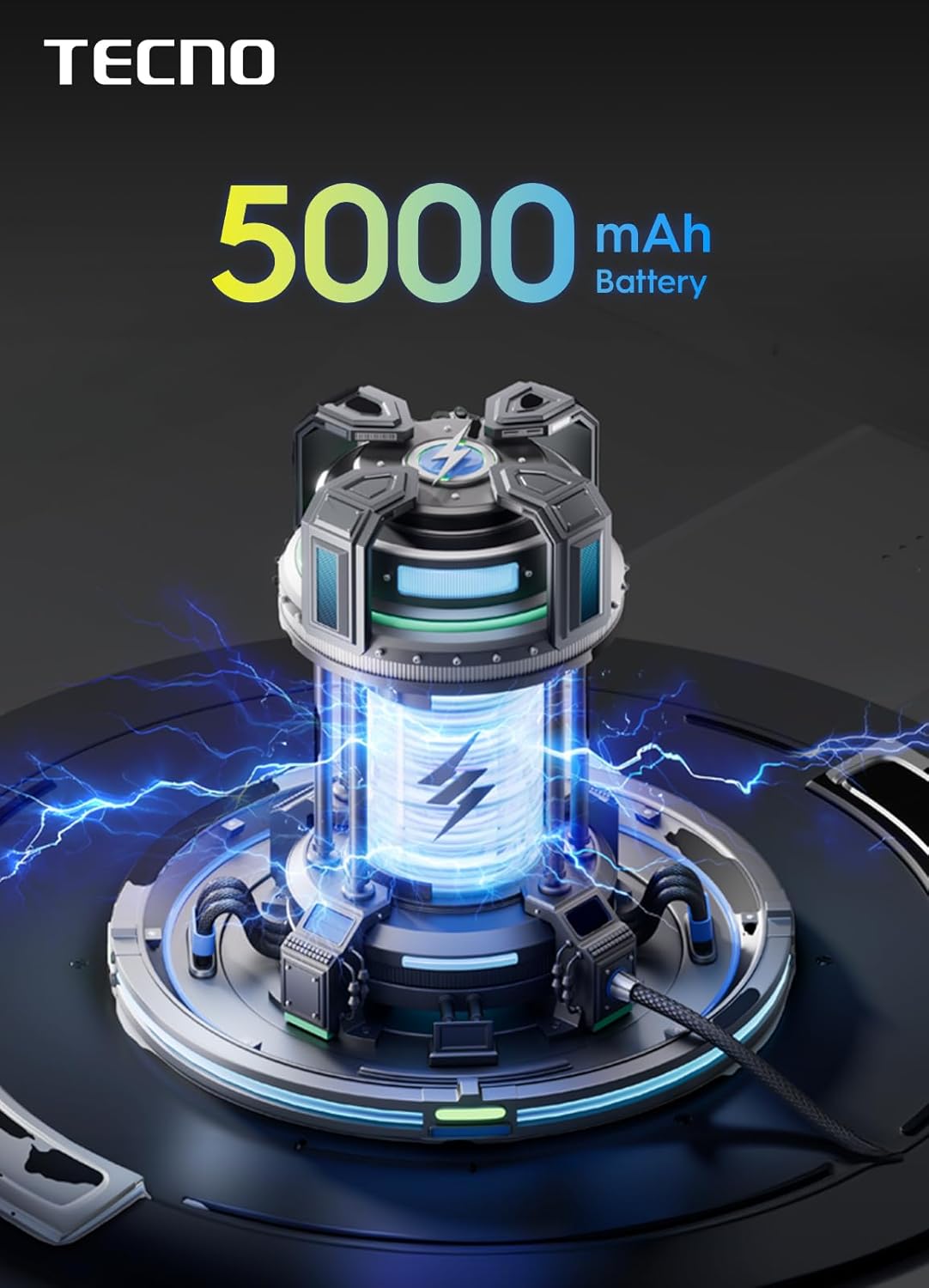
Image 2.1: 5000mAh Battery. This image illustrates the internal battery component, emphasizing its 5000mAh capacity.
2.4. Initial Power On and Setup
- Press and hold the Power button (located on the right side) until the Tecno logo appears.
- Follow the on-screen instructions to complete the initial setup, including selecting your language, connecting to Wi-Fi, and setting up your Google account.
3. Operating Instructions
3.1. Power On, Off, and Restart
- Power On: Press and hold the Power button until the device vibrates and the logo appears.
- Power Off: Press and hold the Power button until the power menu appears, then tap "Power off".
- Restart: Press and hold the Power button until the power menu appears, then tap "Restart".
3.2. Screen Navigation
- Tap: Select an item or open an app.
- Swipe: Scroll through screens, lists, or content.
- Pinch: Zoom in or out on photos and web pages.
- Home Screen: Your central hub for apps and widgets. Swipe left or right to access additional screens.
- Notification Panel: Swipe down from the top of the screen to view notifications and quick settings.

Image 3.1: 120Hz Smooth Display. This image highlights the 6.67-inch display with a 120Hz refresh rate, emphasizing smooth visuals.
3.3. Calls and Contacts
- Making a Call: Open the "Phone" app, enter the number, and tap the call icon.
- Answering a Call: Swipe up on the green phone icon when a call comes in.
- Managing Contacts: Open the "Contacts" app to add, edit, or delete contacts.
3.4. Internet Connectivity
- Wi-Fi: Go to Settings > Network & internet > Wi-Fi to connect to available networks.
- Mobile Data (4G): Go to Settings > Network & internet > Mobile network to enable or disable mobile data. Ensure your SIM card has an active data plan.
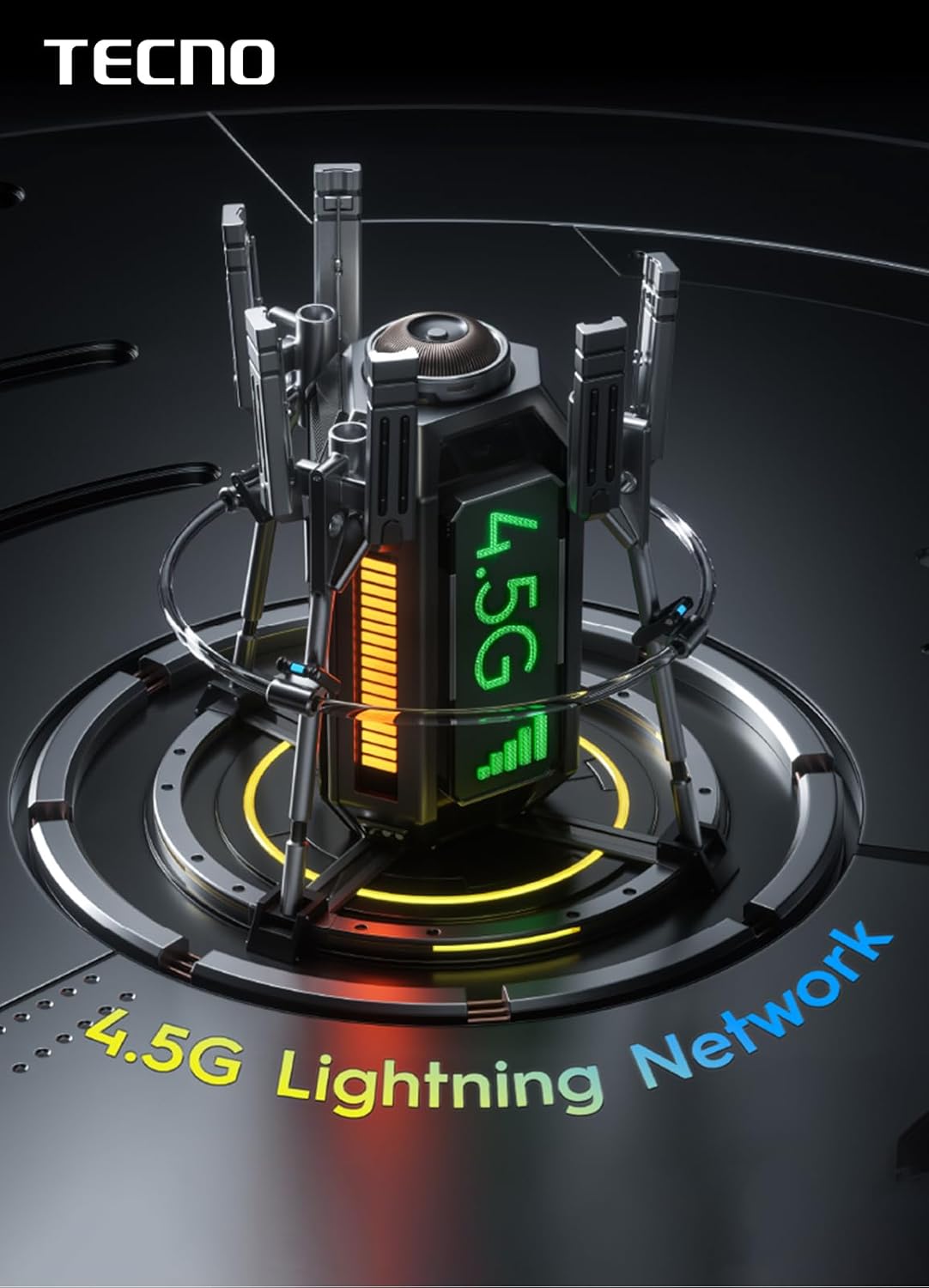
Image 3.2: 4.5G Lightning Network. This image visually represents the device's capability to connect to fast 4.5G networks.
3.5. Camera Usage
Your Tecno Spark Go 1 features a 13MP rear camera and an 8MP front camera.
- Open the "Camera" app.
- Tap the shutter button to take a photo.
- Swipe left or right to switch between modes (e.g., Photo, Video, Portrait, Night).
- Tap the camera switch icon to toggle between front and rear cameras.

Image 3.3: 13MP Main Camera. This image provides an exploded view of the 13-megapixel main camera module, showing its various lens components.
3.6. Audio Features
The device is equipped with dual speakers for an enhanced audio experience.
- Volume Control: Use the Volume Up/Down buttons on the side of the phone.
- Headphones: Connect standard 3.5mm headphones to the audio jack.

Image 3.4: Dual Speakers. This image illustrates the dual speaker setup, highlighting the DTS audio enhancement for a full-scene big volume experience.
3.7. Security Features
- Screen Lock: Set up a PIN, pattern, or password via Settings > Security > Screen lock.
- Facial Recognition: Configure face unlock for convenient and secure access via Settings > Security > Face unlock.
4. Maintenance
4.1. Cleaning Your Device
- Use a soft, lint-free cloth to clean the screen and body.
- Avoid using harsh chemicals, abrasive cleaners, or compressed air.
- The device has an IP54 rating for dust and splash resistance; however, avoid submerging it in water.
4.2. Battery Care
- Avoid extreme temperatures, as they can degrade battery performance.
- Do not leave the device charging for extended periods after it is fully charged.
- Use only original or certified chargers and cables.
4.3. Software Updates
Regularly check for software updates to ensure optimal performance and security. Go to Settings > System > System update.
4.4. Data Backup
Regularly back up your important data to a cloud service (e.g., Google Drive) or a computer to prevent data loss.
5. Troubleshooting
If you encounter issues with your device, try the following solutions before seeking professional assistance.
5.1. Device Not Turning On
- Ensure the battery is charged. Connect the charger and wait a few minutes before attempting to power on.
- Press and hold the Power button for at least 10-15 seconds to force a restart.
5.2. Screen Unresponsive
- Restart the device.
- If the screen is completely frozen, force a restart by holding the Power button.
5.3. Poor Battery Life
- Close unused apps running in the background.
- Reduce screen brightness.
- Disable Wi-Fi, Bluetooth, and GPS when not in use.
- Check for power-consuming apps in Settings > Battery.
5.4. Network Issues (No Signal/Poor Signal)
- Ensure your SIM card is correctly inserted.
- Check if Airplane Mode is off.
- Restart the device.
- Contact your network provider to check for service outages in your area.
5.5. Camera Not Working
- Restart the device.
- Clear the cache and data of the Camera app (Settings > Apps > Camera > Storage > Clear cache/Clear data).
5.6. Factory Reset (Last Resort)
Warning: A factory reset will erase all data on your phone, including apps, photos, and settings. Back up your data before proceeding.
To perform a factory reset, go to Settings > System > Reset options > Erase all data (factory reset).
6. Specifications

Image 6.1: Device Dimensions. This image provides a visual representation of the Tecno Spark Go 1's physical dimensions in millimeters and inches.
| Feature | Detail |
|---|---|
| Model Name | TECNO Spark Go 1 |
| Operating System | Android 14 Go |
| Processor | Unisoc T615 (Note: Some specifications may list Mediatek Dimensity 900) |
| RAM | 4 GB (with 4GB Virtual RAM) |
| Internal Storage | 128 GB |
| Display | 6.67 inches LCD, 720 x 1600 resolution, 120 Hz Refresh Rate |
| Rear Camera | 13 MP |
| Front Camera | 8 MP |
| Battery | 5000 mAh Li-Ion, 15W Fast Charging |
| SIM Card Slot | Dual SIM (Standard) |
| Connectivity | 4G LTE, Wi-Fi, Bluetooth, GPS |
| Ports | USB Type-C, 3.5mm Audio Jack |
| Security | Facial Recognition |
| Dimensions (H x W x D) | 16.5 x 7.7 x 0.8 cm |
| Weight | 200 Grams |
| Water Resistance | IP54 (Splash Resistant) |

Image 6.2: Storage and RAM. This image visually represents the 128GB of ROM and 4GB of RAM, indicating the device's memory configuration.
7. Warranty and Support
7.1. Manufacturer's Warranty
Your Tecno Spark Go 1 smartphone comes with a 2-year manufacturer's warranty from the date of purchase. This warranty covers defects in materials and workmanship under normal use. It does not cover damage caused by accidents, misuse, unauthorized repairs, or normal wear and tear. Please refer to the warranty card included in your product packaging for full terms and conditions.
7.2. Customer Support
For technical support, service inquiries, or warranty claims, please contact Tecno customer service through their official website or authorized service centers. You can find more information and contact details on the official Tecno website: www.tecno-mobile.com.
Please have your device's model number (Spark Go 1) and serial number (found on the packaging or in Settings > About phone) ready when contacting support.


