Introduction
This manual provides comprehensive instructions for the setup, operation, maintenance, and troubleshooting of your Xtrike Me GW-119 Wireless Mouse. Designed for versatility and comfort, this mouse offers reliable performance for various computing tasks.
Package Contents
- Xtrike Me GW-119 Wireless Mouse
- USB Receiver (for 2.4G connection)
- 1 x Lithium Ion Battery (pre-installed or included)
- User Manual (this document)
Setup
1. Battery Installation
The Xtrike Me GW-119 mouse requires one Lithium Ion battery, which is included. If not pre-installed, locate the battery compartment on the underside of the mouse. Open the cover, insert the battery according to the polarity indicators (+/-), and close the cover securely.

Figure 1: Underside view of the mouse, indicating the battery compartment location. Ensure correct battery polarity during installation.
2. Connecting the Mouse
The GW-119 supports two connection types: 2.4G wireless via USB receiver and Bluetooth (BT).
2.1. 2.4G Wireless Connection
- Locate the USB receiver, usually stored within the battery compartment or a dedicated slot on the mouse.
- Plug the USB receiver into an available USB port on your computer.
- Turn on the mouse using the power switch on its underside.
- Your computer should automatically detect and install the necessary drivers. The mouse will be ready for use.
2.2. Bluetooth Connection
- Ensure the mouse is powered on.
- Activate Bluetooth on your computer or device.
- Put the mouse into pairing mode (refer to the mouse's underside for a potential pairing button or switch, or consult the device's Bluetooth settings).
- On your computer, search for new Bluetooth devices. Select "Xtrike Me GW-119" from the list of available devices to pair.
- Once paired, the mouse is ready for use.
Operating Instructions
Basic Functions
- Left Click: Primary selection and activation.
- Right Click: Accesses contextual menus.
- Scroll Wheel: Scrolls content vertically. Can also be clicked for middle-click functionality (e.g., opening links in new tabs).

Figure 2: Top view of the mouse highlighting the left and right click buttons, and the scroll wheel.
DPI Adjustment
The GW-119 mouse features adjustable DPI (Dots Per Inch) settings, allowing you to change cursor sensitivity. The available DPI levels are 800, 1200, and 1600dpi. To cycle through these settings, press the DPI button, typically located near the scroll wheel. Each press will switch to the next DPI level.
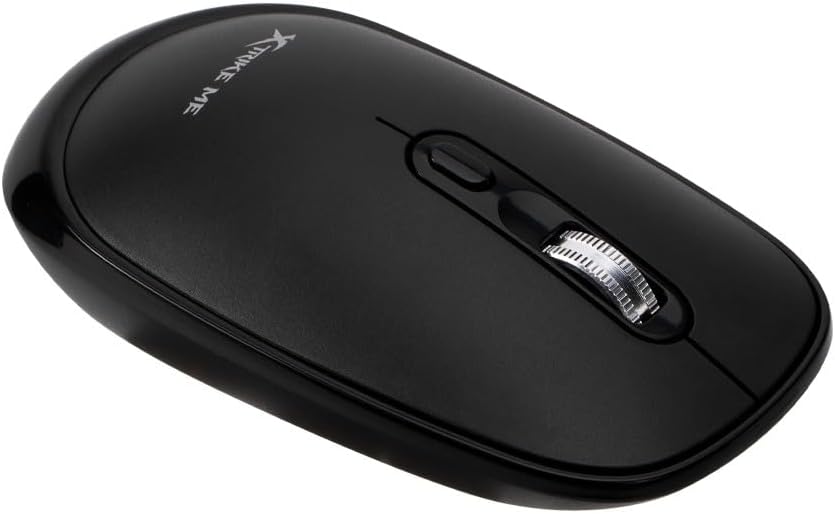
Figure 3: The DPI button is located directly below the scroll wheel, allowing for quick sensitivity adjustments.
Maintenance
Cleaning
To maintain optimal performance and appearance, clean your mouse regularly. Use a soft, dry, lint-free cloth to wipe the surface. For stubborn dirt, slightly dampen the cloth with water or a mild, non-abrasive cleaner. Avoid using harsh chemicals or submerging the mouse in liquid.
Battery Care
- If the mouse will not be used for an extended period, it is recommended to turn off the power switch to conserve battery life.
- Replace the battery when performance degrades or the mouse becomes unresponsive.
- Dispose of used batteries responsibly according to local regulations.
Troubleshooting
| Problem | Possible Cause | Solution |
|---|---|---|
| Mouse is unresponsive or erratic. | Low battery, poor connection, or interference. |
|
| Cursor movement is too fast or too slow. | Incorrect DPI setting. | Press the DPI button to cycle through sensitivity settings (800/1200/1600dpi). |
| Mouse disconnects frequently. | Interference, distance, or low battery. |
|
Specifications
| Brand | Xtrike Me |
| Model | GW-119 |
| Connection Type | 2.4G Wireless / Bluetooth (BT) |
| DPI Settings | 800-1200-1600dpi |
| Battery Type | 1 x Lithium Ion (included) |
| Item Weight | 100 g (0.1 Kilograms) |
| Package Dimensions | 15.7 x 8 x 4.6 cm |
| Manufacturer | Shenzhen Xtrikeme Electronics Co.,Ltd |
Warranty and Support
For warranty information and technical support, please refer to the documentation provided at the point of purchase or contact your retailer. You may also visit the official Xtrike Me website for further assistance.
Manufacturer: Shenzhen Xtrikeme Electronics Co.,Ltd


