
1. Introduction
This manual provides essential information for the safe and efficient use of your BenQ GW2791 27-inch Full HD 100Hz IPS Eye-Care Monitor. Please read it thoroughly before operating the device and retain it for future reference. The BenQ GW2791 is designed to deliver stunning visuals with advanced eye-care features for enhanced comfort during extended use.
2. Safety Information
- Power Source: Use only the power adapter supplied with the monitor. Ensure the power outlet meets the specified voltage requirements.
- Ventilation: Do not block ventilation openings. Maintain adequate space around the monitor for proper airflow to prevent overheating.
- Placement: Place the monitor on a stable, flat surface. Avoid placing it in direct sunlight, near heat sources, or in environments with excessive dust or humidity.
- Cleaning: Disconnect the power cord before cleaning. Use a soft, dry cloth to clean the screen and exterior. Avoid liquid cleaners or abrasive materials.
- Handling: Handle the monitor with care. Avoid dropping or subjecting it to strong impacts.
- Disassembly: Do not attempt to disassemble or repair the monitor yourself. Refer all servicing to qualified service personnel.
3. Package Contents
Verify that all items are present in the package. If any items are missing or damaged, contact your retailer.
- BenQ GW2791 Monitor
- Monitor Stand (Base and Neck)
- HDMI Cable
- Power Adapter
- Power Cord
- Quick Start Guide / User Manual
Video: Unboxing and First Impressions of the BenQ Eye Care Monitor. This video demonstrates the contents of the package and initial setup steps.
4. Setup
4.1 Assembling the Monitor Stand
- Carefully remove the monitor and stand components from the packaging.
- Attach the stand neck to the monitor panel by aligning the connectors and pressing firmly until it clicks into place.
- Attach the stand base to the stand neck. Secure it with the captive screw located on the underside of the base.
- Place the assembled monitor on a stable, flat surface.
Video: Demonstration of monitor stand assembly and initial power-on. This video illustrates the physical setup process.
4.2 Connecting Cables
- Connect the power cord to the power adapter, then connect the adapter to the monitor's power input. Plug the power cord into a wall outlet.
- Connect one end of the HDMI cable to the HDMI port on your computer and the other end to an available HDMI port on the monitor. Alternatively, use a DisplayPort cable for DisplayPort connections.
- If desired, connect external audio devices to the audio output port on the monitor.
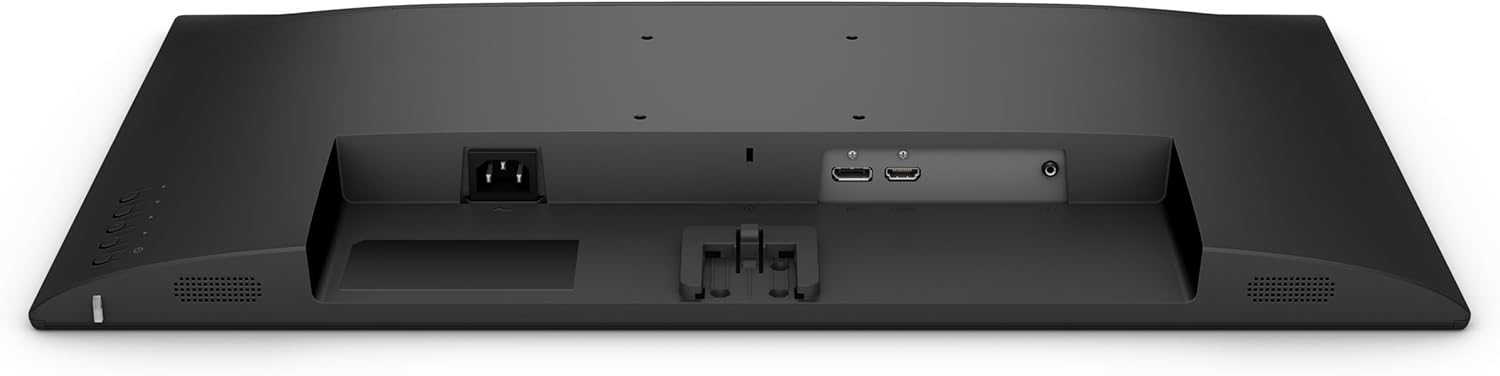
Image: Rear view of the BenQ GW2791 monitor, highlighting the HDMI, DisplayPort, and power input connections.
5. Operating Instructions
5.1 Power On/Off
Press the power button located on the bottom right side of the monitor to turn it on or off. The power indicator light will illuminate when the monitor is active.
5.2 On-Screen Display (OSD) Menu Navigation
The OSD menu allows you to adjust various monitor settings. Use the joystick or buttons located on the bottom right of the monitor to navigate the menu:
- Press: Enter/Confirm selection.
- Up/Down: Navigate through menu options.
- Left/Right: Adjust values or move between sub-menus.
5.3 Key Settings
- Brightness/Contrast: Adjust the overall luminance and contrast of the display.
- Color Modes: Select from various preset color modes (e.g., Standard, Movie, ePaper, FPS) to optimize the display for different content types.
- Input Selection: Manually switch between HDMI and DisplayPort inputs.
- Eye-Care Features: Access and configure Flicker-Free, Low Blue Light Plus, and Eyesafe 2.0 settings.
6. Features Overview
The BenQ GW2791 monitor incorporates several technologies to enhance visual quality and user comfort.
- IPS Panel: Provides accurate color and image reproduction with wide viewing angles (99% sRGB color space).
- 100Hz Refresh Rate: Offers a smoother visual experience, reducing motion blur and improving responsiveness.
- Ultrathin Bezel Design: Minimizes distractions and allows for seamless multi-monitor setups.
- ePaper Mode: Optimizes display settings for reading, reducing eye strain during long sessions by simulating a paper-like appearance.
- TUV-Certified Eye-Care: Certified by TUV Rheinland for eye-friendly technologies.
- Flicker-Free Technology: Eliminates screen flickering at all brightness levels, reducing eye fatigue.
- Low Blue Light Plus: Filters out harmful blue-violet light while maintaining vivid colors, protecting your eyes from potential damage.
- Eyesafe 2.0: Ensures reduced blue light emission with vivid color retention.
- Eye-CareU Software: Integrated software for easy access and customization of eye-care features.

Image: The BenQ GW2791 monitor showcasing its IPS panel, 99% sRGB color space, TUV certification, and Eye-Care features for stunning visuals.

Image: Visual explanation of Low Blue Light Plus technology, demonstrating how it filters harmful blue-violet light to protect eyes.
7. Maintenance
- Screen Cleaning: Gently wipe the screen with a soft, lint-free cloth. For stubborn marks, lightly dampen the cloth with water or a specialized screen cleaner (ensure it's alcohol-free) and wipe carefully.
- Exterior Cleaning: Use a soft, dry cloth to clean the monitor casing. Avoid harsh chemicals that may damage the finish.
- Storage: When not in use for extended periods, store the monitor in a cool, dry place, away from direct sunlight and extreme temperatures.
8. Troubleshooting
| Problem | Possible Cause | Solution |
|---|---|---|
| No image on screen | Power cable disconnected; Video cable disconnected; Incorrect input selected. | Ensure power and video cables are securely connected. Select the correct input source via the OSD menu. |
| Image is blurry or distorted | Incorrect resolution; Loose video cable. | Set the display resolution to 1920x1080. Check video cable connection. |
| Screen flickers | Refresh rate issue; External interference. | Ensure refresh rate is set to 100Hz. Check for nearby electronic devices causing interference. |
| No sound | Audio cable disconnected; Volume too low; Muted. | Check audio cable connections. Adjust volume via OSD or connected device. Ensure not muted. |
9. Specifications
| Feature | Specification |
|---|---|
| Model Name | GW2791 |
| Screen Size | 27 Inches |
| Panel Type | IPS |
| Resolution | 1920 x 1080 (FHD 1080p) |
| Refresh Rate | 100Hz |
| Aspect Ratio | 16:9 |
| Color Gamut | 99% sRGB |
| Screen Surface | Matte |
| Connectivity | HDMI, DisplayPort |
| Eye-Care Features | TUV-Certified, Flicker-Free, Low Blue Light Plus, Eyesafe 2.0, Eye-CareU |
| Item Weight | 12.14 pounds |
| Product Dimensions | 18 x 7 x 24 inches |
| Color | Black |
10. Warranty and Support
BenQ provides a limited warranty for its products. Please refer to the warranty card included in your package or visit the official BenQ website for detailed warranty terms and conditions specific to your region.
For technical support, product registration, or service inquiries, please visit the BenQ Store on Amazon or the official BenQ support website.


