1. Introduction
Thank you for choosing the BenQ GW2491 Eye-Care Monitor. This monitor is designed to provide a superior visual experience with advanced eye-care technologies, vibrant color reproduction, and smooth performance. This manual will guide you through the setup, operation, and maintenance of your new monitor to ensure optimal performance and longevity.

Figure 1: BenQ GW2491 Monitor Front View
The GW2491 features an IPS panel for wide viewing angles and 99% sRGB color space for accurate and vivid visuals. Its 100Hz refresh rate ensures a smoother user experience, reducing motion blur in fast-paced content. Integrated eye-care technologies, including Flicker-Free and Low Blue Light Plus, are TUV-Certified to minimize eye strain during extended use.
2. What's in the Box
Please check the contents of the package. If any items are missing or damaged, contact your retailer.
- BenQ GW2491 Monitor
- Monitor Stand (Base and Neck)
- Power Cord
- HDMI Cable
- DisplayPort Cable
- Quick Start Guide
- Warranty Card
3. Setup
3.1. Assembling the Monitor Stand
- Carefully remove the monitor and stand components from the packaging.
- Attach the stand neck to the monitor panel by aligning the tabs and pushing until it clicks into place.
- Secure the stand base to the neck using the captive screw on the underside of the base.

Figure 2: Monitor with Stand Assembled (Side View)
3.2. Connecting Cables
Connect the necessary cables to the monitor and your computer. Ensure the monitor is placed on a stable, flat surface.
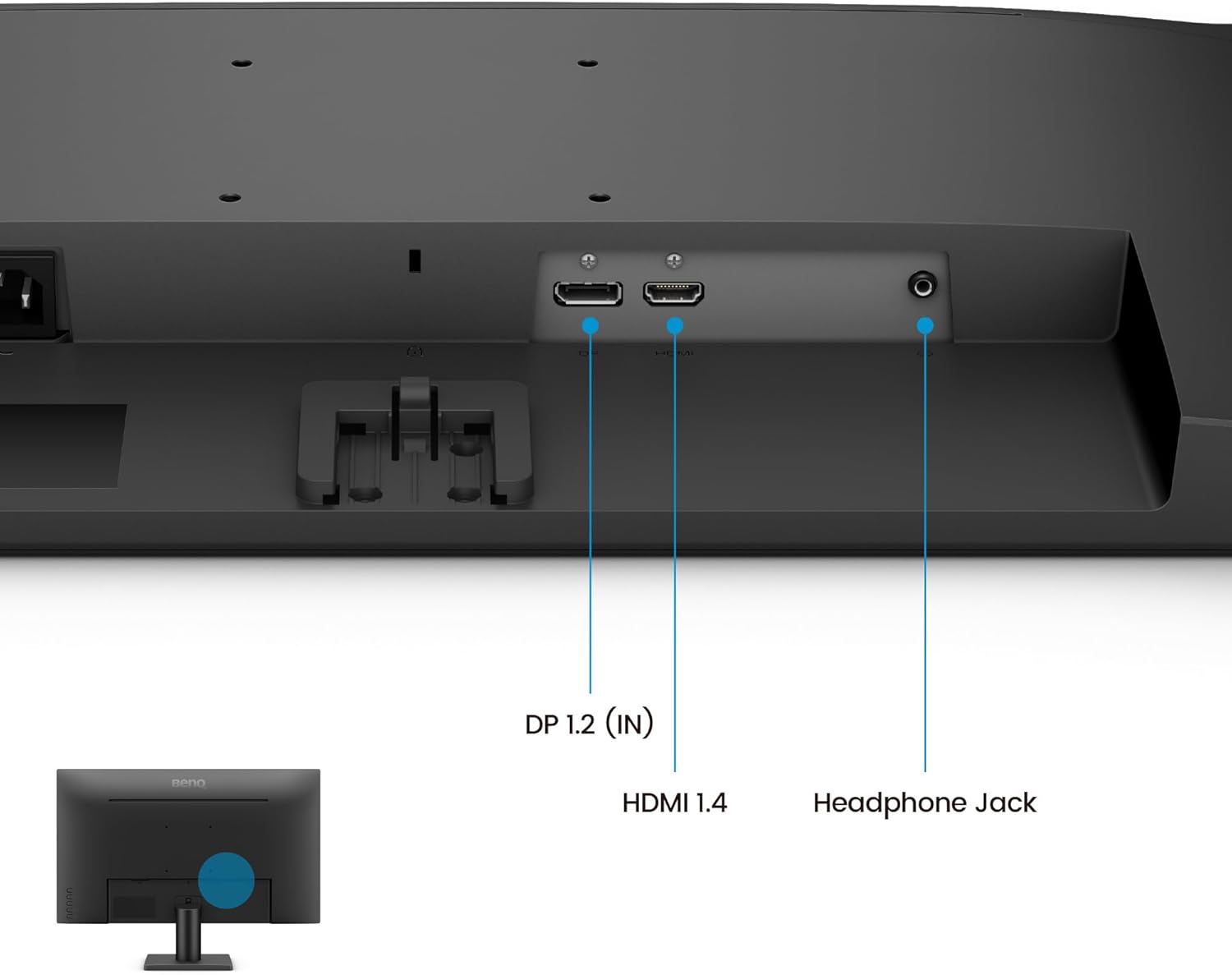
Figure 3: Monitor Connectivity Ports
- Power: Connect the power cord to the monitor's power input and then to a power outlet.
- Video Input: Connect either the HDMI cable to the HDMI 1.4 port or the DisplayPort cable to the DP 1.2 (IN) port on the monitor, and the other end to the corresponding port on your computer.
- Audio Output: For external speakers or headphones, connect them to the Headphone Jack.
3.3. Powering On
Press the power button located on the bottom right side of the monitor to turn it on. The BenQ logo will appear, and the monitor will automatically detect the active input source.
4. Operating Features
4.1. Visual Performance
The BenQ GW2491 monitor delivers stunning visuals with its advanced display technologies:
- IPS Panel: Provides accurate color and image reproduction from any viewing angle.
- 99% sRGB: Ensures vibrant and true-to-life colors for an immersive visual experience.
- 100Hz Refresh Rate: Reacts more quickly to changes, resulting in smoother motion for everyday use, video streaming, and casual gaming.

Figure 4: 100Hz Smooth Motion for various activities
4.2. Eye-Care Technologies
BenQ's commitment to eye health is integrated into the GW2491 with TUV-Certified eye-care features:
- Flicker-Free: Eliminates harmful flicker that can cause eye strain and fatigue during prolonged use.
- Low Blue Light Plus: Filters out harmful blue-violet light while maintaining vivid colors, reducing eye discomfort.
- Eye-CareU Software: Allows easy access and customization of eye-care features directly from your computer.

Figure 5: Eye-Care Technology for user comfort
4.3. Color Modes
Utilize various color modes to optimize your viewing experience for different content types:
- ePaper Mode: Simulates the look of e-paper, providing a comfortable reading experience for long sessions by adjusting brightness and color temperature.
- Other modes may include Standard, Game, Movie, Photo, etc., accessible via the On-Screen Display (OSD) menu.

Figure 6: ePaper Mode for comfortable reading
4.4. On-Screen Display (OSD) Navigation
The OSD menu allows you to adjust various monitor settings. Use the buttons located on the bottom right of the monitor to navigate:
- Press any button to bring up the quick menu.
- Use the arrow buttons to navigate through options.
- Press the 'OK' or 'Enter' button to select an option or confirm a setting.
- Press the 'Exit' or 'Back' button to return to the previous menu or exit the OSD.
5. Maintenance
Proper maintenance ensures the longevity and optimal performance of your BenQ monitor.
- Cleaning the Screen: Gently wipe the screen with a soft, lint-free cloth. For stubborn marks, lightly dampen the cloth with water or a screen-cleaning solution specifically designed for LCD/LED displays. Do not spray liquid directly onto the screen.
- Cleaning the Casing: Use a soft, dry cloth to wipe the monitor casing. Avoid using abrasive cleaners or solvents.
- Ventilation: Ensure the monitor's ventilation openings are not blocked to prevent overheating.
- Storage: When not in use for extended periods, store the monitor in a cool, dry place, ideally in its original packaging.
6. Troubleshooting
If you encounter any issues with your monitor, try the following solutions before contacting support:
| Problem | Possible Solution |
|---|---|
| No image on screen | Check if the power cord is securely connected. Ensure the video cable (HDMI/DisplayPort) is properly connected to both the monitor and the computer. Verify the correct input source is selected via the OSD menu. |
| Image is blurry or distorted | Adjust the display resolution on your computer to the monitor's native resolution (1920x1080). Check the video cable for damage or loose connections. |
| No sound from headphones/external speakers | Ensure the audio cable is correctly connected to the Headphone Jack. Check the volume settings on both the monitor (via OSD) and your computer. |
| Monitor flickering | Ensure Flicker-Free technology is enabled (if applicable via OSD or Eye-CareU software). Check for external interference from other electronic devices. |
7. Specifications
| Feature | Detail |
|---|---|
| Model Number | GW2491 |
| Screen Size | 23.8 inches |
| Panel Type | IPS |
| Resolution | 1920 x 1080 (FHD) |
| Refresh Rate | 100Hz |
| Color Gamut | 99% sRGB |
| Connectivity | HDMI 1.4, DisplayPort 1.2, Headphone Jack |
| Eye-Care Features | Flicker-Free, Low Blue Light Plus, Eye-CareU |
| Dimensions (LxWxH) | 16 x 7 x 21 inches |
| Weight | 9.53 pounds |
8. Warranty and Support
Your BenQ GW2491 monitor comes with a standard manufacturer's warranty. Please refer to the warranty card included in your package for specific terms and conditions. For technical support, troubleshooting assistance, or warranty claims, please visit the official BenQ support website or contact their customer service hotline.
For the latest drivers, firmware updates, and additional support resources, please visit the BenQ support page for your specific model.


