
1. Introduction
Thank you for choosing the Xoopar Ine Smart NFC 4-in-1 USB Multi Cable. This versatile charging and data transfer cable is designed for convenience and compatibility with a wide range of devices. It features an integrated NFC chip for smart functionality and is constructed with environmentally friendly recycled materials.

Image 1.1: Overview of the Xoopar Ine Smart NFC 4-in-1 USB Multi Cable.
2. Product Features
- Innovative NFC Functionality: The integrated NFC chip allows for targeted information delivery. Simply scan the product with an NFC-enabled smartphone to access relevant information without needing a dedicated app.
- Versatile 4-in-1 Design: This multi-connector cable provides charging and data transfer for various devices, featuring Lightning, Micro-USB, and USB-C output connectors, and a dual USB-A/USB-C input adapter.
- Eco-Friendly Materials: Constructed with 31% recycled plastic, 17% recycled leather, and 52% recycled TPE. The packaging is made from FSC certified paper from sustainably managed forests.
- Broad Compatibility: Compatible with a wide range of devices including iPhone 15/14/13/12/11 series, Pro, Pro Max, Xs Max, Xr, X, 8, 7, 6s, 5s, iPad Pro, iPad Air, iPad Mini, iPod touch 5, Nano 7, Samsung, Huawei, HTC, LG, Google, and other Android/Apple devices.
- Durable Construction: Designed for longevity and backed by a 2-year warranty.
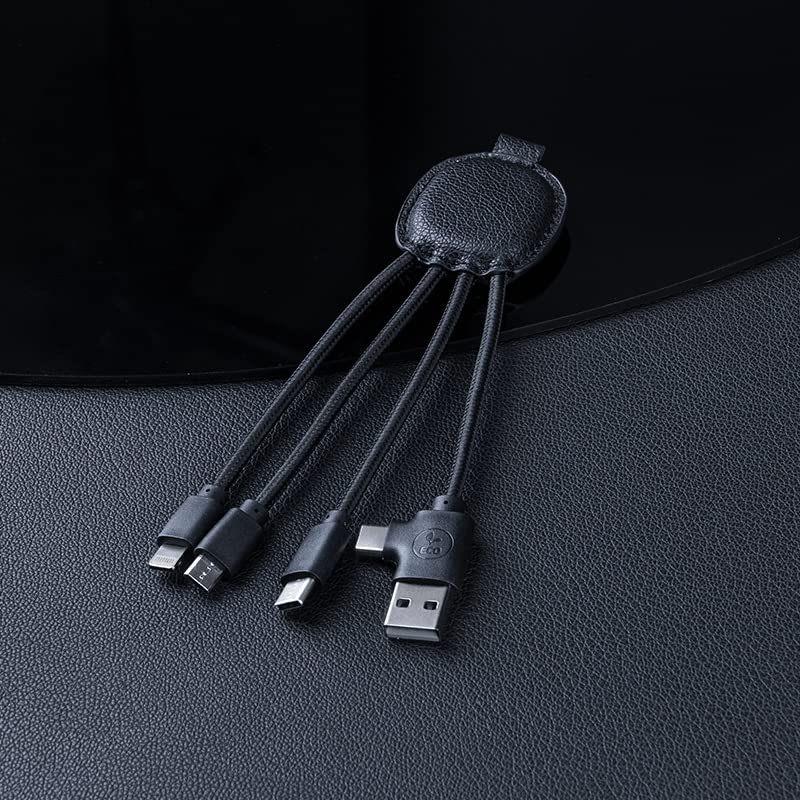
Image 2.1: Close-up view of the cable's multiple connectors.
3. Package Contents
- 1 x Xoopar Ine Smart NFC 4-in-1 USB Multi Cable (Model XP61134)
4. Setup Instructions
- Connect to Power Source: Identify the input adapter on the cable. It features both a USB-A and a USB-C connector. Plug the appropriate connector into a compatible USB power adapter, laptop, or power bank.
- Connect to Device: Select the correct output connector (Lightning, Micro-USB, or USB-C) for your device. Plug it firmly into your smartphone, tablet, or other compatible electronic device.
- Verify Connection: Ensure your device indicates that it is charging or connected for data transfer.
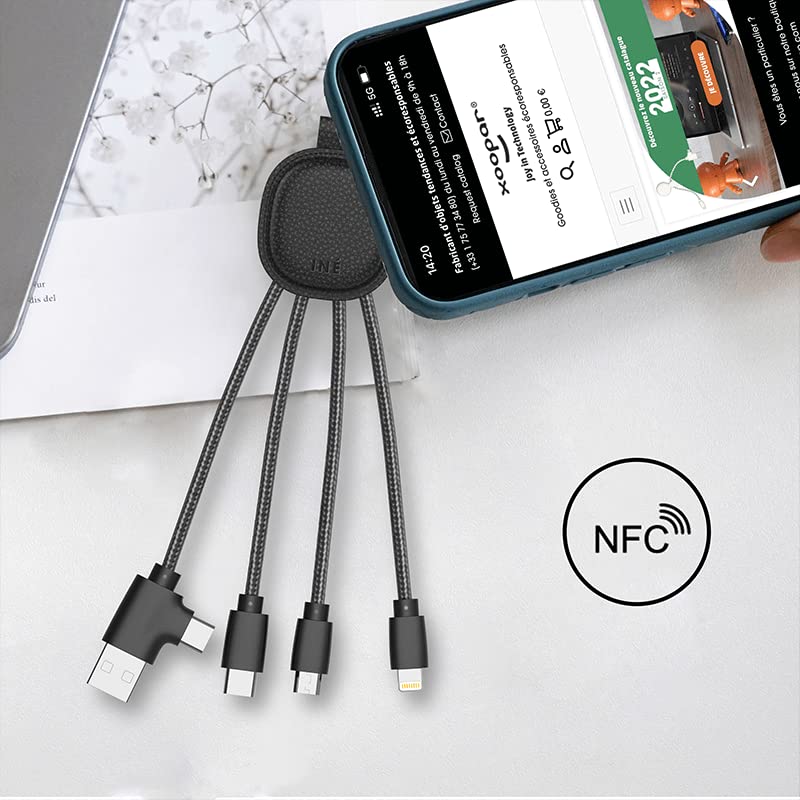
Image 4.1: The cable connected to a laptop and charging a smartphone.
5. Operating Instructions
5.1 Charging Devices
The Xoopar Ine Smart cable supports charging for up to three devices simultaneously, depending on the power source's output capacity. Connect your devices to the appropriate Lightning, Micro-USB, or USB-C connectors. The cable is designed to deliver efficient power to your devices.
5.2 Data Transfer
When connected to a computer via the USB-A or USB-C input, the cable also facilitates data transfer for compatible devices. Connect your device to the corresponding output connector and ensure your computer recognizes the device for file management.
5.3 NFC Functionality
The built-in NFC chip allows for quick access to information. To use this feature:
- Ensure your smartphone has NFC enabled.
- Tap the NFC-enabled area of your smartphone against the central leather part of the Xoopar Ine Smart cable.
- Your phone will automatically open a link or display information provided by Xoopar.

Image 5.1: Demonstrating NFC scanning with a smartphone.
Video 5.1: Official product demonstration of the Xoopar Ine Smart cable's multi-adapter and NFC features. This video illustrates how to connect various devices for charging and data transfer, and how to utilize the built-in NFC chip by scanning it with a smartphone to access product information.
6. Maintenance
- Cleaning: Use a soft, dry cloth to wipe the cable and connectors. Avoid using harsh chemicals or abrasive materials.
- Storage: Store the cable in a cool, dry place away from direct sunlight and extreme temperatures. Avoid bending the cable sharply or placing heavy objects on it to prevent damage.
- Handling: Always pull from the connector head, not the cable itself, when unplugging from devices or power sources.
7. Troubleshooting
- Device Not Charging:
- Ensure the cable is securely connected to both the power source and the device.
- Verify that the power source is active and providing sufficient power.
- Check if the correct connector type is being used for your device.
- Try using a different power adapter or USB port.
- Slow Charging:
- Ensure your power adapter provides adequate current (e.g., 2.4A for faster charging).
- Charging multiple devices simultaneously may reduce individual charging speeds.
- NFC Not Working:
- Confirm that NFC is enabled on your smartphone.
- Ensure you are tapping the correct area of the cable (the central leather part) with your phone's NFC reader.
- Remove any thick phone cases that might interfere with NFC signal.
- Data Transfer Issues:
- Ensure the cable is connected to a computer that supports data transfer.
- Check your device's settings to allow data transfer when connected to a computer.
8. Specifications
| Model Number | XP61134 |
| Product Dimensions | 6.14 x 1.46 x 0.47 inches; 0.63 ounces |
| Manufacturer | Xoopar |
| Connector Type | Lightning, Micro USB, USB Type A, USB Type C |
| Cable Type | Coaxial |
| Compatible Devices | Smartphone, Tablet, Laptop, Wireless Headphones, GoPro |
| Special Feature | Data Transfer, Lightweight, NFC Function |
9. Warranty and Support
The Xoopar Ine Smart NFC 4-in-1 USB Multi Cable comes with a 2-year warranty from the date of purchase, covering manufacturing defects. For warranty claims, technical support, or any product-related inquiries, please contact Xoopar customer service through their official website or the retailer where the product was purchased.
Please retain your proof of purchase for warranty validation.
