1. Product Overview
The COUGAR MX600 Mini RGB is a compact mini tower PC case designed for high-performance gaming builds. It features advanced cooling capabilities, support for modern components, and a design optimized for efficient airflow and cable management.
Key Features:
- Pre-installed two 160mm PWM cooling fans at the front for immediate cooling performance.
- Expandable fan capacity, supporting up to 10 fans for comprehensive airflow customization.
- Compatibility with reverse connector motherboards (e.g., GIGABYTE Project Stealth, ASUS BTF, MSI Project Zero) for enhanced cable management and a cleaner internal aesthetic.
- Sloped airflow ramp design to direct smoother and more efficient airflow throughout the chassis.
- Support for a top-mounted 360mm water cooling radiator for advanced liquid cooling solutions.
- Accommodates graphics cards up to 380mm in length.

Figure 1.1: Front-side view of the COUGAR MX600 Mini RGB PC Case, showcasing its mesh front panel and tempered glass side panel.
2. Package Contents
Please verify that all components listed below are present in your package. If any items are missing or damaged, please contact COUGAR customer support.
- COUGAR MX600 Mini RGB PC Case
- Pre-installed 160mm PWM Fans (x2)
- Accessory Box (screws, cable ties, standoffs, etc.)
- User Manual (this document)
3. Setup and Installation
This section provides instructions for installing your PC components into the COUGAR MX600 Mini RGB case. Ensure your system is powered off and unplugged before beginning installation.
3.1 Preparing the Case
- Carefully remove the side panels. The tempered glass side panel is typically secured with thumbscrews at the rear.
- Identify the motherboard tray, power supply shroud, and drive bays.
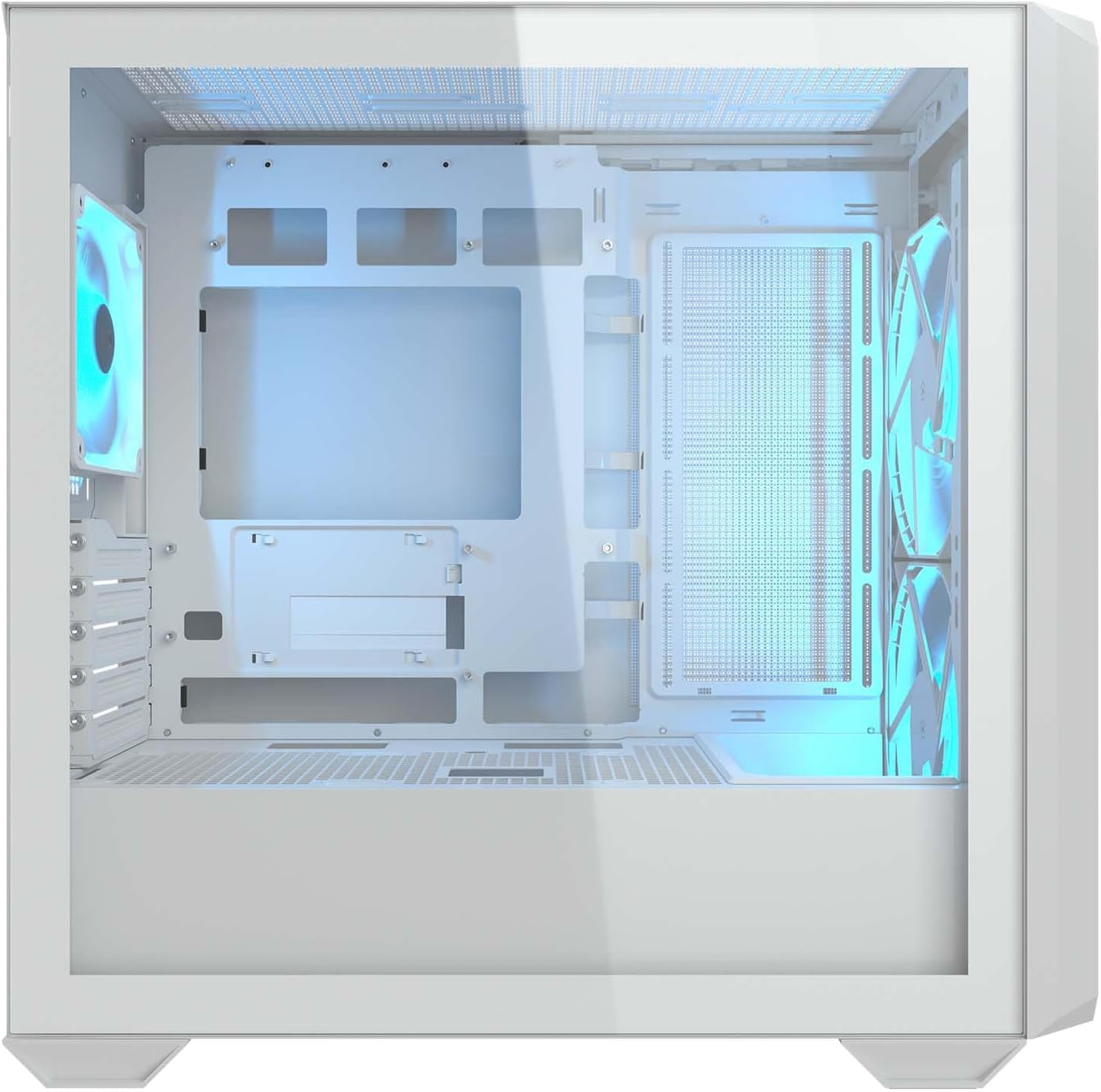
Figure 3.1: Internal layout of the MX600 Mini RGB case, showing the motherboard tray and component mounting areas.
3.2 Motherboard Installation
- Install the I/O shield (if not pre-attached to your motherboard) into the rear opening of the case.
- Align your Mini ITX or Micro ATX motherboard with the standoffs in the motherboard tray. Ensure all standoffs match the screw holes on your motherboard.
- Secure the motherboard using the provided screws from the accessory box.
- For reverse connector motherboards, route all necessary cables through the designated cutouts behind the motherboard tray. This design minimizes visible cables in the main chamber.

Figure 3.2: Rear view of the motherboard tray, highlighting the cable routing options for reverse connector motherboards.
3.3 Graphics Card (GPU) Installation
- Remove the necessary PCIe slot covers from the rear of the case.
- Insert your graphics card into the appropriate PCIe slot on the motherboard, ensuring it is fully seated.
- Secure the graphics card with screws. The MX600 Mini RGB supports GPUs up to 380mm in length.

Figure 3.3: Example of a graphics card installed within the MX600 Mini RGB case, demonstrating ample clearance.
3.4 Power Supply Unit (PSU) Installation
- Mount the PSU into the designated bottom-mount compartment, typically accessed from the rear or side of the case.
- Secure the PSU with screws.
- Route all necessary PSU cables through the cable management cutouts to the motherboard and other components.
3.5 Storage Drive Installation
Refer to your case's specific drive bay locations for 2.5" SSDs and 3.5" HDDs. Typically, these are located behind the motherboard tray or within the PSU shroud area. Secure drives using the provided screws or tool-less mechanisms.
3.6 Cooling System Installation (Fans & Radiators)
The MX600 Mini RGB comes with two 160mm PWM fans pre-installed at the front. Additional fans and radiators can be installed as follows:
- Air Cooling: The case supports up to 10 fans in various configurations. Refer to Figure 3.4 for supported fan sizes and locations.
- Liquid Cooling: A 360mm radiator can be installed at the top of the case. Other radiator sizes (240mm, 280mm) are also supported at the top or M/B side. Refer to Figure 3.5 for radiator placement options.

Figure 3.4: Air cooling support diagram, indicating fan sizes (120mm, 140mm, 160mm) and their respective mounting positions.

Figure 3.5: Liquid cooling support diagram, illustrating radiator sizes (120mm, 240mm, 280mm, 360mm) and their compatible mounting positions (top, M/B side).
3.7 Front I/O Panel Connections
Connect the front panel cables (USB, audio, power switch, reset switch, LED indicators) to the corresponding headers on your motherboard. Refer to your motherboard manual for exact header locations.

Figure 3.6: Top panel of the MX600 Mini RGB case, featuring the front I/O ports including USB and audio jacks.
4. Operating Instructions
4.1 Powering On Your System
- Ensure all components are securely installed and all cables are properly connected.
- Replace the side panels.
- Connect your monitor, keyboard, mouse, and power cable to the PC.
- Flip the power switch on your PSU to the 'ON' position.
- Press the power button on the front panel of the case.
4.2 RGB Lighting Control
The pre-installed fans feature RGB lighting. Control of the RGB effects is typically managed through your motherboard's RGB software (e.g., ASUS Aura Sync, GIGABYTE RGB Fusion, MSI Mystic Light, ASRock Polychrome Sync) if the fans are connected to an addressable RGB header. Alternatively, some cases may include a dedicated RGB controller or button on the front I/O panel for basic mode cycling. Refer to your motherboard or fan documentation for specific RGB control methods.
5. Maintenance
Regular maintenance helps ensure optimal performance and longevity of your PC components.
5.1 Dust Filter Cleaning
- The MX600 Mini RGB case is equipped with removable dust filters (e.g., top, front, bottom).
- Periodically remove and clean these filters using compressed air or by washing them gently with water. Ensure they are completely dry before re-installing.
5.2 General Cleaning
- Use a soft, dry cloth to wipe down the exterior of the case.
- For the tempered glass panel, use a glass cleaner and a microfiber cloth to avoid streaks.
- Use compressed air to clear dust from internal components and fan blades. Always hold fan blades stationary when using compressed air to prevent damage.
6. Troubleshooting
If you encounter issues with your PC build, consider the following common troubleshooting steps:
- No Power: Ensure the PSU switch is ON, the power cable is securely connected, and the front panel power button cable is correctly attached to the motherboard.
- Fans Not Spinning/No RGB: Check fan power connections to the motherboard or fan controller. Verify RGB connections to the motherboard's RGB header or dedicated controller. Ensure relevant software is installed and configured.
- No Display: Confirm the monitor cable is connected to the graphics card (not the motherboard's integrated graphics ports, unless you are using integrated graphics). Reseat the graphics card and RAM modules.
- Overheating: Ensure all fans are spinning correctly and oriented for optimal airflow. Clean dust filters. Verify CPU cooler installation.
For more complex issues, consult your motherboard manual or contact COUGAR customer support.
7. Specifications
Detailed technical specifications for the COUGAR MX600 Mini RGB PC Case.
| Feature | Specification |
|---|---|
| Brand | COUGAR |
| Model Name | MX600 Mini RGB White |
| Case Type | Mini Tower |
| Motherboard Compatibility | Mini ITX, Micro ATX |
| Dimensions (L x W x H) | 17.95 x 9.13 x 17.52 inches (approx. 456 x 232 x 445 mm) |
| Item Weight | 16.72 pounds (7.6 kg) |
| Material | Metal |
| Color | White |
| Max GPU Length | 380mm |
| PSU Mounting Type | Bottom Mount |
| Pre-installed Fans | 2 x 160mm PWM (Front) |
| Max Fan Capacity | Up to 10 fans |
| Radiator Support (Top) | 360mm |
| Cooling Method | Air |
8. Warranty and Support
COUGAR products are manufactured to the highest quality standards. For warranty information, technical support, or to inquire about replacement parts, please visit the official COUGAR website or contact their customer service department.
Official COUGAR Website: Visit the COUGAR Store on Amazon
Please retain your proof of purchase for warranty claims.


