
1. Introduction
This manual provides essential information for the safe and efficient operation of your Bisofice X9 A4 Portable Thermal Printer. Please read this manual thoroughly before using the device and retain it for future reference.
The Bisofice X9 is a compact, inkless thermal printer designed for mobile and on-the-go printing. It supports various thermal paper sizes and offers wireless connectivity for convenience.
2. Safety Information
- Use only the specified power adapter and cables.
- Do not expose the printer to water, moisture, or extreme temperatures.
- Keep the printer away from direct sunlight and heat sources.
- Do not attempt to disassemble or repair the printer yourself. Contact customer support for assistance.
- Ensure proper ventilation during operation.
- Use only Bisofice recommended thermal paper for optimal performance and to prevent damage.
3. Package Contents
Verify that all items are present in the package:
- Bisofice X9 A4 Portable Thermal Printer
- USB-C Charging Cable
- User Manual
- (May include a starter roll of thermal paper)
4. Product Overview
Familiarize yourself with the components of your Bisofice X9 printer.

Image 1: Bisofice X9 A4 Portable Thermal Printer in use, surrounded by printed documents and a smartphone. This illustrates the printer's compact size and its output capabilities.
Key Components:
- Power Button: Located on the side/front. Used to power on/off the device.
- Paper Feed Slot: Where thermal paper is inserted for printing.
- USB-C Port: For charging and wired connection to computers.
- Indicator Lights: Provide status information (e.g., power, battery, Bluetooth connection).
5. Setup
5.1 Initial Charging
- Connect the provided USB-C cable to the printer's USB-C port.
- Connect the other end of the USB-C cable to a compatible USB power adapter (not included) or a computer's USB port.
- The indicator light will show charging status. Charge the printer fully before first use. A full charge allows printing approximately 70 A4 sheets.
5.2 Loading Thermal Paper
The Bisofice X9 supports various thermal paper types, including roll paper and folded sheets.

Image 2: Illustration of the Bisofice X9 printer accommodating both folding and roll thermal paper, alongside examples of supported paper sizes (US Letter, A4, 110mm, 80mm, 53mm).
- Open the paper compartment cover.
- Insert the thermal paper with the printable side facing the print head. Ensure the paper is aligned straight.
- For roll paper, place the roll in the designated slot and feed the leading edge through the printer mechanism.
- For folded sheets, insert a stack of sheets into the feed slot.
- Close the paper compartment cover securely.
Note: Only thermal paper is supported. Regular copy paper will not print. For best results, use Bisofice thermal paper.
6. Operating Instructions
6.1 Power On/Off
- To Power On: Press and hold the power button until the indicator light illuminates.
- To Power Off: Press and hold the power button until the indicator light turns off.
6.2 Connecting to Devices

Image 3: The Bisofice X9 printer demonstrating its connectivity options, including Bluetooth for phones/tablets (Android, iOS) and USB for computers (Mac, Windows).
6.2.1 Bluetooth Connection (iOS & Android)
- Ensure the printer is powered on.
- Download and install the "Tiny Print" application from the App Store (iOS) or Google Play Store (Android).
- Enable Bluetooth on your mobile device.
- Open the "Tiny Print" app and follow the in-app instructions to search for and connect to your Bisofice X9 printer.
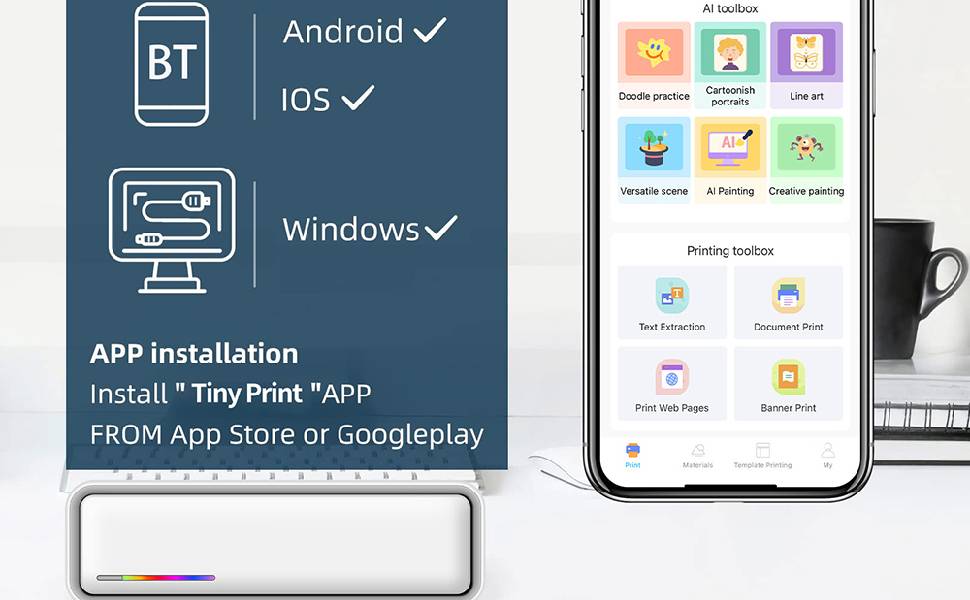
Image 4: A visual representation of the "Tiny Print" application interface, highlighting its features for mobile printing.
6.2.2 USB Connection (Windows & Mac OS)
- Ensure the printer is powered on.
- Connect the printer to your computer using the USB-C cable.
- For Windows and Mac OS, you may need to download and install the appropriate driver from the official website: https://gj.fanqie365.cn/.
- Follow the on-screen instructions for driver installation.
- Once the driver is installed, the printer should be recognized by your computer's printing system.
Note: Bluetooth connection to computers is not supported.
6.3 Printing Process
- Ensure the printer is connected to your device (via Bluetooth or USB) and has sufficient paper and battery charge.
- Open the document or image you wish to print on your device.
- Select the print option from your application or operating system.
- Choose "Bisofice X9" from the list of available printers.
- Adjust print settings (e.g., paper size, orientation) as needed.
- Initiate the print job. The printer will begin feeding and printing the document.
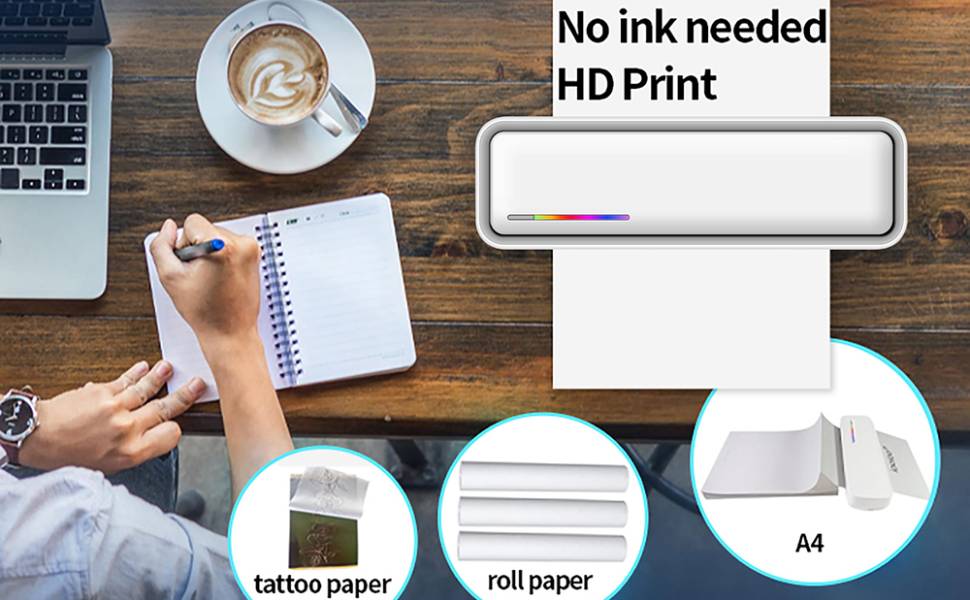
Image 5: The Bisofice X9 printer in action, emphasizing its inkless thermal printing technology and compatibility with various thermal paper types.
7. Paper Compatibility
The Bisofice X9 printer supports a variety of thermal paper sizes and types:
- US Letter (8.5" x 11")
- A4
- 4.33" (110mm) width
- 3.14" (80mm) width
- 2.08" (53mm) width
- Supports thermal rolls, thermal stickers, continuous thermal paper, and individual thermal sheets.
Important: Only thermal paper is compatible. The printer does not support normal copy paper and prints only in black and white.
8. Maintenance
8.1 Cleaning the Print Head
To maintain print quality, clean the print head periodically:
- Ensure the printer is powered off and disconnected from any power source.
- Open the paper compartment.
- Gently wipe the print head with a soft, lint-free cloth lightly dampened with isopropyl alcohol.
- Allow the print head to dry completely before closing the cover and powering on the printer.
8.2 Storage
- Store the printer in a cool, dry place, away from direct sunlight and extreme temperatures.
- Remove any paper from the printer if storing for an extended period.
- Charge the battery periodically (e.g., every 3 months) if not in regular use to prolong battery life.
9. Troubleshooting
| Problem | Possible Cause | Solution |
|---|---|---|
| Printer does not power on. | Low battery or no power. | Charge the printer using the USB-C cable. |
| No print output. | Incorrect paper type, paper loaded incorrectly, or printer not connected. | Ensure thermal paper is used and loaded correctly. Verify Bluetooth or USB connection. |
| Poor print quality. | Dirty print head, low battery, or non-Bisofice thermal paper. | Clean the print head. Ensure battery is charged. Use recommended Bisofice thermal paper. |
| Cannot connect via Bluetooth. | Bluetooth not enabled, app not installed, or printer not discoverable. | Enable Bluetooth on your device. Install "Tiny Print" app. Ensure printer is on and in pairing mode. |
| Cannot connect to computer via Bluetooth. | Bluetooth connection to computers is not supported. | Connect to computer using the USB-C cable and install the necessary drivers. |
10. Specifications
| Feature | Detail |
|---|---|
| Model Name | X9 |
| Product Model Number | VYZ2407279597458BQ |
| Printing Technology | Thermal Printing (Inkless) |
| Print Color | Monochrome (Black and White) |
| Connectivity | Bluetooth (iOS & Android), USB-C (Windows & Mac OS) |
| Battery Capacity | 2500 mAh (approx. 70 A4 sheets per charge) |
| Supported Paper Sizes | US Letter (8.5" x 11"), A4, 4.33" (110mm), 3.14" (80mm), 2.08" (53mm) width |
| Dimensions | 267.7 x 46 x 84 mm (Product dimensions from feature bullets) |
| Weight | Approximately 989 g |
| Companion App | "Tiny Print" (available on App Store & Google Play) |
11. Warranty and Support
For warranty information and customer support, please refer to the documentation included with your purchase or visit the official Bisofice website. You can also contact the seller directly for assistance.
For driver downloads and further technical support, visit: https://gj.fanqie365.cn/

