
1. Introduction
Thank you for choosing the Pisichen 27-inch 2K 100Hz Touchscreen Monitor. This high-performance monitor is designed to provide an immersive visual and interactive experience for both work and entertainment. Featuring a QHD 2560x1440 resolution, a smooth 100Hz refresh rate, and a responsive 10-point multi-touch IPS panel, it delivers crystal-clear visuals and intuitive control. With versatile connectivity options including USB-C, HDMI, and DP ports, along with built-in speakers, this monitor is a comprehensive solution for your computing needs.
2. What's Included
Please verify that all components are present in the package:
- Pisichen 27-inch Touchscreen Monitor
- Monitor Base
- HDMI Cable
- DC Power Adapter
- USB A-C Cable
- USB C-C Cable
- User Manual (this document)

Image: Visual representation of all accessories included with the monitor.
3. Setup Guide
3.1 Physical Setup
- Carefully remove the monitor and its components from the packaging.
- Attach the monitor base to the monitor stand. Ensure it clicks securely into place.
- Place the monitor on a stable, flat surface.
- Alternatively, for VESA mounting (100x100mm), remove the pre-attached stand by pressing the release button at the back and sliding it off. Then, attach your VESA-compatible mount using appropriate screws (not included).

Image: Rear view of the monitor highlighting the ergonomic tilt range (-5° to 15°) and port locations.
3.2 Connectivity
The monitor offers multiple input options for video and touch functionality:
- Power: Connect the DC Power Adapter to the monitor's DC 12V 3A port and plug it into a power outlet.
- USB-C (Video & Touch): For devices with a full-featured USB-C port (supporting DisplayPort Alt Mode), use the provided USB C-C cable to connect directly to the monitor. This single cable can transmit video, audio, and touch signals.
- HDMI/DP (Video) + USB-A to USB-C (Touch): For devices using HDMI or DisplayPort for video, you will also need to connect the USB-A to USB-C cable from your computer's USB-A port to the monitor's USB-C port to enable touch functionality.
Video: A demonstration of connecting the monitor to various devices, including a laptop via HDMI and USB-A for touch, and a phone via USB-C, showcasing resolution and touch capabilities. (Source: Seller)

Image: The monitor connected to a laptop and a desktop PC, illustrating its use as a second monitor and a touchscreen monitor.

Image: The monitor connected to a mobile phone via USB-C for video and touch, and an iPhone via a Lightning to HDMI adapter (note: touch not supported with iPhone).
4. Operating Instructions
4.1 Basic Functions
- Power On/Off: Press the power button located on the monitor's side/back to turn it on or off.
- OSD Menu: Use the OSD (On-Screen Display) buttons to navigate the monitor settings, adjust brightness, contrast, input source, and other display parameters.
4.2 Touchscreen Functionality
The monitor supports 10-point multi-touch, allowing for intuitive interaction with compatible devices. You can use your fingers or a passive stylus for gestures like:
- Tapping for clicks
- Pinching to zoom in/out
- Swiping for navigation
- Multi-finger gestures for specific applications

Image: Illustrates supported multi-touch gestures (click, zoom in/out, drag, multi-touch, up/down) and compatible devices for touch functionality.

Image: Two individuals interacting with the 27-inch large touch panel monitor, demonstrating its use for presentations or data browsing.
4.3 Display Features
- 100Hz Refresh Rate: Experience ultra-smooth visuals, ideal for gaming and fast-paced content.
- QHD 2560x1440 Resolution: Enjoy vivid colors and sharp details on the 27-inch IPS screen.
- Eye Saver Mode: Reduces blue light levels to minimize eye strain during prolonged use.
- Flicker-Free Technology: Enhances viewing comfort by eliminating irritating screen flicker.
- HDR Support: Provides a wider range of colors and contrast for a more dynamic image.

Image: The monitor showcasing a high-speed gaming scene, emphasizing its 100Hz refresh rate for smooth visuals.

Image: The monitor displaying a high-resolution image, highlighting its QHD 2560x1440P resolution compared to standard FHD.

Image: Displays devices such as PS3/4/5, Switch, Xbox, Steam Deck, and Fire TV Cube, which do not support touch functionality with this monitor due to platform-specific restrictions.
5. Maintenance
To ensure the longevity and optimal performance of your monitor, follow these maintenance guidelines:
- Cleaning the Screen: Gently wipe the screen with a soft, lint-free cloth. For stubborn smudges, dampen the cloth slightly with water or a non-abrasive screen cleaner. Avoid spraying liquid directly onto the screen.
- Cleaning the Casing: Use a soft, dry cloth to clean the monitor's casing. Do not use strong detergents or solvents.
- Ventilation: Ensure the monitor's ventilation openings are clear and not obstructed to prevent overheating.
- Storage: When not in use for extended periods, store the monitor in a cool, dry place, away from direct sunlight and extreme temperatures.
6. Troubleshooting
This section addresses common issues you might encounter with your Pisichen monitor.
- No Display/Power:
- Ensure the power adapter is securely connected to both the monitor and a working power outlet.
- Check if the power indicator light on the monitor is on.
- No Touch Functionality:
- If using HDMI/DP for video, ensure the USB-A to USB-C cable is connected from your PC to the monitor for touch signal transmission.
- For USB-C (DP Alt Mode) or Thunderbolt 3/4 devices, a 12V 3A adapter is needed for power, and the USB-C cable handles video and touch.
- Calibration (Windows only): Go to Control Panel > Hardware and Sound > Tablet PC Settings > Calibrate. Press ENTER and select the 27-inch touchscreen monitor when prompted.
- Note: Touch functionality is not supported when connected to an iPhone due to iOS system restrictions.
- Incorrect Resolution:
- Right-click on your desktop, select Display Settings, and choose 'Extend Mode' in Multi Monitor Settings. Find this monitor and select the recommended resolution of 2560x1440P in the resolution column.
- Image Quality Issues (Washed Colors, Poor Resolution):
- Ensure you are using the correct resolution (2560x1440P).
- Check cable connections for looseness or damage.
- Adjust brightness, contrast, and color settings via the OSD menu.
- Monitor Unstable:
- Ensure the monitor base is securely attached and placed on a stable surface.
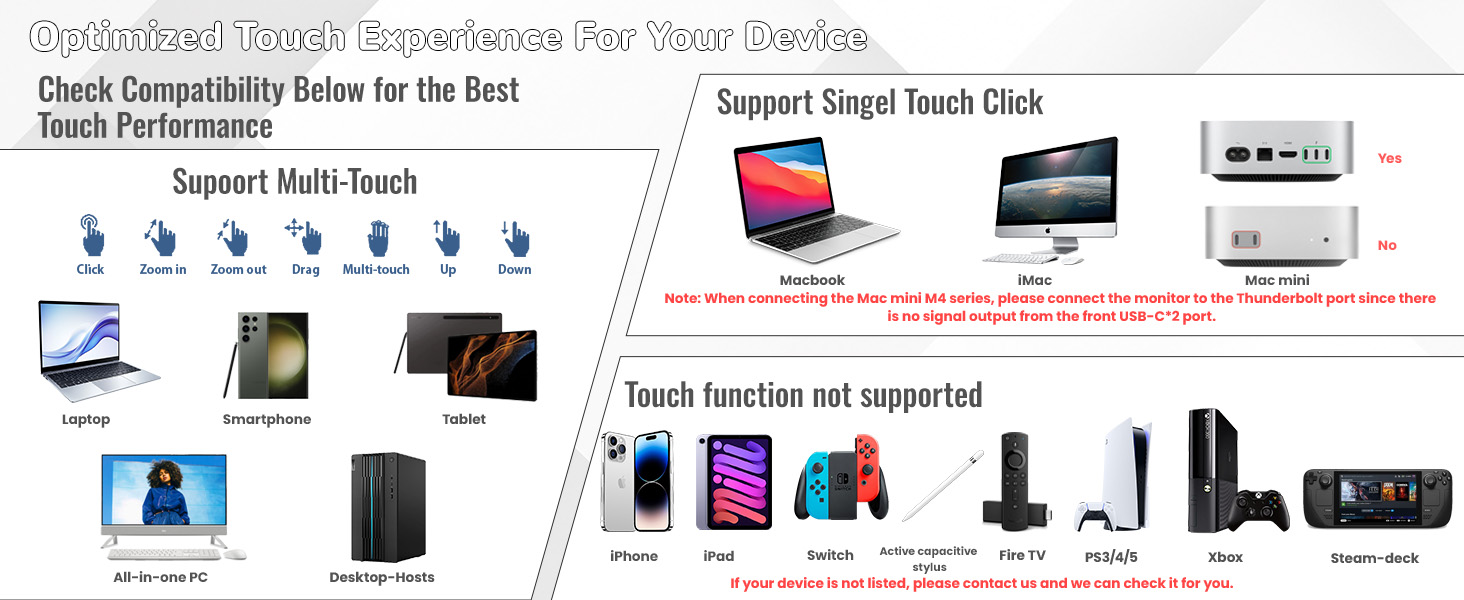
Image: Frequently Asked Questions (FAQs) providing quick solutions to common issues related to touch function, cursor movement, resolution, and iPhone compatibility.
7. Specifications
| Feature | Specification |
|---|---|
| Brand | Pisichen |
| Model Number | 27INTS-2K |
| Screen Size | 27 inches |
| Resolution | QHD 2560 x 1440 Pixels |
| Refresh Rate | 100Hz |
| Panel Type | IPS |
| Brightness | 400 Candela |
| Viewing Angle | 178° |
| Touch Technology | 10-Point Multi-Touch |
| Aspect Ratio | 16:9 |
| Connectivity | HDMI, DP, USB-C 3.1, Audio Port |
| Built-in Speakers | Yes |
| VESA Mounting | 100x100mm |
| Tilt Adjustment | -5° to 15° |
| Power Input | 12 Volts (DC) |
| Item Weight | 14.97 pounds |
| Product Dimensions | 0.71 x 24.02 x 14.17 inches |

Image: Detailed product dimensions of the monitor.
8. Warranty and Support
For warranty information, technical support, or any product-related inquiries not covered in this manual, please contact Pisichen customer service. You can reach them via email at support_2308@163.com. Please provide your product model number and a detailed description of your issue for prompt assistance.


