
1. Introduction
The EZVIZ CP1 Pro 2K Indoor Security Camera is designed to provide comprehensive indoor surveillance with advanced features. This smart camera offers 360-degree pan and tilt capabilities, ensuring wide coverage of your home. It includes a unique call button for easy communication, smart motion tracking, color night vision, and a privacy mode for enhanced security and peace of mind.
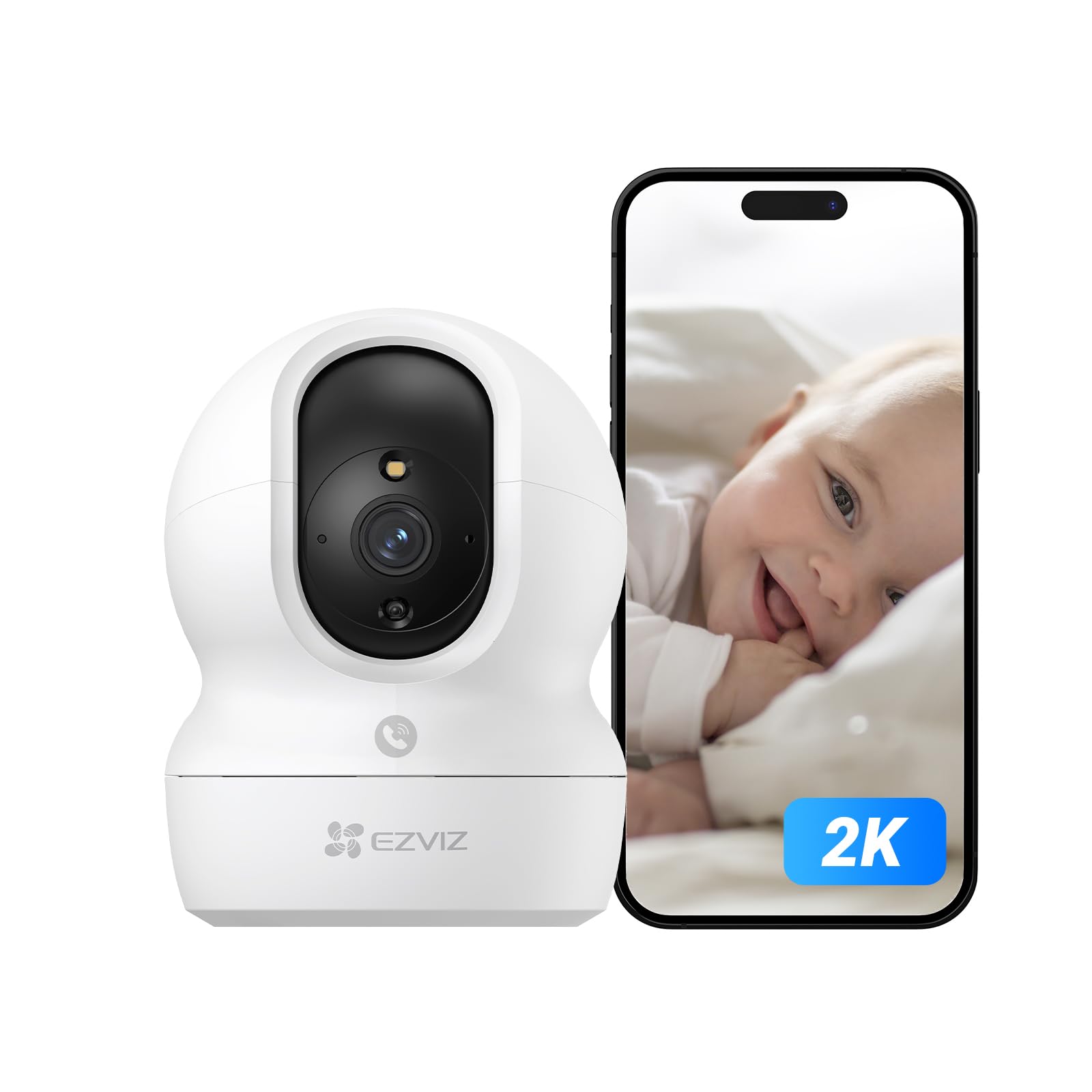
Figure 1: EZVIZ CP1 Pro 2K Indoor Security Camera. This image shows the compact, white dome-shaped camera with its lens and base, designed for indoor use.
2. Package Contents
Verify that all items are present in the package before proceeding with installation.
- EZVIZ CP1 Pro Camera
- Mounting Plate
- Power Adapter
- Power Cable
- Screw Kit
- Drilling Template
3. Setup
3.1 Initial Power-On
- Connect the power adapter to the camera's power port.
- Plug the power adapter into a wall outlet. The camera will power on and begin its startup sequence.
3.2 EZVIZ App Installation and Account Creation
- Download the EZVIZ app from the App Store (iOS) or Google Play Store (Android).
- Open the app and follow the on-screen instructions to create a new EZVIZ account or log in if you already have one.
3.3 Connecting to Wi-Fi
- In the EZVIZ app, tap the '+' icon to add a new device.
- Scan the QR code located on the bottom of the camera.
- Follow the in-app prompts to connect the camera to your home Wi-Fi network. Ensure your Wi-Fi network is 2.4 GHz.
3.4 Mounting the Camera
The CP1 Pro camera supports multiple mounting options:
- Table Mount: Place the camera on a flat surface like a table or shelf.
- Wall Mount: Use the provided drilling template and screw kit to secure the mounting plate to a wall, then attach the camera.
- Ceiling Mount: Similar to wall mounting, use the template and screw kit to attach the mounting plate to the ceiling, then secure the camera.

Figure 2: Camera features and mounting options. This image illustrates various features like 2K resolution, 360-degree panoramic view, smart patrol mode, color night vision, human shape detection, auto-tracking, high noise detection, two-way talk, privacy mode, and MicroSD/CloudPlay storage, along with different mounting possibilities.
4. Operating the Camera
4.1 Live View and Pan/Tilt Control
Access the live feed from your camera through the EZVIZ app. Use the on-screen controls to remotely pan (horizontal rotation) and tilt (vertical movement) the camera lens to view different areas of your room. The camera offers a 360-degree panoramic view.

Figure 3: 360-degree coverage and customizable patrol. This image demonstrates the camera's ability to cover an entire room with 340-degree horizontal and 55-degree vertical rotation, and the option to set custom patrol routes.
4.2 Two-Way Audio
The camera features a built-in microphone and speaker, allowing for two-way communication. Tap the microphone icon in the app to speak, and listen through the camera's speaker.
4.3 Motion Detection and Tracking
The CP1 Pro 2K camera can detect human shapes and general motion. Upon detection, it automatically tracks the movement and sends instant notifications to your phone with video recordings. This ensures you are alerted to any significant activity.
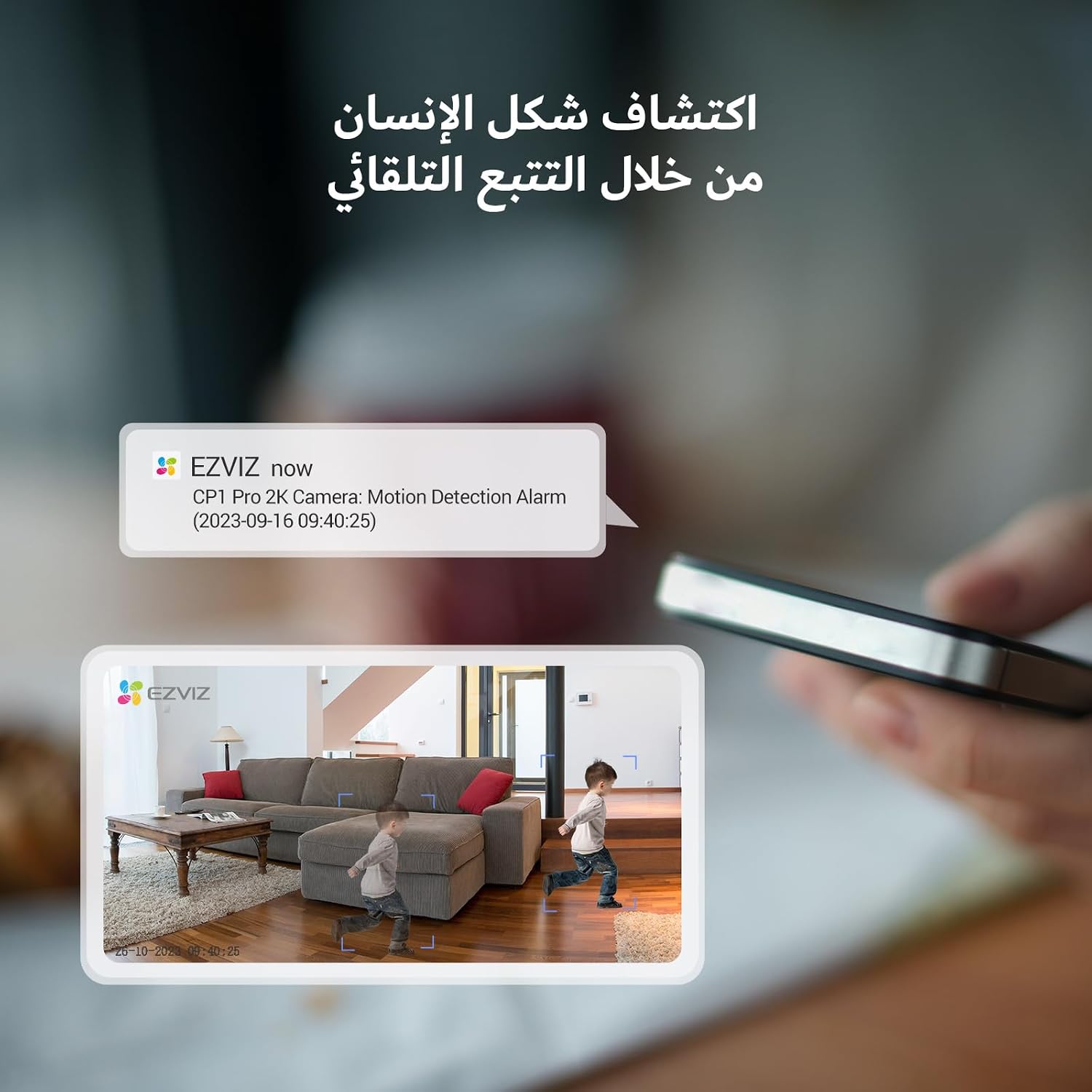
Figure 4: Human shape detection with automatic tracking. This image shows the camera detecting and tracking a child moving across a room, with a notification appearing on a smartphone.
4.4 Night Vision
The camera is equipped with advanced night vision, providing clear video even in low-light conditions up to 10 meters. It also supports color night vision for enhanced detail.

Figure 5: Night vision features. This image highlights the camera's ability to provide smart color night vision up to 5 meters and clear night imaging up to 10 meters, with reduced noise and clearer details.
4.5 Call Button Feature
The camera features a physical call button. When pressed, it initiates a call to your connected smartphone via the EZVIZ app, allowing for quick and easy video communication with family members at home.

Figure 6: High noise detection and touch call button. This image shows the camera detecting abnormal sounds (like a crying baby) and the call button feature for initiating video calls.
4.6 Privacy Mode
Activate the privacy mode through the EZVIZ app. This feature physically covers the camera lens, ensuring your privacy when you are at home and do not require surveillance.
5. Maintenance
5.1 Cleaning the Camera
To maintain optimal performance, regularly clean the camera lens and body with a soft, dry cloth. Avoid using harsh chemicals or abrasive materials.
5.2 Firmware Updates
Ensure your camera's firmware is up to date for the best performance and security. Check for updates periodically through the EZVIZ app.
5.3 Storage Management
The camera supports local storage via a MicroSD card (up to 512GB) and cloud storage through EZVIZ CloudPlay. Manage your recordings and storage preferences within the EZVIZ app.

Figure 7: Storage options. This image shows the camera supports MicroSD card storage up to 512GB and EZVIZ CloudPlay for cloud storage.
6. Troubleshooting
6.1 Common Issues
- Camera Offline: Check Wi-Fi connection, power supply, and ensure the camera is within range of your router. Restart the camera and router if necessary.
- Poor Image Quality: Ensure the lens is clean and free from obstructions. Check your internet connection speed.
- No Motion Alerts: Verify that motion detection is enabled in the EZVIZ app and sensitivity settings are appropriate.
- Call Button Not Working: Ensure the camera is connected to the internet and the EZVIZ app is running on your phone.
6.2 Resetting the Device
If you encounter persistent issues, you may need to reset the camera to its factory settings. Locate the reset button (usually a small pinhole) on the camera, press and hold it for approximately 10 seconds until the indicator light changes, then release. You will need to reconfigure the camera after a reset.
7. Specifications
| Feature | Specification |
|---|---|
| Brand | EZVIZ |
| Model Name | CP1 Pro 3 Megapixel (2K) |
| Model Number | CS-CP1-R105-1L3WF |
| Recommended Uses | Baby Monitoring |
| Connectivity Technology | Wireless (Wi-Fi) |
| Special Features | Night Vision, PTZ Technology, Cry Detection, Motion Sensor, Two-Way Audio |
| Indoor/Outdoor Use | Indoor |
| Communication Protocol | Wi-Fi |
| Controller Type | IFTTT |
| Mounting Type | Ceiling Mount, Table Mount, Wall Mount |
| Video Capture Resolution | 3 Megapixel (2K) |
| Color | White |
| Form Factor | Dome |
| Alert Type | Sound and Motion |
| Batteries Required | No |
| Night Vision Range | 10 meters |
| Included Components | Screw Kit, Drilling Template, CP1 Pro Camera, Mounting Plate, Power Adapter, Power Cable |
| Country of Origin | China |
| Number of Channels | 1 |
| Video Capture Format | MP4 |
| Item Dimensions (LxWxH) | 8.8 x 8.8 x 11.9 cm |
| Unit Count | 1 |
8. Warranty and Support
8.1 Product Warranty
This EZVIZ product comes with a standard manufacturer's warranty. Please refer to the warranty card included in your package or visit the official EZVIZ website for detailed warranty terms and conditions.
8.2 Technical Support
For technical assistance, troubleshooting, or any product-related inquiries, please contact EZVIZ customer support. You can find support resources, FAQs, and contact information on the official EZVIZ website or through the EZVIZ mobile application.
Visit the EZVIZ store for more information: EZVIZ Store


