
Onforu BDB55WF-3
Onforu 65W Smart LED Security Light User Manual
Model: BDB55WF-3
Introduction
This manual provides detailed instructions for the installation, operation, and maintenance of your Onforu 65W Smart LED Security Light. This advanced outdoor lighting solution features a motion sensor, adjustable color temperature and brightness, Wi-Fi connectivity for APP control, and voice activation compatibility with Alexa and Google Assistant. Please read this manual thoroughly before installation and use to ensure proper function and safety.

Image: The Onforu 65W Smart LED Security Light, featuring three adjustable light heads and an integrated motion sensor. A smartphone screen next to it illustrates the mobile application interface for controlling the light's settings.
Safety Information
Please observe the following safety precautions to prevent injury or damage:
- Electrical Safety: Always disconnect power at the circuit breaker before installing, servicing, or cleaning the fixture. Ensure all wiring connections are secure and comply with local electrical codes. If you are unsure about wiring, consult a qualified electrician.
- Outdoor Use: This product is designed for outdoor use and is IP65 waterproof. However, ensure all connections are properly sealed to prevent water ingress.
- Mounting: Mount the fixture securely to a stable surface. Do not install on unstable or vibrating structures.
- Heat: The LED light heads can become hot during operation. Do not touch the light heads immediately after use.
- Light Source: Do not stare directly into the LED light source when the fixture is on, as this may cause eye strain or damage.
- Modifications: Do not attempt to modify or disassemble the fixture. This will void the warranty and may pose a safety hazard.
Package Contents
Verify that all components are present before beginning installation:
- Onforu 65W Smart LED Security Light (Model: BDB55WF-3)
- Mounting Hardware (screws, wire nuts)
- User Manual (this document)
- LED Lens (pre-installed)
Product Overview
The Onforu Smart LED Security Light features an integrated design for optimal performance and adjustability.
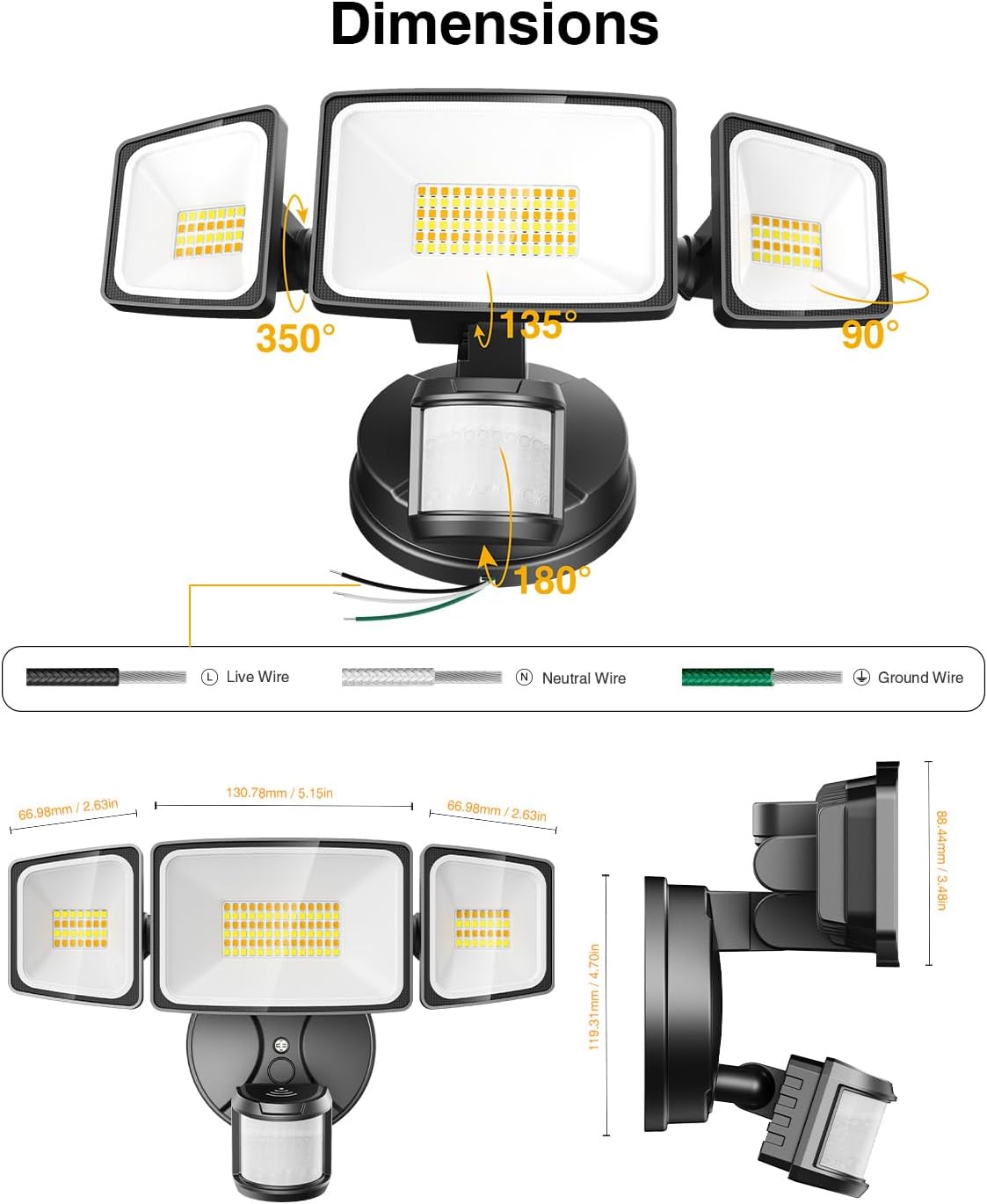
Image: A detailed diagram illustrating the dimensions of the light fixture (10.7"L x 5.8"W x 4.7"H) and the adjustable angles of its components. The three light heads can rotate up to 350 degrees horizontally and 135 degrees vertically. The motion sensor has a 180-degree rotation capability. The diagram also shows the Live (black), Neutral (white), and Ground (green) wire connections.
Key components include:
- Adjustable Light Heads: Three independent LED light heads provide broad coverage and can be angled to direct light precisely where needed. Each head can rotate up to 350° horizontally and 135° vertically.
- PIR Motion Sensor: Detects movement within its range, activating the light. The sensor can rotate 180° for optimal positioning.
- Mounting Base: Designed for secure wall-mounted installation.
- Integrated LED Chips: Provide bright, energy-efficient illumination with adjustable color temperature.

Image: A magnified view of the LED chips inside the light heads, highlighting the arrangement of both warm white and cool white LEDs that enable adjustable color temperature.
Setup and Installation
Follow these steps for safe and proper installation:
- Power Disconnection: Before starting, turn off the power to the junction box at the circuit breaker.
- Mounting Location: Choose a suitable outdoor location for wall mounting. The ideal mounting height for optimal motion detection is between 8.2 and 9.84 feet.
- Prepare Wiring: Pull the electrical wires from the junction box through the center hole of the mounting base.
- Secure Mounting Base: Attach the mounting base to the wall using the provided screws, ensuring it is firmly secured.
- Wire Connections: Connect the light fixture's wires to your household wiring using the provided wire nuts:
- Black wire (Live) to the household Live wire.
- White wire (Neutral) to the household Neutral wire.
- Green/Yellow wire (Ground) to the household Ground wire.
- Attach Fixture: Carefully push the connected wires into the junction box and attach the light fixture to the mounting base.
- Adjust Light Heads and Sensor: Adjust the light heads and motion sensor to your desired angles. The light heads can be rotated 350° horizontally and 135° vertically, and the sensor 180°.
- Power On: Restore power at the circuit breaker. The light will turn on briefly as it initializes.
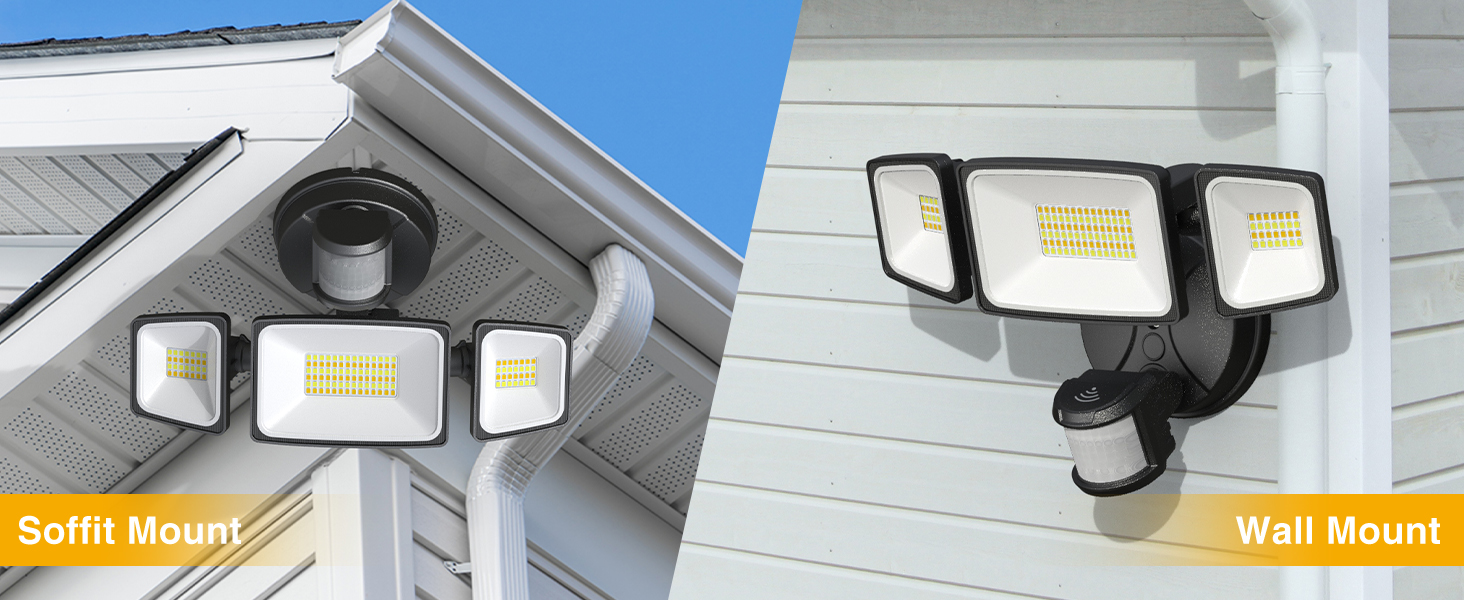
Image: Examples of installation, demonstrating both soffit mount and wall mount configurations for the security light.
Operating Instructions
1. Wi-Fi APP Control
The Onforu Smart LED Security Light supports APP connection via 2.4GHz Wi-Fi. Download the "Onforu" APP from your smartphone's app store.
- Pairing: Follow the in-app instructions to pair your light with the Onforu APP. Ensure your phone is connected to a 2.4GHz Wi-Fi network during pairing.
- Adjustments: Through the APP, you can control various settings:
- Color Temperature (2500K-6500K)
- Brightness (stepless dimming)
- Motion Sensor Distance (3 levels)
- Motion Off Delay (6 seconds to 60 minutes)
- Weak Light Brightness
- Motion Sensor Linkage (group control)
- Timer Settings
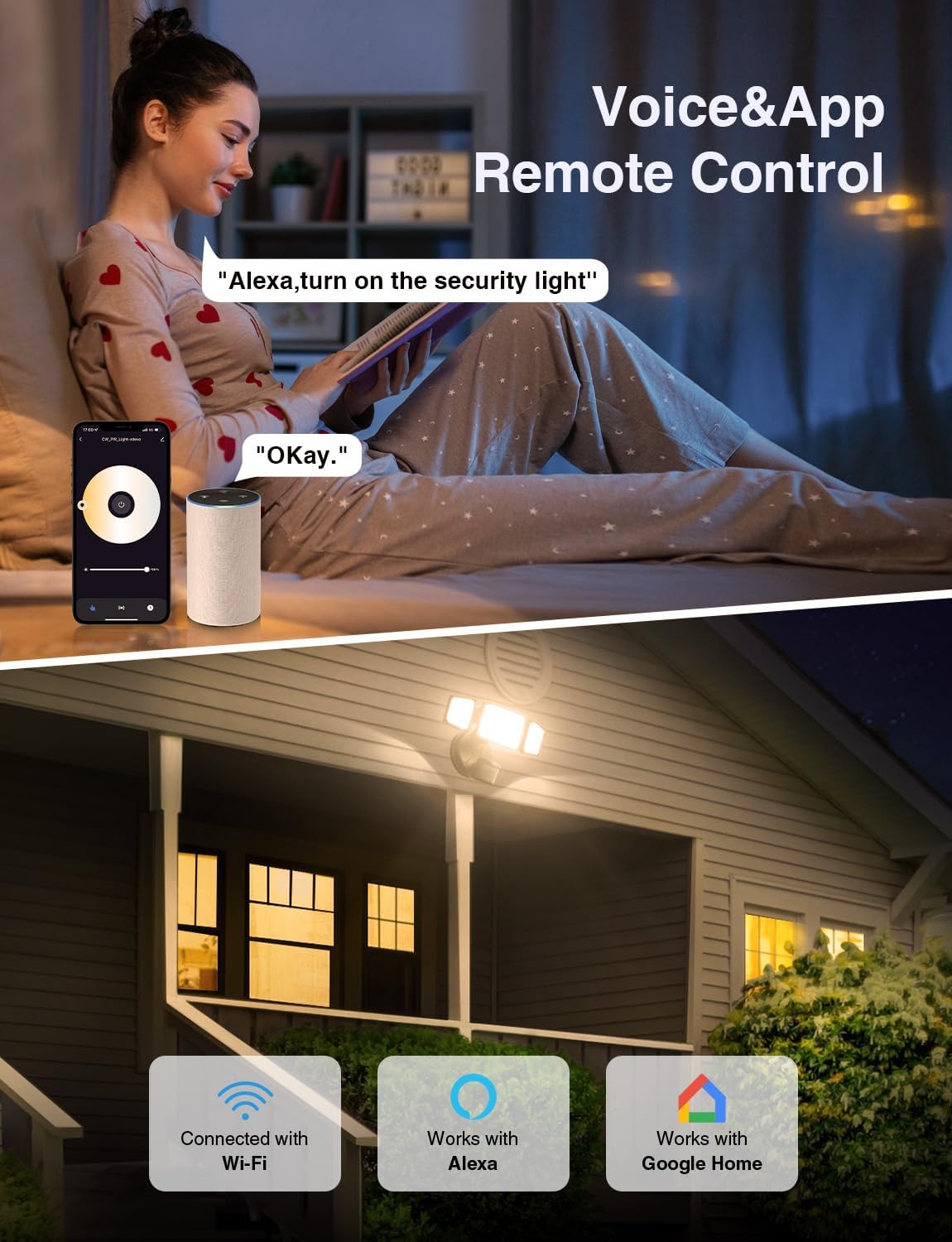
Image: Illustration of the light being controlled via the Onforu mobile application and through voice commands using an Amazon Echo device.
2. Adjustable Color Temperature & Brightness
The light features a stepless dimming system, allowing for precise adjustment of both color temperature and brightness.
- Color Temperature: Adjust from warm white (2500K) to cold white (6500K) to suit different moods or needs.
- Brightness: Control the light intensity with 5-level brightness settings or stepless dimming via the APP.
- Memory Function: The light retains your last selected settings, ensuring consistency.

Image: Visual representation of the light's ability to adjust color temperature, ranging from a warm 2700K to a cool 6500K.
3. Smart Voice Activated Control
The flood light supports voice control through Amazon Alexa and Google Assistant.
- Integration: Link your Onforu account with Alexa or Google Assistant through their respective apps.
- Commands: Use voice commands such as "Alexa, turn on the security light" or "Hey Google, set the security light to warm white."
4. Enhanced Motion Sensor Settings
The upgraded PIR sensor offers sensitive and customizable motion detection.
- Detection Angle: Max 180° motion sensor angle.
- Detected Distance: Up to 72.7 feet.
- Adjustable Sensing Distances: Choose from 3 levels of sensing distance (Low, Medium, High) via the APP.
- Surrounding Brightness Modes: Select from 5 modes to determine when the sensor should trigger based on ambient light.
- Delay Off Time: Set the light to stay on for 6 seconds to 60 minutes after motion is no longer detected.
- Event Records: The Onforu APP records every time the sensor lights trigger, providing a log of activity.

Image: A visual representation of the smart motion activation, showing a 180° detection angle and a maximum detection distance of 72.7 feet. It also highlights the non-solar power source and event recording feature.

Image: Diagrams illustrating optimal sensor head angles for long-distance (80°-90°) and short-distance (30°-60°) sensing, both at an installation height of 8.20 feet. Below, a sequence shows the light turning on with motion and turning off after a set delay (5s-60min).
5. Timer Setting
Schedule your light to turn on/off automatically at specific times or with different settings.
- Daily Schedule: Set specific times for the light to turn on and off daily (e.g., 6 PM on, 5 AM off).
- Custom Settings: Configure different color temperatures or brightness levels for specific hours within your schedule.
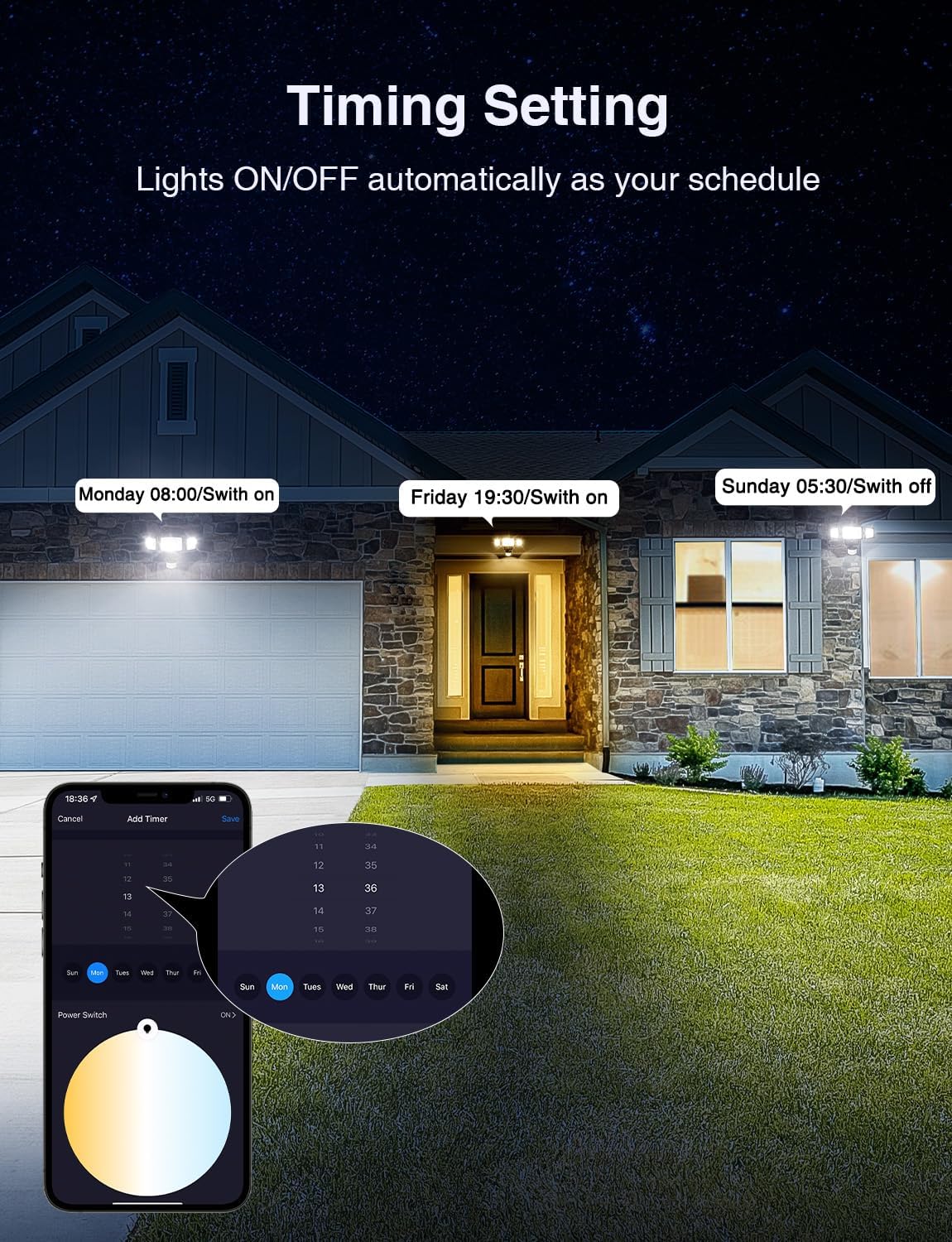
Image: A visual demonstration of the timer setting feature, where users can schedule the light to turn on or off automatically at specific times, such as Monday 06:00, Friday 19:30, and Sunday 05:30.
6. Motion Sensor Linkage & Group Control
Control multiple lights simultaneously or have them trigger each other.
- Group Control: Create groups in the Onforu APP to control several flood lights at once.
- Linkage Sensing: Configure lights to trigger sensing and illumination together, enhancing coverage and security.

Image: An illustration depicting multiple Onforu security lights (Group 1 and Group 2) installed around a house, demonstrating how they can be linked to trigger sensing and light activation simultaneously.
Maintenance
Regular maintenance ensures optimal performance and longevity of your security light:
- Cleaning: Periodically clean the light heads and motion sensor lens with a soft, damp cloth. Do not use abrasive cleaners or solvents. Ensure power is off before cleaning.
- Inspection: Regularly check the mounting and wiring connections for any signs of wear, damage, or looseness. Tighten connections if necessary.
- Environmental Factors: While the light is IP65 waterproof and resistant to frost and heat, ensure it is not submerged in water or exposed to extreme, prolonged conditions beyond its design limits.

Image: Visual confirmation of the light's durability, highlighting its IP65 waterproof rating and resistance to both frost and heat, suitable for various weather conditions.
Troubleshooting
If you encounter issues with your Onforu Smart LED Security Light, refer to the following common problems and solutions:
| Problem | Possible Cause | Solution |
|---|---|---|
| Light does not turn on. | No power, loose wiring, faulty sensor, light mode settings. | Check circuit breaker. Verify all wire connections are secure. Ensure the light is not in a "Dark" or "Off" mode in the APP. Test the sensor by walking into its detection area. |
| Motion sensor not detecting. | Incorrect sensor angle, obstructions, sensitivity settings, ambient light. | Adjust the sensor head angle. Clear any obstructions. Adjust motion sensor distance and surrounding brightness modes in the APP. Ensure the sensor lens is clean. |
| Light stays on constantly. | Motion off delay too long, continuous motion, test mode, wiring issue. | Reduce the motion off delay time in the APP. Ensure there is no continuous motion in the detection area. Check wiring for any short circuits. |
| Cannot connect to Wi-Fi/APP. | Incorrect Wi-Fi band, weak signal, incorrect pairing steps. | Ensure your router is 2.4GHz and your phone is connected to it during pairing. Move closer to the router. Reset the light and try pairing again following APP instructions. |
| Voice control not working. | Incorrect linking, wrong commands, internet connectivity. | Verify the Onforu account is correctly linked in your Alexa/Google Home app. Use precise voice commands. Check your internet connection. |
If the problem persists after trying these solutions, please contact Onforu customer support for further assistance.
Specifications
| Feature | Specification |
|---|---|
| Brand | Onforu |
| Model Name | Motion Sensor Light (BDB55WF-3) |
| Power Source | Corded Electric |
| Wattage | 65 watts |
| Brightness | 5500 lumens |
| Color Temperature | 2500K-6500K (Adjustable) |
| Voltage | 120 Volts (AC) |
| Material | Metal |
| Finish Type | Painted |
| Product Dimensions | 10.7"L x 5.8"W x 4.7"H |
| Item Weight | 2.01 pounds |
| Indoor/Outdoor Usage | Outdoor |
| Water Resistance Level | IP65 Waterproof |
| Special Features | Adjustable Color Temperature, Dimmable, Energy Efficient, Motion Sensor, Waterproof |
| Control Method | App, Voice (Alexa, Google Assistant) |
| Connectivity Protocol | Wi-Fi (2.4GHz) |
| Motion Sensor Angle | Max 180° |
| Motion Sensor Distance | Up to 72.7FT |
| Installation Type | Wall-Mounted |
Warranty and Support
Onforu provides customer support for its products. For warranty information, technical assistance, or any inquiries not covered in this manual, please contact Onforu customer service directly. Refer to the product packaging or the official Onforu website for contact details.
Online Resources: For the latest updates, FAQs, and additional support, visit the official Onforu website or their Amazon brand store:
Related documentsBDB55WF-3


Ask a question about this manual
Ask about setup, troubleshooting, compatibility, parts, safety, or missing instructions. Manuals+ will review the question and use this page’s manual context to help answer it.