
Picun NC60
Picun NC60 Hybrid Active Noise Cancelling Headphones User Manual
Model: NC60 (NC-60-BLACK)
Brand: Picun
Introduction
Welcome to the user manual for your Picun NC60 Hybrid Active Noise Cancelling Headphones. These headphones are designed to provide an immersive audio experience with advanced noise cancellation, long battery life, and versatile connectivity. This manual will guide you through the setup, operation, maintenance, and troubleshooting of your new headphones to ensure optimal performance and enjoyment.
What's in the Box
Please check the package contents to ensure all items are present:
- 1 x Picun NC60 Headphone
- 1 x 3.5mm Audio Cable
- 1 x USB Charging Cable
- 1 x User Manual
Product Overview
Familiarize yourself with the physical components and controls of your Picun NC60 headphones.

Figure 1: Picun NC60 Headphones. This image displays the overall design of the black over-ear headphones, highlighting the earcups and adjustable headband.
Controls and Ports
The Picun NC60 headphones feature intuitive button controls for easy management of audio playback, calls, and noise cancellation modes.

Figure 2: Button Functionality. This diagram illustrates the location and function of the various buttons on the headphone earcup, including power, volume, track control, and ANC mode switch.
- Power Button: On/Off, Play/Pause, Reject Call, Answer/Hang Up.
- Volume Up (+): Increase volume, Next song (long press).
- Volume Down (-): Decrease volume, Previous song (long press).
- ANC Button: Toggle between Active Noise Cancellation (ANC) On, ANC Off (Normal Mode), and Transparency Mode.
- USB-C Port: For charging the headphones.
- 3.5mm Audio Jack: For wired connection.
Setup Guide
1. Charging the Headphones
Before first use, fully charge your headphones. Use the provided USB Type-C charging cable.
- Connect the USB Type-C end of the charging cable to the charging port on the headphones.
- Connect the USB-A end to a USB power adapter (e.g., phone charger, computer USB port).
- The LED indicator will show charging status (refer to the LED indicator section in the full manual for specific light behaviors).
- A full charge takes approximately 2 hours.
Note: A quick 5-minute charge can provide up to 6 hours of playback.
2. Bluetooth Pairing
Pair your headphones with your Bluetooth-enabled device (smartphone, tablet, laptop).
- Ensure the headphones are fully charged.
- Power on the headphones by pressing and holding the Power button until the LED indicator flashes blue and red, indicating pairing mode.
- On your device, go to Bluetooth settings and turn Bluetooth on.
- Search for available devices. Select "Picun NC60" from the list.
- Once connected, the LED indicator on the headphones will turn solid blue or flash slowly.
Tip: The headphones support Bluetooth 5.4 for a stable and fast connection.

Figure 3: Latest Bluetooth V5.4. This image highlights the advanced wireless chip within the headphones, ensuring a stable and fast connection.
3. Picun App Customization
Enhance your audio experience by downloading the Picun app for custom EQ settings and mode switching.
- Download the "Picun" app from your device's app store (Google Play Store for Android, Apple App Store for iOS).
- Open the app and follow the on-screen instructions to connect your NC60 headphones.
- Within the app, you can customize EQ settings (treble, bass, balanced) and switch between Noise Cancellation, Normal, and Transparent modes.
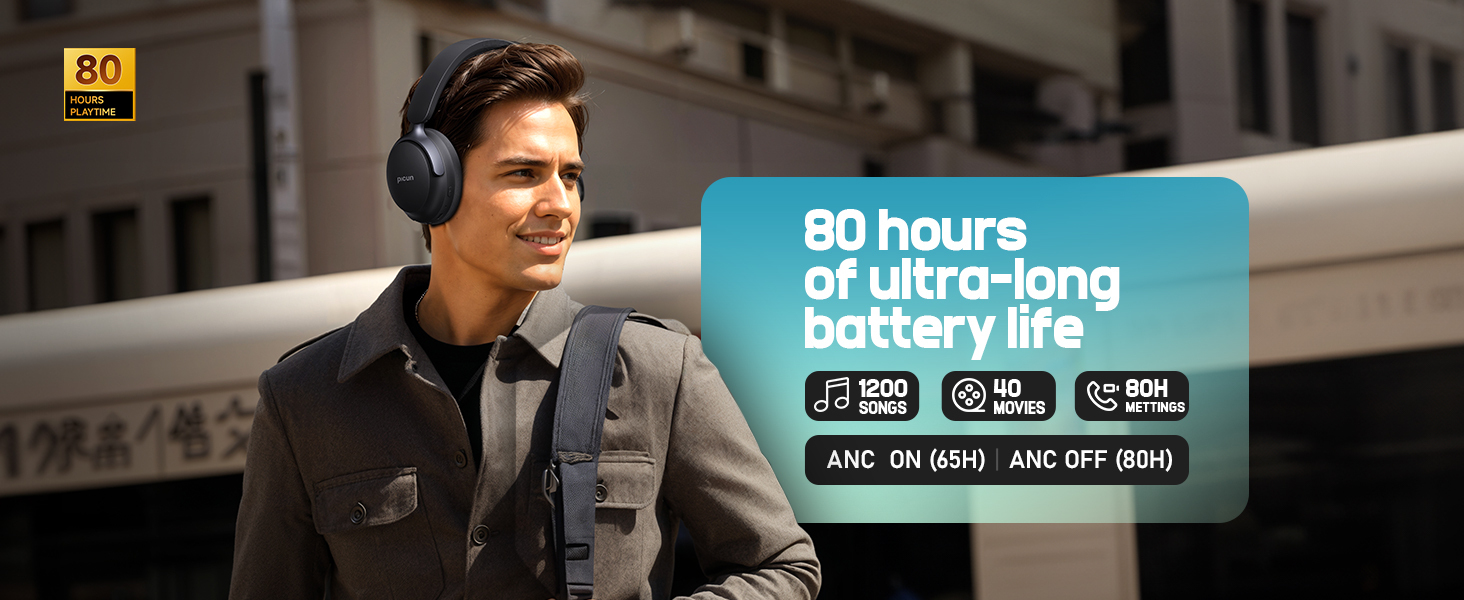
Figure 4: Personalized Soundstage. This image shows various screens of the Picun app, demonstrating how users can customize EQ settings and switch between listening modes for an enhanced audio experience.
Operating Instructions
Basic Controls
- Power On/Off: Press and hold the Power button for 3 seconds.
- Play/Pause: Short press the Power button.
- Volume Adjustment: Short press '+' for Volume Up, short press '-' for Volume Down.
- Next Track: Long press '+' for 2 seconds.
- Previous Track: Long press '-' for 2 seconds.
- Answer/End Call: Short press the Power button.
- Reject Call: Long press the Power button for 2 seconds.
Noise Control Modes
The NC60 offers three noise control modes: Active Noise Cancellation (ANC), Normal Mode, and Transparency Mode.
- Active Noise Cancellation (ANC): Press the ANC button to activate. This mode significantly reduces ambient noise, ideal for travel or noisy environments.
- Normal Mode: Press the ANC button again to switch to Normal Mode (ANC Off). This mode provides standard audio playback without noise cancellation.
- Transparency Mode: Press the ANC button a third time to activate. This mode allows you to hear your surroundings clearly while still enjoying your audio, useful for awareness in urban environments or conversations.

Figure 5: Hybrid Active Noise Cancellation. This image shows a man wearing the headphones in a busy street, illustrating the effectiveness of noise reduction up to 48dB, reducing ambient noise by up to 95%.

Figure 6: Transparency Mode. This image depicts a couple conversing, with one person wearing the headphones, demonstrating how Transparency Mode allows clear perception of external sounds while enjoying music.
Dual-Device Connection
The NC60 headphones support simultaneous connection to two Bluetooth devices, allowing seamless switching between them.
- Pair the headphones with your first device (e.g., smartphone).
- Disconnect Bluetooth on the first device.
- Pair the headphones with your second device (e.g., laptop).
- Reconnect Bluetooth on the first device. The headphones should now be connected to both.
- To switch audio source, simply play audio on the desired device. The headphones will automatically switch.
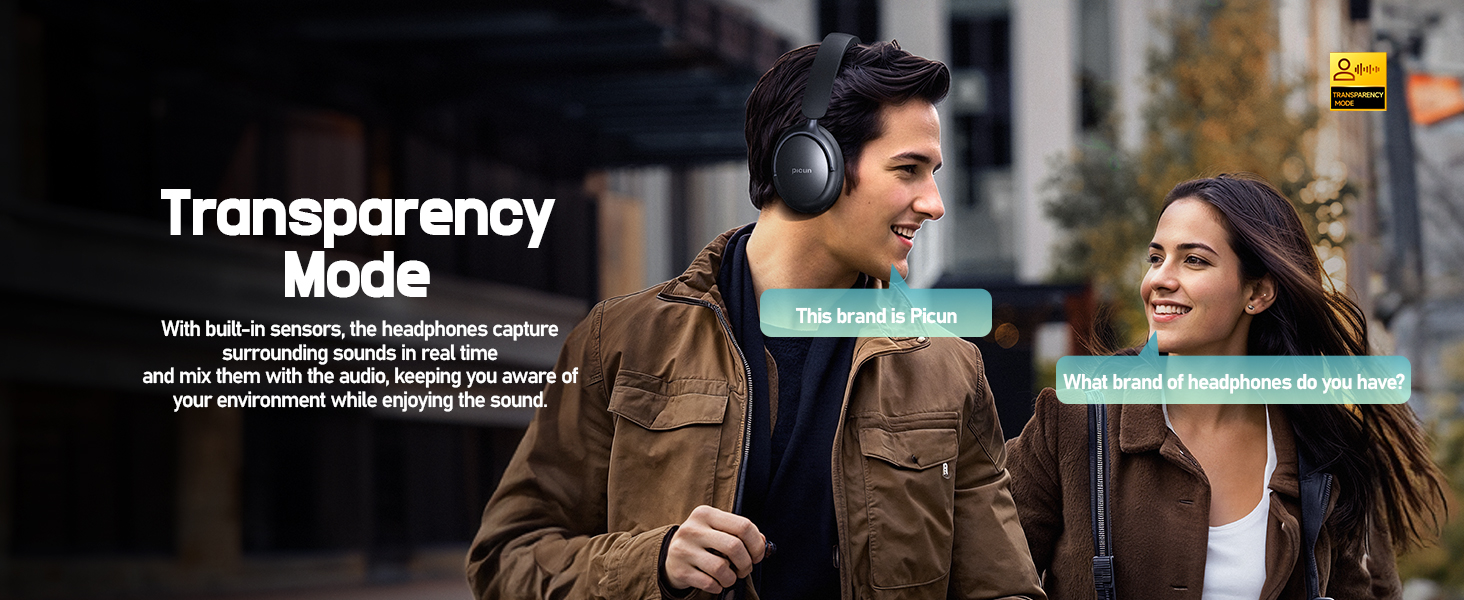
Figure 7: Dual-Device Connection. This image illustrates the headphones connected simultaneously to a smartphone and a tablet, enabling quick switching between audio sources.
Wired Mode
For extended listening or when Bluetooth is not available, use the included 3.5mm audio cable.
- Plug one end of the 3.5mm audio cable into the headphone's audio jack.
- Plug the other end into your audio source's 3.5mm output.
- The headphones will automatically switch to wired mode. Note that some headphone functions (like ANC) may require power in wired mode.
Low Latency Mode
The NC60 features a low-latency mode, reducing audio delay for a better experience when watching videos or playing games.
- Activate Low Latency Mode via the Picun app or by following specific button press combinations (refer to the full manual for details if not available in app).
- This mode synchronizes audio and video, enhancing your multimedia and gaming experience.

Figure 8: 30ms Low Latency. This image illustrates the headphones' low-latency mode, which ensures audio and video sync, reducing sound delay for an enhanced user experience during gaming or video playback.
Maintenance and Care
Proper care will extend the life and performance of your headphones.
- Cleaning: Use a soft, dry cloth to clean the earcups and headband. Do not use harsh chemicals or abrasive materials.
- Storage: When not in use, store the headphones in a cool, dry place, away from direct sunlight and extreme temperatures. The foldable design allows for compact storage.
- Battery Care: To preserve battery life, avoid fully discharging the headphones frequently. Charge them regularly, even if not used for extended periods.
- Water Resistance: The headphones are water resistant, but not waterproof. Avoid exposing them to excessive moisture or submerging them in water.

Figure 9: Comfortable Wear and Foldable Design. This image shows the soft memory cotton earcups, adjustable headband, and diagrams illustrating the 90-degree foldable and rotatable earcups for comfort and portability.
Troubleshooting
If you encounter issues with your headphones, try the following solutions:
| Problem | Possible Solution |
|---|---|
| Headphones do not power on. | Ensure the headphones are fully charged. Connect to a power source and wait a few minutes before attempting to power on again. |
| Cannot pair with device. |
|
| No sound or low volume. |
|
| Poor sound quality / Static. |
|
| ANC not working effectively. |
|
Specifications
Detailed technical specifications for the Picun NC60 Headphones:
| Feature | Detail |
|---|---|
| Model Name | NC60 |
| Connectivity Technology | Wireless (Bluetooth) |
| Wireless Communication Technology | Bluetooth 5.4 |
| Noise Control | Adaptive Noise Cancellation (Hybrid ANC) |
| Battery Life | Up to 80 hours (ANC off), 65 hours (ANC on) |
| Charging Time | Approx. 2 hours (5 min charge for 6 hours playback) |
| Headphones Jack | 3.5 mm Jack |
| Microphones | 5 high-sensitivity microphones with ENC |
| Audio Driver Type | Dynamic Driver (40mm) |
| Frequency Range | 20Hz - 20,000Hz |
| Impedance | 32 Ohm |
| Material | Acrylonitrile Butadiene Styrene (ABS), Metal, Protein Leather |
| Item Weight | 0.37 Kilograms (13.1 ounces) |
| Control Type | Button Control |
| Water Resistance Level | Water Resistant |
| Special Features | Adjustable Headband, Foldable, Noise Cancellation, Premium Sound Deep Bass, USB-C Fast Charging, Transparency Mode, Custom EQ via App, Dual-Device Connection, Low Latency Mode |
Warranty and Support
For detailed warranty information and customer support, please refer to the official Picun website or contact their customer service directly. The product typically comes with a manufacturer's warranty covering defects in materials and workmanship.
Picun Official Website: www.picun.net (Please verify the official website for the most accurate information)
For technical assistance or inquiries, please reach out to Picun customer support through the contact methods provided on their official channels.
Related documentsNC60


Ask a question about this manual
Ask about setup, troubleshooting, compatibility, parts, safety, or missing instructions. Manuals+ will review the question and use this page’s manual context to help answer it.