
EasyAcc K02
EasyAcc Keyboard Cover for Samsung Galaxy Tab A9+ User Manual
Model: K02
Product Overview
This EasyAcc Keyboard Cover is specifically designed for the Samsung Galaxy Tab A9+ (2023, 11-inch models SM-X210/X216/X218). It provides comprehensive protection for your tablet and enhances its productivity by transforming it into a laptop-like device.

Image: The EasyAcc Keyboard Cover in blue, shown with a Samsung Galaxy Tab A9+ tablet inserted, and a screen protector. The keyboard is black and integrated into the case.
The product features a high-quality PU leather case that ensures safe protection from scratches and damage. Its 3-in-1 functionality makes it ideal for frequent travelers and as a versatile gift.
Setup and Connection
Inserting the Tablet
Carefully align your Samsung Galaxy Tab A9+ with the case. Ensure the tablet snaps securely into the protective shell. The case is designed for a precise fit for models SM-X210, SM-X216, and SM-X218.
Bluetooth Keyboard Connection
- Charge the Keyboard: Ensure the keyboard is sufficiently charged. (Note: Charging cable and adapter are not included with the product.)
- Turn on the Keyboard: Locate the power switch on the keyboard and slide it to the 'ON' position.
- Activate Bluetooth on your Tablet: Go to your Samsung Galaxy Tab A9+'s settings, then navigate to the Bluetooth section and turn Bluetooth on.
- Pair the Keyboard: On the keyboard, press the Bluetooth pairing button (often indicated by a Bluetooth symbol or 'Connect'). The indicator light on the keyboard will start blinking.
- Select the Keyboard on your Tablet: On your tablet's Bluetooth device list, look for "EasyAcc Keyboard" or a similar name. Tap on it to initiate the pairing process.
- Confirm Pairing: If prompted, enter the displayed code on the keyboard and press Enter. The connection should be established within 3-5 seconds. The indicator light on the keyboard will stop blinking and remain solid.
Once connected, your tablet will recognize the keyboard, allowing you to type and use keyboard shortcuts.
Operating the Keyboard Cover
Magnetic Attachment and Detachment

Image: A diagram illustrating the built-in magnet feature, showing how the keyboard can be freely attached and detached from the case.
The keyboard features a built-in magnet, allowing it to be easily attached and detached from the case. This provides flexibility for different usage scenarios, whether you need the keyboard for typing or prefer to use the tablet independently.
Multi-Angle Support
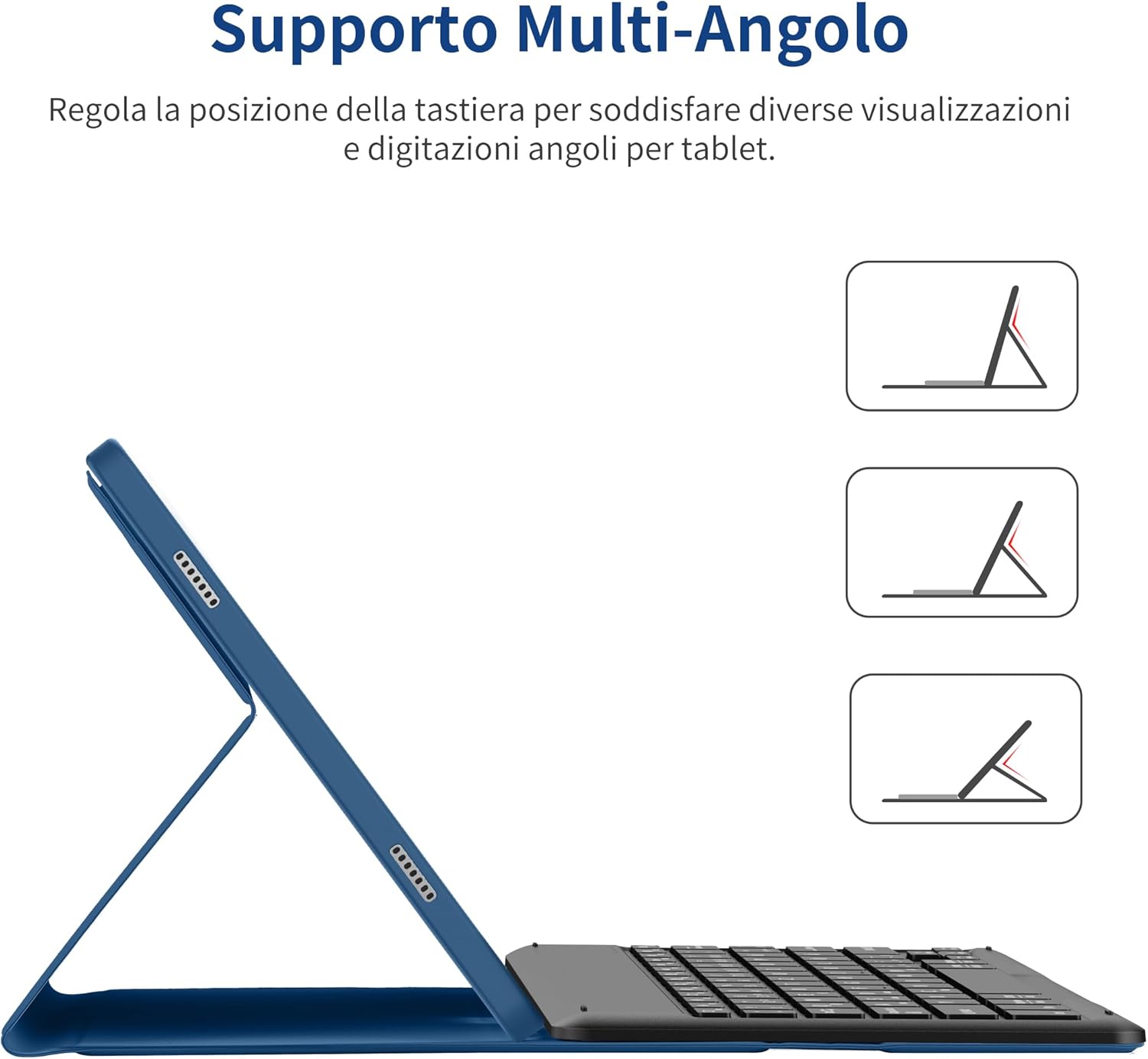
Image: The case demonstrating its multi-angle support feature, allowing the tablet to be propped up at various viewing and typing angles.
The case is designed with multi-angle support, enabling you to adjust the position of the tablet for comfortable viewing and typing. This feature is ideal for various activities such as watching videos, typing documents, or video calls.
Keyboard Layout and Functions

Image: A close-up view of the Italian QWERTY keyboard layout, highlighting its various function keys.
The keyboard features an Italian QWERTY layout with 78 keys, including function keys for multimedia control, volume adjustment, and other common tablet functions. Refer to the key legends for specific functionalities.
Maintenance and Care
Cleaning the Case

Image: A detailed view of the case highlighting its high-quality synthetic leather exterior, rigid PC back cover, and anti-slip interior, providing 360-degree full protection.
The case is made of high-quality PU leather. To clean, gently wipe the exterior with a soft, damp cloth. Avoid using harsh chemicals or abrasive cleaners, as these may damage the material. Ensure the case is completely dry before reinserting your tablet.
Cleaning the Keyboard
For the keyboard, use a soft, lint-free cloth to wipe the keys and surface. A small brush or compressed air can be used to remove dust and debris from between the keys. Do not spray liquid directly onto the keyboard.
Storage
When not in use for extended periods, store the keyboard cover in a cool, dry place away from direct sunlight and extreme temperatures. This will help preserve the battery life and material integrity.
Troubleshooting
- Keyboard Not Connecting:
- Ensure the keyboard is turned on and fully charged.
- Verify Bluetooth is enabled on your tablet.
- Try unpairing and re-pairing the keyboard from your tablet's Bluetooth settings.
- Restart both the tablet and the keyboard.
- Keys Not Responding:
- Check if the keyboard is properly connected via Bluetooth.
- Ensure no debris is lodged under the keys.
- If specific keys are not working, the keyboard may require service.
- Short Battery Life:
- Ensure the keyboard is fully charged before use.
- Turn off the keyboard when not in use to conserve battery.
- Battery performance may degrade over time with regular use.
Specifications
| Feature | Detail |
|---|---|
| Brand | EasyAcc |
| Model Number | K02 |
| Compatible Devices | Samsung Galaxy Tab A9+ (2023, 11-inch SM-X210/X216/X218) |
| Connectivity Technology | Bluetooth |
| Keyboard Description | Multi-functional |
| Recommended Use | Daily Use |
| Color | Blue Sea |
| Number of Keys | 78 |
| Material | Acrylonitrile Butadiene Styrene (ABS) |
| Item Weight | 768 grams |
| Lithium Battery Energy Content | 180 mAh |
| Lithium Battery Packaging | Batteries packed with equipment |
| Number of Lithium Ion Cells | 1 |
| Product Dimensions | 26.3 x 19.5 x 2.5 cm |
Safety Information

Image: A warning label indicating a suffocation hazard, advising to keep the product bag away from children and babies.
Warning:
To avoid danger of suffocation, keep this bag away from children and babies. Do not use this bag in cribs, beds, baby carriages, or playpens. This bag is not a toy.
Warranty and Support
Information regarding product warranty and customer support is not available in the provided product data. Please refer to the manufacturer's official website or contact the seller for details on warranty coverage and support options.
For general inquiries, you may visit the EasyAcc website or contact their support team via the contact information provided on their official channels.
Related documentsK02


Ask a question about this manual
Ask about setup, troubleshooting, compatibility, parts, safety, or missing instructions. Manuals+ will review the question and use this page’s manual context to help answer it.