
1. Introduction
This manual provides detailed instructions for the installation, operation, and maintenance of your Hugolog Security Camera System, which includes a 4K 8MP Indoor Pan/Tilt Camera and 3K 5MP Outdoor Security Cameras. Please read this manual thoroughly before using the product to ensure proper functionality and safety.
2. Product Overview
2.1 Package Contents
Your Hugolog Security Camera System package typically includes:
- Hugolog 4K 8MP Indoor Pan/Tilt Security Camera
- Hugolog 3K 5MP Outdoor Security Cameras (quantity may vary)
- Power Adapters
- Mounting Screws and Anchors
- User Manual (this document)
- Quick Start Guide
2.2 Key Features
- 4K 8MP Indoor Camera: Ultra HD resolution with auto-focus, 12x digital zoom, 355° pan and 90° tilt for wide coverage. Features auto-tracking for persons, pets, and flames.
- 3K 5MP Outdoor Cameras: High-definition resolution with Starlight Color Night Vision for clear images in low light. IP65 waterproof rating for outdoor use.
- Two-Way Audio: Built-in microphone and speaker for real-time communication, with noise cancellation for enhanced clarity.
- Motion Detection & Alerts: Configurable motion detection with instant notifications, lights, and siren alarms.
- Flexible Storage: Supports secure US cloud storage and local SD card storage (up to 128GB).
- Smart Home Integration: Compatible with Alexa Echo Show and Google Assistant for voice control and live view display.
- ONVIF Compatibility: Supports ONVIF protocol for integration with Network Video Recorders (NVRs) and other surveillance systems.
2.3 Product Components
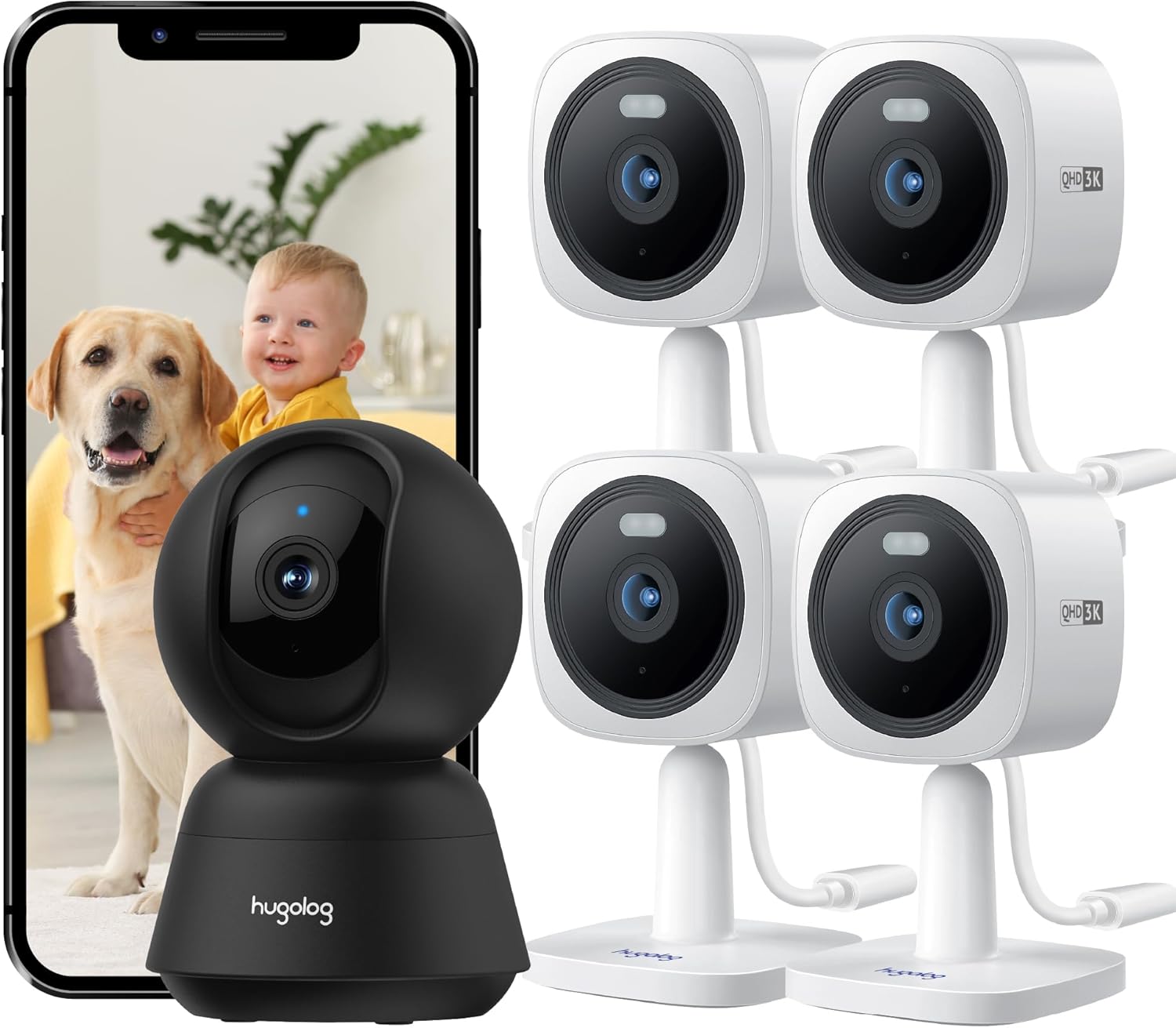
Figure 1: Overview of the Hugolog Security Camera System, showing the indoor pan/tilt camera, multiple outdoor cameras, and a smartphone displaying live footage of a baby and a dog.

Figure 2: The Hugolog 4K 8MP Indoor Pan/Tilt Camera, a black dome-shaped camera, shown next to a smartphone displaying a golden retriever. This camera offers 4K resolution for clear indoor monitoring.

Figure 3: A set of four Hugolog 3K 5MP Outdoor Security Cameras, white in color, designed for external surveillance. A smartphone displays live footage of a child watering plants, demonstrating outdoor monitoring capabilities.
3. Setup Guide
3.1 Initial Setup Steps
- Download the App: Search for the "Hugolog" app on your smartphone's app store (iOS or Android) and install it.
- Create an Account: Open the app and follow the on-screen instructions to register a new account or log in if you already have one.
- Power On Cameras: Connect the power adapter to each camera and plug it into a power outlet. Wait for the camera's indicator light to show it's ready for pairing (usually a blinking light).
- Add Device: In the Hugolog app, tap the "+" icon to add a new device. Select the appropriate camera model (Indoor Pan/Tilt or Outdoor Camera).
- Network Configuration: Follow the app's instructions to connect the camera to your 2.4GHz Wi-Fi network. This typically involves scanning a QR code generated by the app with the camera's lens or entering Wi-Fi credentials.
- Placement:
- Indoor Camera: Place on a flat surface or mount to a ceiling/wall using the provided hardware. Ensure it has a clear view of the desired monitoring area.
- Outdoor Cameras: Choose a mounting location that provides optimal coverage and a stable Wi-Fi signal. The IP65 rating allows for outdoor installation. Mounting options include normal, wall, or built-in base.
- Finalize Setup: Once connected, you can name your camera and adjust initial settings within the app.
3.2 Mounting Instructions for Outdoor Cameras
The outdoor cameras are designed for flexible installation. Use the provided screws and anchors to securely mount the cameras. Ensure the camera is positioned to cover the desired area and is within Wi-Fi range.

Figure 4: Examples of Hugolog outdoor security cameras mounted in various locations, including walls, trees, and under eaves, demonstrating their versatility and ONVIF compatibility for multi-camera monitoring on a single screen.
4. Operating Instructions
4.1 Live View and Playback
- Open the Hugolog app and select the desired camera to view its live feed.
- Use the app interface to access recorded footage from cloud storage or the SD card.

Figure 5: A comparison demonstrating the clarity of 3K QHD (5MP) live streaming from a Hugolog outdoor camera versus standard 1080P resolution, highlighting the enhanced detail provided by the higher resolution.
4.2 Pan, Tilt, and Auto-Tracking (Indoor Camera)
For the indoor pan/tilt camera, use the controls within the Hugolog app to remotely adjust the camera's viewing angle (355° pan, 90° tilt). Enable auto-tracking to automatically follow detected motion.

Figure 6: Illustrates the 355° pan and 90° tilt capabilities of the Hugolog indoor camera, along with its auto-tracking function for persons, pets, and flames. A child on a toy bike and a corgi are shown being tracked.
4.3 Two-Way Audio
Tap the microphone icon in the app's live view to initiate two-way communication. Speak into your phone's microphone, and your voice will be transmitted through the camera's speaker. Listen for responses through the camera's microphone.

Figure 7: Demonstrates the clear two-way audio feature of the Hugolog camera. A child is shown interacting with a dog, and a smartphone displays the live feed with an audio icon, indicating active communication.
4.4 Night Vision
The outdoor cameras feature Starlight Color Night Vision, providing clear, detailed color images even in low-light conditions. The indoor camera also includes night vision capabilities for round-the-clock monitoring.

Figure 8: A comparison showing the superior clarity and color detail of Hugolog's Starlight Color Night Vision in low-light conditions compared to traditional IR night vision, capturing a residential street scene at night.
4.5 Motion Detection and Alerts
Configure motion detection zones and sensitivity settings within the app. When motion is detected, the camera can trigger alarms (lights and siren) and send instant notifications to your smartphone.
5. Maintenance
- Lens Cleaning: Gently wipe the camera lens with a soft, dry cloth to remove dust or smudges. Avoid abrasive cleaners.
- Firmware Updates: Regularly check the Hugolog app for available firmware updates. Keeping your camera's firmware up-to-date ensures optimal performance and security.
- Power Supply: Ensure power adapters are securely connected and free from damage.
- Wi-Fi Connection: Periodically check the camera's Wi-Fi signal strength in the app to ensure a stable connection.
- Outdoor Camera Care: While IP65 rated, occasional cleaning of the outdoor camera housing can help maintain its appearance and prevent debris buildup.
6. Troubleshooting
6.1 Common Issues and Solutions
| Issue | Possible Solution |
|---|---|
| Camera offline | Check power connection. Verify Wi-Fi signal strength. Restart the camera and your router. Re-add the camera in the app if necessary. |
| Poor video quality | Ensure a strong Wi-Fi connection. Clean the camera lens. Adjust resolution settings in the app if available. |
| Motion alerts not working | Check motion detection settings in the app. Ensure notifications are enabled for the app on your smartphone. Verify camera is online. |
| Two-way audio unclear | Ensure microphone and speaker are not obstructed. Check app volume settings. Reduce background noise if possible. |
| Cannot connect to Wi-Fi | Ensure you are connecting to a 2.4GHz Wi-Fi network. Double-check Wi-Fi password. Move camera closer to the router during setup. |
7. Specifications
| Feature | Detail |
|---|---|
| Indoor Camera Resolution | 4K (8MP) Ultra HD |
| Outdoor Camera Resolution | 3K (5MP) HD |
| Indoor Camera Pan/Tilt | 355° Pan, 90° Tilt |
| Night Vision | Starlight Color Night Vision (Outdoor), Standard Night Vision (Indoor) |
| Weather Resistance | IP65 (Outdoor Cameras) |
| Audio | Two-Way Talk with Noise Cancellation |
| Storage Options | Cloud Storage, SD Card (up to 128GB) |
| Smart Home Compatibility | Alexa Echo Show, Google Assistant |
| Connectivity | 2.4GHz Wi-Fi, ONVIF |
| Model ASIN | B0DKSW71T |
8. Warranty and Support
For warranty information and technical support, please refer to the official Hugolog website or contact their customer service directly. Details are typically provided on the product packaging or within the Hugolog mobile application.
Note: No specific warranty duration or support contact details were provided in the product information. Please consult the manufacturer's official resources for the most current information.


