
1. Product Overview
The CARabc Carbitlink Smartlink Phonelink N7-ULPM-DZ2I is a conversion box designed to upgrade your vehicle's wired Carbit Link, Smart Link, Phone Link, or Easy Connection system to wireless CarPlay and Android Auto functionalities. This adapter is specifically compatible with vehicles manufactured in China that feature these existing wired systems.

Image 1.1: The CARabc Carbitlink Smartlink Phonelink N7-ULPM-DZ2I adapter, a compact device designed for seamless integration into your vehicle's infotainment system.
2. Key Features
- Wireless Connectivity: Enjoy a seamless wireless connection to both Apple CarPlay and Android Auto. This adapter eliminates the need for cables, allowing easy smartphone integration and access to certified multimedia applications.
- Voice Assistant & GPS Navigation: Navigate effortlessly using Google Maps and Apple Maps for real-time directions. Utilize voice commands via Siri and Google Assistant to plan routes and receive live traffic updates, ensuring a smooth and safe driving experience.
- Music & Media Playback: Access various music streaming services, including Apple Music, to enjoy your favorite songs and podcasts. Control playback directly from your car's screen, with options to play, pause, and skip tracks.
- Call & Message Notifications: Stay connected while driving. Easily answer calls and read messages, with all notifications displayed on your car's screen. Manage your calendar and weather updates hands-free for safe driving.
- Screen Mirroring Function: The Carbit Link supports screen mirroring, enabling you to project your phone's content onto the car's display. View YouTube, WhatsApp, Viber, and other applications in high definition, enjoying real-time screen sharing.
- Easy Installation & High Compatibility: This adapter is compatible with almost all Chinese vehicles, including sedans, trucks, and RVs. The plug-and-play installation is straightforward and does not require disassembling the head unit, saving time and installation costs.
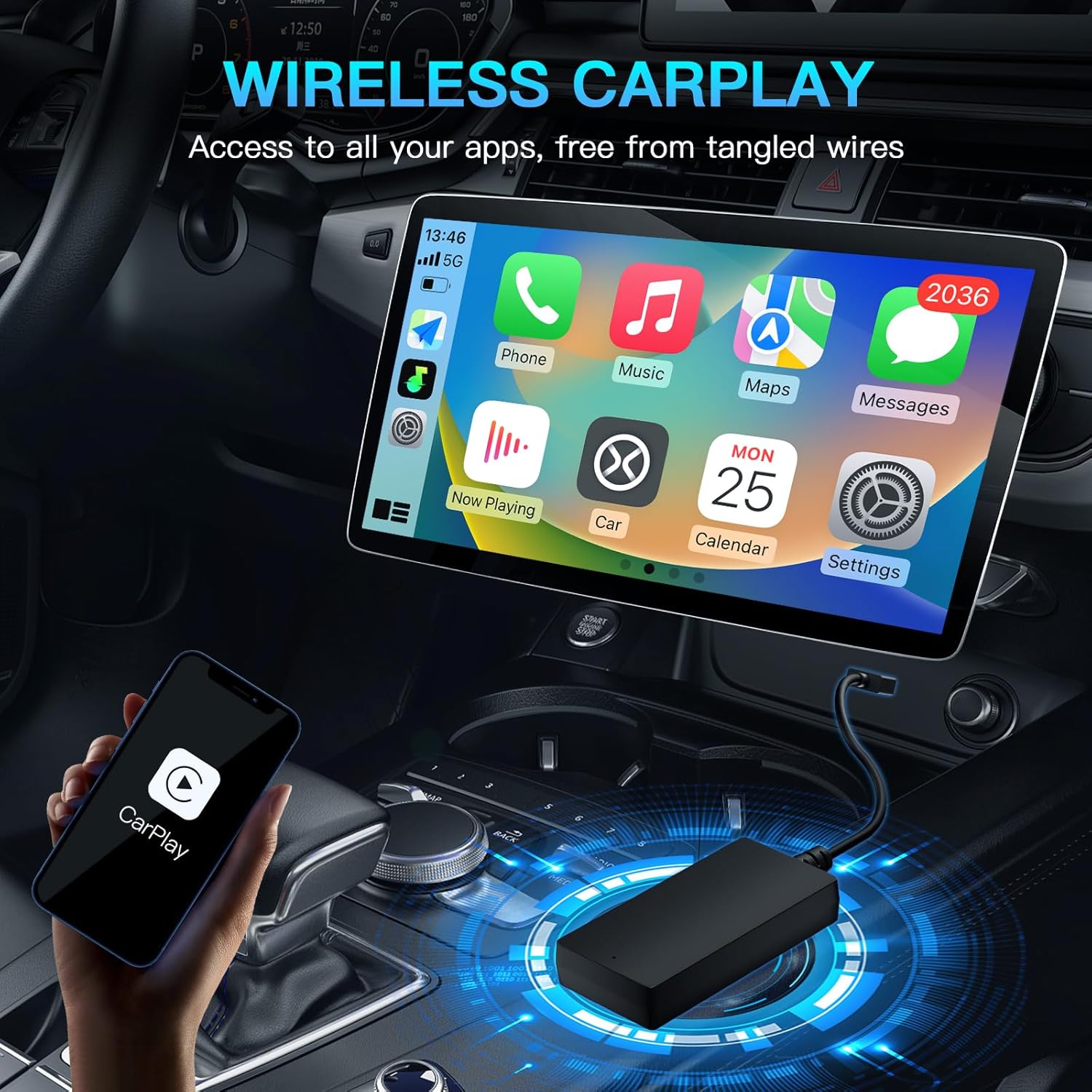
Image 2.1: Illustration of the wireless CarPlay interface displayed on a car's infotainment screen, showing various app icons for navigation, music, and communication.
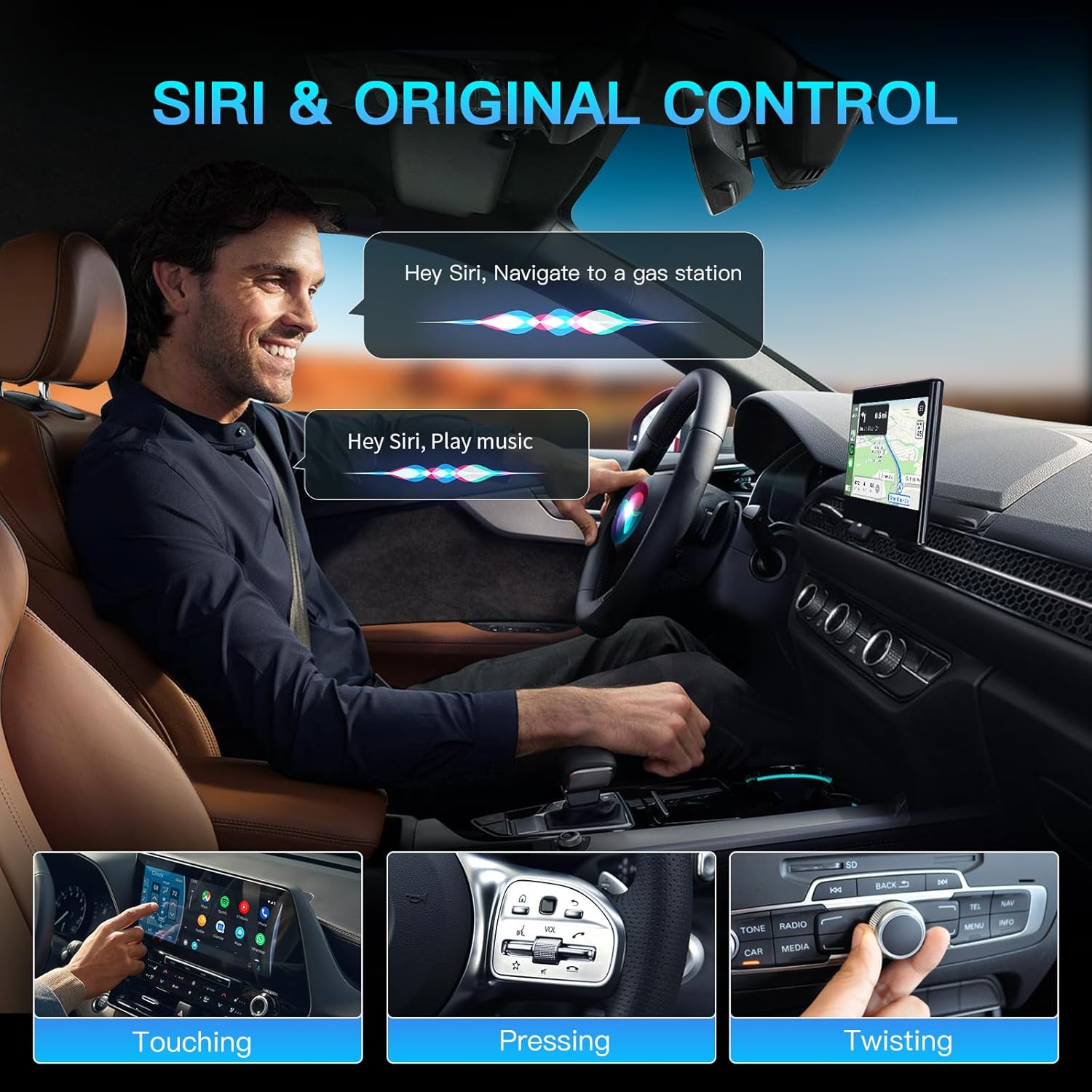
Image 2.2: A driver interacting with the car's system using voice commands for navigation and music playback, demonstrating the hands-free operation of the adapter.
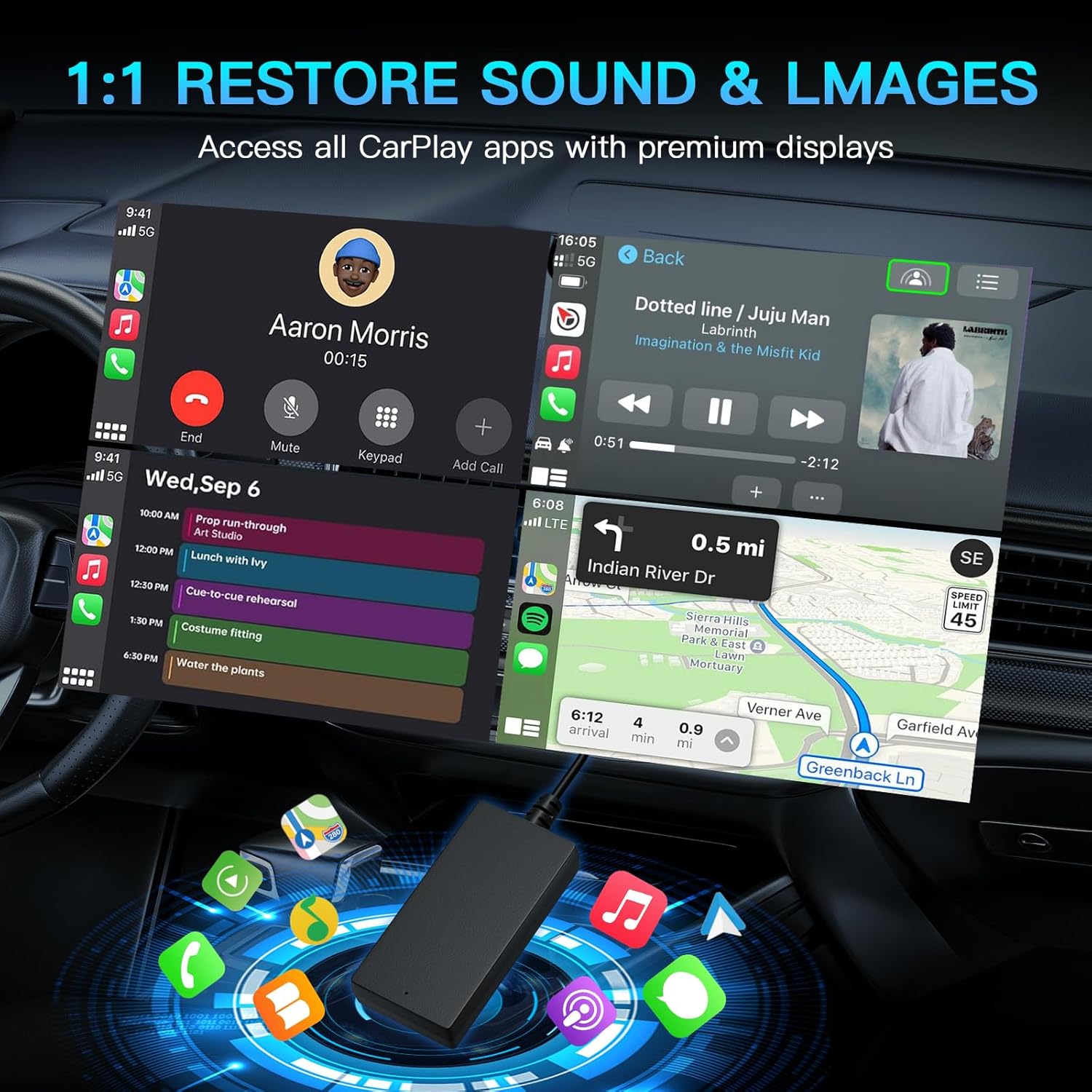
Image 2.3: A split screen view showing both Apple CarPlay and Android Auto interfaces, highlighting the adapter's ability to restore sound and images with high fidelity.
3. Package Contents
Upon opening the package, please verify that all items are present and in good condition:
- Carbitlink Adapter (CarKit) x 1
- User Manual x 1
4. Setup Guide
Follow these steps to set up your CARabc Carbitlink Smartlink Phonelink adapter:
- Connect the Adapter: Plug the Carbit Link adapter into your car's USB port. Ensure the car's infotainment system is powered on.
- Enable Bluetooth and Wi-Fi: On your smartphone, enable both Bluetooth and Wi-Fi.
- Pair with the Adapter: On your phone's Bluetooth settings, search for available devices and select the adapter's name (e.g., "Carplay&Auto_5B0E"). Confirm the pairing request on both your phone and the car's screen if prompted.
- Automatic Connection: Once successfully paired, your phone will automatically connect to CarPlay or Android Auto, and the interface will appear on your car's screen. Subsequent connections will be automatic when you start your car.
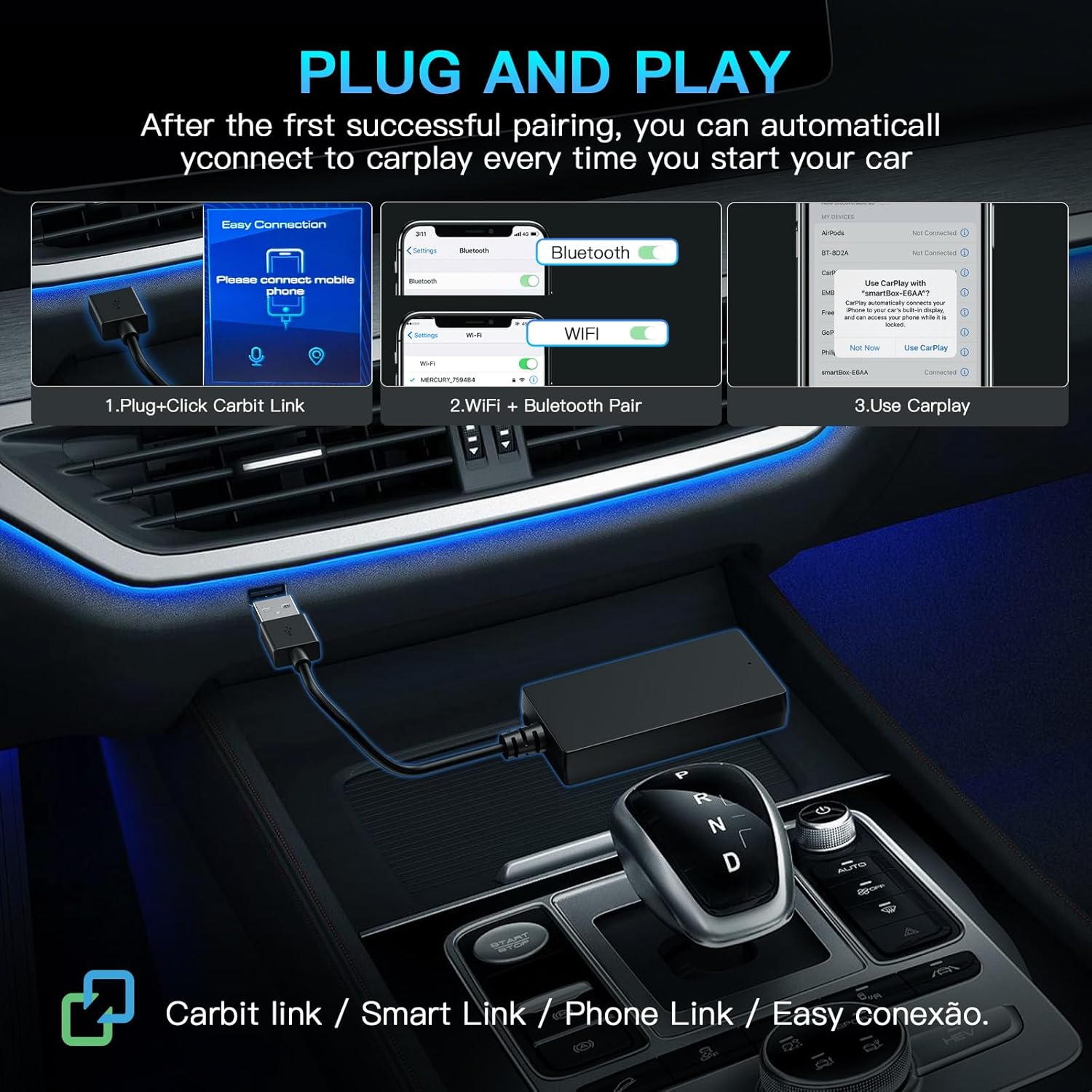
Image 4.1: A visual guide demonstrating the three simple steps for plug-and-play setup: plugging in the Carbit Link, pairing via Bluetooth and Wi-Fi, and accessing CarPlay.
Video 4.1: This video demonstrates the step-by-step process of connecting your smartphone to the CARabc Carbitlink adapter via Bluetooth and Wi-Fi, showing the successful transition to the Apple CarPlay interface on the car's display. It highlights the pairing process and the automatic entry into CarPlay upon successful connection, including how CarPlay audio outputs sound through the car's original Bluetooth channel.
5. Operation
Once connected, you can operate CarPlay or Android Auto directly from your car's infotainment screen. The interface mirrors your phone's compatible apps, providing a familiar and intuitive experience.
- Navigation: Use pre-installed navigation apps like Google Maps or Apple Maps. Input destinations via touch or voice commands.
- Communication: Make and receive calls, send and read messages using voice commands or the on-screen interface.
- Media: Access your music library, podcasts, and streaming services. Control playback (play, pause, skip) directly from the car's screen or steering wheel controls.
- Voice Assistant: Activate Siri (for CarPlay) or Google Assistant (for Android Auto) by pressing the voice command button on your steering wheel or by saying the wake word.
- Screen Mirroring: For supported applications, you can mirror your phone's screen to the car's display. This allows viewing content like YouTube videos.
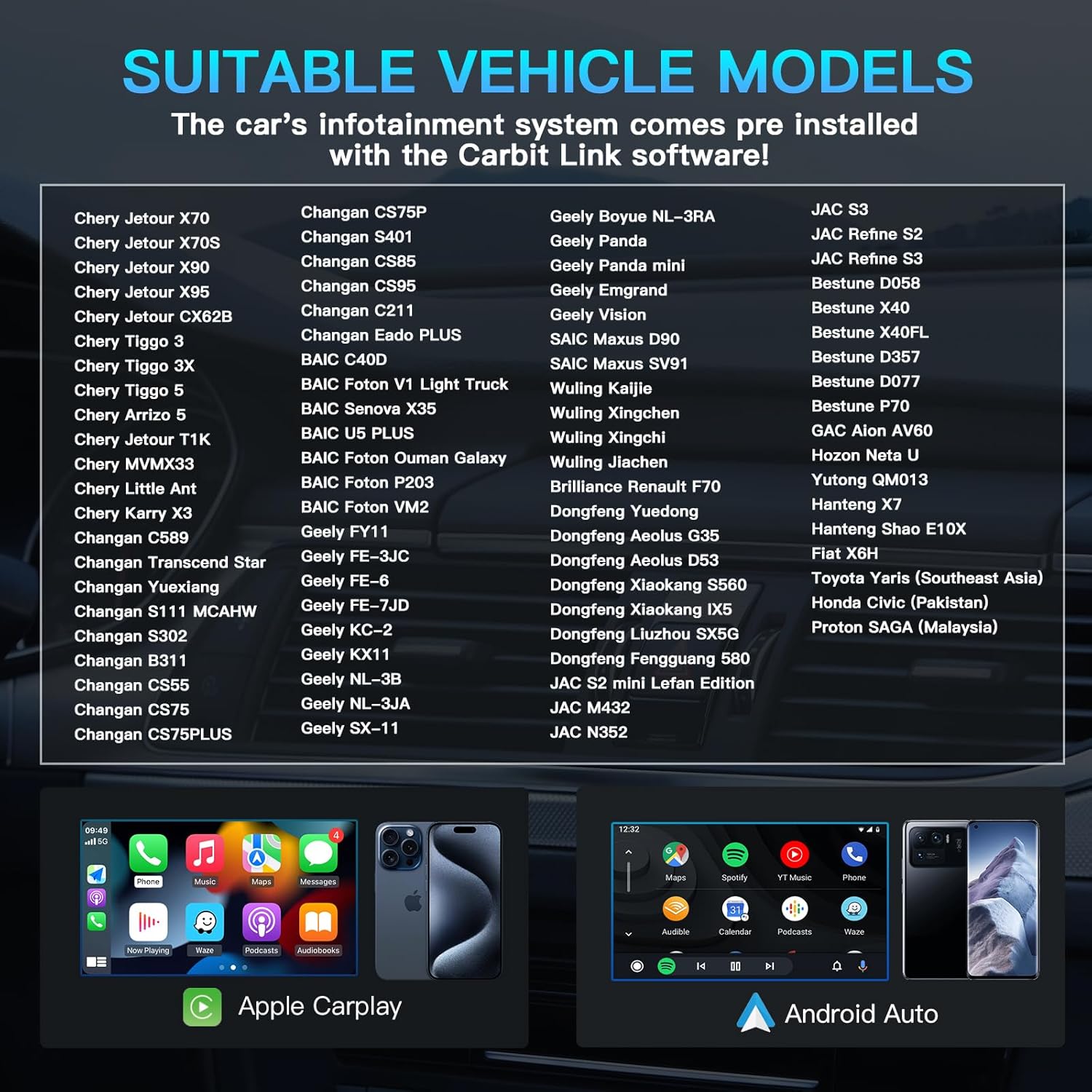
Image 5.1: A comprehensive list of suitable vehicle models from various Chinese manufacturers (JAC, Geely, Chery, Jetour, BAIC, Changan, Dongfeng, Wuling, Brilliance, Hanteng, Toyota, Proton, Honda) that are compatible with the Carbit Link software and this adapter.
6. Specifications
| Feature | Detail |
|---|---|
| Size | 3.15 x 1.57 x 0.59 inches (8 x 4 x 1.5 cm) |
| Voltage | 5V |
| Power | 0.75 - 1W |
| Operating Temperature | -20°C ~ 60°C |
| Connectivity | Wi-Fi 2.4/5GHz, Bluetooth 5.1 |
| Color | Black |
| Connectivity Technology | Aux, HDMI, USB |
| Power Source | Corded Electric |
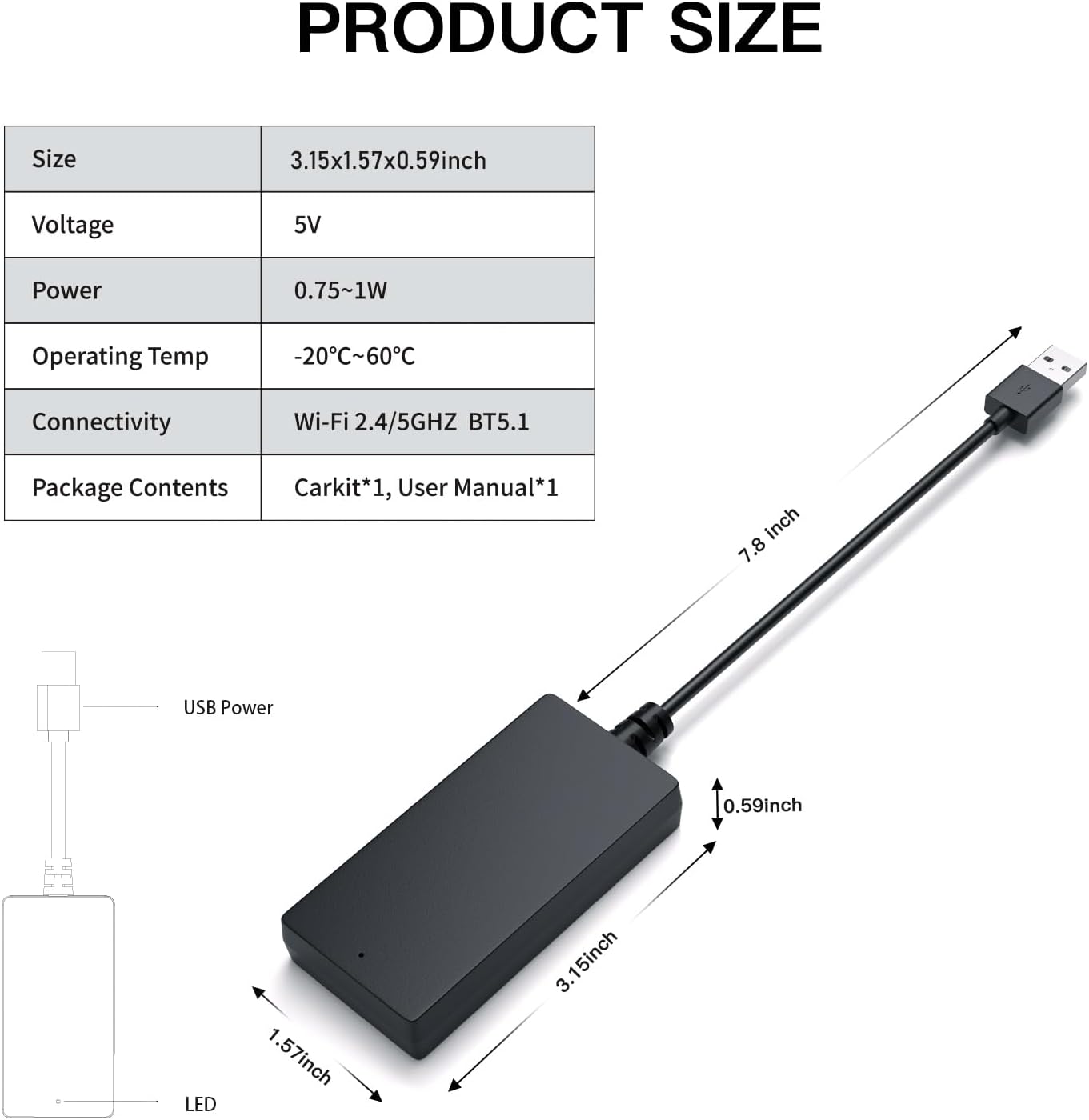
Image 6.1: A detailed diagram illustrating the physical dimensions of the CARabc Carbitlink adapter and its key technical specifications.
7. Troubleshooting
If you encounter issues with your CARabc Carbitlink adapter, consider the following troubleshooting steps:
- No Connection: Ensure the adapter is securely plugged into the car's USB port. Verify that Bluetooth and Wi-Fi are enabled on your smartphone. Try restarting both your phone and the car's infotainment system.
- Intermittent Connection: Check for any interference from other wireless devices. Ensure your phone is within close proximity to the adapter.
- Audio Issues: Confirm that your phone's audio output is directed to the car's Bluetooth system. Adjust volume levels on both your phone and the car's system.
- CarPlay/Android Auto Not Launching: Ensure your car's original wired Carbit Link/Smart Link/Phone Link/Easy Connection system is active before plugging in the adapter.
- Compatibility: Double-check that your vehicle model is listed as compatible with the Carbit Link software.
8. Warranty and Support
CARabc provides a 36-month warranty for this product. For any technical assistance or inquiries, please contact our customer support team. We aim to respond to emails within 12 hours and offer lifetime technical support to ensure the best possible user experience.
For support, please refer to the contact information provided with your purchase or visit the official CARabc website.


