
Falcon Electronics RM
Falcon Eye Electronics RM Multi Cam Live Streaming System (6 Cam w/ 1TB Memory) User Manual
Model: RM (6 Cam w/ 1TB Memory)
Brand: Falcon Electronics
1. Introduction
This manual provides detailed instructions for the installation, operation, and maintenance of your Falcon Eye Electronics Multi Cam Live Streaming System. This system is designed to provide comprehensive video surveillance and tracking for commercial vehicles, enhancing safety and operational efficiency. Please read this manual thoroughly before using the product to ensure proper function and longevity.
2. Safety Information
- Ensure all power connections are secure and correctly polarized to prevent electrical damage.
- Do not attempt to open or repair the main unit or cameras. Refer servicing to qualified personnel.
- Keep the system components away from extreme temperatures, direct sunlight, and moisture.
- Route cables carefully to avoid interference with vehicle operation or potential damage.
- Always disconnect power before performing any installation or maintenance.
3. Package Contents
Verify that all items listed below are present in your package for the 6 Cam w/ 1TB Memory system:
- 1 x Black Box (Main DVR Unit)
- 1 x LCD Monitor
- 4 x HD Cameras (Weatherproof, Night Vision)
- 2 x Side Cameras (Aerodynamic, Weatherproof, Night Vision)
- 1 x 9ft Camera Cable
- 2 x 15ft Camera Cables
- 2 x 30ft Camera Cables
- 1 x 45ft Camera Cable
- 1 x Hardwire Kit
- 1 x GPS Antenna
- 1 x Remote Control
- 1 x User Guide (This Manual)
- Keys for Memory Compartment

Image: Overview of the system components.
4. System Overview
The Falcon Eye Electronics Multi Cam Live Streaming System is a robust solution for vehicle surveillance. It features a central Digital Video Recorder (DVR) unit, an LCD monitor for real-time viewing, and multiple high-definition cameras for comprehensive coverage. The system supports live streaming, GPS tracking, and secure data storage.

Image: System overview with key features.
4.1 Main DVR Unit (Black Box)
This unit is the core of the system, responsible for recording, processing, and storing video footage. It features multiple camera inputs, a hard drive bay for storage, and connectivity ports for GPS, Wi-Fi, and external displays. The memory compartment is password-protected and lockable to prevent unauthorized access.
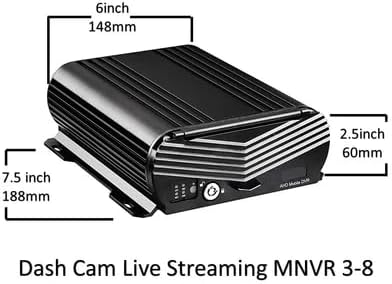
Image: Dimensions of the main DVR unit.

Image: DVR unit with locked memory compartment.
4.2 Cameras
The system includes HD weatherproof night vision cameras and aerodynamic side cameras. These cameras capture 1080N resolution video and are designed for durability in various environmental conditions.
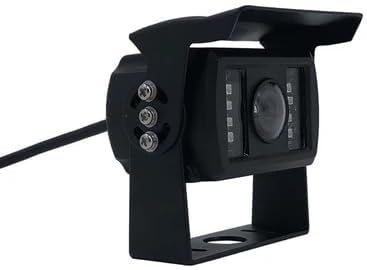
Image: HD Camera.

Image: Aerodynamic Side Camera.

Image: Dimensions of the aerodynamic side camera.
4.3 LCD Monitor
The included LCD monitor displays live camera feeds and recorded footage. It supports multi-view display, allowing simultaneous viewing of multiple camera angles.

Image: LCD Monitor displaying multi-camera view.
5. Setup and Installation
This section outlines the general steps for installing your Multi Cam Live Streaming System. Professional installation is recommended for optimal performance and safety, especially for complex vehicle wiring.
5.1 Mounting Cameras
- Select Locations: Identify optimal mounting points for each camera to cover desired blind spots and areas around the vehicle. Ensure clear lines of sight and protection from physical damage.
- Secure Mounting: Use appropriate hardware to securely attach cameras to the vehicle. Ensure cameras are firmly fixed to withstand vehicle movement and vibrations.
- Cable Routing: Route camera cables carefully, avoiding sharp edges, moving parts, and heat sources. Use cable ties to secure them and prevent tangling. Ensure weatherproof seals are maintained where cables enter the vehicle cabin.
5.2 Connecting Components
- Connect Cameras to DVR: Plug each camera cable into the corresponding input port on the main DVR unit. Ensure connections are tight and secure.
- Connect Monitor: Connect the LCD monitor to the DVR unit using the provided video cable.
- GPS Antenna: Connect the GPS antenna to the designated port on the DVR unit. Mount the antenna in a location with a clear view of the sky for optimal signal reception.
- Power Connection: Connect the hardwire kit to the vehicle's power supply according to the wiring diagram provided in the full installation guide (not included in this manual). Ensure proper voltage and fuse protection.
5.3 Initial Configuration
Once all components are connected and powered on, follow the on-screen prompts on the LCD monitor for initial system setup. This typically includes setting the date and time, configuring recording preferences, and setting up network access.
6. Operation
6.1 Recording Functions
- Continuous Recording: The system automatically records footage in a continuous loop, overwriting the oldest files when the storage is full.
- Event Recording: The built-in G-Sensor detects sudden impacts or harsh braking, triggering event-based recordings that are protected from being overwritten.
- Multi-View Recording: Footage from all connected cameras is recorded simultaneously with time-stamped data.
6.2 Live Streaming and Remote Access
The system supports live streaming and remote access via Wi-Fi and a dedicated mobile application (Android/iOS).
- Mobile App: Download the free Falcon Eye Electronics app from your device's app store. Follow the in-app instructions to connect to your DVR unit.
- Remote Viewing: Access live camera feeds and review recorded footage from your smartphone or tablet, anywhere with an internet connection.
6.3 GPS Tracking and Alerts
The integrated GPS module provides real-time location tracking and detailed travel history reports.
- Location Monitoring: Track the vehicle's current position and historical routes via the mobile app or web interface.
- Alerts and Notifications: Configure the system to send real-time alerts for events such as hard braking, speed violations, and geofencing breaches via email or text message.

Image: System alerts and notifications.
6.4 Data Management
- Storage Capacity: The system supports 2.5" HDD slots for up to 4TB of storage, providing approximately 1,500 hours of video. This model includes a 1TB hard drive.
- Downloading Footage: Event footage and other recordings can be easily downloaded via the mobile app or by connecting the DVR unit to a computer.
- User-Friendly Interface: Monitor camera status and manage recordings through the intuitive interface on the LCD monitor or mobile app.
7. Maintenance
- Cleaning: Regularly clean camera lenses and the LCD monitor with a soft, damp cloth. Avoid abrasive cleaners.
- Firmware Updates: Check the Falcon Eye Electronics website or app for available firmware updates to ensure optimal performance and access to new features.
- Data Backup: Periodically back up important footage to an external storage device to prevent data loss.
- System Check: Periodically inspect all cables and connections for wear or damage. Ensure cameras are securely mounted.
8. Troubleshooting
| Problem | Possible Cause | Solution |
|---|---|---|
| No power to DVR/Monitor | Loose power connection, blown fuse, vehicle battery issue. | Check all power cables. Inspect vehicle fuse box. Ensure vehicle battery has sufficient charge. |
| No camera image on monitor | Loose camera cable, damaged camera, incorrect input selected on monitor. | Verify camera cable connections. Try connecting a different camera to the same port. Check monitor input settings. |
| GPS not tracking | GPS antenna not connected, antenna obstructed, poor satellite signal. | Ensure GPS antenna is securely connected and mounted with a clear view of the sky. Move vehicle to an open area. |
| Cannot connect to mobile app | Wi-Fi module off, incorrect network settings, app not updated. | Ensure DVR Wi-Fi is enabled. Verify network credentials. Update mobile app to the latest version. |
| Footage not recording | Hard drive full, hard drive not installed/formatted, recording settings incorrect. | Check hard drive status and capacity. Ensure hard drive is correctly installed and formatted. Review recording settings. |
9. Specifications
| Feature | Detail |
|---|---|
| Model Name | RM |
| Product Dimensions (DVR) | 7.5"D x 6"W x 2.5"H (188mm x 148mm x 60mm) |
| Item Weight | 13 pounds (System total) |
| Video Capture Resolution | 1080p (1080N) |
| Connectivity Technology | Wi-Fi |
| Special Features | App Control, GPS Tracking, Loop Recording, G-Sensor, Night Vision, Waterproof Cameras |
| Storage Capacity | Supports 2.5" HDD up to 4TB (1TB included) |
| Vehicle Service Type | Truck |
| Included Components | DVR, Monitor, Remote, Cameras, Camera cables, Hardwire kit, GPS Antenna, User Guide |
| Manufacturer | FalconEye Electronics |
10. Warranty and Support
For warranty information and technical support, please refer to the official Falcon Eye Electronics website or contact their customer service directly. Details are typically provided on the product packaging or a separate warranty card.
Manufacturer: FalconEye Electronics
For further assistance, visit: Falcon Electronics Support Page
Related documentsRM


Ask a question about this manual
Ask about setup, troubleshooting, compatibility, parts, safety, or missing instructions. Manuals+ will review the question and use this page’s manual context to help answer it.