
1. Introduction
This manual provides instructions for the Forever IGo Watch 3 Smartwatch, model JW-500. It covers setup, operation, maintenance, and troubleshooting to ensure optimal use of your device.
The Forever IGo Watch 3 is a versatile smartwatch compatible with both Android and iOS smartphones. It features a 1.83-inch touch screen, Bluetooth connectivity, and various health and fitness tracking functions, including a pedometer, sleep tracking, heart rate monitoring, and IP67 water resistance.
2. Package Contents
Please verify that all items are present in the package:
- Forever IGo Watch 3 Smartwatch
- Charging Cable
- User Manual
3. Device Overview
Familiarize yourself with the main components of your smartwatch.
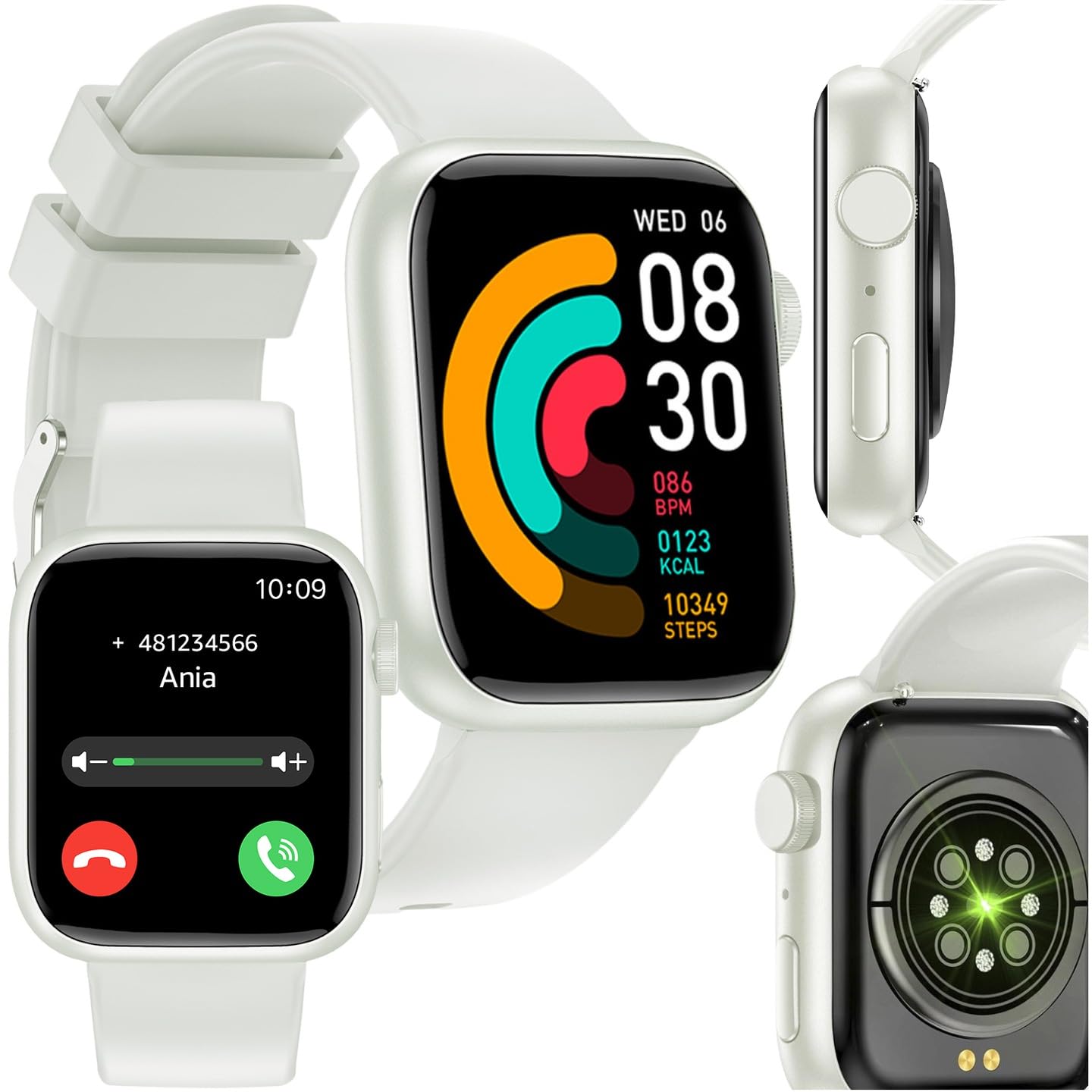
Image: Front view of the Forever IGo Watch 3 Smartwatch, showing the display and strap.

Image: Back view of the Forever IGo Watch 3 Smartwatch, highlighting the optical heart rate and blood pressure sensors.
3.1. Physical Buttons and Ports
- Side Button: Power On/Off, Back function, Screen Wake/Sleep.
- Rotary Crown: Navigation, Menu selection.
- Charging Contacts: Located on the back for magnetic charging.
4. Setup
4.1. Charging the Device
Before first use, fully charge the smartwatch.
- Connect the magnetic charging cable to the charging contacts on the back of the watch.
- Connect the USB end of the cable to a standard USB power adapter (not included) or a computer's USB port.
- The watch display will indicate charging status. A full charge typically takes approximately 2 hours.
4.2. Powering On/Off
- Power On: Press and hold the side button until the screen lights up.
- Power Off: Press and hold the side button, then select "Power Off" on the screen.
4.3. Pairing with a Smartphone
To utilize all features, pair your smartwatch with your smartphone via the dedicated application.
- Download and install the "Forever GoFit" or similar companion app from your smartphone's app store (Google Play Store for Android, Apple App Store for iOS).
- Ensure Bluetooth is enabled on your smartphone.
- Open the companion app and follow the on-screen instructions to create an account or log in.
- In the app, navigate to "Add Device" or "Pair Device" and select "Forever IGo Watch 3" from the list of available devices.
- Confirm the pairing request on both your smartphone and the smartwatch.
- Once paired, the watch will synchronize time and data with your phone.

Image: The smartwatch display showing the phone application icon, indicating readiness for calls.
5. Operating Instructions
5.1. Navigating the Interface
- Touch Screen: Swipe left/right, up/down to navigate through menus and screens. Tap to select.
- Side Button: Press to return to the previous screen or wake the display.
- Rotary Crown: Rotate to scroll through lists or adjust settings. Press to confirm selection.
5.2. Key Features and Functions
5.2.1. Notifications
The watch displays notifications for incoming calls, messages, and alerts from compatible applications on your smartphone.

Image: The smartwatch display showing various social media application icons, indicating notification support.
5.2.2. Activity Tracking
The smartwatch tracks various physical activities and daily exercise modes.
- Pedometer: Counts your steps throughout the day.
- Distance: Estimates distance covered based on steps.
- Calories: Calculates calories burned during activity.
- Sport Modes: Select specific modes for activities like running, cycling, strength training, and basketball for more accurate tracking.

Image: The smartwatch display showing a list of sport modes, including Running, Cycling, Strength Training, and Basketball.
5.2.3. Health Monitoring
- Heart Rate: Monitors your heart rate continuously or on demand.
- Sleep Tracking: Analyzes your sleep patterns, including deep sleep, light sleep, and awake times.
- Blood Pressure: Provides blood pressure readings.
- Blood Oxygen (SpO2): Measures blood oxygen saturation levels.

Image: The smartwatch display showing a heart rate graph and current heart rate reading (89 BPM).
5.2.4. Voice Assistant
Use the integrated voice assistant to make calls, send messages, or control music playback directly from your watch.
5.2.5. Remote Camera Control
Control your smartphone's camera remotely using the smartwatch. Open the camera function on the watch and tap "Start" to trigger your phone's camera shutter.

Image: The smartwatch display showing the camera remote control interface with a "Start" button.
6. Maintenance
6.1. Cleaning
Regularly clean your smartwatch and strap.
- Wipe the screen and body with a soft, damp, lint-free cloth.
- For the strap, use mild soap and water if necessary, then rinse thoroughly and dry completely before wearing.
- Avoid using harsh chemicals or abrasive materials.
6.2. Water Resistance
The Forever IGo Watch 3 is rated IP67 for water resistance. This means it is protected against dust and can withstand immersion in water up to 1 meter for up to 30 minutes. It is suitable for daily use and light splashes but not recommended for swimming, showering, or diving.
6.3. Storage
When not in use for extended periods, store the watch in a cool, dry place. Ensure it is partially charged to prevent battery degradation.
7. Troubleshooting
7.1. Watch Not Turning On
- Ensure the watch is fully charged. Connect it to the charger for at least 30 minutes.
- Press and hold the side button for 10-15 seconds to attempt a forced restart.
7.2. Pairing Issues
- Ensure Bluetooth is enabled on your smartphone and the watch is within range.
- Restart both your smartphone and the smartwatch.
- Clear the Bluetooth cache on your smartphone (if applicable).
- Try unpairing and re-pairing the device through the companion app.
7.3. Inaccurate Health Data
- Ensure the watch is worn snugly on your wrist, but not too tight.
- Clean the sensors on the back of the watch.
- Environmental factors and individual physiology can affect sensor accuracy. Consult a medical professional for accurate health measurements.
7.4. Notifications Not Appearing
- Check if the watch is properly paired and connected to your smartphone.
- Verify notification permissions for the companion app in your smartphone's settings.
- Ensure notifications are enabled within the companion app for the desired applications.
8. Specifications
| Feature | Specification |
|---|---|
| Model Number | JW-500 |
| Brand | FOREVER |
| Operating System | Proprietary OS |
| Screen Size | 1.83 Inches |
| Connectivity | Bluetooth |
| Special Features | Phone call, Text messaging, Notification, Activity tracking, Touch screen |
| Compatible Devices | Smartphone, Tablet |
| Rechargeable Battery | Yes |
| Battery Capacity | 180 mAh |
| Memory Storage Capacity | 32 MB |
| GPS | No GPS |
| Water Resistance | IP67 |
| Date First Available | 23 October 2024 |
9. Warranty and Support
For warranty information and technical support, please refer to the documentation provided with your purchase or visit the official FOREVER website. Keep your proof of purchase for warranty claims.
Note: Information regarding spare parts availability and software updates is not available at the time of this manual's publication.


