
1. Product Overview
The Xiaomi Redmi Pad SE 8.7 4G LTE is a portable tablet designed for communication, entertainment, and productivity. It features an 8.7-inch display, 4G LTE connectivity, and a robust battery for extended use.

Image 1.1: Front and back view of the Xiaomi Redmi Pad SE 8.7 4G LTE tablet.
This manual provides essential information to help you get started with your device, understand its functions, and maintain its performance.
2. Initial Setup
2.1 Unpacking and Contents
Before using your Redmi Pad SE, ensure all items are present in the box:
- Xiaomi Redmi Pad SE 8.7 4G LTE Tablet
- USB Cable
- Wall Adapter
- Fast Car Dual USB 16W (Accessory)
2.2 Inserting SIM Cards and MicroSD Card
The device supports dual SIM cards and a MicroSD card for expanded storage. Locate the SIM tray on the side of the tablet. Use the provided SIM ejector tool to open the tray. Carefully place your activated Nano-SIM cards and MicroSD card into their respective slots, ensuring correct orientation. Close the tray securely.
Note: This device is designed for the USA market and works with T-Mobile, Mint, Tello, or any carrier under the T-Mobile network. Outside the USA, it works with any GSM carrier SIM. A SIM card must be activated prior to use.
2.3 Powering On/Off
- To Power On: Press and hold the Power button until the Xiaomi logo appears on the screen.
- To Power Off: Press and hold the Power button until the power options menu appears. Select "Power off" and confirm.
- To Restart: From the power options menu, select "Restart" and confirm.
2.4 Initial Configuration
Upon first power-on, follow the on-screen prompts to complete the initial setup. This includes selecting your language, connecting to a Wi-Fi network, setting up your Google account, and configuring security features like screen lock.
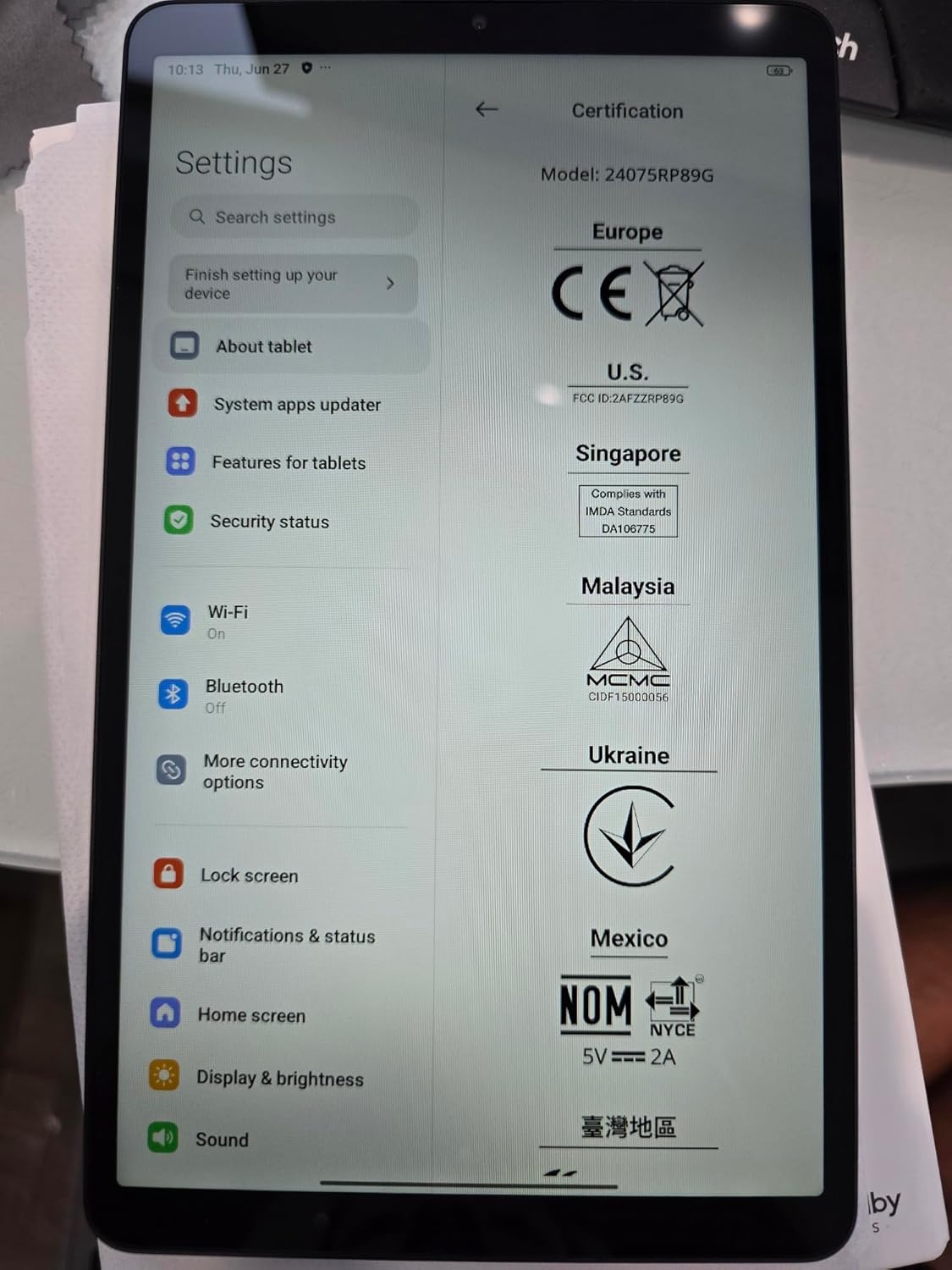
Image 2.1: Device settings screen displaying certification details and initial setup options.
3. Basic Operation
3.1 Display Features
The Redmi Pad SE features an 8.7-inch LCD display with a 1340x800 resolution and a 90Hz refresh rate for smooth visuals. It offers up to 500 nits typical brightness, with an outdoor mode boosting it to 600 nits for better visibility in bright conditions. The display is TÜV Rheinland Low Blue Light (Software Solution) Certified and TÜV Rheinland Flicker Free Certified, incorporating DC dimming and a reading mode to reduce eye strain during prolonged use.
3.2 Audio and Multimedia
Enjoy immersive sound with dual speakers supporting Dolby Atmos. The tablet also includes a 3.5mm headphone jack for private listening.
3.3 Cameras
- Rear Camera: 8MP with f/2.0 aperture and 1.12µm pixel size. Supports 1080P (1920x1080) and 720P (1280x720) video recording at 30fps.
- Front Camera: 5MP with f/2.2 aperture and 1.12µm pixel size. Supports 1080P (1920x1080) and 720P (1280x720) video recording at 30fps.
3.4 Connectivity
The device supports Wi-Fi and Bluetooth for wireless connections. For cellular data, it features 4G LTE with extensive band support:
- LTE FDD: B1/2/3/4/5/7/8/13/18/19/20/26/28/66
- LTE TDD: B38/40/41
- 3G: B1/2/4/5/6/8/19
- 2G: Quad Band
3.5 Operating System
The Redmi Pad SE runs on Android 14 with Xiaomi's HyperOS interface, providing a user-friendly experience and access to a wide range of applications.
4. Care and Maintenance
- Cleaning: Use a soft, lint-free cloth to clean the screen and body. Avoid abrasive materials or harsh chemicals.
- Handling: Protect the device from drops and impacts. Avoid exposing it to extreme temperatures, direct sunlight, or moisture.
- Battery Care: The tablet is equipped with a 6650mAh Lithium-Ion battery. For optimal battery life, avoid fully discharging the battery frequently and do not leave it charging for extended periods after it reaches 100%.
- Software Updates: Regularly check for and install system updates to ensure optimal performance and security.
5. Troubleshooting
If you encounter issues with your Redmi Pad SE, try the following basic troubleshooting steps:
- Device Not Responding: Press and hold the Power button for about 10-15 seconds to force a restart.
- Network Connectivity Issues: Check if Wi-Fi or cellular data is enabled. Restart your router for Wi-Fi issues or reinsert your SIM card for cellular problems. Ensure your SIM card is activated and has an active plan.
- Slow Performance: Close unnecessary background applications. Clear cache from apps or perform a factory reset (back up your data first).
- Screen Issues: Ensure the screen is clean and free of moisture. If the screen is unresponsive, try restarting the device.
For more complex issues, refer to the official Xiaomi support website or contact customer service.
6. Technical Specifications
| Brand | XIAOMI |
| Model Name | Redmi Pad SE 8.7 4G |
| Screen Size | 8.7 Inches |
| Display Resolution | 1340 x 800 Pixels |
| Display Type | LCD |
| Refresh Rate | Up to 90Hz |
| Brightness | 500 nits (typ), 600 nits (Outdoor mode) |
| Operating System | Android 14, HyperOS |
| Processor | MediaTek Helio G85 (Octa-core, 2.0GHz) |
| RAM + Storage | 4GB RAM + 128GB Storage |
| Rear Camera | 8MP |
| Front Camera | 5MP |
| Battery Capacity | 6650 mAh (Lithium Ion) |
| Connectivity | Wi-Fi, Bluetooth, 4G LTE |
| Audio | Dual speakers, Dolby Atmos, 3.5mm headphone jack |
| Sensors | Accelerometer, Electronic compass, Hall sensor, IR blaster, Virtual proximity sensor, Virtual light sensor |
| Dimensions (L x W x Th) | 8.32" x 4.94" x 0.34" |
| FCC ID | 2AFZZRP19G |
7. Warranty and Support
7.1 Warranty Information
This product comes with a 30-day warranty. Please retain your proof of purchase for any warranty claims.
7.2 Customer Support
For further assistance, technical support, or detailed product information, please visit the official Xiaomi website or contact their customer service department. You can often find FAQs, software downloads, and service center locations on their support pages.
8. Safety Information
Please read all safety information before using your device to ensure safe and proper use. Follow all local regulations and guidelines for electronic devices. Do not attempt to disassemble or repair the device yourself. Use only approved chargers and accessories.


