
Mackie ProFX10v3+
Mackie ProFX10v3+ 10-Channel Unpowered Mixer User Manual
Model: ProFX10v3+
Your comprehensive guide to setup, operation, and maintenance.
Introduction
Thank you for choosing the Mackie ProFX10v3+ 10-Channel Unpowered Mixer. This professional audio mixer is designed to provide high-quality sound for live performances, studio recording, podcasting, and content creation. Featuring Mackie's renowned Onyx preamps, a powerful GigFX Effects Engine, USB recording/playback, and Bluetooth connectivity, the ProFX10v3+ offers versatile functionality for a wide range of audio applications.
This manual will guide you through the setup, operation, and maintenance of your mixer, ensuring you get the best performance from your equipment. Please read this manual thoroughly before operating the device.
Important Safety Information
- Always connect the mixer to a grounded power outlet.
- Do not expose the unit to rain or moisture.
- Avoid placing the unit near heat sources or in direct sunlight.
- Do not open the chassis. Refer all servicing to qualified personnel.
- Ensure proper ventilation around the mixer.
Package Contents
Your Mackie ProFX10v3+ bundle includes the following items:
- Mackie ProFX10v3+ 10-Channel Unpowered Mixer
- Power Supply
- 3 x EMB EMIC600 Microphones
- 6 x 15-foot EMB XLR Cables
- 3 x 10-foot 1/4" TRS to XLR Cables
- USB Cable

Image: The complete Mackie ProFX10v3+ bundle, showcasing the mixer, three EMB EMIC600 microphones, six 15-foot EMB XLR cables, and three 10-foot 1/4" TRS to XLR cables.
Setup
Follow these steps to set up your Mackie ProFX10v3+ mixer:
1. Power Connection
- Ensure the mixer's power switch is in the OFF position.
- Connect the included power supply to the mixer's power input.
- Plug the power supply into a suitable AC outlet.
2. Connecting Microphones and Line Inputs
The ProFX10v3+ features Onyx mic preamps on channels 1-4, and line inputs on all channels.

Image: An EMB EMIC600 microphone, included in the bundle, featuring an on/off switch.
- Microphones (Channels 1-4): Connect your EMB EMIC600 microphones using the 15-foot EMB XLR cables to the XLR inputs on channels 1-4.
- Line Inputs (Channels 1-10): For instruments or other audio devices, use 1/4" TRS or TS cables. Channels 1-2 also feature Hi-Z switches for direct instrument connection (e.g., guitar, bass).
- Stereo Line Inputs (Channels 5/6, 7/8, 9/10): Use 1/4" TS cables for stereo sources. Channels 9/10 can also receive audio via USB or Bluetooth.
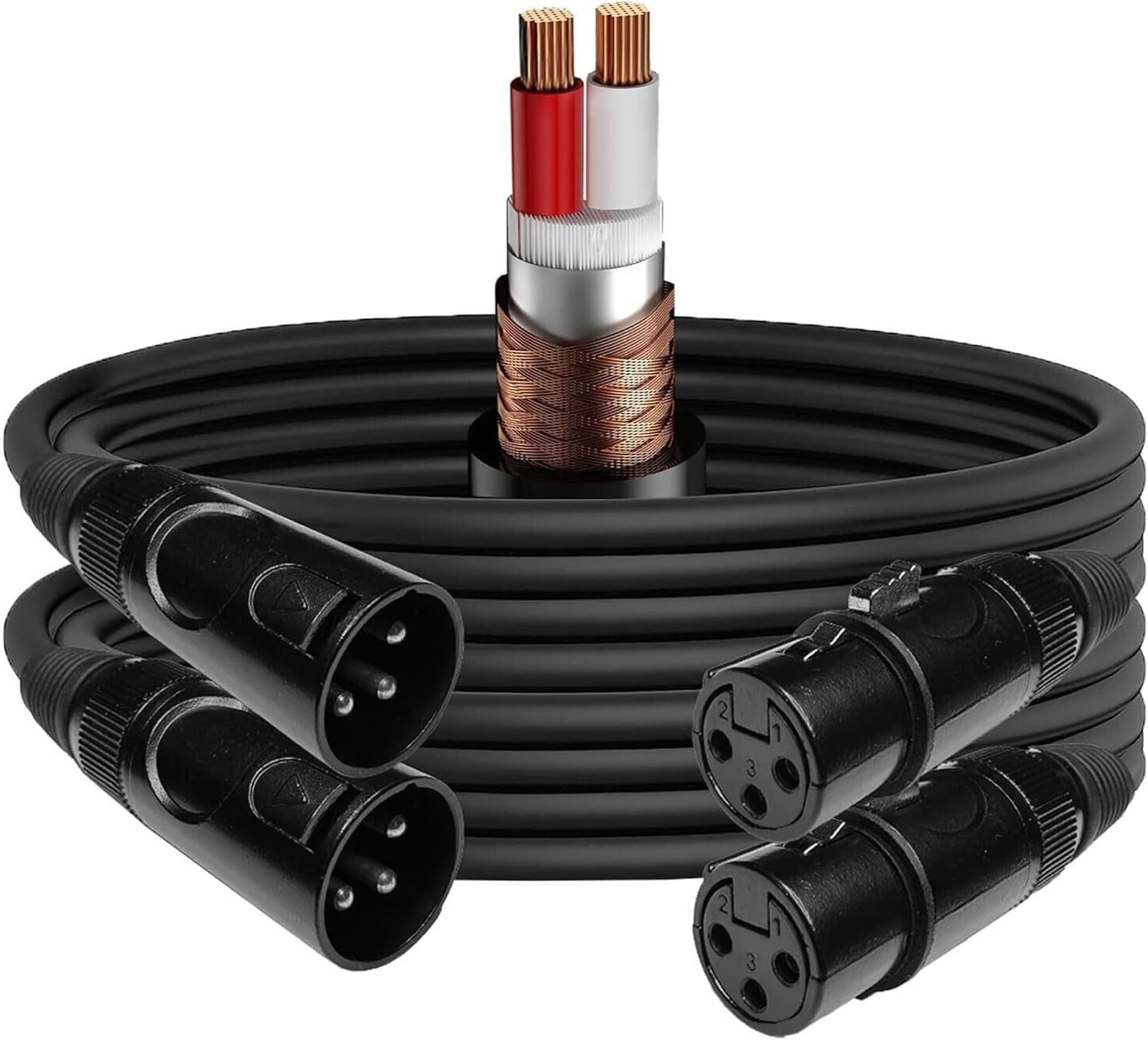
Image: A coil of EMB XLR cables, used for connecting microphones and other balanced audio equipment.

Image: A 10-foot 1/4" TRS to XLR cable, useful for connecting line-level devices to XLR inputs or outputs.
3. Connecting Outputs
- Main Outputs: Connect the Main L/R XLR outputs to your power amplifier or powered speakers.
- Control Room Outputs: Connect these 1/4" outputs to your studio monitor speakers.
- Headphones: Plug your headphones into the 1/4" headphone jack.
- FX Send: Use this 1/4" output to send signal to an external effects processor.
4. USB and Bluetooth Connectivity
- USB: Connect the mixer to your computer using the supplied USB cable. The mixer will function as a 2x4 USB audio interface, allowing you to record and play back audio.
- Bluetooth: Press the Bluetooth button on the mixer to activate pairing mode. Search for "ProFX10v3+" on your device and connect. Bluetooth audio will be routed to channels 9/10.

Image: A detailed view of the Mackie ProFX10v3+ mixer's control surface, showing input channels, EQ, effects section, and main output controls.
Operating the Mixer
This section details the functions of the various controls on your ProFX10v3+ mixer.
Channel Controls (Channels 1-10)
- Gain: Adjusts the input sensitivity for each channel. Set this so the "OL" (Overload) LED flashes only occasionally on the loudest peaks.
- Low Cut: Engages a high-pass filter to remove unwanted low-frequency rumble (e.g., from microphones).
- EQ (High, Mid, Low): Three-band equalizer for shaping the tone of each channel.
- High: Boost or cut treble frequencies.
- Mid: Boost or cut mid-range frequencies.
- Low: Boost or cut bass frequencies.
- FX: Sends signal to the internal GigFX Effects Engine.
- Pan: Positions the channel's signal in the stereo field (left to right).
- Mute: Silences the channel's output to the main mix, subgroups, and FX send.
- Level: Adjusts the overall volume of the channel in the main mix.
GigFX Effects Engine
The GigFX engine offers 24 different effects, including reverbs, delays, choruses, and flangers. Use the "Program" knob to select an effect and the "FX Level" fader to control the overall effect return to the main mix.
- Program Knob: Rotates to select one of the 24 built-in effects.
- FX Level Fader: Controls the amount of the selected effect mixed into the main output.
Main Mix and Monitoring
- Main Faders: Control the overall volume of the main stereo output.
- Main Meters: Display the output level of the main mix. Aim for levels around 0 dB to avoid clipping.
- Control Room/Phones Level: Adjusts the volume for your control room monitors and headphones independently.
- Blend (USB 1-2 / To Phones/CR): Allows you to blend the USB playback signal with the live mixer signal for monitoring.
Maintenance
Proper maintenance will ensure the longevity and optimal performance of your Mackie ProFX10v3+ mixer.
- Cleaning: Use a soft, dry cloth to clean the exterior of the mixer. For stubborn dirt, a slightly damp cloth can be used, but ensure no liquid enters the unit. Avoid abrasive cleaners or solvents.
- Dust Protection: When not in use, cover the mixer with a dust cover to prevent dust and debris from accumulating in the faders and knobs.
- Storage: Store the mixer in a cool, dry place away from direct sunlight and extreme temperatures. If transporting, use a padded case to protect it from physical damage.
- Cable Care: Regularly inspect all cables (XLR, 1/4", USB, power) for signs of wear or damage. Replace any faulty cables to ensure reliable connections and prevent potential issues.
Troubleshooting
If you encounter issues with your Mackie ProFX10v3+ mixer, refer to the following common problems and solutions:
| Problem | Possible Cause | Solution |
|---|---|---|
| No sound output from main speakers. |
|
|
| Distorted sound. |
|
|
| No sound from a specific channel. |
|
|
| Bluetooth not connecting. |
|
|
Specifications
Key technical specifications for the Mackie ProFX10v3+ mixer:
| Feature | Detail |
|---|---|
| Brand | Mackie |
| Model | ProFX10v3+ |
| Number of Channels | 10 |
| Connectivity Technology | Auxiliary, USB, Bluetooth |
| Output Connector Type | Auxiliary, USB Type B |
| Power Source | Corded Electric |
| Preamps | Onyx Mic Preamps |
| Effects Engine | GigFX (24 effects) |
| USB Interface | 2x4 (2-in, 4-out) |
Warranty and Support
Mackie products are built to last, and your ProFX10v3+ mixer comes with a standard manufacturer's warranty. Please refer to the warranty card included with your product or visit the official Mackie website for detailed warranty terms and conditions.
For technical support, service, or further inquiries, please visit the Mackie support page on their official website. You can often find FAQs, driver downloads, and contact information for customer service there.
Online Resources:
- Mackie Official Website: mackie.com
- Product Support Page: (Refer to Mackie's website for specific product support links)