
Introduction
This manual provides comprehensive instructions for the KOOTION USB-C Flash Drive, a high-speed, dual-interface portable storage device. It covers setup, operation, maintenance, troubleshooting, and product specifications to ensure optimal performance and longevity of your device.
Product Overview
The KOOTION USB-C Flash Drive features both USB-C and USB-A connectors, allowing for versatile compatibility with a wide range of devices including USB-C iPhones, iPad Pros, MacBooks, Android smartphones, game consoles, and traditional USB-A computers. It boasts high-speed data transfer capabilities and a durable metal construction with a 360° swivel design for protection and ease of use.

Image: The KOOTION USB-C Flash Drive, showcasing its dual USB-C and USB-A connectors and swivel design.

Image: Detailed view of the flash drive highlighting its Type-C and USB-A interfaces, zinc alloy construction, and easy-grasp lines.
Setup
The KOOTION USB-C Flash Drive is designed for plug-and-play functionality, requiring no special drivers for most operating systems.
Initial Connection:
- Identify the correct connector: Determine whether your device (computer, smartphone, tablet) uses a USB-A port or a USB-C port.
- Swivel the drive: Rotate the metal casing of the flash drive to expose the desired connector (USB-A or USB-C). The 360° swivel design allows for easy access and protects the unused connector.
- Insert the drive: Carefully insert the exposed connector into the corresponding port on your device. Ensure it is fully seated.
- Device recognition: Your device should automatically detect the flash drive. On computers, it will typically appear as a removable disk in 'My Computer' (Windows) or 'Finder' (macOS). On smartphones/tablets, it may appear in a file manager application.
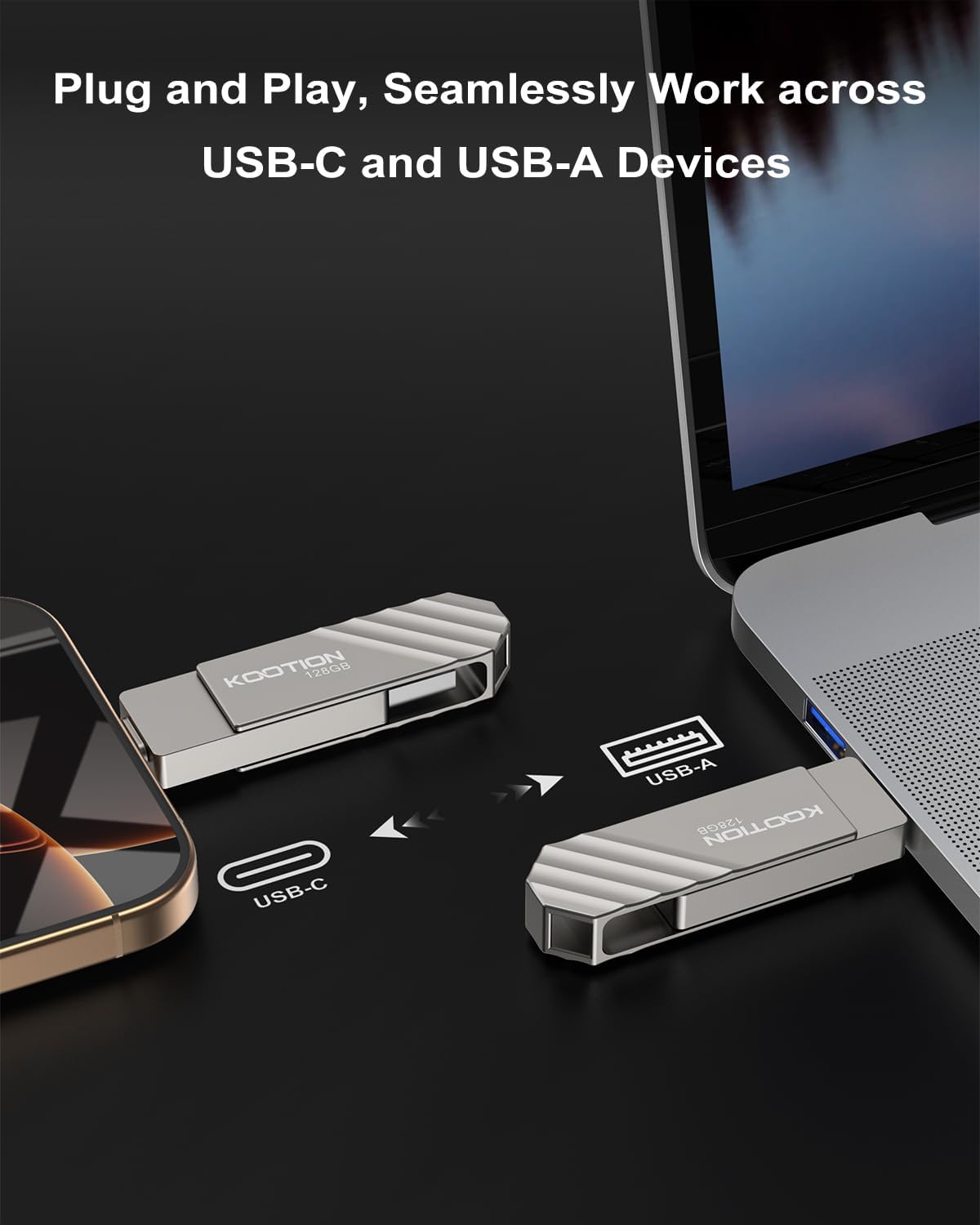
Image: The flash drive demonstrating its plug-and-play capability with both USB-C and USB-A devices.
Operating Instructions
Data Transfer:
Once the flash drive is recognized by your device, you can transfer files to and from it using standard file management operations.
- Copying files to the drive: Locate the files you wish to transfer on your device. Select them, then right-click (or long-press on touch devices) and choose 'Copy'. Navigate to the flash drive's directory, right-click (or long-press), and select 'Paste'.
- Copying files from the drive: Open the flash drive's directory. Select the files you wish to transfer to your device. Right-click (or long-press) and choose 'Copy'. Navigate to the desired destination folder on your device, right-click (or long-press), and select 'Paste'.
- Drag and Drop: For graphical interfaces, you can often drag and drop files directly between your device's storage and the flash drive's directory.
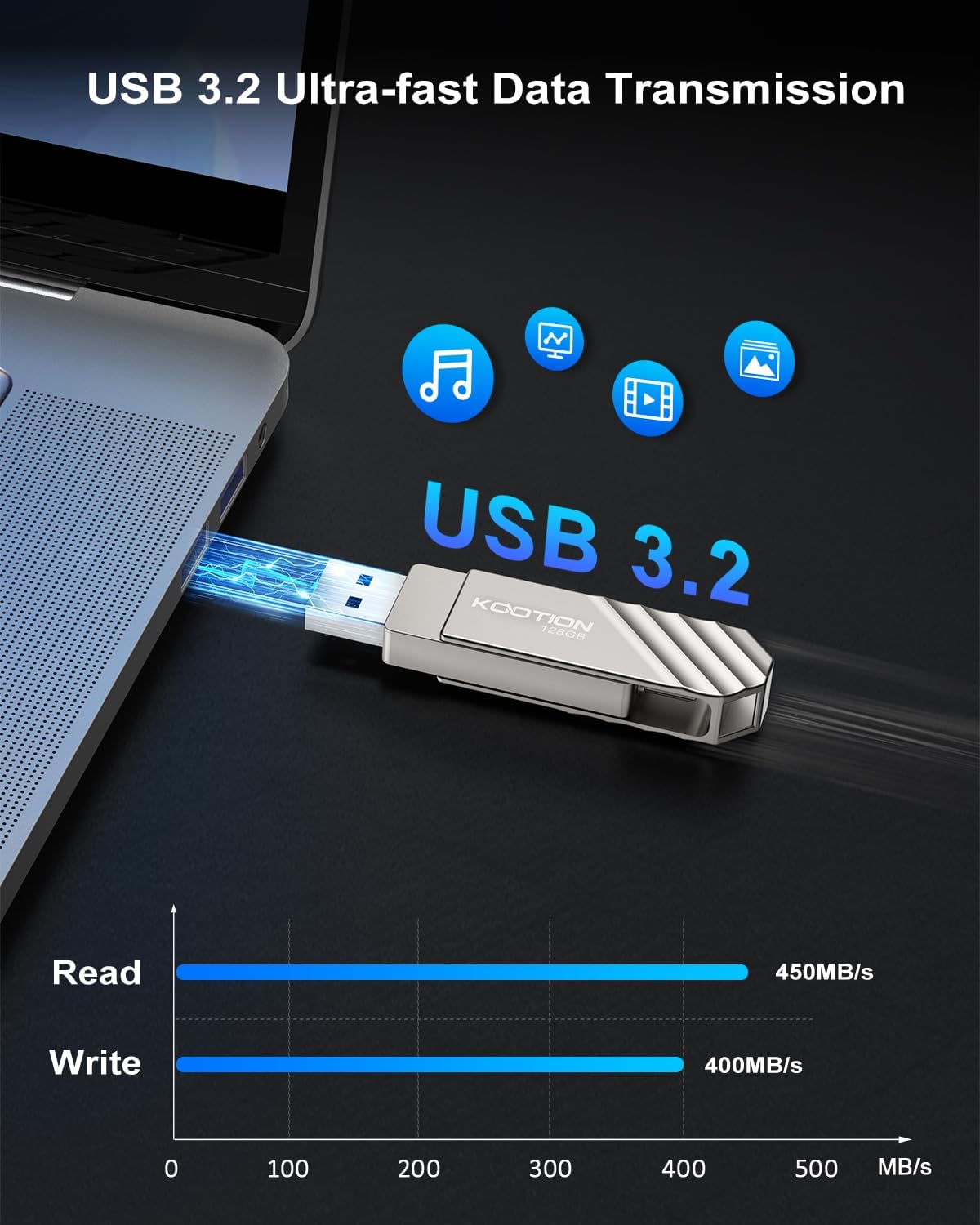
Image: Illustration of the USB 3.2 ultra-fast data transmission, indicating read speeds up to 450MB/s and write speeds up to 400MB/s.
Using with iPhone 15 Series:
For iPhone 15 series and other Type-C OTG devices, follow these steps to transfer data:
- Insert the USB-C flash drive into your iPhone 15.
- Select the photos and videos you want to export, then tap the Share button.
- Select 'Save to Files'. Tap the external device (the flash drive), and the photos and videos will be exported to the USB-C flash drive.

Image: Visual guide demonstrating the process of connecting the flash drive to an iPhone 15 and transferring media files.
Safe Removal:
Always safely eject the flash drive before physically removing it from your device to prevent data corruption.
- Windows: Click the 'Safely Remove Hardware and Eject Media' icon in the system tray, then select the flash drive.
- macOS: Drag the flash drive icon from the desktop or Finder sidebar to the Trash icon, or right-click the icon and select 'Eject'.
- Android/iOS: Look for an 'Eject' or 'Unmount' option within your device's file manager or notification panel.
Maintenance
- Physical Protection: The zinc alloy enclosure provides durability against shocks and drops. Utilize the 360° swivel cover to protect the connectors when not in use.
- Cleaning: Use a soft, dry cloth to clean the exterior of the flash drive. Avoid liquid cleaners or solvents.
- Storage: Store the flash drive in a cool, dry place away from extreme temperatures and direct sunlight.
- Data Backup: While the drive is reliable, it is always recommended to back up important data to multiple locations to prevent loss.
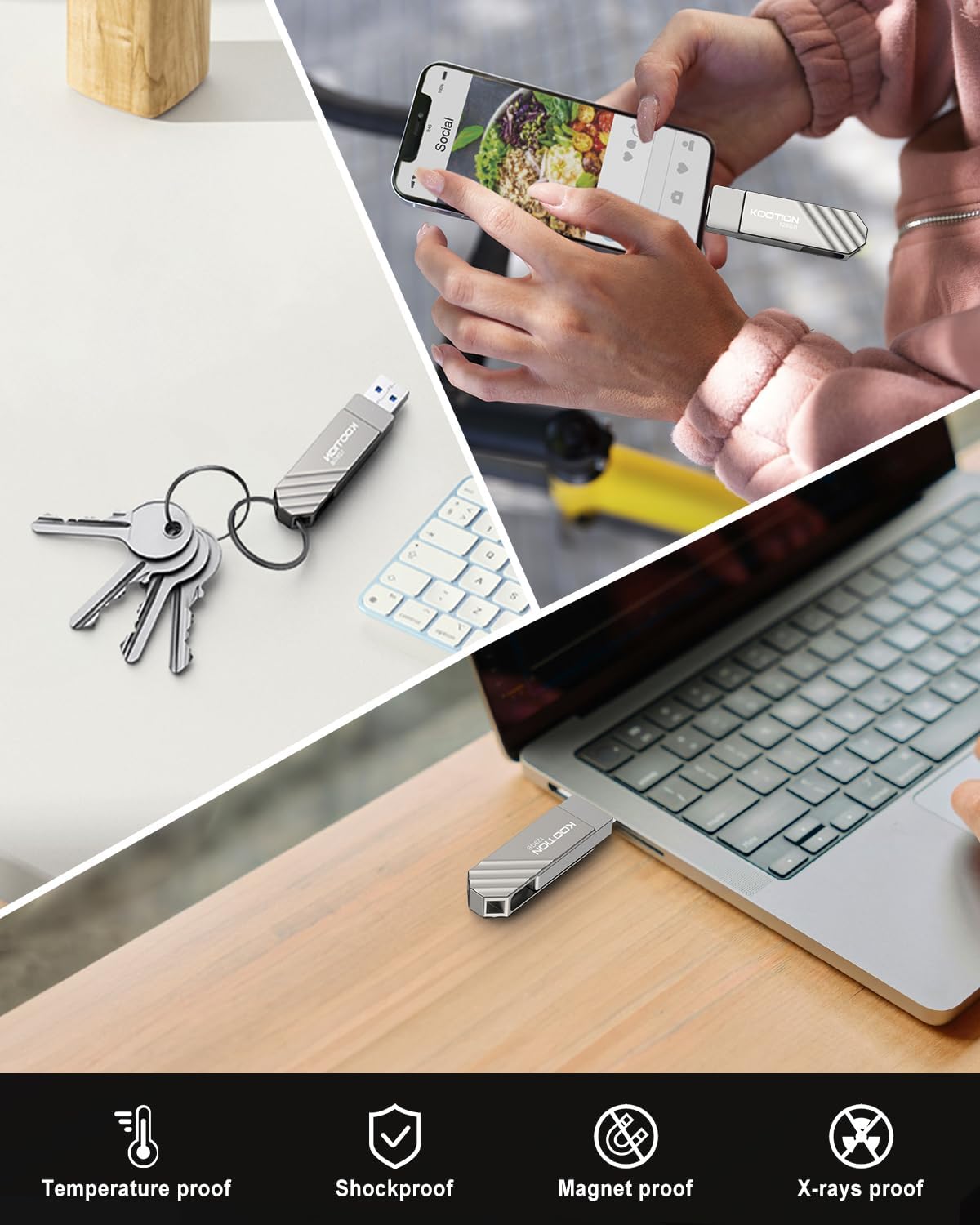
Image: Icons indicating the flash drive's resistance to temperature, shock, magnets, and X-rays, highlighting its robust design.
Troubleshooting
- Issue: Drive not recognized by device.
- Solution:
- Ensure the flash drive is fully inserted into the correct port (USB-A or USB-C).
- Try a different USB port on your device.
- Test the flash drive on another computer or compatible device to rule out a device-specific issue.
- Restart your computer or device.
- Check your device's Disk Management (Windows) or Disk Utility (macOS) to see if the drive is detected but not assigned a drive letter or needs formatting.
- Issue: Slow data transfer speeds.
- Solution:
- Ensure you are using a USB 3.0/3.1/3.2 compatible port on your device for optimal speeds. Connecting to a USB 2.0 port will result in slower transfers.
- Avoid running multiple demanding applications during large file transfers.
- The file system (e.g., exFAT, NTFS, FAT32) can affect performance. Consider reformatting if necessary, but back up data first.
- Issue: Cannot write files to the drive.
- Solution:
- Check if the drive is full. Delete unnecessary files or transfer them elsewhere.
- Verify the file system. Some file systems (e.g., FAT32) have limitations on individual file size (4GB). If you are transferring large files, consider reformatting to exFAT or NTFS (Windows only).
- Ensure you have write permissions for the drive on your operating system.
Specifications
| Feature | Detail |
|---|---|
| Brand | KOOTION |
| Model Number | U600-128G |
| Memory Storage Capacity | 128 GB |
| Read Speed | Up to 450 MB/s |
| Write Speed | Up to 400 MB/s |
| Hardware Interface | USB 3.2 Gen 1 |
| Connectivity Technology | USB 3.2 Type A + USB Type-C |
| Color | Silver |
| Product Dimensions | 2.19"D x 0.65"W x 0.38"H |
| Item Weight | 0.811 ounces |
| Compatible Phone Models | Type-C OTG devices, iPhone 15, iPad Pro |
| Special Feature | Compact, Swivel Design, Metal Casing |
Warranty and Support
For warranty information and technical support, please refer to the official KOOTION website or contact their customer service directly. Keep your purchase receipt for warranty claims.
Online Support: Visit the KOOTION official website for FAQs, driver downloads (if applicable), and contact information.
Customer Service: Refer to the packaging or the official website for customer service contact details.