
WONLINK WL-NE3601
Contents
WONLINK WiFi 6 Extender Signal Booster User Manual
Model: WL-NE3601
1. Product Overview
The WONLINK AX1500 Dual Band WiFi 6 Range Extender is designed to expand your existing Wi-Fi network coverage, eliminate dead zones, and provide high-speed internet access throughout your home or office. Utilizing the latest Wi-Fi 6 (802.11AX) technology, it offers enhanced speed, capacity, and reduced latency for a seamless online experience.

Image 1.1: Front view of the WONLINK WiFi 6 Extender, showcasing its compact design and adjustable antennas.

Image 1.2: The WONLINK AX1500 Wi-Fi 6 Dual Band WiFi Extender highlighting key features such as Wi-Fi 6, Ultra Speed, Dual Band (2.4/5.8G), and One-Tap WPS setup.
2. Safety Information
Please read all safety instructions before using this device to ensure proper operation and to prevent damage. Keep this manual for future reference.
- Do not expose the device to water or moisture.
- Do not open or attempt to repair the device yourself. Refer all servicing to qualified personnel.
- Use only the power adapter provided with the device.
- Ensure proper ventilation around the device to prevent overheating.
- Keep the device away from heat sources and direct sunlight.
3. Package Contents
Verify that all items are present in your package:
- WONLINK AX1500 WiFi 6 Extender
- Ethernet Cable
- Quick Installation Guide
- Warranty Card
4. Product Features
The WONLINK AX1500 WiFi 6 Extender boasts several advanced features to enhance your network experience:
- Dual Band AX1500 Wi-Fi 6: Supports 1201Mbps on 5GHz and 300Mbps on 2.4GHz for a combined speed of up to 1500Mbps.
- Wide Coverage: Extends Wi-Fi signal up to 10,000 sq.ft., eliminating dead zones.
- Gigabit Ethernet Port: Provides a fast wired connection for devices like smart TVs, PCs, or gaming consoles.
- 4 High Gain Antennas: Rotatable external antennas ensure flexible and stable Wi-Fi transmission.
- WPS Button: For quick and easy setup with compatible routers.
- Advanced Security: Supports WPA3/WPA2/WPA-PSK protocols for secure home Wi-Fi.
- Multi-Mode Operation: Functions as a Repeater, Router, or Access Point.

Image 4.1: Illustration of the four high-gain rotatable external antennas, emphasizing flexibility, stability, and improved Wi-Fi coverage.

Image 4.2: Visual representation of the 1500Mbps dual-band capabilities, showing 1200Mbps for gaming, media streaming, and video conferencing, and 300Mbps for file transfer, web browsing, and downloading.

Image 4.3: Diagram illustrating the internal components and security features like WPA3/WPA2/WPA-PSK, designed to secure home Wi-Fi, prevent browser hijacking, brute force attacks, and provide anti-fishing protection.
5. Setup Guide
There are two primary methods for setting up your WONLINK WiFi 6 Extender: using a smartphone or via the WPS button.
5.1. Smart Phone Setup
- Plug the extender into a power outlet near your main router.
- Wait for the indicator light to turn solid blue.
- On your smartphone, go to Wi-Fi settings and connect to the WONLINK Wi-Fi network (e.g., "WONLINK_XXXX").
- Open a web browser (e.g., Chrome, Safari) and enter 192.168.10.1 in the address bar.
- Enter "admin" as the password to access the configuration page.
- Scan for available Wi-Fi networks and select your host Wi-Fi network.
- Enter the password for your host Wi-Fi network (it must be the same as your network password).
- Save the settings to complete the setup. The extender will reboot automatically.
- Reconnect to the new extender's Wi-Fi network (it will have a new SSID, e.g., "YourNetworkName_EXT") and enter the password. You can now enjoy extended Wi-Fi.
5.2. WPS One-Tap Setup
- Plug the extender into a power outlet near your main router.
- Wait for the indicator light to turn solid blue.
- Press the WPS button on your main router.
- Within 2 minutes, press the WPS button on the WONLINK extender.
- The indicator light on the extender will flash and then turn solid blue, indicating a successful connection.
- You can now unplug the extender and move it to a desired location within your router's Wi-Fi range.

Image 5.1: Visual guide for quick installation, showing both smartphone setup steps and WPS one-tap setup process.
Video 5.2: Official WONLINK video demonstrating the setup process for the WiFi Extender. This video provides a visual guide to help users with installation and configuration.
6. Operating Modes
The WONLINK WiFi 6 Extender supports three operating modes to suit various networking needs:
- Repeater Mode: Extends the range of your existing wireless network. This is the most common mode for signal boosting.
- Router Mode: Functions as a primary wireless router, creating a new private network.
- Access Point (AP) Mode: Converts a wired network connection into a wireless one, ideal for areas without Wi-Fi coverage but with an Ethernet port.

Image 6.1: Depiction of the multi-scenario use cases for the WONLINK extender, illustrating Repeater Mode for home/office, Router Mode for restaurants, and AP Mode for hotels/cafes.
7. Maintenance
To ensure optimal performance and longevity of your WONLINK WiFi 6 Extender, follow these maintenance guidelines:
- Placement: Position the extender in a central location between your router and the area needing extended coverage. Avoid placing it near large metal objects, concrete walls, or other electronic devices that may cause interference.
- Cleaning: Use a soft, dry cloth to clean the device. Do not use liquid cleaners or aerosol sprays.
- Firmware Updates: Periodically check the WONLINK official website for firmware updates. Keeping the firmware updated can improve performance, security, and add new features.
- Restart: If you experience network issues, try restarting the extender by unplugging it from the power outlet for 10 seconds and then plugging it back in.
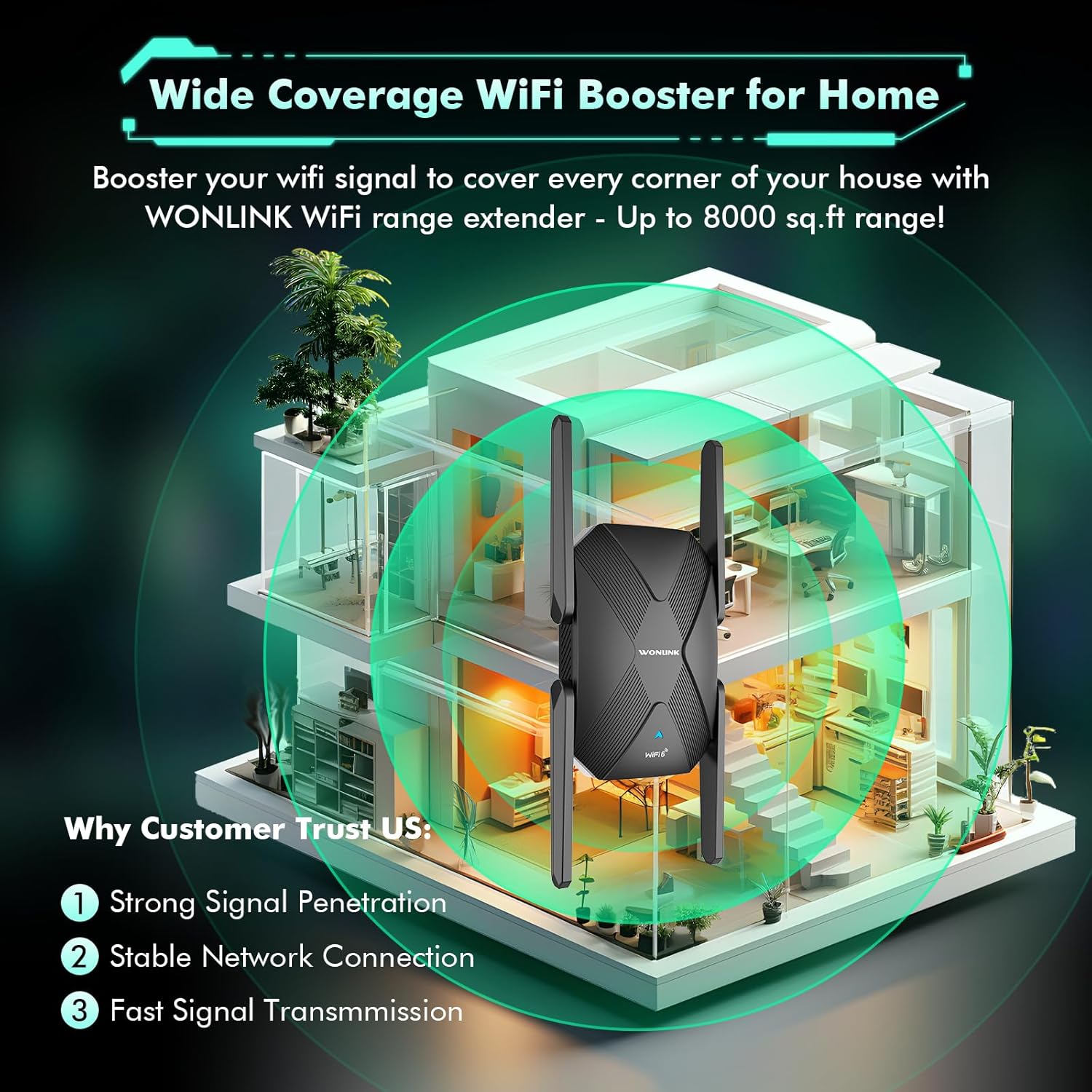
Image 7.1: An illustration showing the wide coverage provided by the WONLINK WiFi range extender within a multi-story home, emphasizing strong signal penetration and stable network connection.
8. Troubleshooting
If you encounter issues with your WONLINK WiFi 6 Extender, refer to the following common problems and solutions:
| Problem | Possible Cause | Solution |
|---|---|---|
| No power/LEDs off | Device not plugged in or power outlet issue. | Ensure the extender is securely plugged into a working power outlet. Try a different outlet. |
| Cannot connect to extender's Wi-Fi | Incorrect Wi-Fi name (SSID) or password. | Verify the SSID and password. Ensure you are connecting to the extender's network (e.g., "YourNetworkName_EXT"). |
| Poor signal strength from extender | Extender is too far from the main router or interference. | Relocate the extender closer to your main router. Avoid obstacles like thick walls or large appliances. |
| Internet access issues after setup | Incorrect configuration or IP address conflict. | Perform a factory reset (press and hold the reset button for 10 seconds) and reconfigure the extender. Ensure your router's DHCP is enabled. |
| Slow speeds when connected to extender | Interference, outdated firmware, or network congestion. | Try changing the extender's channel. Update firmware. Reduce the number of connected devices if possible. |
9. Specifications
| Feature | Detail |
|---|---|
| Brand | WONLINK |
| Model Number | WL-NE3601 |
| Data Transfer Rate | 1500 Megabits Per Second (Mbps) |
| Frequency Bands Supported | 2.4 GHz, 5 GHz |
| Range | Up to 929.03 meters (approximately 10,000 sq.ft.) |
| Wi-Fi Standard | 802.11AX (Wi-Fi 6) |
| Ethernet Port | Gigabit Ethernet |
10. Warranty and Support
WONLINK products come with a standard manufacturer's warranty. Please refer to the warranty card included in your package for specific terms and conditions. For technical support, product inquiries, or warranty claims, please visit the official WONLINK website or contact their customer service through the details provided on the warranty card or product packaging.
You can also visit the WONLINK Store on Amazon for more information and support resources.
Ask a question about this manual
Ask about setup, troubleshooting, compatibility, parts, safety, or missing instructions. Manuals+ will review the question and use this page’s manual context to help answer it.