
Introduction
This manual provides detailed instructions for the AULA F99 Pro Wireless Mechanical Keyboard. It covers setup, operation, maintenance, and troubleshooting to ensure optimal performance and user experience. The AULA F99 Pro is a versatile mechanical keyboard designed for various applications, including work, gaming, and general use, offering multiple connectivity options and customizable features.
Package Contents
Verify that all items are present in the package:
- AULA F99 Pro Wireless Mechanical Keyboard
- Keycap Puller
- USB Cable (Type-C)
- User Manual
- Extra 2 Switches
Setup
Connection Modes
The AULA F99 Pro keyboard supports three connection methods: Bluetooth 5.0 (BT5.0), 2.4GHz wireless, and USB-C wired mode. A switch located on the back of the keyboard allows selection between these modes.
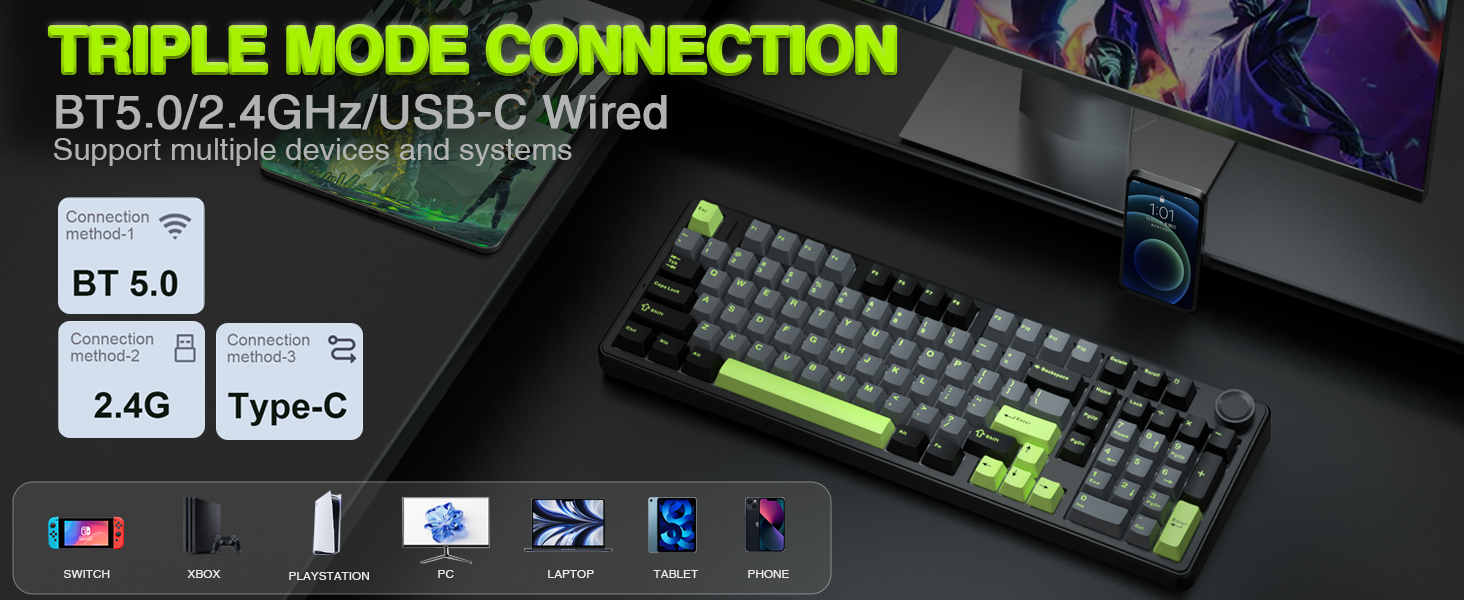
Image: The AULA F99 Pro keyboard highlighting its triple mode connection capabilities (BT5.0, 2.4GHz, USB-C wired) and compatibility with multiple devices and systems.

Image: A close-up view of the mode switch keys and ports on the side of the keyboard, indicating USB, BT/Wired/2.4G, and Type-C connections.
Wired Mode (USB-C)
- Connect the provided USB-C cable to the keyboard and your computer.
- Ensure the mode switch on the keyboard is set to 'USB'.
- The keyboard will be automatically recognized by your system.
2.4GHz Wireless Mode
- Locate the 2.4GHz USB receiver, typically stored in a compartment on the keyboard.
- Plug the USB receiver into an available USB port on your computer.
- Set the mode switch on the keyboard to '2.4G'.
- The keyboard should connect automatically. If not, press and hold FN + R for approximately 5 seconds to initiate pairing. The indicator light will flash and then turn solid upon successful connection.
Bluetooth 5.0 Mode
- Set the mode switch on the keyboard to 'BT'.
- To pair with a new device, press and hold FN + 1, FN + 2, or FN + 3 for approximately 5 seconds. The indicator light for the selected channel will flash rapidly, indicating pairing mode.
- On your device (PC, laptop, tablet, smartphone), search for Bluetooth devices and select 'AULA F99 Pro'.
- The indicator light will turn solid upon successful connection.
- To switch between paired Bluetooth devices, press FN + 1, FN + 2, or FN + 3 briefly.
Operating Instructions
Multi-function Control Knob
The keyboard features a multi-function knob for quick adjustments. Long press the knob for approximately 5 seconds to switch between Backlit Control Mode and Multimedia Mode.

Image: A visual guide to the multi-function control knob, detailing its use for lighting adjustments and multimedia control.
Backlit Control Mode
- Rotate Knob: Adjusts backlight brightness.
- Click Knob: Switches between different lighting effects.
Multimedia Mode
- Rotate Knob: Adjusts system volume.
- Click Knob: Plays or pauses media.
RGB Backlight Adjustment
The keyboard offers 16 RGB lighting effects. Use the following key combinations to control the backlight:
- FN + Shift (right): Switches between light bar mode or turns off the light bar.
- FN + \|: Switches between 15 RGB light effects or turns off the backlight.
- FN + Tab: Switches lighting color.
- FN + ↑: Increases lighting brightness.
- FN + ↓: Decreases lighting brightness.
- FN + ←: Increases lighting speed.
- FN + →: Decreases lighting speed.

Image: The AULA F99 Pro keyboard illuminated with 16.8 million RGB backlighting, demonstrating various lighting effects and controls.
Macro Customization
The F99 Pro supports macro customization for keys, allowing users to record and edit macros, customize key functions, and select from 16.8 million light colors. It also supports music rhythm lighting effects via the driver software. The driver is compatible with Windows systems and functions in wired mode.
Image: A visual representation of the custom software interface for the AULA F99 Pro, showing options for light effects, color customization, and macro recording.
Maintenance
Hot-Swappable Design
The AULA F99 Pro features a hot-swappable PCB, allowing users to easily replace 3-pin or 5-pin switches without soldering. The package includes a keycap/switch puller for convenience.

Image: An illustration detailing the hot-swappable PCB socket and the pre-lubed switches (LEOBOG Greywood V3) of the F99 Pro keyboard.
PBT Keycaps
The keyboard is equipped with double-shot PBT keycaps. These keycaps are made from two colors of material molded into each other, ensuring that the characters remain vibrant, saturated, clear, and resistant to fading over time.

Image: A close-up view of a durable PBT keycap, illustrating its construction and resistance to wear.
Troubleshooting
- Keyboard not responding: Check the connection mode switch (USB, 2.4G, BT). Ensure the USB cable is securely connected or the wireless receiver is properly inserted. For Bluetooth, verify pairing status.
- Backlight not working: Ensure the keyboard is powered on. Adjust brightness using the control knob or FN key combinations.
- Intermittent connection: For wireless modes, ensure the keyboard is within range of the receiver/device and there are no significant obstructions. Check for interference from other wireless devices.
- Keys not registering: If specific keys are not working, try replacing the switch using the provided tools and extra switches.
- Software issues: Ensure the driver software is installed correctly and is the latest version. Run the software in wired mode for full functionality.
Specifications
| Model Number | F99 Pro |
| Connectivity Technology | BT5.0, 2.4GHz Wireless, USB-C Wired |
| Keyboard Description | Mechanical |
| Key Layout | 99 keys (96% layout with Numpad) |
| Keycaps | Double-shot PBT |
| Switches | Pre-lubed Linear Switches (LEOBOG Greywood V3) |
| Hot-Swappable | Yes (3-pin/5-pin switches) |
| Backlighting | RGB (16 effects, 16.8 million colors via driver) |
| Special Features | Gasket Structure, Programmable Keys, Multi-function Knob, N-key Rollover |
| Compatible Devices | Gaming Console, Laptop, PC, Smartphone, Tablet |
| Dimensions | 17.04 x 6.69 x 2.09 inches |
| Item Weight | 3.23 pounds |
Battery Information
The AULA F99 Pro is equipped with an 8000mAh high-capacity rechargeable battery. This battery provides extended usage times:
- Approximately 53 hours with backlight ON.
- Approximately 400 hours with backlight OFF.

Image: A visual representation emphasizing the 8000mAh high-capacity battery of the keyboard.
Product Videos
AULA F99 Pro Gasket Mechanical Keyboard with Creamy Sound
Video: This video demonstrates the typing sound and feel of the AULA F99 Pro Gasket Mechanical Keyboard, highlighting its creamy sound profile.
Warranty and Support
For warranty information, technical support, or service inquiries, please refer to the official AULA website or the contact information provided in your product packaging. Keep your purchase receipt for warranty claims.


