
1. Introduction
This manual provides detailed instructions for the Nsyee Magnetic Keyboard Case, designed to enhance your iPad experience. It covers compatibility, setup, operation, maintenance, and troubleshooting for optimal use.
2. Compatibility
The Nsyee Magnetic Keyboard Case is compatible with the following iPad models:
- iPad 10th Generation 10.9 inch (2022): Model Numbers A2696, A2757, A2777
- iPad 11th Generation 11 inch (2025): Model Numbers A3354, A3355, A3356
Please verify your iPad model number before use to ensure proper fit and functionality. The model number is typically found on the back of your iPad.
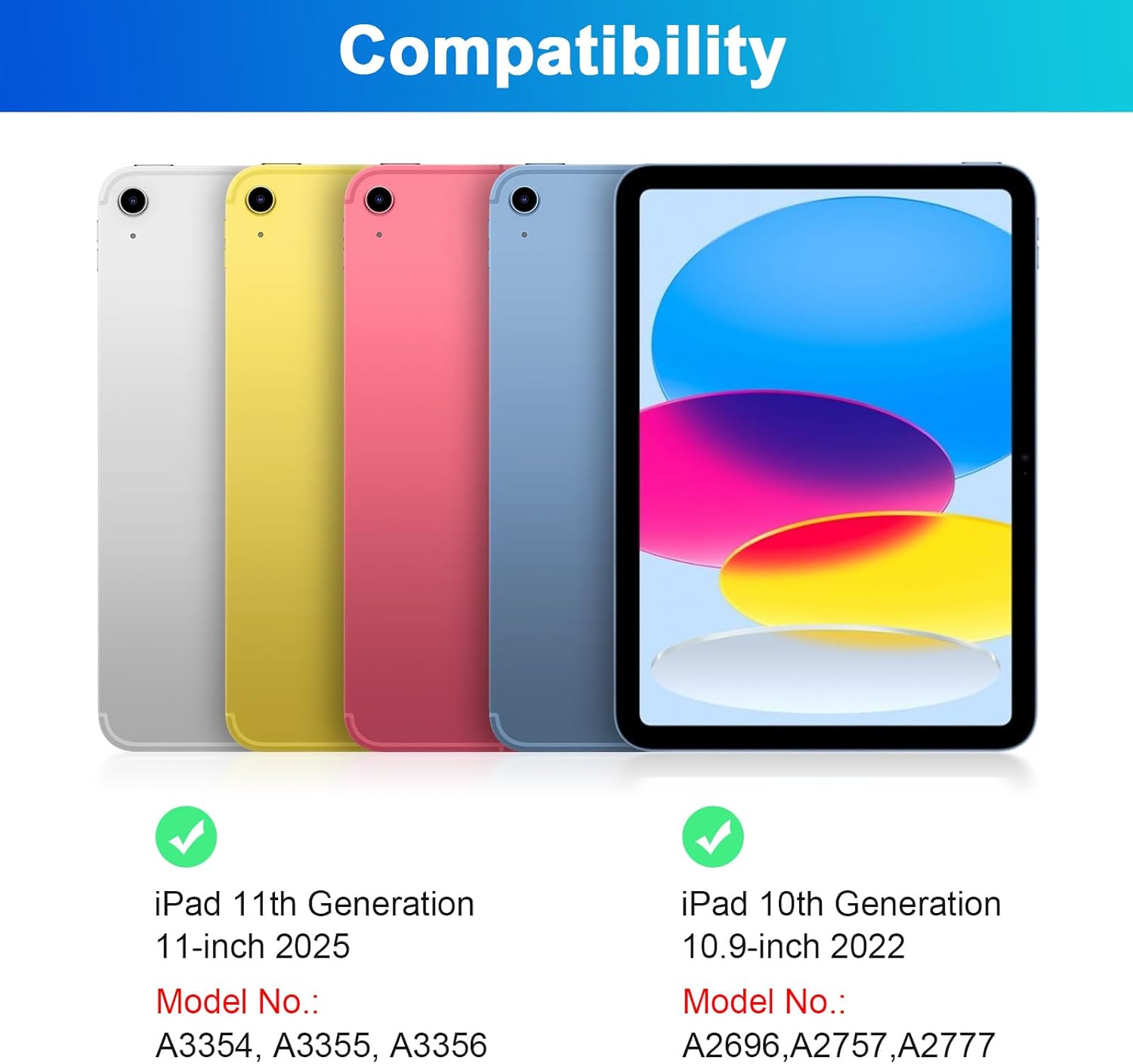
Image: Visual guide for iPad model compatibility, displaying different iPad colors and their respective model numbers for 10th and 11th generations.
3. Package Contents
Upon opening the package, please ensure all items are present:
- Nsyee Magnetic Keyboard Case
- USB-C Charging Cable
- User Manual (this document)
4. Setup and Connection
4.1 Charging the Keyboard
Before initial use, fully charge the keyboard. Connect the provided USB-C charging cable to the keyboard's charging port and a power source.
- Charging Time: Approximately 2 hours.
- Working Time: Up to 80 hours (with backlight off).
- Standby Time: Up to 150 days.
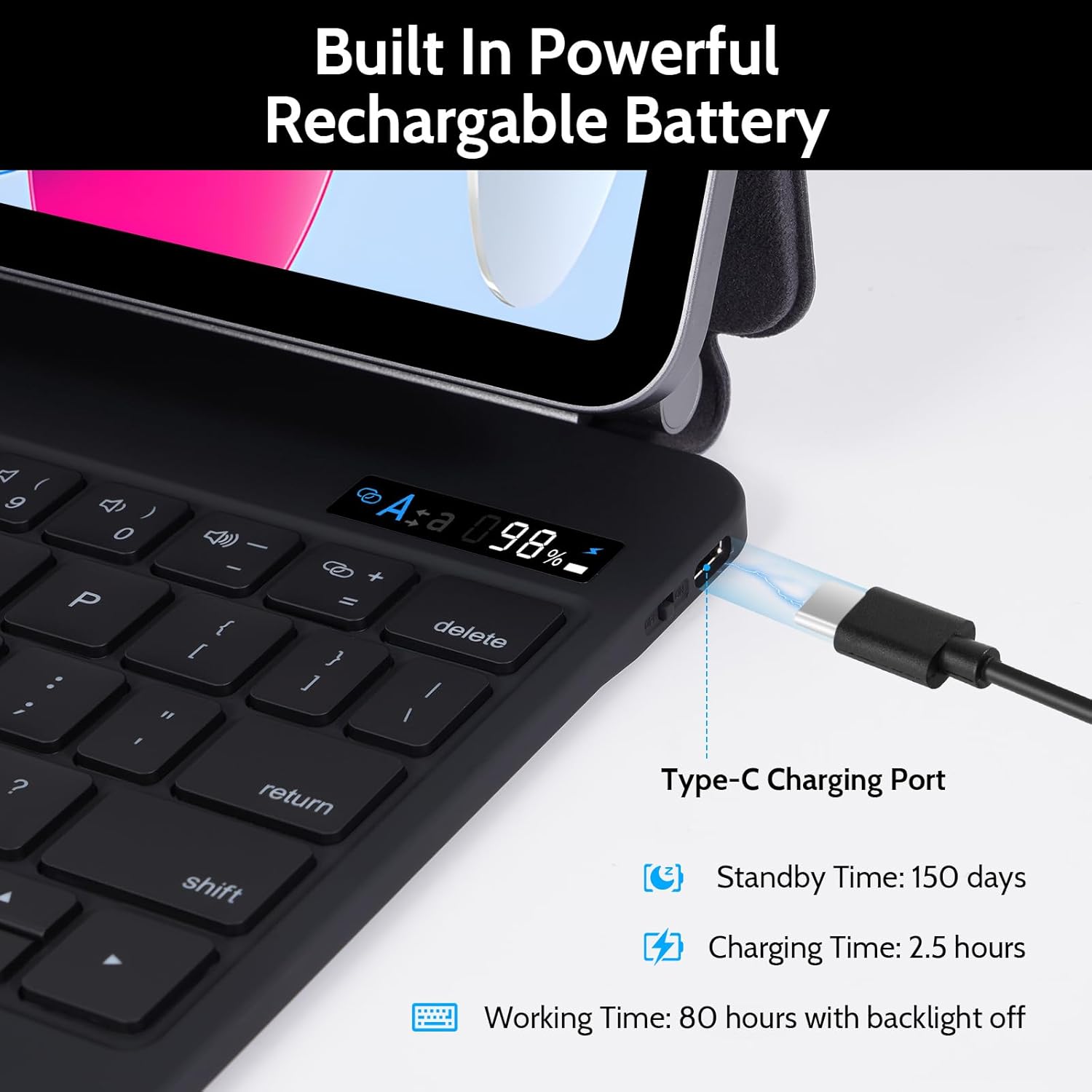
Image: The keyboard's Type-C charging port, indicating charging status and battery life.
4.2 Attaching Your iPad
The case features a floating magnetic stand for secure attachment.
- Open the keyboard case.
- Align your iPad with the magnetic back panel of the case.
- The iPad will magnetically snap into place, securing it firmly.

Image: Demonstrates the strong magnetic attraction as an iPad is attached to the keyboard case.

Image: The floating cantilever stand design, illustrating the 130° adjustable viewing angle.
4.3 Bluetooth Pairing
To connect the keyboard to your iPad via Bluetooth:
- Ensure the keyboard is charged and powered on.
- On your iPad, go to Settings > Bluetooth.
- Turn on Bluetooth.
- The iPad will search for available devices. Select "Nsyee Keyboard" (or similar name) from the list.
- Follow any on-screen prompts to complete the pairing process.
Once paired, the keyboard will automatically connect to your iPad when both devices are on and Bluetooth is enabled.
5. Operating Instructions
5.1 Keyboard Functions
The keyboard features a standard QWERTY layout with additional function keys for iPad control.
- Shortcut Keys: Utilize the dedicated shortcut keys for quick access to common iPad functions (e.g., volume control, media playback, home screen).
5.2 Backlight Adjustment
The keyboard includes 7-color backlighting with 3 adjustable brightness levels.
- To adjust brightness: Press the Fn key + Light Bulb key (usually located near the top right of the keyboard).
- To change backlight color: Press the Fn key + RGB key (or similar icon).

Image: The keyboard displaying its 7-color backlight feature and controls for brightness adjustment.
5.3 Multi-Touch Trackpad
The integrated trackpad supports multi-touch gestures for precise navigation.
- Tap: Single tap for click.
- Scroll: Two fingers up/down to scroll.
- Zoom: Pinch with two fingers to zoom in/out.
- Swipe: Three fingers to switch between apps or access the App Switcher.
- Refer to your iPad's settings for a complete list of supported trackpad gestures.

Image: A user interacting with the multi-touch trackpad, illustrating its smooth and sensitive operation.
5.4 Auto Sleep/Wake Function
The keyboard case supports automatic sleep/wake functionality to conserve battery life.
- Closing the case will put your iPad to sleep.
- Opening the case will wake your iPad.
6. Maintenance
To ensure the longevity and optimal performance of your Nsyee Magnetic Keyboard Case, follow these maintenance guidelines:
- Cleaning: Use a soft, damp cloth to wipe the exterior of the case. For the keyboard keys, use a soft, dry brush or compressed air to remove dust and debris. Avoid harsh chemicals or abrasive cleaners.
- Storage: When not in use for extended periods, store the case in a cool, dry place. Ensure the iPad is removed or the case is closed to prevent accidental activation and battery drain.
- Avoid Liquids: Keep the keyboard case away from liquids to prevent damage to electronic components.
- Handle with Care: While designed for protection, avoid dropping or subjecting the case to excessive force.
7. Troubleshooting
If you encounter issues with your Nsyee Magnetic Keyboard Case, refer to the following solutions:
7.1 Keyboard Not Connecting via Bluetooth
- Check Battery: Ensure the keyboard is fully charged.
- Restart Devices: Turn off and on both the keyboard and your iPad.
- Re-pair Bluetooth:
- On your iPad, go to Settings > Bluetooth.
- Forget or unpair the "Nsyee Keyboard" if it appears in "My Devices".
- Put the keyboard into pairing mode (usually by pressing a dedicated Bluetooth button or a combination of Fn + C/Bluetooth icon).
- Select the keyboard from the available devices on your iPad to re-pair.
- Interference: Move away from other wireless devices that might cause interference.
7.2 Keys Not Responding
- Check Connection: Verify Bluetooth connection as described above.
- Restart Keyboard: Turn the keyboard off and then on again.
- Clean Keys: Ensure no debris is lodged under the keys.
7.3 Trackpad Not Working
- Check Connection: Confirm the keyboard is connected via Bluetooth.
- iPad Settings: Ensure trackpad support is enabled in your iPad's accessibility settings (Settings > Accessibility > Touch > AssistiveTouch, then check "Mouse Keys" or similar settings).
- Restart Keyboard/iPad: Perform a restart of both devices.
7.4 Backlight Not Functioning
- Check Battery: Low battery can disable backlighting. Charge the keyboard.
- Adjust Settings: Ensure you are using the correct key combinations (Fn + Light Bulb / RGB key) to activate and adjust the backlight.
8. Specifications
| Brand | Nsyee |
| Compatible Devices | iPad 10th Gen 2022 (A2696/A2757/A2777), iPad 11th Generation 11inch 2025 (A3354,A3355,A3356) |
| Connectivity Technology | Bluetooth |
| Keyboard Description | Integrated |
| Special Features | Backlit, Lightweight, Trackpad, Floating Magnetic Stand, Auto Sleep/Wake |
| Color | Light Black (specific model variant) |
| Power Source | Battery Powered (1 P76 battery included) |
| Keyboard Layout | QWERTY |
| Item Weight | 2.05 pounds |
| Package Dimensions | 10.71 x 8.03 x 1.14 inches |
9. Warranty and Support
For warranty information and customer support, please refer to the contact details provided with your purchase or visit the official Nsyee website. Keep your purchase receipt for warranty claims.
Typical return policy: 30 days for refund/replacement.
For further assistance, you may contact Nsyee customer service.

Image: Illustration of customer support availability for assistance.