
1. Product Overview
The Bewinner 2-Way Video Calling Camera is designed for indoor home security and communication. Featuring a 2.8-inch HD screen and 3-megapixel resolution, it enables clear two-way video and voice calls. This device includes AI detection capabilities, night vision, and supports wireless connectivity for convenient monitoring and interaction with family members, especially the elderly and children.
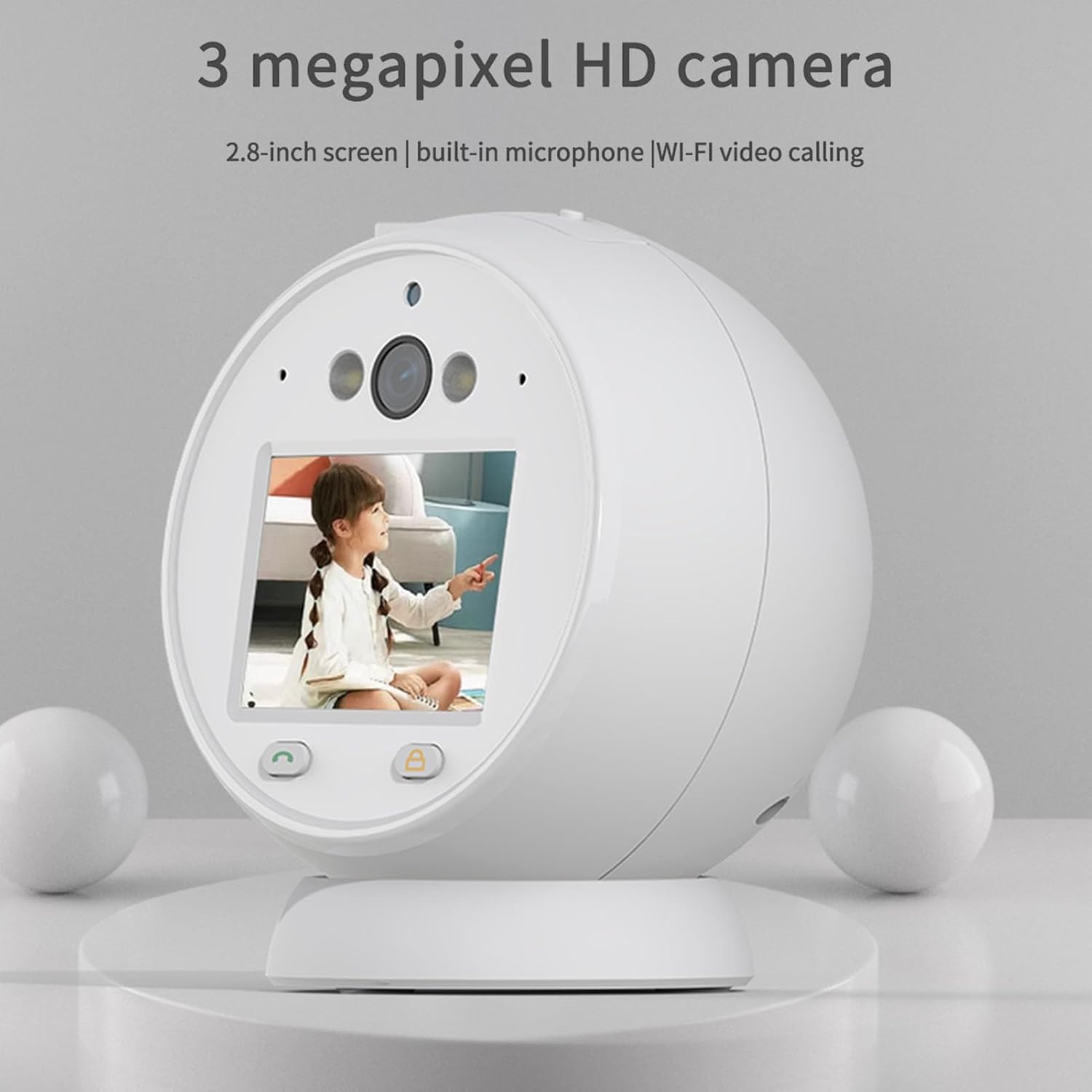
Image: The Bewinner 2-Way Video Calling Camera, showcasing its 2.8-inch screen and compact design.
2. Key Features
- HD Video Calling: Supports 2.8-inch horizontal screen technology with 3 million real pixels for ultra-high-definition two-way video and voice communication.
- Intelligent Noise Reduction: Built-in microphone with intelligent ambient noise reduction ensures clear audio during calls.
- 2.4GHz Wireless Connectivity: Provides clear picture quality and supports cloud storage or a Micro SD card (up to 128GB, not included) for recording.
- Real-Time Video Surveillance: Features white infrared double light night viewing using LED display technology for efficient application in low-light conditions.
- Security Monitoring: Allows remote viewing anytime, anywhere, enhancing the safety of elderly individuals and children.
- AI Detection: Includes human-like detection and alarm push notifications for enhanced security.
- PTZ Control: Offers Pan-Tilt-Zoom control for adjusting the camera's viewing angle.
- 360° Resolution: Provides a wide viewing angle for comprehensive coverage.

Image: Visual representation of key features including human detection, alarm push, night vision, one-touch call, video call, voice call, PTZ control, 3MP HD, and 360° resolution.
3. Specifications
| Model Name | Bewinnerfzq6sepu2w |
| Screen Size | 2.8 inches HD |
| Resolution | 3 Megapixels |
| Connectivity | 2.4GHz Wireless (Wi-Fi) |
| Storage Support | Cloud Storage, Micro SD Card (up to 128GB) |
| Night Vision | White Infrared Double Light |
| Audio | Two-way voice, Intelligent Noise Reduction |
| Power Source | AC/DC |
| Recommended Use | Indoor |
| Controller Type | Android (via compatible app) |
4. Setup Guide
4.1 Unboxing and Initial Inspection
Carefully remove all components from the packaging. Verify that all items listed in the packing list are present and undamaged. The typical package includes the camera unit, a power supply cord, and this user manual.
4.2 Power Connection
- Connect the provided power supply cord to the camera's power input port.
- Plug the other end of the power supply cord into a standard AC power outlet.
- The camera will power on automatically, indicated by an LED light or screen activation.
4.3 App Installation and Network Connection
To utilize the camera's full features, including remote viewing and video calls, you must connect it to your home Wi-Fi network via a compatible mobile application.
- Download the designated mobile application (refer to the packaging or included quick start guide for app name) from your device's app store (e.g., Google Play Store for Android).
- Open the app and create a new user account or log in if you already have one.
- Follow the in-app instructions to add a new device. This typically involves scanning a QR code on the camera or manually entering its device ID.
- When prompted, connect the camera to your 2.4GHz Wi-Fi network. Ensure your mobile device is also connected to the same 2.4GHz network during the setup process.
- Once connected, the camera's status indicator will confirm successful pairing, and you will be able to view the live feed through the app.
4.4 Micro SD Card Installation (Optional)
For local video storage, install a Micro SD card (up to 128GB, not included).
- Locate the Micro SD card slot on the camera (usually on the side or bottom).
- Gently insert the Micro SD card into the slot until it clicks into place.
- Format the Micro SD card through the camera's settings in the mobile application for optimal performance.

Image: The Bewinner camera unit shown alongside its power cable, illustrating the components for setup.
5. Operating Instructions
5.1 Live View and Remote Monitoring
Open the mobile application on your smartphone or tablet. Select the camera from your device list to access the live video feed. You can monitor your home in real-time from anywhere with an internet connection.

Image: The camera monitoring a child, illustrating its use for remote safety and peace of mind.
5.2 Two-Way Video and Voice Calling
To initiate a video call, tap the video call icon within the app's live view interface. The camera's screen will display the incoming call. To speak, use the microphone icon in the app. The camera's built-in microphone and speaker allow for clear two-way communication.
5.3 Night Vision Activation
The camera automatically switches to night vision mode in low-light conditions. The white infrared double light technology provides clear black and white video footage at night. You can typically adjust night vision settings (auto/on/off) within the mobile application.

Image: Depiction of the camera's white infrared double light night vision in action, providing visibility in darkness.
5.4 Motion Detection and Alarms
Configure motion detection settings in the app to receive alerts on your mobile device when movement is detected. You can customize detection zones, sensitivity levels, and alarm schedules.
5.5 PTZ Control
If your camera model supports PTZ (Pan-Tilt-Zoom), use the directional controls within the mobile app to remotely adjust the camera's viewing angle horizontally and vertically.
5.6 Storage Management
Recorded videos can be stored on a Micro SD card or in the cloud (subscription may be required for cloud services). Access and manage recordings through the mobile application. You can view playback, download clips, or delete old footage.

Image: The camera displaying a family, highlighting its 360° resolution and storage capabilities (up to 128GB Micro SD and cloud).
6. Maintenance
6.1 Cleaning the Camera
To maintain optimal performance, regularly clean the camera lens and body. Use a soft, dry, lint-free cloth. For stubborn smudges on the lens, slightly dampen the cloth with a lens cleaning solution. Avoid harsh chemicals or abrasive materials.
6.2 Software Updates
Periodically check the mobile application for firmware updates for your camera. Keeping the firmware updated ensures access to the latest features, security enhancements, and bug fixes. Follow the in-app instructions for updating the camera's software.
6.3 Storage Management
Regularly review and manage your stored footage. Delete unnecessary recordings to free up space on your Micro SD card or cloud storage. Ensure your Micro SD card is in good condition; replace it if you notice any data corruption or read/write errors.
7. Troubleshooting
- Camera Not Powering On:
Ensure the power cord is securely connected to both the camera and a working power outlet. Try a different outlet. - Unable to Connect to Wi-Fi:
Verify that your Wi-Fi network is 2.4GHz. Ensure the camera is within range of your Wi-Fi router. Restart your router and the camera, then attempt to reconnect through the app. Double-check your Wi-Fi password. - No Live Video Feed:
Check your internet connection. Ensure the camera is powered on and connected to Wi-Fi. Restart the mobile app. - Poor Video Quality:
Ensure the camera lens is clean. Check your Wi-Fi signal strength; a weak signal can affect video quality. Reduce the distance between the camera and the router if possible. - Two-Way Audio Not Working:
Check the microphone and speaker settings in the mobile app. Ensure your phone's volume is up. Make sure there are no obstructions blocking the camera's microphone or speaker. - Night Vision Issues:
Ensure the camera is in a dark environment for night vision to activate automatically. Check night vision settings in the app. - SD Card Not Recording:
Ensure the Micro SD card is correctly inserted and formatted through the app. Check if the card is full; delete old recordings or replace the card.
8. Warranty and Support
Bewinner products are covered by a limited warranty. For specific warranty terms and conditions, please refer to the warranty card included with your product or visit the official Bewinner website. If you encounter any issues that cannot be resolved using the troubleshooting guide, please contact Bewinner customer support for assistance. Contact information can typically be found on the product packaging, the official website, or within the mobile application.
Please retain your proof of purchase for warranty claims.