1. Introduction
The KETOTEK WiFi Smart Switch Module KTSSM01 is designed to integrate traditional household appliances into a smart home system. This module enables remote control, scheduling, and voice control of lights, fans, sockets, and other electronic devices via the Smart Life/Tuya application and compatible voice assistants like Amazon Alexa and Google Assistant.
This manual provides essential information for the safe installation, configuration, and operation of your KETOTEK WiFi Smart Switch Module. Please read it thoroughly before installation and retain it for future reference.
2. Safety Information
- Electrical Safety: Installation must be performed by a qualified electrician or a person with a thorough understanding of electrical wiring. Always disconnect power at the circuit breaker before performing any electrical work.
- Voltage and Load: Ensure the module's voltage and current ratings (100-240V AC, max 16A/3500W, max 300W for LED lamps) are compatible with your electrical system and connected devices.
- Neutral Wire: A neutral wire is required for the operation of this device. Verify its presence in your installation location before proceeding.
- Indoor Use Only: This device is intended for indoor use in dry environments.
- Children Safety: Keep the device and its components out of reach of children.
3. Package Contents
Upon opening the package, verify that all items are present and undamaged:
- 1 x KETOTEK WiFi Smart Switch Module (KTSSM01)
- 1 x Mounting Clip
- 1 x User Manual
4. Specifications
| Parameter | Value |
|---|---|
| Model Number | KTSSM01 |
| Dimensions (L x W x H) | 3.9 x 3.9 x 1.8 cm |
| Weight | 30 grams |
| Power Supply | 100-240V AC, 50/60Hz |
| Max Load | 16A / 3500W @ 240V AC |
| Max Load (LED Lamp) | 300W |
| Connectivity | WiFi |
| Control App | Smart Life / Tuya App |
| Voice Control | Alexa, Google Assistant |
| Material | Plastic and Glass |
| Mounting Type | Wall Mount (with clip for DIN rail) |
| Contact Type | Normally Closed |
| Number of Terminals | 2 |
5. Setup and Installation
5.1 Product Overview and Dimensions
The KETOTEK WiFi Smart Switch Module is compact, designed for discreet installation.

Image: The KETOTEK WiFi Smart Switch Module, illustrating its compact dimensions of 39mm by 39mm by 18mm. The module is shown in context next to a standard wall socket, highlighting its small size for easy integration.
5.2 Mounting Options
The module's small size allows for flexible installation:
- Behind existing wall switches or power outlets.
- Inside narrow junction boxes.
- Mounted on a DIN rail using the included mounting clip.
- Screwed directly to a wall.

Image: The KETOTEK Smart Switch Module is shown alongside its detachable mounting clip. This clip facilitates installation on a DIN rail or allows the module to be screwed directly to a wall, providing versatile mounting solutions.
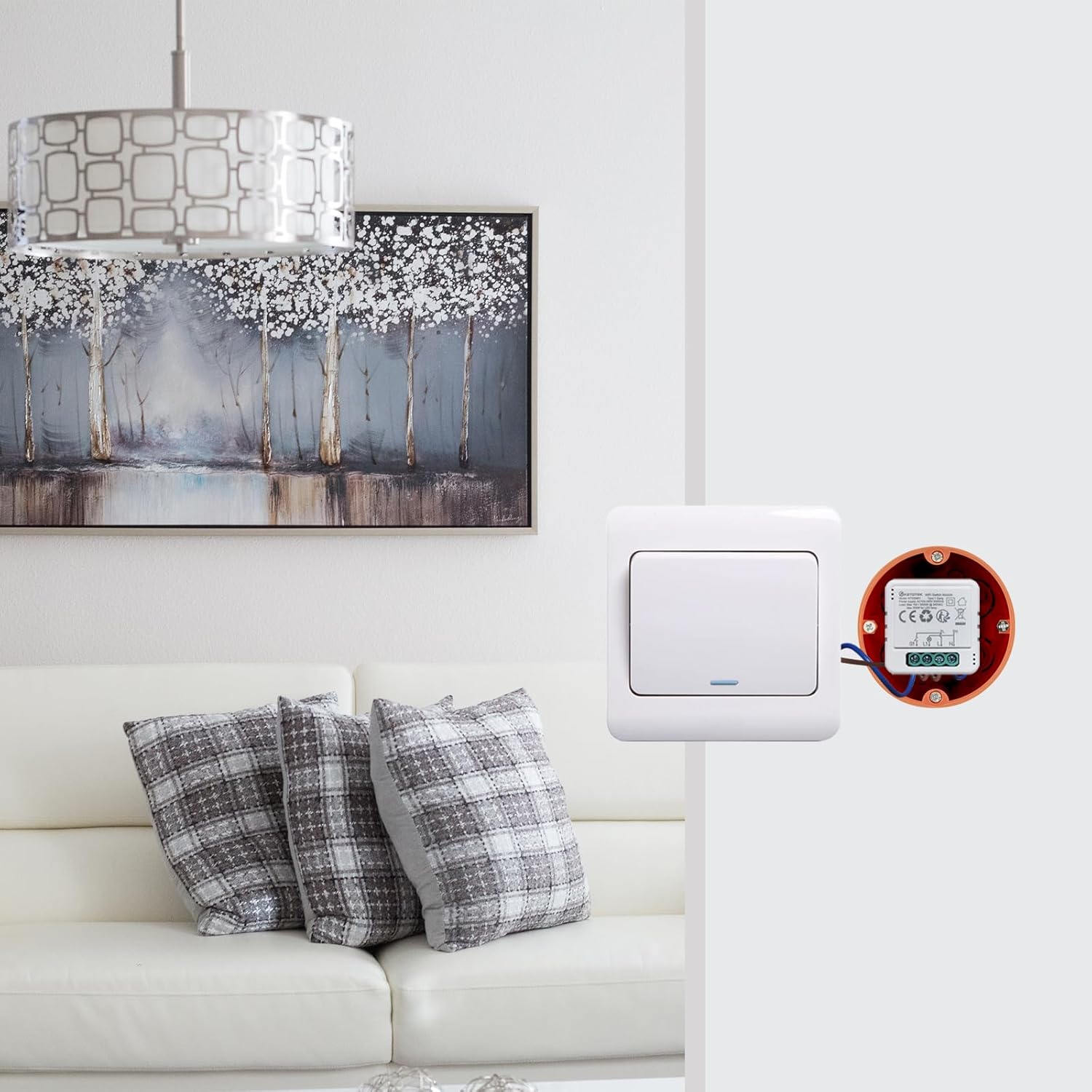
Image: An example installation showing the KETOTEK Smart Switch Module discreetly placed behind a standard wall switch, demonstrating its ability to be hidden within existing electrical infrastructure.
5.3 Wiring Diagrams
Important: A neutral wire (N) is required for this device. Ensure power is disconnected before wiring.

Image: This diagram illustrates three common wiring configurations for the KETOTEK Smart Switch Module. It shows connections for directly controlling a load, integrating with a 1-way external switch, and integrating with a 2-way external switch. All diagrams emphasize the necessity of a neutral wire connection.
The module has terminals for Live (L), Neutral (N), Switched Live (L1), and external switch inputs (S1).
- Connect to Load Directly: Connect the Live (L) and Neutral (N) wires from your power supply to the module's L and N terminals. Connect the load (e.g., light bulb) between the module's L1 (switched live output) and the Neutral (N) wire.
- Connect to Load and 1-Way External Switch: Connect Live (L) and Neutral (N) from power supply to module's L and N. Connect the load between L1 and N. Connect one terminal of your external 1-way switch to the Live (L) wire and the other terminal to the module's S1 input.
- Connect to Load and 2-Way External Switch: Connect Live (L) and Neutral (N) from power supply to module's L and N. Connect the load between L1 and N. For a 2-way switch setup, connect the common terminal of the first switch to Live (L). Connect the two traveler terminals of the first switch to the two traveler terminals of the second switch. Connect the common terminal of the second switch to the module's S1 input.
6. Operating Instructions
After successful installation, download the Smart Life or Tuya App from your smartphone's app store and follow the in-app instructions to pair the device.
6.1 App Control (Smart Life/Tuya)
The Smart Life/Tuya app provides comprehensive control over your smart switch module.
- Remote ON/OFF: Control connected devices from anywhere using your smartphone.
- Scheduling: Set specific times for devices to turn on or off automatically.
- Scene Creation: Create custom scenes to control multiple devices with a single tap or based on conditions (e.g., 'Good Morning' scene turns on lights and coffee maker).
- Automation: Set up automations based on environmental factors, device status, or time.

Image: A smartphone screen displaying the Smart Life/Tuya application, demonstrating the ability to remotely control the KETOTEK Smart Switch Module from any location at any time.
6.2 Voice Control
The module is compatible with Amazon Alexa and Google Assistant. Once integrated, you can control your connected devices using voice commands.
- Integration: Link your Smart Life/Tuya account with Alexa or Google Home app.
- Commands: Use commands like "Alexa, turn on the living room light" or "Hey Google, turn off the fan."
6.3 Scheduling and Timers
Automate your devices to follow your daily routine and preferences.
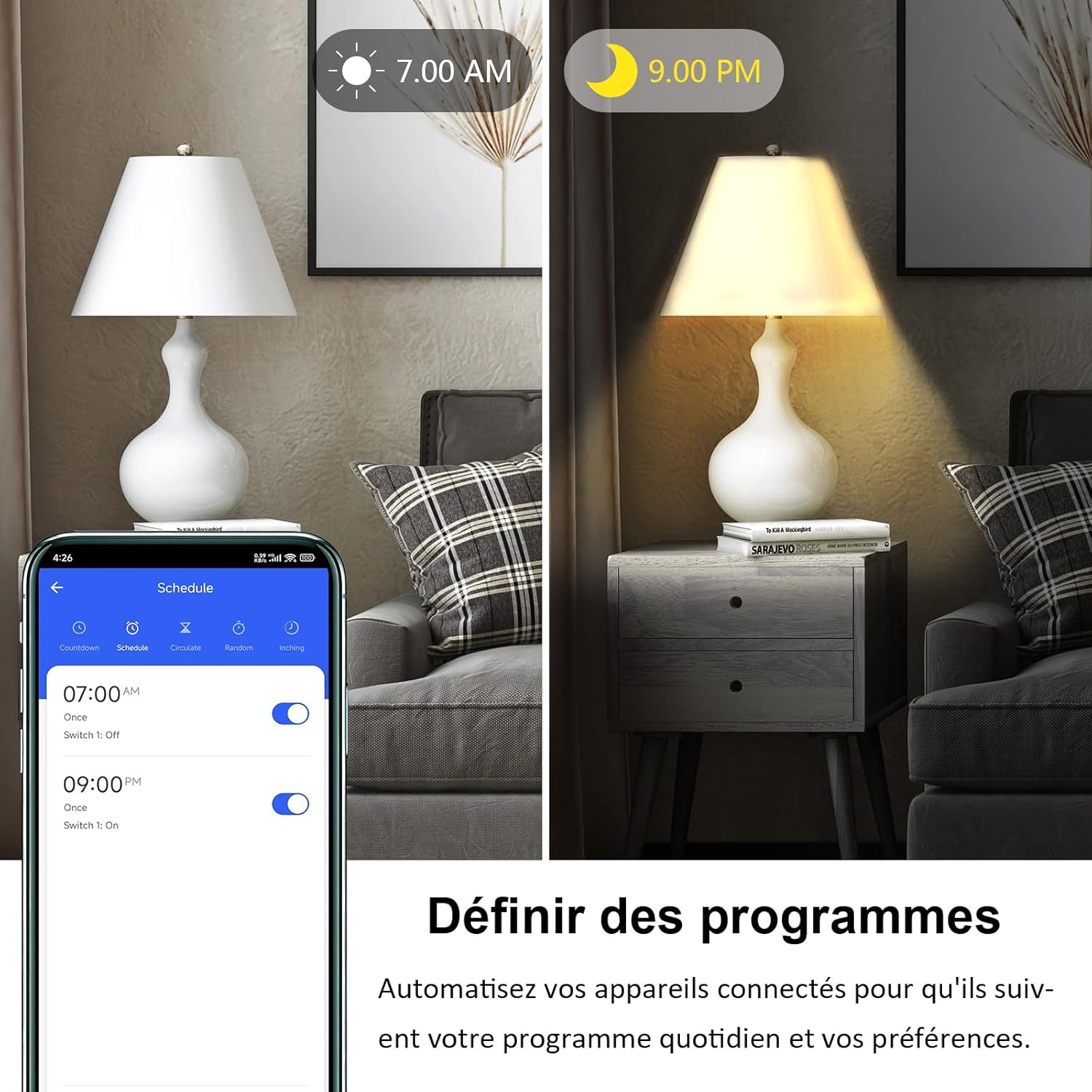
Image: A smartphone displaying the scheduling interface within the Smart Life/Tuya app. It shows a programmed schedule for a light to turn off at 7:00 AM and turn on at 9:00 PM, illustrating how users can automate their connected devices.
6.4 Group Control and Device Sharing
Enhance convenience by managing multiple devices simultaneously and sharing control with family members.
- Group Control: Create groups within the app to control several KETOTEK smart switches with a single command or schedule. For example, group all living room lights to turn them on/off together.
- Device Sharing: Share access to your smart switches with family members through the Smart Life/Tuya app, allowing everyone in the household to control the devices.

Image: This graphic depicts several KETOTEK smart switch modules connected to various light fixtures. A smartphone screen overlays the image, showing the 'Create Group' function within the app, illustrating how users can group multiple switches for simultaneous control.

Image: An illustration demonstrating the 'Family Sharing' feature, where a central KETOTEK smart switch module is connected to multiple smartphones, symbolizing that control of the device can be shared among family members.
7. Maintenance
- Cleaning: Ensure the device is powered off before cleaning. Use a soft, dry cloth to wipe the exterior. Do not use liquid cleaners or aerosols.
- Firmware Updates: Periodically check the Smart Life/Tuya app for available firmware updates to ensure optimal performance and security.
- Environmental Conditions: Avoid exposing the module to extreme temperatures, humidity, or direct sunlight.
8. Troubleshooting
- Device Not Responding: Check the power supply to the module. Ensure your Wi-Fi network is active and the module is within range. Try restarting the module by cycling its power.
- Cannot Pair with App: Ensure your phone is connected to a 2.4GHz Wi-Fi network during pairing. Reset the module (refer to app instructions for specific reset procedure, usually involves holding a button or cycling power multiple times).
- Voice Control Issues: Verify that the Smart Life/Tuya skill/service is correctly linked in your Alexa or Google Home app. Ensure device names are simple and easily recognizable by the voice assistant.
- External Switch Not Working: Double-check the wiring according to the diagrams in Section 5.3. Ensure the external switch type is correctly configured in the Smart Life/Tuya app (e.g., 'FLIP' mode for traditional switches).
9. Warranty and Support
Specific warranty details are not provided in the product information. For warranty claims, technical support, or further assistance, please contact KETOTEK customer service or refer to the official KETOTEK website for contact information.


