
Introduction
This manual provides detailed instructions for the installation, operation, and maintenance of your Inefala 2+64G Android 13 Car Stereo Radio. Designed specifically for Toyota Prius models from 2010 to 2015, this unit offers advanced features such as a 9-inch HD touch screen, wireless CarPlay and Android Auto compatibility, GPS navigation, DSP sound processing, and AHD backup camera support. Please read this manual thoroughly before use to ensure proper functionality and safety.
Package Contents
- 1 x Inefala Android Radio for Toyota Prius
- 1 x Power Cable
- 1 x Original USB Cable
- 1 x RCA Harness
- 1 x GPS Antenna
- 1 x AHD Backup Camera
- 1 x Rear Camera Input Cable
- 1 x External Microphone
- 2 x USB Cables
- 1 x Installation Tool & Accessories Set
Setup and Installation
Before proceeding with the full installation, it is recommended to perform a quick test to ensure the unit is functioning correctly and the power cable is compatible with your vehicle.
Pre-Installation Test:
- Connect the red and yellow wires of the car stereo together, then connect them to the positive pole of the 12V battery.
- Connect the black wire to the negative pole of the battery.
- After approximately 2 seconds, check the car stereo. If the screen lights up, it means the car stereo is functioning normally. If it does not, recheck the connections and power source.
Note: The provided cable does NOT support original cars with a navigation system or JBL amplifier. Please check the power cable port on the detail page before purchasing. Contact support if the power cord does not fit.
Wiring Diagram and Port Details:

This image illustrates the various ports and cables included with the Inefala car stereo, showing how they connect to the unit and the car's electrical system. It includes labels for power, RCA, USB, camera input, GPS antenna, and Canbus serial port.
Backup Camera Wiring:
The reversing input must be plugged in even if the reversing camera is not used. Otherwise, your WiFi and Bluetooth signals may be affected.
- Connect Cable 1 and Cable 5 (from the camera harness) to the positive pole of the car reversing light cable.
- Connect Cable 2 (from the camera harness) to the negative pole of the car reversing light cable.
- Cables 3 and 4 (from the camera harness) connect to the reverse trigger wire of the power cable (labeled "Reverse/Back"). If this wire is not present or not needed, ensure the reversing input is still connected to the unit.

This image shows the wiring connections for the AHD backup camera, detailing how to connect it to the car stereo and the vehicle's reverse light system.
Operating Instructions
Main Features Overview:
The Inefala car stereo offers a 9-inch HD touch screen with Android 13, supporting various functions to enhance your driving experience.
- Wireless CarPlay & Android Auto: Seamless integration with your smartphone for navigation, music, calls, and messages.
- Mirror Link: Synchronize your phone's content to the larger car stereo screen.
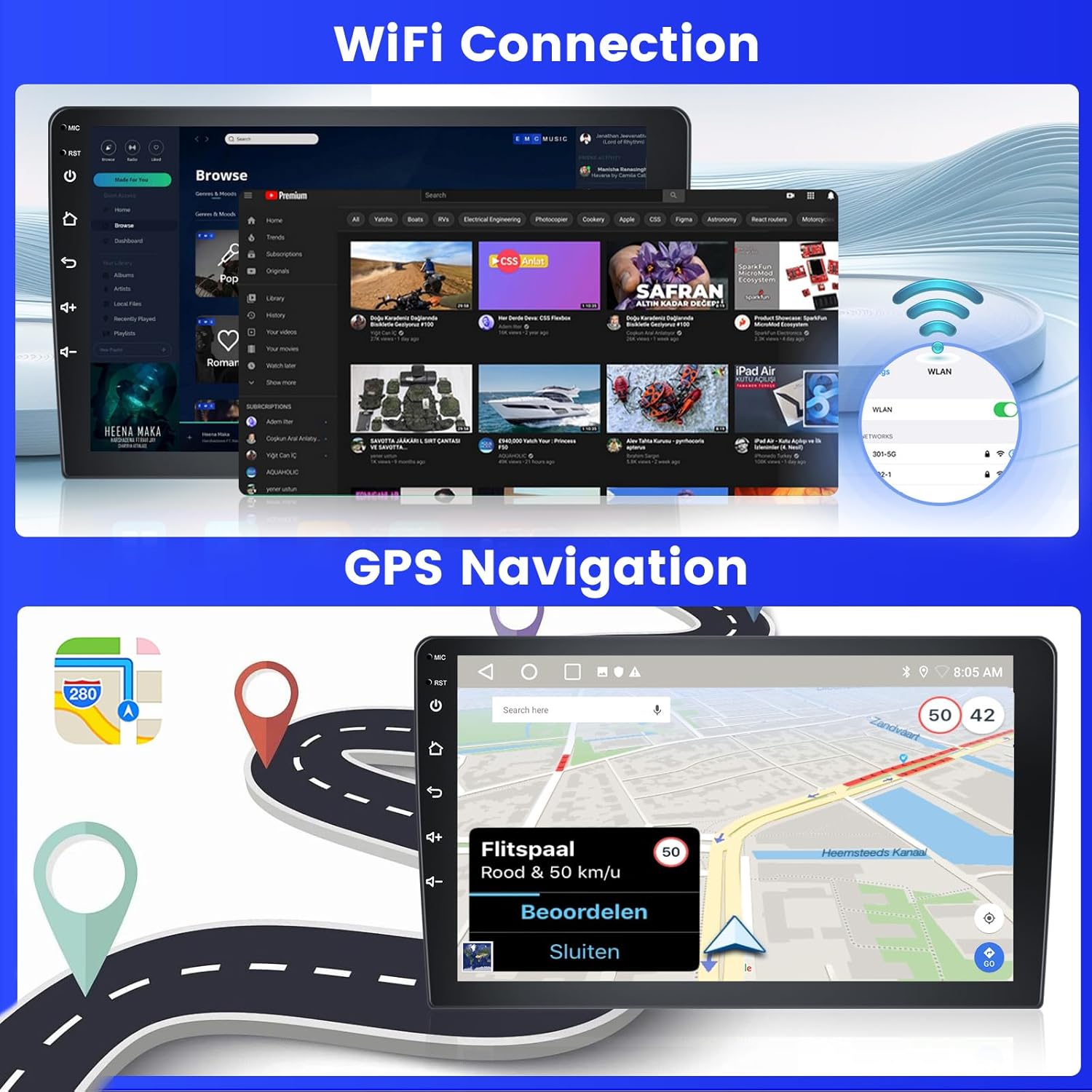
- GPS Navigation: Supports both offline and online maps.
- WiFi Connection: Download apps like YouTube and TikTok.
- DSP (Digital Signal Processing): Adjustable sound settings for an enhanced listening experience.
- Bluetooth 4.2: Hands-free calls and music streaming.
- FM/RDS Radio: Access to radio stations with real-time information.
- AHD Backup Camera: Automatic display of rear view when reversing.
- Steering Wheel Control: Control the stereo directly from your steering wheel.
Interface and Navigation:
The device features a 2.5D high-definition touch screen with 1024x600 resolution and 26 customizable desktop themes. You can long-press the blank space on the desktop to switch between themes.

This image displays the main interface of the Inefala car stereo, showing various application icons and the 2G+64G RAM/ROM configuration. It highlights compatibility with Toyota Prius 2010-2015.
Wireless CarPlay & Android Auto Connection:
Connect your smartphone wirelessly or via USB for integrated car functions.
- Wireless Connection: Turn on your car stereo's Bluetooth, pair with your phone, and open the "Zlink" app.
- Wired Connection: Connect your phone via its original USB cable and open the "Zlink" app.
Note: For some Samsung and Huawei phones, Android Auto and Mirror Link functionality may be limited. Ensure your phone supports Google Services and has Android Auto installed.
This image shows the car stereo screen displaying the CarPlay interface with various apps like Music, Phone, Messages, and Maps. It also illustrates hands-free calling and GPS navigation features.
Mirror Link Functionality:
You can synchronize your mobile phone's content, such as videos and navigation, to the car stereo's larger screen via the phone's original USB cable. Compatible with iOS phones supporting one-way control and Android phones supporting two-way control.
Audio and Sound Settings (DSP):
The Digital Signal Processing (DSP) feature allows you to adjust sound settings, including movie, pop, rock, and jazz modes, for a customized audio experience.

This image illustrates the DSP (Digital Signal Processing) interface, showing adjustable sound effects and a visual representation of audio output, enhancing the listening experience.
Split Screen Function:
The split-screen function allows you to display and operate multiple functions simultaneously, such as navigation and FM radio, improving multitasking capabilities while driving.
Steering Wheel Control:
The unit can be controlled using your vehicle's steering wheel buttons, allowing for quick reactions and safe operation. If the radio does not activate the steering wheel controls, contact customer support for specific wiring and setup guidance.

This image shows the steering wheel control interface, highlighting how users can manage various functions like volume, track changes, and calls directly from their steering wheel.
Official Product Video:
This video demonstrates the various functions and user interface of the Inefala Android head unit, including navigation, music playback, Bluetooth connectivity, and settings adjustments. It provides a visual guide to operating the device's features.
Maintenance
To ensure optimal performance and longevity of your Inefala car stereo, follow these general maintenance guidelines:
- Keep the screen clean using a soft, lint-free cloth. Avoid abrasive cleaners or harsh chemicals.
- Ensure proper ventilation around the unit to prevent overheating, especially during prolonged use.
- Regularly check all cable connections to ensure they are secure and free from damage.
- Avoid exposing the unit to extreme temperatures, direct sunlight, or excessive moisture for prolonged periods.
- Update the system software periodically as new versions become available to improve performance, add features, and address any known issues.
Troubleshooting
If you encounter issues with your Inefala car stereo, refer to the following common problems and solutions:
- No Power:
- Check all power cable connections to ensure they are secure.
- Verify the car's fuse box for any blown fuses related to the stereo.
- Steering Wheel Controls Not Working:
- Ensure the steering wheel control wires are correctly connected to the unit.
- If your car has a CANBUS box, ensure it is properly connected and configured in the factory settings (password: 000000).
- For models without a CANBUS box, activation of steering wheel controls requires key learning in the unit's settings.
- If your original car had a navigation system or JBL amplifier, specific wiring adjustments might be necessary. Contact customer support for precise guidance.
- No Audio Output:
- Check all speaker wire connections for proper contact.
- Verify audio settings in the DSP menu to ensure they are not set to mute or extremely low volume.
- If the issue persists, it might indicate a wiring or internal component problem.
- Bluetooth Connectivity Issues:
- Ensure Bluetooth is enabled on both the car stereo and your phone.
- Delete previous pairings from both devices and try re-pairing.
- Restart the car stereo and your phone.
- Ensure the short video dongle (which contains Bluetooth and Wi-Fi antennae) is properly plugged into the unit.
- Android Auto / CarPlay / Mirror Link Not Working:
- Ensure your phone's operating system is compatible with the feature.
- Try both wireless and wired connections to isolate the issue.
- Verify that the "Zlink" app is correctly installed and running on the car stereo.
- Some Samsung and Huawei phones may have known compatibility issues with these features.
- GPS Signal Issues:
- Ensure the GPS antenna is properly connected and placed in a location with a clear view of the sky (e.g., on the dashboard, away from obstructions).
- Verify GPS settings in the system menu.
- Screen Not Responding / Frozen:
- Perform a soft reset by pressing and holding the power button until the unit restarts.
- If the issue persists, a factory reset might be necessary (note: this will erase all user data and settings).
For complex issues or if troubleshooting steps do not resolve the problem, please contact Inefala customer support.
Specifications
| Feature | Detail |
|---|---|
| Product Dimensions | 11.81 x 5.71 x 2.36 inches |
| Item Weight | 3.28 pounds |
| ASIN | B0DKJQN69H |
| Item Model Number | 2+64G Android 13 |
| Date First Available | October 22, 2024 |
| Manufacturer | Inefala |
| Country of Origin | China |
| Brand | Inefala |
| Screen Size | 9 Inches |
| Special Features | Hands-free Bluetooth, Touchscreen, FM/RDS Radio, Support Reverse Input, Steering Wheel Learning, Wireless/Wired CarPlay & Android Auto & Mirror Link, Siri/Google Voice Assistant, GPS Navigation, WiFi/Hotspot Connection, 1024*600 Resolution, 1080P Video Playback, DSP, 26 Desktop Themes |
| Connectivity Technology | Bluetooth, USB, Wi-Fi, Wireless |
| Map Type | North America |
| Audio Output Mode | Stereo |
| Operating System | Android |
| Memory Storage Capacity | 2 GB |
| Touch Screen Type | Capacitive |
Warranty and Support
This product is manufactured by Inefala. For any product-related inquiries, technical support, or warranty claims, please contact Inefala Direct customer service.
Contact Information:
- Email: inefalaservices@163.com
- Typically, inquiries are responded to within 24 hours.
The product comes with a 30-day refund/replacement policy from the seller, Inefala Direct. Product support is included with your purchase.
