
1. Introduction
The DOLEWA LX-D2 Mini Portable Thermal Printer is a compact and versatile device designed for printing labels, notes, pictures, and more directly from your smartphone or tablet. This manual provides essential information for setting up, operating, and maintaining your printer to ensure optimal performance.
2. What's in the Box
Please check the package contents upon unboxing. If any items are missing or damaged, contact customer support.
- 1 x DOLEWA LX-D2 Mini Thermal Printer
- 1 x White Adhesive Paper Roll (pre-installed)
- 4 x White Adhesive Paper Rolls
- 1 x Green Adhesive Paper Roll
- 1 x Pink Adhesive Paper Roll
- 1 x Purple Adhesive Paper Roll
- 1 x Type-C Charging Cable
- 1 x User Manual

Figure 2.1: Package Contents. The image displays the LX-D2 printer, a box, multiple rolls of white, green, pink, and purple adhesive paper, a Type-C charging cable, and the user manual.
3. Specifications
| Model | LX-D2 |
| Product Dimensions | 8.2 x 8.2 x 4 cm (approximately 3.23 x 3.23 x 1.57 inches) |
| Product Weight | 137 g (approximately 0.3 lbs) |
| Maximum Media Size | 57 mm (approximately 2.24 inches) |
| Connectivity | Bluetooth |
| Compatible Devices | Smartphones, Tablets (iOS, Android) |
| Printing Technology | Thermal (Inkless) |
| Battery | Built-in rechargeable Lithium Ion (1200 mAh) |
| Charging Port | Type-C |

Figure 3.1: Compact Design and Key Features. The image illustrates the printer's dimensions (82x82x40mm), weight (137g), Type-C charging, inkless operation, and built-in 1200 mAh rechargeable battery.
4. Setup Guide
4.1. Charging the Printer
Before first use, ensure the printer is fully charged. Connect the provided Type-C charging cable to the printer's charging port and a suitable USB power adapter (not included).
4.2. Loading Paper
- Open the Cover: Gently slide the cover open to access the paper compartment.
- Insert the Paper Roll: Place the thermal paper roll into the compartment with the printing surface facing the thermal head. Ensure the roll is aligned correctly and a small portion of paper extends out.
- Close the Cover: Close the cover firmly until it clicks into place.

Figure 4.2: Paper Loading Steps. The image illustrates how to open the printer cover and correctly insert a paper roll into the compartment.
4.3. App Installation
To use the printer, you need to download the official "DOLEWA" app. Scan the QR code provided in the user manual or search for "DOLEWA" in your device's app store (App Store for iOS, Google Play for Android).
4.4. Bluetooth Pairing
- Power On: Press and hold the power button for 3 seconds to turn on the printer. The indicator light will illuminate.
- Activate Bluetooth: Ensure Bluetooth is enabled on your smartphone or tablet.
- Pair via App: Open the "DOLEWA" app. Do not pair directly through your phone's Bluetooth settings. The app will guide you to connect to the printer. Select the LX-D2 from the list of available devices within the app to establish the connection.

Figure 4.4: Bluetooth Connection via DOLEWA App. The image displays the app's interface for adding a device and connecting via Bluetooth, along with app store download icons.
5. Operating Instructions
5.1. Using the DOLEWA App
The DOLEWA app provides a wide range of features for creating and customizing your prints:
- Photo Printing: Print photos directly from your device's gallery.
- Text Editing: Create custom text with various fonts, sizes, and styles.
- Label Creation: Design and print labels for organization, pricing, or identification.
- To-Do Lists & Notes: Generate practical lists and notes for daily tasks.
- QR Code/Barcode Printing: Create and print QR codes or barcodes.
- Templates: Utilize pre-designed templates for various purposes.
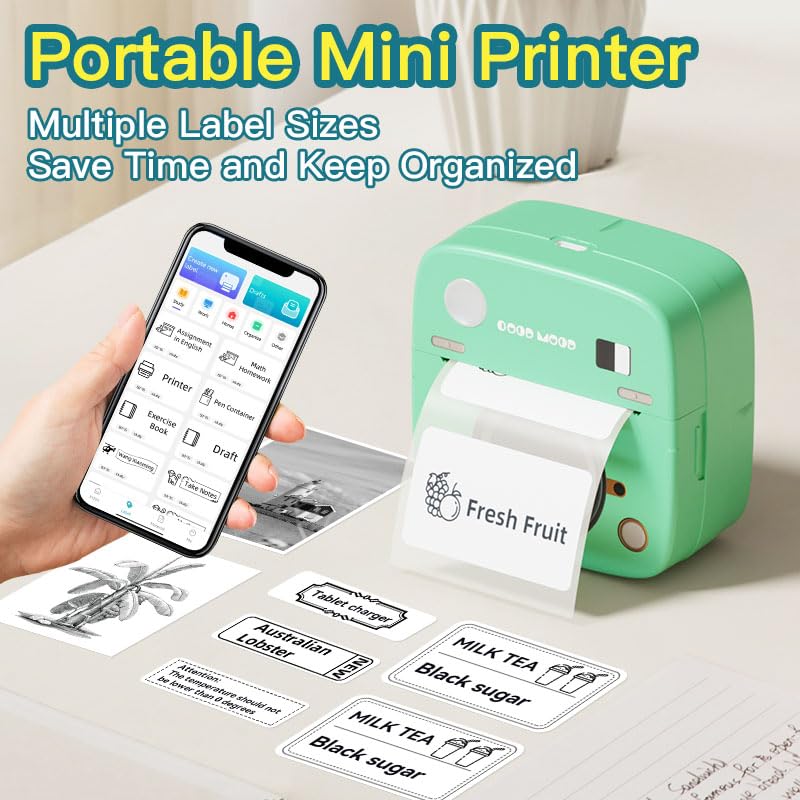
Figure 5.1: App Interface and Printing Examples. The image demonstrates the printer in use with the smartphone app, showcasing different types of labels being printed.

Figure 5.2: Versatile Printing Applications. This image illustrates the diverse uses of the printer, from QR codes and learning notes to custom labels and creative stickers.
6. Maintenance
6.1. Cleaning the Printer
- Thermal Head: If print quality degrades, gently wipe the thermal print head with a cotton swab lightly dampened with isopropyl alcohol. Ensure the printer is off and completely dry before use.
- Exterior: Clean the printer's exterior with a soft, dry cloth. Avoid using harsh chemicals or abrasive materials.
6.2. Storage
Store the printer in a cool, dry place away from direct sunlight and extreme temperatures. Remove any paper rolls if storing for an extended period.
6.3. Battery Care
To prolong battery life, avoid fully discharging the battery frequently. Charge the printer regularly, even if not in constant use.
7. Troubleshooting
| Problem | Possible Cause | Solution |
|---|---|---|
| Printer does not turn on. | Low battery. | Charge the printer using the provided Type-C cable. |
| Cannot connect via Bluetooth. | Incorrect pairing method; Bluetooth off on device; printer not in pairing mode. | Ensure Bluetooth is on. Pair only through the DOLEWA app, not directly via phone settings. Restart printer and app. |
| Poor print quality or blank prints. | Paper loaded incorrectly; thermal head dirty; low battery. | Check paper orientation (printing side up). Clean the thermal head. Charge the printer. |
| Paper jam. | Paper not inserted straight; foreign object in compartment. | Turn off the printer, open the cover, carefully remove jammed paper. Reinsert paper correctly. |
8. Safety Information
- Do not disassemble or attempt to repair the printer yourself. This may void the warranty and cause damage.
- Keep the printer away from water, moisture, and high temperatures.
- Use only the specified Type-C charging cable.
- Keep out of reach of small children to prevent accidental ingestion of small parts or paper.
- Dispose of the printer and battery according to local regulations.
9. Warranty and Support
For warranty information, please refer to the documentation provided with your purchase or contact the retailer. For technical support or further assistance, please visit the official DOLEWA website or contact their customer service department.


