
1. Introduction
Thank you for choosing the DeLUX M700PRO Wireless Gaming Mouse. This manual provides detailed instructions on how to set up, operate, maintain, and troubleshoot your new gaming mouse. Please read this manual carefully before use to ensure optimal performance and longevity of your device.

Figure 1.1: DeLUX M700PRO Wireless Gaming Mouse (White)
2. Product Overview
The DeLUX M700PRO is a high-performance wireless gaming mouse designed for precision and comfort. Key features include:
- PAW3395 Optical Sensor: Provides up to 26000 DPI for high precision and accurate tracking.
- Lightweight Design: Weighs only 59g, offering effortless control for gaming and work.
- Dual-Mode Connectivity: Supports both zero-latency 2.4G wireless and wired USB connections.
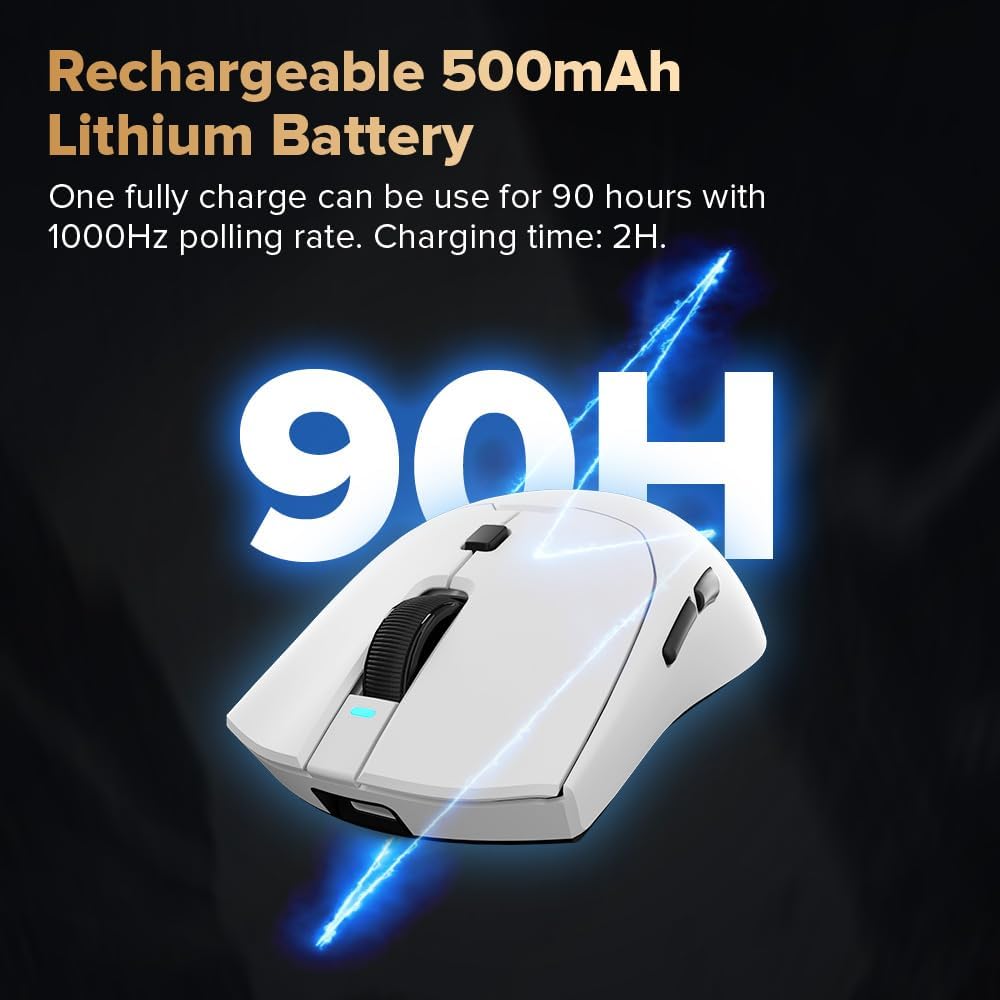
- Long Battery Life: Equipped with a 500mAh Lithium Battery, providing up to 90 hours of use on a single charge (at 1000Hz polling rate).
- Programmable Buttons: Features 6 programmable buttons for customized settings via driver software.
- Huano Blue Shell Microswitches: Durable switches with an 80 million click lifetime.
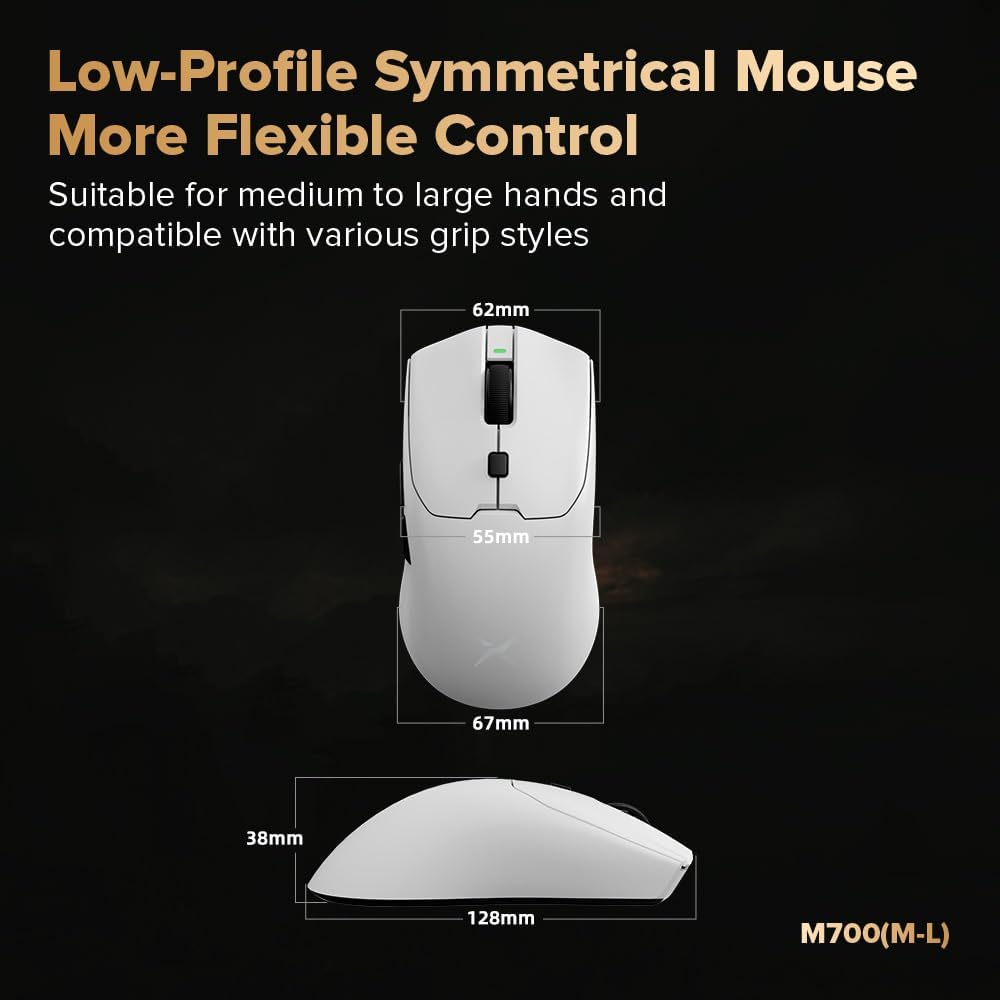
- Ergonomic Design: Low-profile symmetrical design with a concave waist for comfortable grip and reduced fatigue.
- ICE Mouse Feet: Ensures smooth movement with minimal friction.



3. Setup Guide
Follow these steps to set up your DeLUX M700PRO mouse:
3.1. Package Contents
Before proceeding, ensure all items are present in the box:
- DeLUX M700PRO Wireless Gaming Mouse
- USB-C Charging Cable
- 2.4G USB Receiver
- USB-A to USB-C Adapter

Figure 3.1: What's in the box.
3.2. Initial Charging
- Connect the USB-C end of the charging cable to the mouse's Type-C port (located at the front).
- Connect the USB-A end of the cable to a powered USB port on your computer or a USB wall adapter.
- The mouse's indicator light will show charging status. A full charge takes approximately 2 hours.
3.3. Connecting via 2.4G Wireless
- Locate the 2.4G USB receiver stored in the compartment on the underside of the mouse.
- Plug the 2.4G USB receiver into an available USB port on your computer. For convenience, you can use the provided USB-A to USB-C adapter if your computer only has USB-C ports.
- Slide the switch on the bottom of the mouse to the 'ON/2.4G Mode' position.
- Your computer should automatically detect the mouse.
3.4. Connecting via Wired Mode
- Connect the USB-C end of the charging cable to the mouse's Type-C port.
- Connect the USB-A end of the cable to a USB port on your computer.
- Slide the switch on the bottom of the mouse to the 'OFF/Wired Mode' position. The mouse will function as a wired device and charge simultaneously.
3.5. Driver Software Installation
To unlock the full potential of your DeLUX M700PRO, including programmable buttons, DPI settings, polling rate, and macro programming, download and install the exclusive Delux Mouse Driver software from the official DeLUX website. The software supports Windows 7/8/10/11.
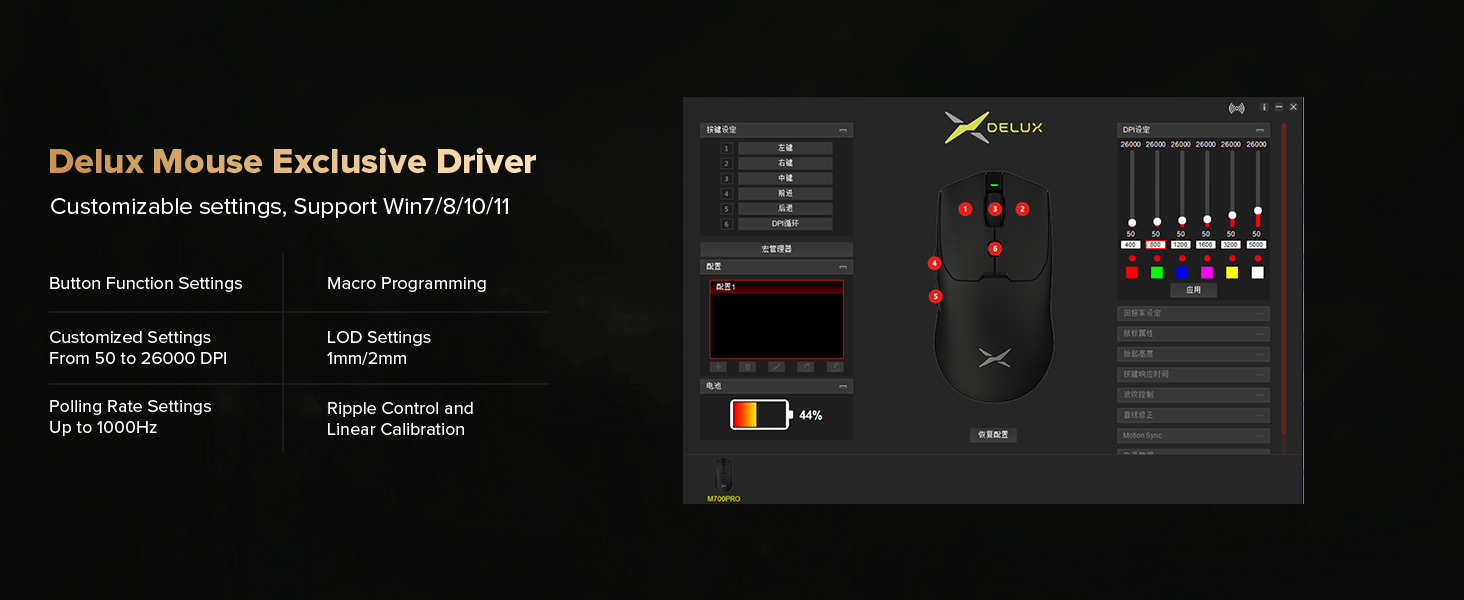
Figure 3.2: Delux Mouse Exclusive Driver software interface.
4. Operating Instructions
Understanding the button layout and functions will enhance your experience:

Figure 4.1: Button Layout and Underside Features.
4.1. Button Functions
- Left Button: Standard left-click function.
- Right Button: Standard right-click function.
- Scroll Wheel: Scroll up/down, and middle-click function.
- DPI Button: Cycles through preset DPI levels. Customizable via software.
- Forward Button: Default browser forward function. Programmable.
- Backward Button: Default browser backward function. Programmable.
- Polling Rate Button / Pair Button (Underside): Used to adjust polling rate or initiate pairing in wireless mode.
4.2. DPI Adjustment
Press the DPI button (located behind the scroll wheel) to cycle through different DPI sensitivity levels. The current DPI level is often indicated by an LED color change or pattern. Fine-tune DPI settings from 50 to 26000 DPI using the driver software.
4.3. Polling Rate Adjustment
The polling rate can be adjusted via the driver software, up to 1000Hz, for faster response times. Some models may also allow adjustment via a physical button on the underside of the mouse.
4.4. Programmable Buttons and Macros
Utilize the Delux Mouse Driver software to customize the functions of the 6 programmable buttons. You can assign single keypresses, multimedia controls, or complex macros to enhance your gaming and productivity.
4.5. Grip Styles
The ergonomic design of the M700PRO accommodates various grip styles, including Claw Grip, Fingertip Grip, and Palm Grip, ensuring comfort during extended use.

Figure 4.2: Supports various grip styles for optimal comfort.
5. Maintenance
Proper maintenance ensures the longevity and performance of your mouse:
5.1. Cleaning the Mouse
- Disconnect the mouse from your computer before cleaning.
- Use a soft, lint-free cloth slightly dampened with water or a mild cleaning solution to wipe the surface.
- Avoid using harsh chemicals, abrasive cleaners, or excessive moisture.
- For crevices and button gaps, use a dry cotton swab or compressed air.
5.2. Battery Care
- Avoid fully discharging the battery frequently. Recharge when the battery indicator is low.
- Do not expose the mouse to extreme temperatures (hot or cold), as this can affect battery life.
- If storing the mouse for an extended period, charge it to about 50% before storage.
5.3. Mouse Feet Care
The ICE Mouse Feet are designed for smooth gliding. Keep them clean and free of debris. If they become worn, replacement feet may be available from DeLUX support.
6. Troubleshooting
If you encounter issues with your DeLUX M700PRO mouse, refer to the following common problems and solutions:
- Mouse not responding (Wireless):
- Ensure the mouse is switched to 'ON/2.4G Mode'.
- Check if the 2.4G USB receiver is securely plugged into a working USB port.
- Recharge the mouse battery.
- Try plugging the receiver into a different USB port.
- Re-pair the mouse with the receiver using the pairing button on the underside if necessary (refer to driver software for specific instructions).
- Mouse not responding (Wired):
- Ensure the mouse is switched to 'OFF/Wired Mode'.
- Check if the USB-C cable is securely connected to both the mouse and the computer.
- Try a different USB port on your computer.
- Test with a different USB-C cable if available.
- Inaccurate or erratic tracking:
- Clean the optical sensor on the underside of the mouse with a dry cotton swab.
- Ensure you are using the mouse on a clean, non-reflective, and uniform surface (e.g., a mouse pad).
- Adjust DPI settings via the DPI button or driver software.
- Check for software updates for the Delux Mouse Driver.
- Battery not charging:
- Ensure the USB-C cable is properly connected.
- Try a different USB port or wall adapter.
- Verify the cable is not damaged.
- Buttons not working or programmable features not active:
- Ensure the Delux Mouse Driver software is installed and running.
- Check button assignments within the software.
- Restart your computer.
If the issue persists after trying these steps, please contact DeLUX customer support for further assistance.
7. Specifications
| Feature | Specification |
|---|---|
| Model Number | M700PRO |
| Connectivity Technology | 2.4G Wireless, USB Wired |
| Sensor | PAW3395 Optical Sensor |
| DPI Range | Up to 26000 DPI |
| Polling Rate | Up to 1000Hz |
| Buttons | 6 Programmable Buttons |
| Switches | Huano Blue Shell Microswitches (80 Million Clicks Lifetime) |
| Battery Type | Lithium Ion (500mAh) |
| Battery Life | Up to 90 hours (at 1000Hz polling rate) |
| Charging Time | Approx. 2 hours |
| Item Weight | 59g (2.08 ounces) |
| Dimensions (L x W x H) | 128mm x 67mm x 38mm (7.48 x 6.81 x 2.24 inches package dimensions) |
| Color | White |
| Manufacturer | SHENZHEN Delux INDUSTRIAL CO., LTD. |
8. Warranty and Support
DeLUX products are manufactured to high-quality standards. For information regarding warranty coverage and terms, please refer to the warranty card included with your product or visit the official DeLUX website. For technical support, troubleshooting assistance beyond this manual, or inquiries about replacement parts, please contact DeLUX customer service through their official channels.