
1. Introduction
This manual provides detailed instructions for the setup, operation, and maintenance of your LOFREE Zero ARTZ Mechanical Keyboard system, which includes the Zero ARTZ Mechanical Keyboard, Terrazzo Mouse, and Terrazzo Palm Rest. Please read this manual thoroughly before using the product to ensure optimal performance and longevity.
2. Package Contents
Verify that all items listed below are present in your package:
- LOFREE Zero ARTZ Mechanical Keyboard
- LOFREE Terrazzo Mouse
- LOFREE Terrazzo Palm Rest
- USB-C to USB-A Cable
- 2.4GHz USB Receiver
- User Manual
3. Product Overview

Image 3.1: Complete LOFREE Zero ARTZ System
The LOFREE Zero ARTZ system is designed for enhanced productivity and comfort, featuring a mechanical keyboard, a multi-mode mouse, and an ergonomic palm rest.
3.1 LOFREE Zero ARTZ Mechanical Keyboard
The keyboard features a 75% layout with hot-swappable switches and dual-color PBT keycaps, inspired by Terrazzo aesthetics. It offers multiple connectivity options and a high polling rate for responsive input.

Image 3.2: Keyboard Terrazzo Design Detail
- Gasket Mount Design: Provides a cushioned typing feel and improved acoustics.
- Hot-swappable Switches: Allows for easy replacement of switches without soldering.
- Dual-color PBT Keycaps: Durable keycaps with a unique aesthetic.
- 1000Hz Polling Rate: Ensures rapid response times.
- Connectivity: Supports Bluetooth 5.3, 2.4GHz wireless, and USB-C wired connections.
- Compatibility: Works with macOS, iOS, Windows, and Android devices.
- Customized Switches: Features LOFREE x GATERON ZERO ARTZ switches.

Image 3.3: Gasket Mount Construction
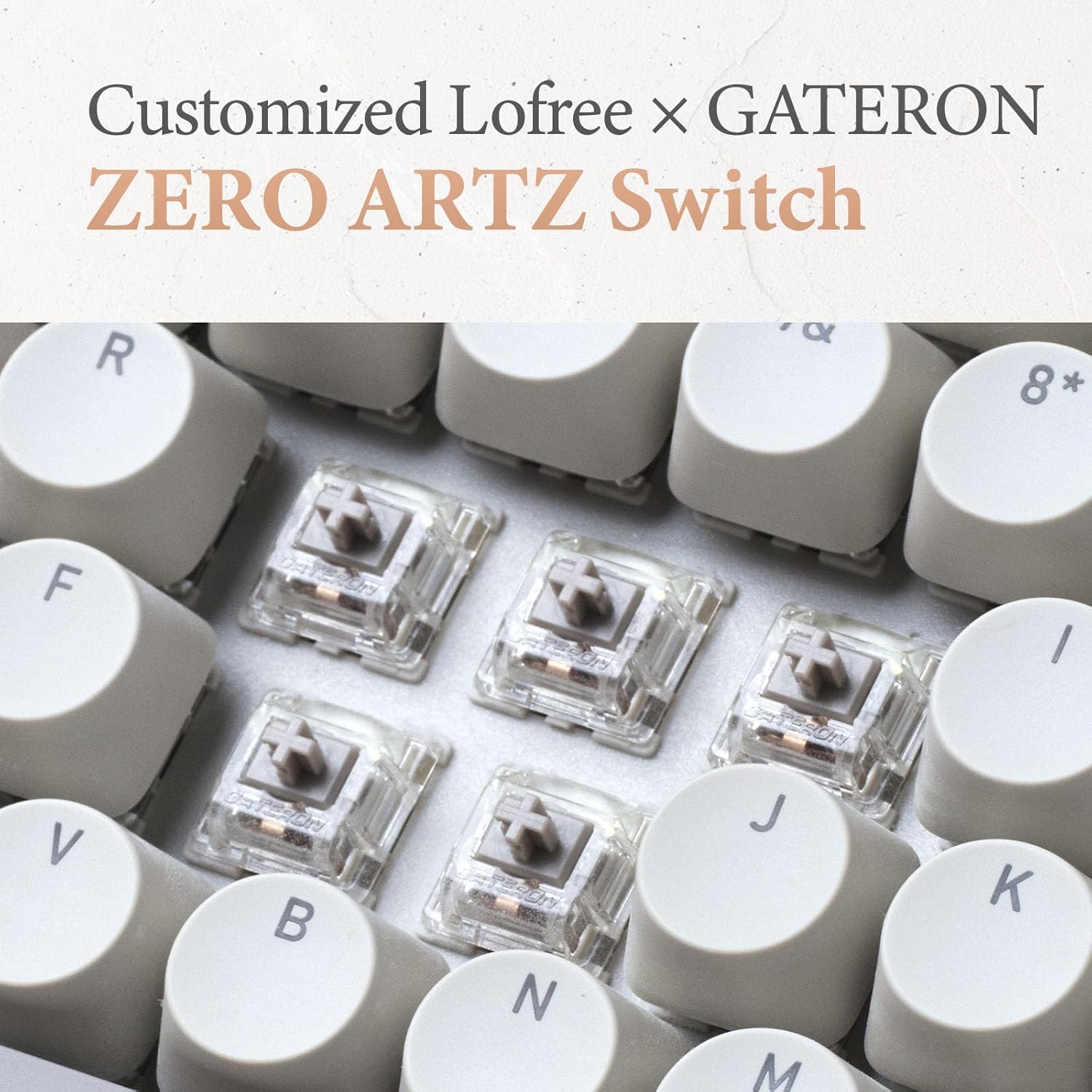
Image 3.4: Customized ZERO ARTZ Switches
3.2 LOFREE Terrazzo Mouse
The Terrazzo Mouse offers dual-mode connectivity and adjustable DPI settings for precise control, along with a thumb wheel for additional functionality.

Image 3.5: Terrazzo Mouse Ergonomics
- Dual Mode Connection: Bluetooth or 2.4GHz wireless.
- Adjustable DPI: 5 levels for sensitivity customization.
- Multi-gesture Use: Thumb wheel and button for enhanced navigation.
- Connect 2 Devices: Simultaneously connect and switch between two devices.
3.3 LOFREE Terrazzo Palm Rest
The ergonomic palm rest is designed to provide comfort and support during extended typing sessions, featuring a natural marble texture and non-slip mats.
- Ergonomic Design: Supports wrist and hand posture.
- Marble Natural Texture: Aesthetic and tactile surface.
- Non-slip Mats: Ensures stability on your desk.
- Durable Material: Selected marble material with high hardness and wear resistance.
4. Setup Guide
4.1 Charging
Before initial use, fully charge the keyboard and mouse using the provided USB-C cable. Connect the USB-C end to the device and the USB-A end to a power source (e.g., computer USB port, wall adapter).
4.2 Keyboard Connection
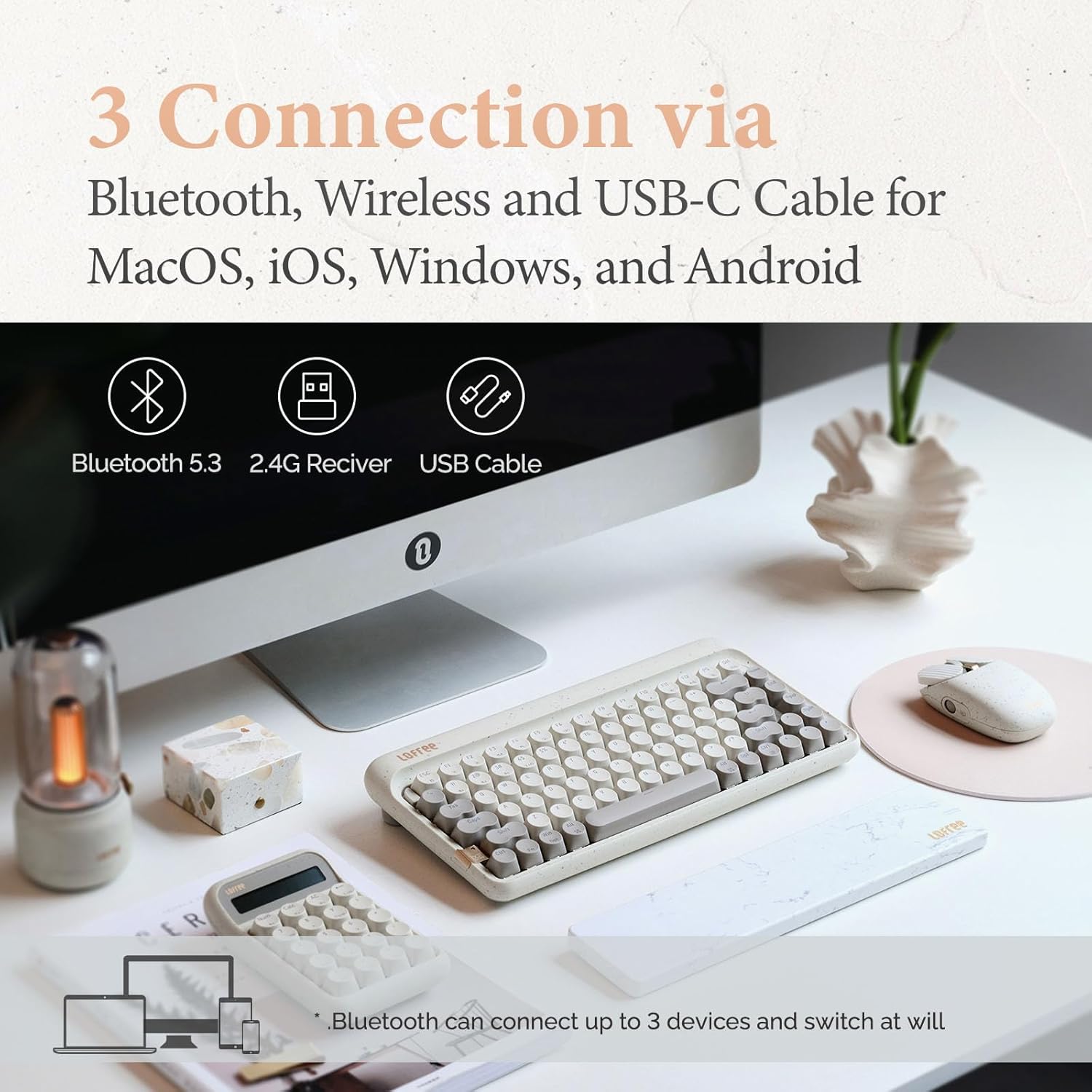
Image 4.1: Connectivity Options
4.2.1 USB-C Wired Connection
- Connect the USB-C cable to the keyboard and your computer.
- The keyboard will automatically switch to wired mode.
4.2.2 2.4GHz Wireless Connection
- Insert the 2.4GHz USB receiver into an available USB port on your computer.
- Turn on the keyboard and switch the connection mode to 2.4G (refer to keyboard's specific switch/button).
- The keyboard should connect automatically.
4.2.3 Bluetooth Connection
- Turn on the keyboard and switch the connection mode to Bluetooth.
- On your device (computer, tablet, smartphone), go to Bluetooth settings and enable Bluetooth.
- The keyboard will appear as 'LOFREE Zero ARTZ' (or similar). Select it to pair.
- The keyboard supports connecting up to 3 Bluetooth devices. Use specific key combinations (e.g., Fn + 1/2/3) to switch between paired devices.
4.3 Mouse Connection
4.3.1 2.4GHz Wireless Connection
- Insert the 2.4GHz USB receiver into an available USB port on your computer.
- Turn on the mouse and switch the connection mode to 2.4G.
- The mouse should connect automatically.
4.3.2 Bluetooth Connection
- Turn on the mouse and switch the connection mode to Bluetooth.
- On your device, go to Bluetooth settings and enable Bluetooth.
- The mouse will appear as 'LOFREE Terrazzo Mouse' (or similar). Select it to pair.
- The mouse supports connecting up to 2 Bluetooth devices.
4.4 Palm Rest Placement
Place the Terrazzo Palm Rest directly in front of your keyboard, ensuring it is centered and provides comfortable wrist support while typing.
5. Operating Instructions

Image 5.1: System in Operation
5.1 Keyboard Functions
5.1.1 System Compatibility Switch
Use the dedicated switch or key combination (refer to your keyboard's specific layout) to toggle between Windows/Android and macOS/iOS modes for optimal key mapping.
5.1.2 Key Combinations (Fn Key)
The 'Fn' key (Function key) is used in combination with other keys to access secondary functions, such as:
- Fn + F1-F12: Media controls, volume adjustment, screen brightness (functions may vary by operating system).
- Fn + 1/2/3: Switch between paired Bluetooth devices.
- Fn + Backlight Key: Cycle through 7 distinct lighting effects.
- Fn + Arrow Keys (Up/Down): Adjust backlight brightness (4 levels).
- Fn + Arrow Keys (Left/Right): Adjust backlight blink frequency (4 frequencies).
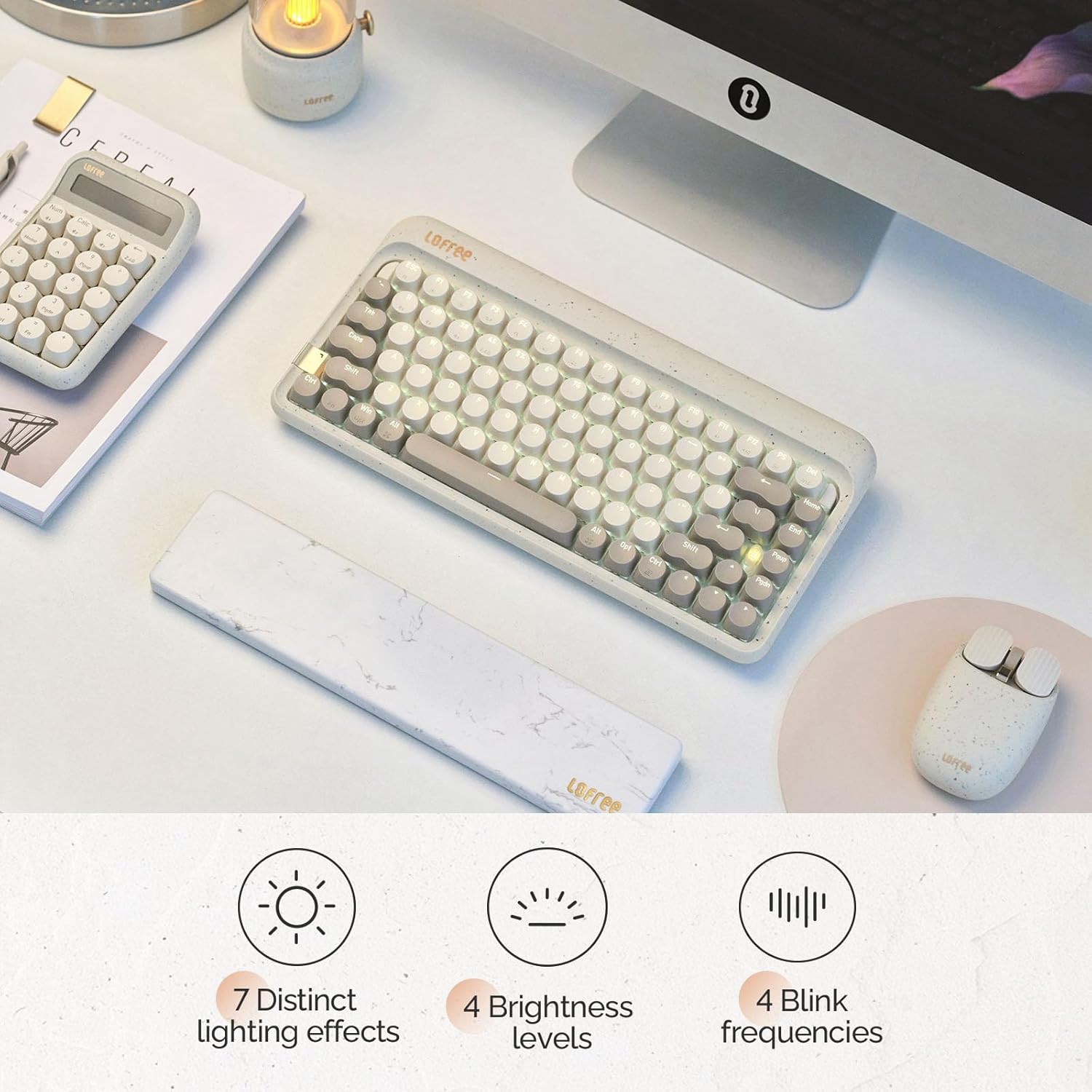
Image 5.2: Keyboard Backlighting Options
5.2 Mouse Functions
5.2.1 DPI Adjustment
Use the dedicated DPI button on the mouse to cycle through 5 adjustable DPI levels, allowing you to customize cursor sensitivity to your preference.
5.2.2 Thumb Wheel and Buttons
The thumb wheel and additional buttons provide multi-gesture functionality, which can be customized through your operating system's mouse settings for enhanced navigation and productivity.
6. Maintenance
6.1 Cleaning
- Keyboard: Disconnect the keyboard. Use a soft, lint-free cloth slightly dampened with water or a mild cleaning solution to wipe the keycaps and casing. For dust between keys, use compressed air.
- Mouse: Use a soft, dry cloth to clean the surface. Avoid getting moisture into the sensor or buttons.
- Palm Rest: Wipe with a damp cloth. Avoid harsh chemicals that may damage the marble material.
6.2 Keycap and Switch Replacement (Keyboard)
The LOFREE Zero ARTZ keyboard features hot-swappable switches, allowing for easy replacement without soldering. Use the provided keycap puller and switch puller tools to carefully remove and install keycaps and switches. Ensure the new switches are aligned correctly before pressing them into place.
7. Troubleshooting
- Device Not Connecting:
1. Ensure the device is charged.
2. Verify the correct connection mode (Bluetooth, 2.4G, or wired) is selected on the device.
3. For 2.4G, ensure the USB receiver is securely plugged in.
4. For Bluetooth, ensure Bluetooth is enabled on your host device and try re-pairing.
5. Try restarting both the peripheral and the host device. - Keys/Buttons Not Responding:
1. Check if the device is connected and powered on.
2. For the keyboard, ensure it's not in sleep mode. Press any key to wake it.
3. If using a wired connection, try a different USB port or cable.
4. For hot-swappable switches, ensure switches are fully seated. - Short Battery Life:
1. Ensure the device is fully charged before use.
2. Reduce keyboard backlight brightness or turn off backlighting to conserve battery. - Lag or Disconnection:
1. Move the device closer to the receiver/host device to reduce interference.
2. Avoid using the device near strong electromagnetic sources.
3. Ensure the 2.4GHz receiver is not obstructed.
8. Technical Specifications
| Feature | Specification |
|---|---|
| Brand | LOFREE |
| Model | Zero ARTZ |
| Keyboard Layout | 75% |
| Keyboard Switches | LOFREE x GATERON ZERO ARTZ (Linear) |
| Keycaps | Dual-color PBT |
| Keyboard Polling Rate | 1000Hz |
| Connectivity Technology | Bluetooth 5.3, 2.4GHz Wireless, USB-C Wired |
| Compatible Devices | Laptop, Personal Computer, Smartphone, Tablet |
| Operating Systems | macOS, iOS, Windows, Android |
| Special Features | Ergonomic, Programmable Buttons (mouse), Rechargeable, Hot-swappable (keyboard) |
| Mouse DPI Levels | 5 adjustable levels |
| Palm Rest Material | Marble |
| Color | Terrazzo Grey |
9. Warranty and Support
LOFREE products come with a standard manufacturer's warranty. For detailed warranty information, technical support, or service inquiries, please visit the official LOFREE website or contact LOFREE customer service directly. Keep your purchase receipt for warranty claims.

