
DeLUX KM87PRO
Contents
DeLUX KM87PRO Wireless Mechanical Gaming Keyboard User Manual
Model: KM87PRO
Introduction
This manual provides detailed instructions for the setup, operation, and maintenance of your DeLUX KM87PRO Wireless Mechanical Gaming Keyboard. Please read this manual thoroughly to ensure proper use and to maximize your keyboard's performance.
Key Features:
- Tri-mode Connection: BT 5.0 (three channels), 2.4GHz wireless, and USB-C wired connection. Connects up to five devices.
- Hot Swappable Design: Supports 3-pin or 5-pin switches. Equipped with pre-lubed linear switches.
- Gasket Structure and PCB Single Key Slotting: Optimizes resilience, stability, and reduces cavity noise.
- Side-Printed PBT Keycaps: Durable, fade-resistant, sweat-proof, and soft to the touch.
- 16.8 Million RGB Backlit: 21 backlit effects and 7 colors, adjustable brightness and speed.
Package Contents
Please check the package contents upon unboxing to ensure all items are present:
- DeLUX KM87PRO Wireless Mechanical Gaming Keyboard
- USB-C Cable
- 2.4GHz Wireless Receiver
- Keycap Puller (may be included)
- Switch Puller (may be included)
- User Manual (this document)
Product Overview

Overall View: The DeLUX KM87PRO keyboard showcasing its compact 87-key layout and vibrant RGB backlighting.

Side-Printed PBT Keycaps: Illustrates the unique side-printed legends on the durable PBT keycaps, designed for longevity and a clean top surface.

87 Keys TKL Compact Layout: A visual representation of the keyboard's tenkeyless design, highlighting its space-saving benefits compared to a full-size keyboard.

4000mAh High-capacity Battery: Depicts the internal battery, emphasizing its capacity for extended wireless usage.
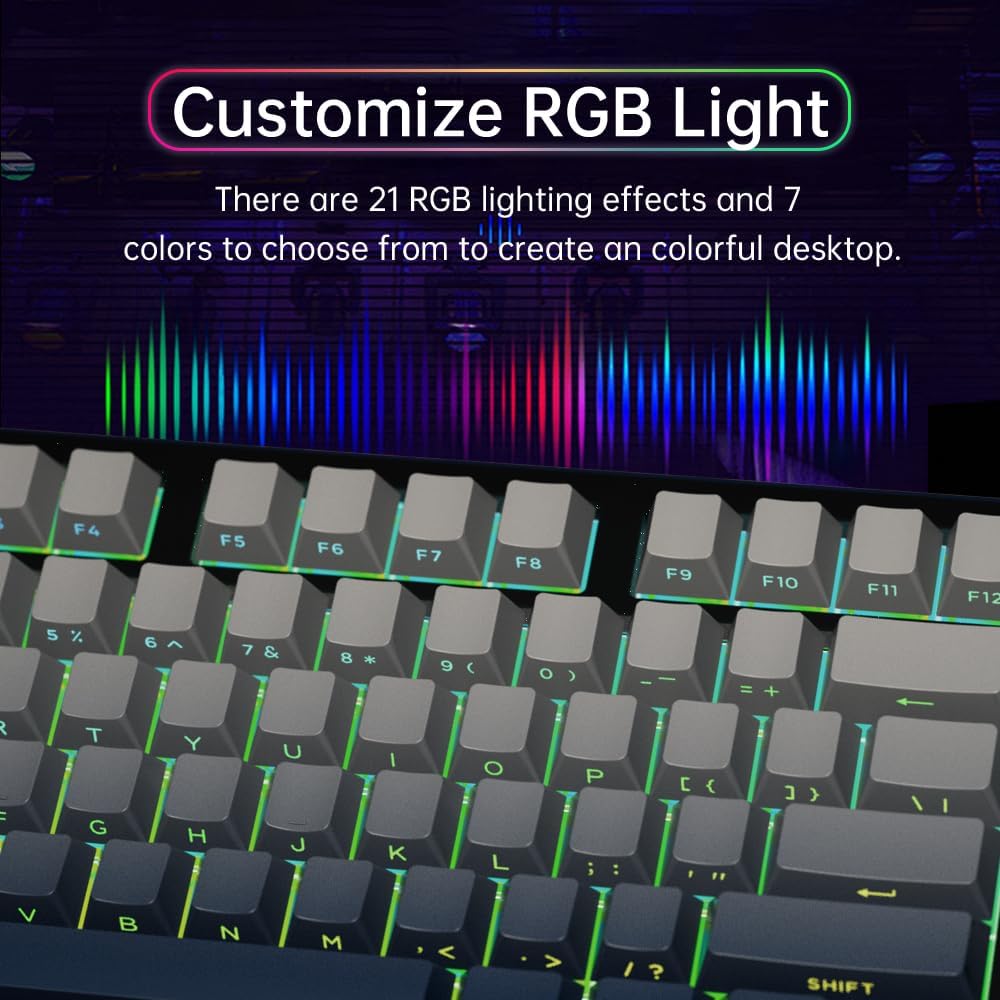
Customize RGB Light: Shows the keyboard's RGB lighting in various colors, illustrating the customizable lighting effects.

1.2mm PCBA Single Key Slotted Design: Detailed view of the PCB and plate, highlighting the slotted design for improved typing feel and sound.

Gasket Structure: An exploded diagram illustrating the various layers of the keyboard's gasket-mounted design, including the silicone gasket, foam, and PCB.

Driver Macro Customization: A screenshot of the keyboard's software interface, demonstrating options for key remapping, macro creation, and lighting customization.
Setup Guide
1. Charging the Keyboard
Before first use, it is recommended to fully charge the keyboard. Connect the supplied USB-C cable to the keyboard's USB-C port and the other end to a powered USB port (e.g., computer, USB wall adapter). The charging indicator will show the charging status.
2. Connecting the Keyboard
The KM87PRO supports three connection modes: 2.4GHz wireless, Bluetooth 5.0, and USB-C wired.
2.1. 2.4GHz Wireless Connection:
- Locate the 2.4GHz wireless receiver (USB dongle) in the package.
- Plug the receiver into an available USB port on your computer.
- Switch the mode selector on the keyboard to the 2.4GHz position. The keyboard should automatically connect.
2.2. Bluetooth 5.0 Connection:
The keyboard supports up to three Bluetooth devices.
- Switch the mode selector on the keyboard to the Bluetooth position.
- To enter pairing mode, press and hold Fn + 1, Fn + 2, or Fn + 3 for 3 seconds until the indicator light flashes rapidly. This indicates it's ready to pair.
- On your device (computer, tablet, smartphone), go to Bluetooth settings and search for "DeLUX KM87PRO" or similar.
- Select the keyboard to pair. The indicator light will stop flashing once connected.
- To switch between paired Bluetooth devices, simply press Fn + 1, Fn + 2, or Fn + 3 (short press).
2.3. USB-C Wired Connection:
- Connect the USB-C cable to the keyboard's USB-C port.
- Connect the other end of the USB-C cable to an available USB port on your computer.
- Switch the mode selector on the keyboard to the wired position. The keyboard will be recognized as a standard USB keyboard.
Operating Instructions
1. RGB Backlight Control:
The KM87PRO features 16.8 million RGB backlighting with 21 effects and 7 colors.
- To change backlight effects: Press Fn + \ |
- To change backlight colors: Press Fn + ] }
- To adjust backlight brightness: Press Fn + ↑ (increase) / Fn + ↓ (decrease)
- To adjust backlight speed: Press Fn + ← (decrease) / Fn + → (increase)
2. Key Customization and Macros:
The keyboard supports full key customization and macro programming through its dedicated software. Please download the official software from the DeLUX website for advanced customization options, including remapping keys and creating complex macros.
3. Hot-Swappable Switches:
The KM87PRO features a hot-swappable PCB, allowing you to change switches without soldering. It supports both 3-pin and 5-pin mechanical switches.
- Using a switch puller, gently grip the switch and pull it straight up to remove it.
- Align the pins of the new switch with the holes on the PCB. Ensure the pins are straight.
- Gently press the new switch into place until it clicks securely. Do not force it to avoid bending pins.
4. Function Key Combinations:
Utilize the Fn key in combination with other keys for various functions:
- Fn + F1-F12: Multimedia and system control functions (specific functions may vary, refer to keycap legends).
- Fn + Win: Lock/Unlock Windows key.
- Fn + Backspace: Delete (if applicable).
- Fn + P: Play/Pause.
- Fn + [other keys]: Refer to the side-printed legends on your keycaps for additional functions.
Maintenance
1. Cleaning the Keyboard:
- Disconnect the keyboard from your computer before cleaning.
- Use a soft, lint-free cloth slightly dampened with water or a mild cleaning solution to wipe the keycaps and chassis.
- For dust and debris between keycaps, use compressed air or a small brush.
- Avoid using harsh chemicals or abrasive materials.
2. Keycap and Switch Replacement:
The PBT keycaps are durable, but if replacement is needed, use a keycap puller to gently remove them. For switch replacement, refer to the "Hot-Swappable Switches" section under Operating Instructions.
Troubleshooting
If you encounter issues with your DeLUX KM87PRO keyboard, please refer to the following common solutions:
| Problem | Possible Cause | Solution |
|---|---|---|
| Keyboard not responding (wired) | Loose cable connection, incorrect mode, driver issue. | Ensure USB-C cable is securely connected. Check if the keyboard is in wired mode. Try a different USB port or computer. Reinstall keyboard drivers if necessary. |
| Keyboard not connecting (2.4GHz/Bluetooth) | Low battery, receiver not plugged in, not in pairing mode, interference. | Charge the keyboard. For 2.4GHz, ensure receiver is plugged in and keyboard is in 2.4GHz mode. For Bluetooth, ensure keyboard is in pairing mode (Fn + 1/2/3 for 3s) and your device's Bluetooth is on. Move closer to the receiver/device. |
| RGB lighting not working or incorrect | Lighting settings, software conflict. | Adjust lighting effects/brightness using Fn key combinations. Ensure no conflicting software is running. Use the official software to reset or customize lighting. |
| Keys not registering or double-typing | Loose or faulty switch, debris under keycap. | Remove the keycap and switch. Clean any debris. Reinsert the switch firmly. If the issue persists, replace the switch. |
| Keyboard wobbles on flat surface | Uneven surface, manufacturing variance. | Ensure the surface is completely flat. If the wobble persists, consider adding small adhesive pads to the bottom feet to level the keyboard. |
If these steps do not resolve your issue, please contact DeLUX customer support for further assistance.
Specifications
| Feature | Detail |
|---|---|
| Model Number | KM87PRO |
| Connectivity | Bluetooth 5.0, 2.4GHz Wireless, USB-C Wired |
| Keyboard Layout | 87 Keys (TKL) |
| Keycaps | Side-Printed PBT |
| Switches | Pre-lubed Linear (Hot-Swappable 3/5-pin) |
| Backlighting | RGB (21 effects, 7 colors) |
| Battery Capacity | 4000mAh (Lithium Ion) |
| Item Weight | 2.19 pounds |
| Dimensions | 16.85 x 7.2 x 2.72 inches |
| Compatible Devices | PC |
| Manufacturer | DELUX |
| Country of Origin | China |
Warranty and Support
DeLUX products are covered by a limited warranty. For specific warranty terms and conditions, please refer to the warranty card included with your product or visit the official DeLUX website.
For technical support, troubleshooting assistance, or any inquiries regarding your DeLUX KM87PRO keyboard, please contact DeLUX customer service through their official website or the contact information provided in your product packaging.
Note: Always ensure you are using the latest drivers and firmware for optimal performance. Check the official DeLUX website for updates.
Documents and downloads
Ask a question about this manual
Ask about setup, troubleshooting, compatibility, parts, safety, or missing instructions. Manuals+ will review the question and use this page’s manual context to help answer it.