
1. Introduction
This manual provides instructions for the OMOTON Magic Keyboard. Please read this manual carefully before use to ensure proper operation and to maximize the product's lifespan. Keep this manual for future reference.
2. Compatibility
The OMOTON Magic Keyboard is compatible with the following iPad models:
- iPad Air 11-inch M3 2025, M2 2024 (Models: A2902, A2903, A2904)
- iPad Air 5th Generation (Models: A2588, A2591, A2589)
- iPad Air 4th Generation (Models: A2316, A2324, A2325, A2072)
- iPad Pro 11-inch 4th Generation (Models: A2759, A2435, A2761, A2762)
- iPad Pro 11-inch 3rd Generation (Models: A2377, A2459, A2301, A2460)
- iPad Pro 11-inch 2nd Generation (Models: A2228, A2068, A2230, A2231)
- iPad Pro 11-inch 1st Generation (Models: A1980, A2013, A1934, A1979)
Note: This keyboard is NOT compatible with iPad 10th generation or iPad Pro 11-inch M4 2024.
To verify your iPad model number, check the "Axxxx" number on the back of your iPad.

Image: Compatibility chart for OMOTON Magic Keyboard, detailing compatible iPad Air and iPad Pro 11-inch models by generation and model number. It also explicitly states models that are not compatible.
3. Package Contents
The package includes:
- OMOTON Magic Keyboard
- USB-C Charging Cable
- User Manual (this document)
4. Setup Instructions
4.1 Attaching Your iPad
The keyboard case features a magnetic design for secure attachment. Align your iPad's camera with the camera cutout on the keyboard case for optimal magnetic connection.
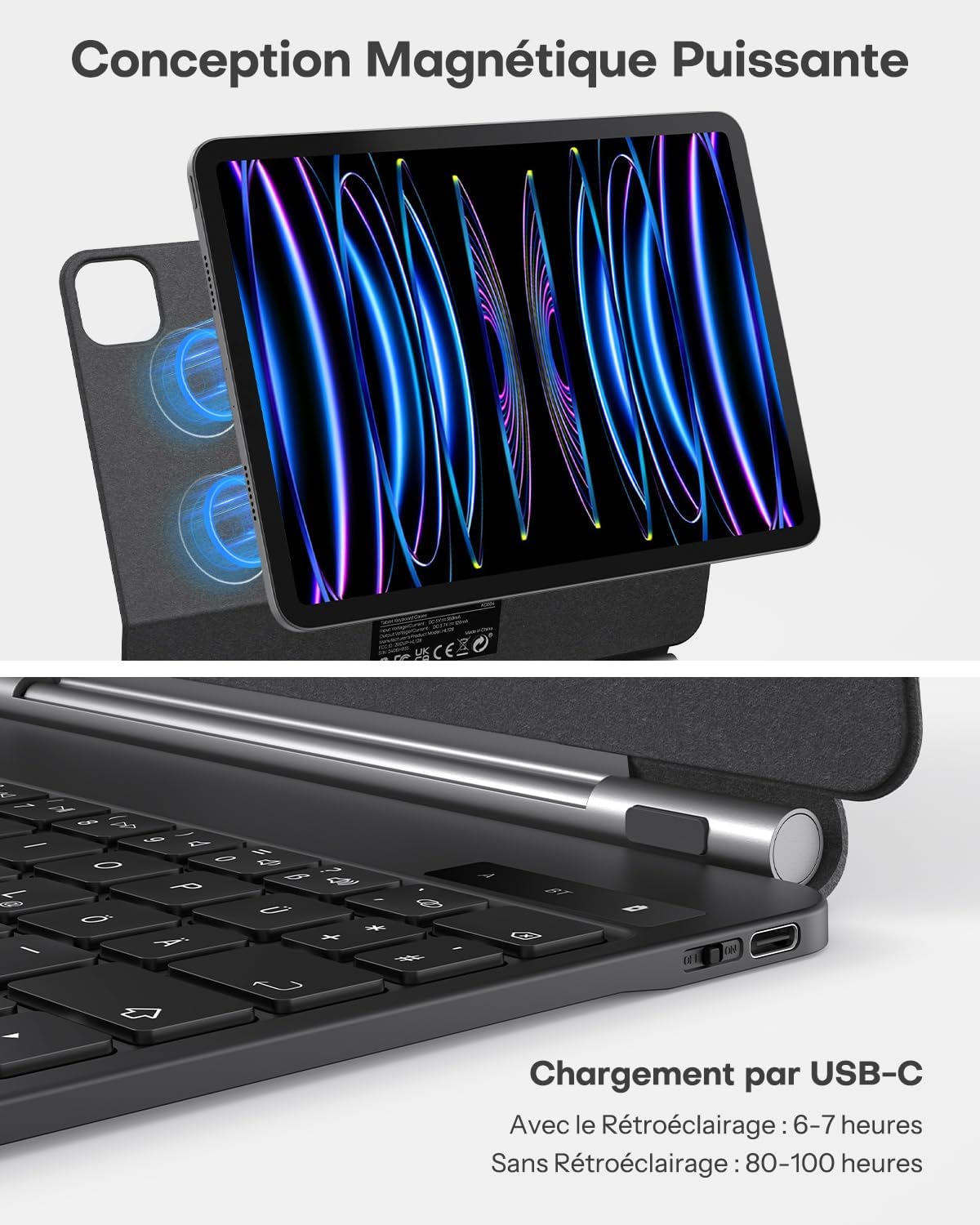
Image: An iPad is shown magnetically attached to the OMOTON Magic Keyboard case, highlighting the strong magnetic connection points on the back of the case.
4.2 Bluetooth Pairing
- Ensure the keyboard is charged (refer to Section 6: Charging).
- Turn on the keyboard using the power switch.
- Press and hold the Fn key and the Bluetooth connection key (usually marked with a Bluetooth icon) simultaneously for 3 seconds until the Bluetooth indicator light flashes, indicating it's in pairing mode.
- On your iPad, go to Settings > Bluetooth and turn Bluetooth on.
- In the "OTHER DEVICES" list, select "BT Keyboard" to connect.
- Once connected, the Bluetooth indicator light on the keyboard will stop flashing.
Video: A quick guide demonstrating how to attach the iPad to the OMOTON Magic Keyboard, adjust the viewing angle, type, browse the web, and connect the keyboard via Bluetooth. It also shows the multi-touch trackpad functionality and adjustable backlight.
5. Operating Instructions
5.1 Keyboard Layout and Functions
The keyboard features an AZERTY layout with standard function keys for iPadOS. Specific function keys allow quick access to features like screen brightness, volume control, and media playback.

Image: A detailed view of the OMOTON Magic Keyboard, highlighting its AZERTY key layout and dedicated function keys for iPad control.
5.2 Trackpad Multi-Touch Gestures
The integrated multi-touch trackpad supports various gestures to enhance your iPad experience. These gestures allow for precise navigation and efficient task management.
- Two-finger scroll: Swipe up/down or left/right with two fingers to scroll through content.
- Pinch to zoom: Pinch in or out with two fingers to zoom on photos or web pages.
- Swipe up with three fingers: Return to the Home screen.
- Swipe left/right with three fingers: Switch between open applications.
- Swipe up and hold with three fingers: Access the App Switcher.

Image: A visual guide demonstrating common multi-touch gestures for the trackpad, including scrolling, zooming, and switching applications.
5.3 Adjustable Backlight
The keyboard features a customizable backlight with 7 colors and 3 adjustable brightness levels. This allows for comfortable typing in various lighting conditions.
- Press the light bulb icon key to cycle through backlight colors.
- Press Fn + light bulb icon key to adjust brightness levels (low, medium, high, off).
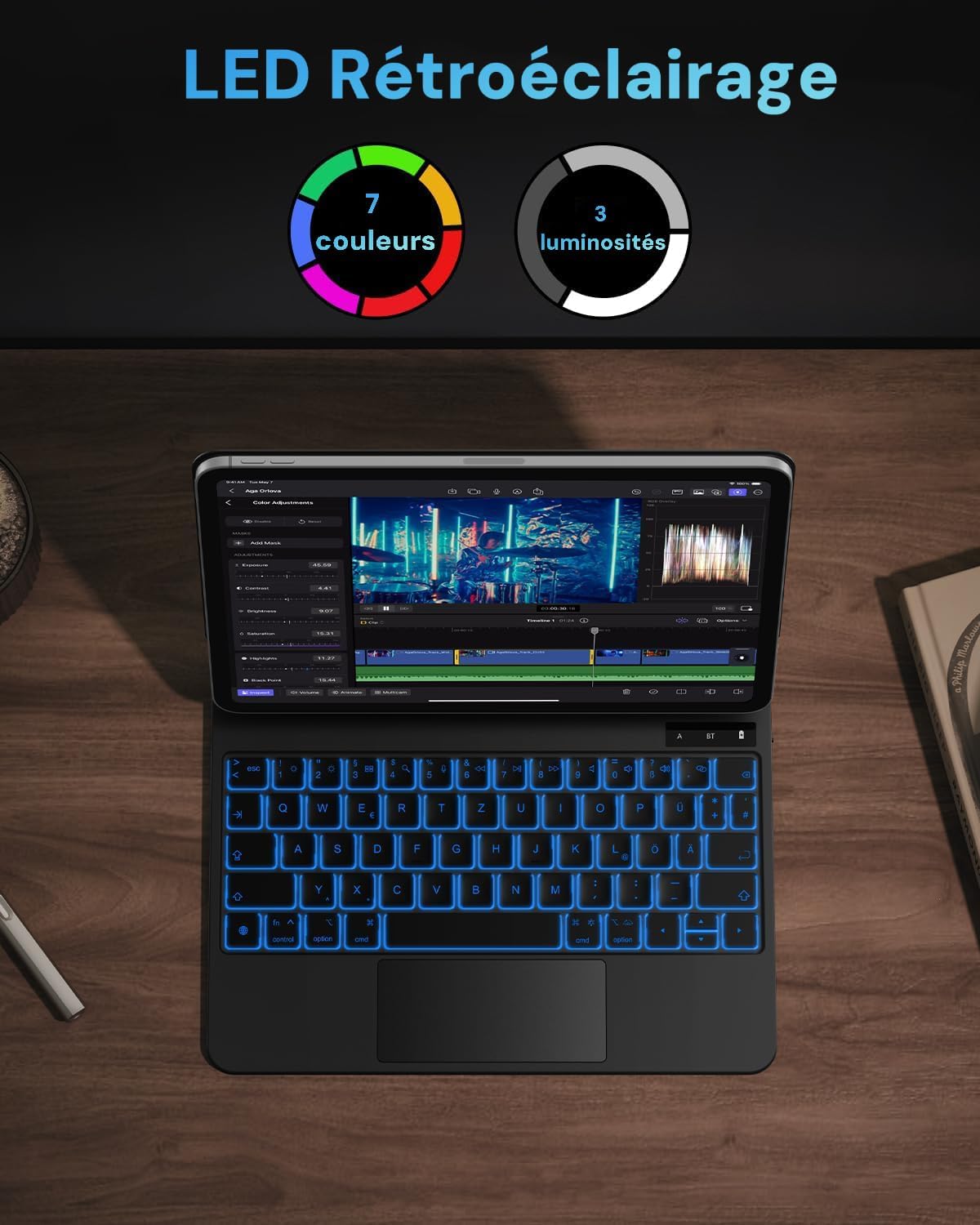
Image: The OMOTON Magic Keyboard displaying its backlit keys in blue, with indicators for 7 available colors and 3 brightness levels.
6. Charging
To charge the keyboard, connect the provided USB-C cable to the charging port on the keyboard and to a power source (e.g., a USB wall adapter or computer USB port).
- Charging time: Approximately 2-3 hours.
- Battery life (without backlight): Approximately 80-100 hours.
- Battery life (with backlight): Approximately 6-8 hours.
- Standby time: Up to 100 days.

Image: A hand connecting a USB-C charging cable to the charging port located on the side of the OMOTON Magic Keyboard.
7. Key Features
7.1 Floating Cantilever Design
The keyboard features a floating cantilever design, allowing your iPad to appear to float above the keyboard. This design provides a stable and comfortable viewing experience.

Image: The OMOTON Magic Keyboard with an iPad attached, illustrating its floating cantilever design that positions the iPad above the keyboard for an ergonomic viewing angle.
7.2 Adjustable Viewing Angle
The ergonomic pivot allows for smooth adjustment of the iPad's viewing angle up to 130 degrees, providing flexibility for various tasks such as typing, drawing, or watching videos.

Image: A side profile of the OMOTON Magic Keyboard with an iPad, showing the range of adjustable viewing angles, indicated by a 130-degree arc.
7.3 Automatic Sleep/Wake Function
The keyboard case supports automatic sleep/wake functionality. Closing the case puts your iPad to sleep, and opening it wakes your iPad, conserving battery life.

Image: A three-panel image demonstrating the keyboard's ultra-thin design, automatic sleep/wake function when opening and closing the case, and the secure magnetic fixation of the iPad.
8. Troubleshooting
| Problem | Solution |
|---|---|
| Keyboard does not turn on. | Ensure the keyboard is charged. Connect it to a power source using the USB-C cable. |
| Unable to pair via Bluetooth. |
|
| Keys are not responding. |
|
| Trackpad is not working. |
|
9. Specifications
| Feature | Detail |
|---|---|
| Brand | OMOTON |
| Model Name | Magic Keyboard |
| Connectivity Technology | Bluetooth |
| Keyboard Description | Multi-functional |
| Special Features | Rechargeable, Backlit, Silent, Case |
| Color | Black |
| Keyboard Backlight Color Management | RGB (7 colors, 3 brightness levels) |
| Keyboard Layout | AZERTY (French Style) |
| Product Dimensions (L x W x H) | 25L x 19.2W x 1.8H cm |
| Power Source | Battery powered with USB recharge option |
| Minimum OS Requirement | iOS 12 |
| Compatible OS Family | iPadOS |
| Number of Keys | 64 |
| Internal Material | Plastic, Rubber |
10. Warranty and Support
This OMOTON product comes with a 1-year warranty from the date of purchase. For warranty claims or technical support, please contact OMOTON customer service through the retailer where the product was purchased or visit the official OMOTON website.
Please retain your proof of purchase for warranty purposes.