1. Product Overview
The Thrustmaster T598 is a direct drive racing wheel system designed to provide an immersive simracing experience. It features a Direct Axial Drive with an Axial Flux motor, a new generation of Direct Drive technology by Thrustmaster, engineered to deliver Force Feedback without cogging for enhanced clarity and precision. The system offers 5 Nm of constant torque with an overshoot capability for powerful sensations. HARMONY technology is integrated to produce high-frequency vibrations, allowing users to feel detailed road textures, rumble strips, and tire screeching. The package includes an 11.8-inch (30-cm) detachable wheel rim with mag-shift paddle shifters and a multifunctional encoder, along with a Raceline Pedals LTE pedal set. The T598 is compatible with PlayStation 5, PlayStation 4, and PC (Windows 10/11).

Image 1.1: The Thrustmaster T598 Direct Drive Racing Wheel system, including the wheel base, detachable wheel rim, and Raceline Pedals LTE.
Key Features:
- Next-gen Direct Axial Drive Motor: Delivers 5 Nm of constant torque with overshoot capability for increased power and detailed Force Feedback effects.
- HARMONY Technology: Provides high-frequency vibrations for realistic road texture, rumble strip, and tire screeching sensations.
- Race Dash Screen: Integrated screen for configuring Force Feedback settings and displaying in-game information.
- 11.8-inch (30-cm) Detachable Wheel Rim: Features mag-shift paddle shifters and a multifunctional encoder for comprehensive control.
- Metal Raceline Pedals LTE: Modular and scalable pedal set designed for precision and durability.
- Broad Compatibility: Plug & play functionality with PS5, PS4, and PC, supporting over 100 games.
2. Setup Guide
2.1 Package Contents
- Thrustmaster T598 Direct Drive Wheel Base
- Detachable Wheel Rim (11.8-inch / 30-cm)
- Raceline Pedals LTE Pedal Set
- Power Supply Unit
- USB Connection Cable
- Mounting System (Clamp or screws for cockpit mounting)
- User Manual and Warranty Information
2.2 Mounting the Racing Wheel
The T598 wheel base can be mounted to a desk/table using the included clamping system or securely attached to a racing cockpit using screws (not included, refer to your cockpit's instructions for compatible screw types).
- Desk/Table Mounting: Attach the clamping system to the underside of the wheel base. Place the wheel base on a stable surface and tighten the clamp screw until the unit is secure. Ensure the wheel base does not move during use.
- Cockpit Mounting: Align the mounting holes on the wheel base with the pre-drilled holes on your racing cockpit. Secure the wheel base using appropriate screws.
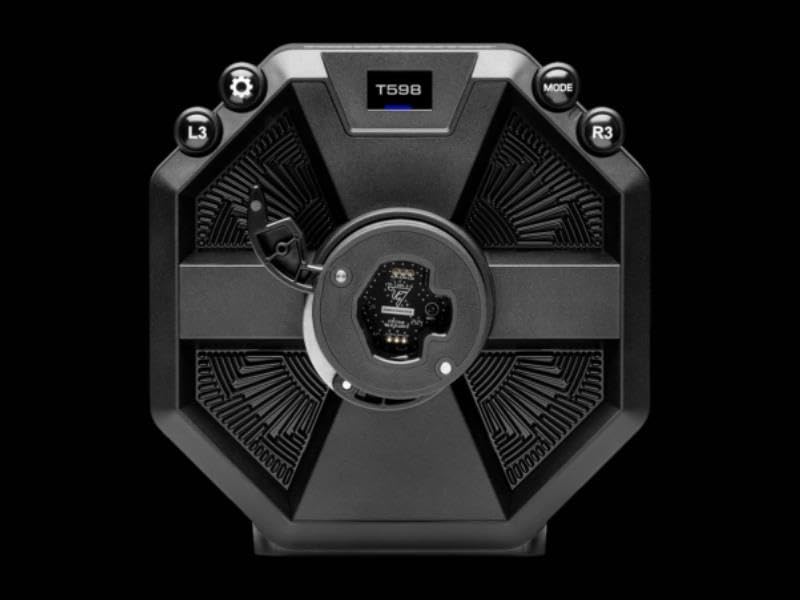
Image 2.1: Rear view of the T598 wheel base, illustrating the various connection ports for power, pedals, and USB.
2.3 Attaching the Wheel Rim
The wheel rim is detachable for customization and storage.
- Align the wheel rim's connector with the quick-release mechanism on the wheel base.
- Push the wheel rim firmly onto the base until it clicks into place.
- Secure the wheel rim by rotating the locking ring clockwise until it is tight.
2.4 Connecting the Pedals and Power
- Connect the pedal set cable to the designated pedal port on the rear of the wheel base.
- Connect the power supply unit to the power port on the wheel base, then plug the power cable into an electrical outlet.

Image 2.2: The Raceline Pedals LTE pedal set, featuring a robust metal construction.
2.5 Connecting to Console/PC
- Connect the USB cable from the wheel base to an available USB port on your PlayStation console or PC.
- The wheel will automatically calibrate upon connection. Do not touch the wheel during this process.
- For PC users, it is recommended to download and install the latest drivers and firmware from the official Thrustmaster support website for optimal performance.
3. Operation
3.1 Basic Controls
The T598 wheel rim features various buttons, paddle shifters, and a multifunctional encoder for in-game control and system navigation. Refer to your game's control settings for specific button assignments.

Image 3.1: The T598 wheel rim, highlighting its design and integrated controls.
3.2 Force Feedback Adjustment
The Force Feedback intensity and characteristics can be adjusted directly from the Race Dash screen on the wheel base or through game settings.

Image 3.2: The Race Dash screen displaying Force Feedback master settings.
3.3 Race Dash Screen
The integrated Race Dash screen provides real-time information and allows for quick adjustments without interrupting gameplay. Use the dedicated buttons (L3, R3, Mode, etc.) around the screen to navigate menus and change settings such as Force Feedback strength, vibration effects (e.g., Gear Jolt), and other preferences.

Image 3.3: The Race Dash screen showing the 'GEAR JOLT' setting, indicating customizable vibration feedback.
4. Maintenance and Care
- Cleaning: Use a soft, dry cloth to clean the wheel base, wheel rim, and pedals. Avoid abrasive cleaners or solvents that could damage the surfaces.
- Storage: When not in use, store the racing wheel in a clean, dry environment away from direct sunlight and extreme temperatures.
- Cable Management: Ensure all cables are neatly routed and not under tension to prevent damage.
- Firmware Updates: Regularly check the Thrustmaster support website for firmware updates to ensure optimal performance and compatibility.
5. Troubleshooting
- No Power: Ensure the power supply is securely connected to both the wheel base and a working electrical outlet. Check if the power indicator light on the wheel base is on.
- No Force Feedback: Verify that Force Feedback is enabled in your game's settings and on the Race Dash screen. Ensure the latest drivers/firmware are installed for PC.
- Wheel Not Recognized: Disconnect and reconnect the USB cable. Try a different USB port. For PC, ensure drivers are correctly installed. For consoles, restart the console.
- Incorrect Calibration: If the wheel is not centered or has incorrect rotation, disconnect the USB cable, power off the unit, then reconnect and allow it to recalibrate without touching the wheel.
- Pedals Not Responding: Check the pedal cable connection to the wheel base. Ensure the pedals are correctly recognized in your game's controller settings.
6. Technical Specifications
| Feature | Specification |
|---|---|
| Model Number | 4169103 |
| Force Feedback Type | Direct Axial Drive with Axial Flux motor |
| Constant Torque | 5 Nm (with overshoot capability) |
| Wheel Rim Diameter | 11.8 inches (30 cm) |
| Pedal Set | Raceline Pedals LTE (Metal, modular) |
| Compatibility | PlayStation 5, PlayStation 4, PC (Windows 10/11) |
| Product Dimensions | 12.6 x 17.72 x 13.78 inches |
| Item Weight | 22.4 pounds |
| Manufacturer | Thrustmaster |
| Release Date | May 30, 2025 |
7. Warranty and Support
Thrustmaster products are covered by a limited warranty. The specific terms and duration of your warranty may vary by region and purchase date. Please retain your proof of purchase for warranty claims.
For detailed warranty information, technical support, driver downloads, and firmware updates, please visit the official Thrustmaster support website. You can also find FAQs and contact customer service for further assistance.
Online Support: support.thrustmaster.com


