
1. Introduction
This manual provides essential information for the proper installation, operation, and maintenance of your ViewSonic VA2708-4K-MHD 27-inch 4K UHD Monitor. Please read this manual thoroughly before using the product to ensure optimal performance and safety. The ViewSonic VA2708-4K-MHD is designed to deliver stunning visuals with its 4K Ultra HD resolution, SuperClear IPS technology, and HDR10 support, making it suitable for professional and multimedia applications.

Image: ViewSonic VA2708-4K-MHD monitor with key features highlighted.
2. Package Contents
Verify that all items listed below are present in your product package:
- VA2708-4K-MHD Monitor x1
- HDMI Cable (v2.0) x1
- AC/DC Adapter x1
- Quick Start Guide x1
- Power Plug x1
3. Setup
3.1 Assembling the Monitor
Carefully remove the monitor from its packaging. Attach the stand base to the stand neck, then secure the assembled stand to the back of the monitor. Ensure all connections are firm.
3.2 Connecting to a Computer
Connect the monitor to your computer using one of the following methods:
- HDMI Connection: Use the provided HDMI cable to connect the monitor's HDMI port to your computer's HDMI output.
- DisplayPort Connection: Use a DisplayPort cable (not included) to connect the monitor's DisplayPort to your computer's DisplayPort output.
For audio output, connect external speakers or headphones to the 3.5mm audio-out port on the monitor, or utilize the built-in 2W dual stereo speakers.

Image: Monitor rear panel with connectivity options.
3.3 Power Connection
Connect the AC/DC adapter to the monitor's power input, then plug the power cord into a power outlet.
3.4 VESA Mounting
The monitor supports VESA-compatible mounts (75 x 75 mm) for alternative mounting solutions. Refer to your VESA mount's instructions for installation.
4. Operating Instructions
4.1 Power On/Off
Press the power button located on the monitor to turn it on or off. The power indicator light will illuminate when the monitor is active.
4.2 On-Screen Display (OSD) Menu
The OSD menu allows you to adjust various monitor settings. Use the control buttons (usually located on the back or bottom right of the monitor) to navigate the menu and make selections.
4.3 Input Selection
If you have multiple devices connected, use the OSD menu or a dedicated input select button to switch between HDMI 1, HDMI 2, and DisplayPort inputs.
4.4 ViewMode Presets
The monitor includes several ViewMode presets to optimize display settings for different content types:
- Game: Enhanced contrast and response for gaming.
- Movie: Optimized for video playback with richer colors.
- Web: Balanced settings for general internet browsing.
- Text: Reduced brightness and contrast for comfortable reading.
- Mono: Grayscale display for specific applications.

Image: ViewMode presets for various applications.
5. Key Features
5.1 4K UHD Resolution
Experience exceptional detail with 4K Ultra HD (3840 x 2160) resolution, providing four times the clarity of Full HD. This high resolution is ideal for professionals requiring extensive screen real estate and sharp image reproduction.

Image: Visual comparison of Full HD versus 4K UHD clarity.
5.2 SuperClear IPS Technology
The SuperClear IPS panel ensures vivid colors, consistent brightness, and wide 178-degree viewing angles, maintaining image quality and color accuracy from various perspectives.

Image: Monitor showcasing lifelike color display with IPS technology.
5.3 HDR10 Support
With HDR10 technology, the monitor delivers enhanced contrasts, brighter highlights, and a wider spectrum of vibrant colors, supporting up to 10-bit color depth for over a billion color variations.

Image: Monitor demonstrating HDR10 for enhanced visual experience.
5.4 Eye ProTech+
Equipped with Flicker-Free technology and a Low Blue Light filter, Eye ProTech+ helps reduce eye strain during prolonged use, promoting comfortable viewing.
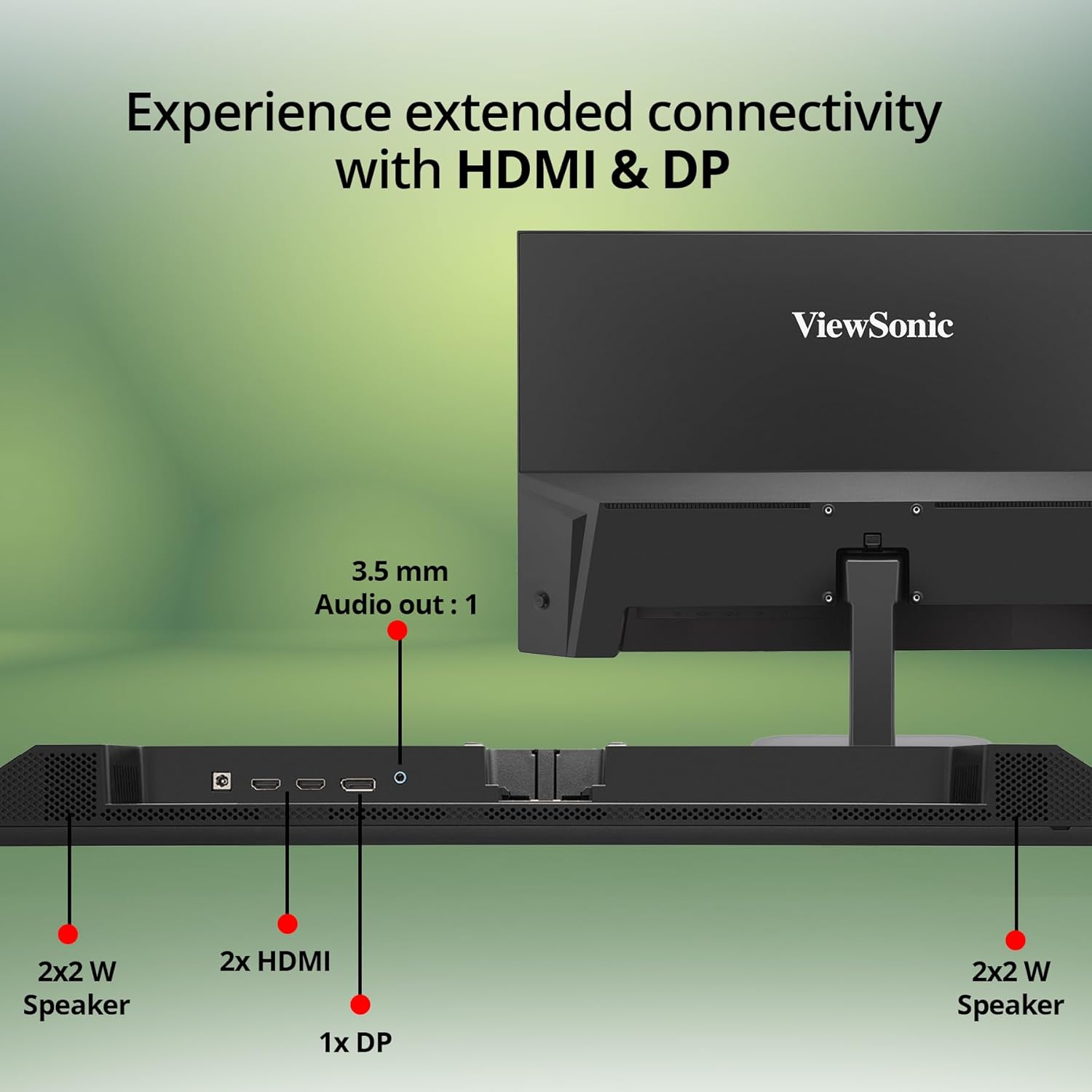
Image: Comfortable viewing features including Eye Care Technology, Blue Light Filter, and Flicker Free.
5.5 Frameless Design
The monitor features a sleek, 3-sided frameless design that maximizes screen space and provides a modern aesthetic, ideal for multi-monitor setups.

Image: Detail of the monitor's frameless design.
6. Maintenance
6.1 Cleaning the Screen
Gently wipe the screen with a soft, lint-free cloth. For stubborn marks, lightly dampen the cloth with water or a mild, non-abrasive screen cleaner. Avoid using harsh chemicals or abrasive materials.
6.2 Cleaning the Casing
Use a soft, dry cloth to clean the monitor casing. Do not use liquid cleaners directly on the casing.
6.3 Storage
When storing the monitor for an extended period, ensure it is powered off, unplugged, and stored in a cool, dry place away from direct sunlight and extreme temperatures.
7. Troubleshooting
| Problem | Possible Cause | Solution |
|---|---|---|
| No image on screen | Power cable not connected; Video cable not connected; Incorrect input selected. | Ensure power cable is securely connected. Check video cable connection to both monitor and computer. Select the correct input source via the OSD menu. |
| Image is blurry or distorted | Incorrect resolution; Video cable issue. | Set the display resolution to 3840 x 2160. Check the video cable for damage or replace if necessary. |
| No sound from speakers | Volume too low or muted; Audio cable not connected (for external speakers); Incorrect audio output selected on computer. | Increase monitor volume via OSD. Ensure computer's audio output is set to the monitor or correct external device. Check audio cable connection if using external speakers. |
| Monitor flickers | Refresh rate mismatch; Cable issue. | Ensure the refresh rate is set correctly (e.g., 60Hz). Try a different video cable. |
8. Specifications
| Feature | Detail |
|---|---|
| Brand | ViewSonic |
| Model Number | VA2708-4K-MHD |
| Screen Size | 27 Inches (68.58cm) |
| Resolution | 4K UHD (3840 x 2160 Pixels) |
| Panel Type | SuperClear IPS |
| HDR Support | HDR10 |
| Color Depth | 1.07 Billion Colors (10-bit) |
| sRGB Coverage | 104% |
| Connectivity | 2 x HDMI 2.0, 1 x DisplayPort 1.2, 1 x 3.5mm Audio Out |
| Speakers | 2 x 2W Stereo Speakers |
| Eye Care Features | Eye ProTech+, Flicker-Free, Low Blue Light Filter |
| VESA Compatibility | 75 x 75 mm |
| Power Consumption (Typical) | 28W |
| Dimensions (Physical) | 613.19 x 449.89 x 190 mm |
| Item Weight | 4.1 kg |
9. Warranty and Support
9.1 Manufacturer Warranty
This ViewSonic VA2708-4K-MHD monitor comes with a 3 Years Standard On-site Manufacturer Warranty. Please retain your proof of purchase for warranty claims.
9.2 Technical Support
For technical assistance, product registration, or further information, please visit the official ViewSonic support website or contact their customer service. Contact details can typically be found on the ViewSonic website or in the Quick Start Guide.


