
Girafit GRF-W150W
Girafit 3MP 2K Window Camera User Manual
Model: GRF-W150W
1. Product Overview
The Girafit 3MP 2K Window Camera is an advanced indoor security solution designed for comprehensive home monitoring. It features high-definition video, intelligent detection capabilities, and versatile installation options to keep your property secure.
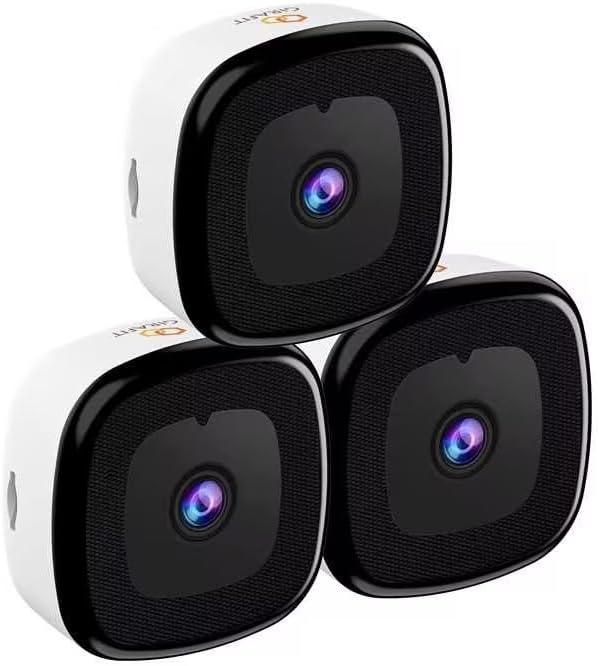
Image: Three Girafit 3MP 2K Window Cameras, showcasing the compact design.

Image: The Girafit GRF-W150W camera, highlighting its ability to monitor outside from inside.
2. Key Features
- 3MP Ultra-HD Clarity: Delivers sharp and detailed 2K QHD resolution video.
- ChroMax AI Color Night Vision: Provides full-color video even in low-light conditions, offering day-like clarity at night.
- Person & Motion Detection: Advanced AI algorithms accurately detect human figures and general motion, reducing false alarms.
- Dual-band WiFi (2.4GHz & 5GHz): Ensures stable and flexible network connectivity.
- 24/7 Recording: Continuous video recording capability to never miss a moment.
- Anti-Glare & Anti-Reflection: AI-enhanced clarity with HDR for vivid and clear pictures, even through glass.
- Optional Local Storage: Supports MicroSD cards up to 128GB (sold separately).
- U.S. Based AWS Cloud: Secure cloud storage option for recorded footage.
- Multi-device & Multi-user Viewing: View up to 4 cameras simultaneously and share access with up to 5 users.

Image: Overview of key features including dual-band WiFi, cloud storage, and various detection capabilities.

Image: Visual comparison demonstrating the superior clarity of ChroMax AI color night vision compared to traditional night vision modes.

Image: Illustrates the enhanced clarity and reduced glare/reflection provided by Girafit's AI-enhanced HDR technology.

Image: Demonstrates the 2K resolution and 4X zoom capability, showing clear details of a cat house.
3. What's in the Box
Your Girafit 3MP 2K Window Camera package includes:
- Girafit 3MP 2K Window Camera(s)
- USB Power Adapter
- USB Power Cable
- Mounting Sticker(s)
- User Manual (this document)
4. Setup and Installation
Follow these steps for quick and easy installation of your Girafit Window Camera:

Image: Step-by-step guide for installing the camera in approximately 5 minutes.
- Clean Window: Ensure both the inside and outside of the window are clean for optimal adhesion and clear viewing.
- Peel off Mounting Sticker: Carefully remove the backing from the mounting sticker.
- Install Sticker: Apply the sticker firmly onto the clean window surface.
- Power on Camera: Connect the camera to power using the included USB adapter and cable.
- Mount Camera: Attach the camera firmly onto the mounting sticker. The camera uses a strong adhesive or Velcro-like material for secure attachment to glass surfaces.
The camera is designed for versatile placement on glass surfaces:

Image: Examples of suitable installation locations, including windows, cupboards, fish tanks, and office glass walls.
App Setup
To complete the setup and begin viewing, follow these steps:

Image: Visual guide for connecting the camera to the app and Wi-Fi.
- Connect to Power: Ensure your camera is powered on.
- Download Girafit APP: Search for and download the official Girafit app from the iOS App Store or Google Play Store.
- Connect Camera to Wi-Fi: Enjoy hassle-free setup with Bluetooth. No need to scan QR codes. Follow the in-app instructions to connect your camera to your home Wi-Fi network (supports 2.4GHz & 5GHz).
- Start Viewing: Once connected, you can immediately access live view and playback through the app.
5. Operating Instructions
Live View and Recording
Access the Girafit app to view live footage from your camera. The camera supports 24/7 continuous recording, ensuring all activity is captured.

Image: Demonstrates 24/7 continuous recording and person detection capabilities, showing viewing and detection angles.

Image: Illustrates the motion detection feature, showing a notification on a smartphone when a person is detected.
Multi-Device and Multi-User Access
The Girafit app allows you to manage multiple cameras and share access with family members or trusted individuals.

Image: Shows the capability to view up to 4 cameras simultaneously and share access with up to 5 users.

Image: Depicts multiple users accessing the camera feed from their respective devices.
Siren Alarm
Activate the built-in siren alarm through the app to deter intruders or alert others to suspicious activity.

Image: Shows the camera's siren alarm feature being activated to deter a potential intruder.
6. Maintenance
To ensure optimal performance and longevity of your Girafit 3MP 2K Window Camera, follow these maintenance guidelines:
- Lens Cleaning: Gently wipe the camera lens with a soft, lint-free cloth to remove dust or smudges. Avoid abrasive cleaners.
- Surface Cleaning: Clean the camera's body with a dry or slightly damp cloth. Do not use harsh chemicals.
- Firmware Updates: Regularly check the Girafit app for available firmware updates to ensure your camera has the latest features and security enhancements.
- Cable Inspection: Periodically inspect the power cable for any signs of wear or damage. Replace if necessary.
- Mounting Check: Ensure the camera remains securely mounted to the window. Re-apply the mounting sticker if it shows signs of loosening.
7. Troubleshooting
If you encounter any issues with your Girafit 3MP 2K Window Camera, refer to the following common problems and solutions:
| Problem | Possible Cause | Solution |
|---|---|---|
| Camera offline | No power; Wi-Fi disconnected; Router issue | Check power connection; Restart camera; Restart router; Reconnect Wi-Fi in app. |
| Poor video quality | Dirty lens; Weak Wi-Fi signal; Obstruction | Clean lens; Move camera closer to router or use 5GHz band; Remove obstructions. |
| Motion detection not working | Settings incorrect; Environmental factors | Check detection settings in app; Adjust sensitivity; Ensure clear view. |
| Night vision unclear | External light interference; Dirty window | Ensure no strong lights directly facing camera; Clean window thoroughly. |
| Cannot connect to app | Incorrect Wi-Fi password; App version outdated | Verify Wi-Fi password; Update app to latest version; Reset camera and try again. |
If the issue persists after trying these solutions, please contact Girafit customer support for further assistance.
8. Specifications
| Feature | Detail |
|---|---|
| Model | GRF-W150W |
| Resolution | 3MP (2K QHD) |
| Connectivity | 2.4GHz & 5GHz Wi-Fi |
| Night Vision | ChroMax AI Color Night Vision |
| Detection | Person & Motion Detection |
| Storage Options | MicroSD (up to 128GB, sold separately), U.S. Based AWS Cloud |
| Recommended Use | Indoor Security |
| ASIN | B0DKFP9GYQ |
| First Available | October 21, 2024 |
9. Warranty and Support
Girafit products are designed for reliability and performance. For specific warranty details, please refer to the warranty card included with your product or visit the official Girafit website. If you require technical support, have questions about your product, or need assistance with troubleshooting, please contact our customer support team through the following channels:
- Online Support: Visit the Girafit official website for FAQs, support articles, and contact forms.
- Email Support: Refer to your product packaging or the Girafit website for the dedicated support email address.
Please have your product model number (GRF-W150W) and purchase information ready when contacting support to ensure a swift resolution.
Related documentsGRF-W150W

Ask a question about this manual
Ask about setup, troubleshooting, compatibility, parts, safety, or missing instructions. Manuals+ will review the question and use this page’s manual context to help answer it.