1. Product Overview
The ORICO e7400 512GB NVMe SSD is a high-performance internal solid-state drive designed for demanding applications such as gaming, content creation, and professional workstations. It utilizes PCIe Gen4.0 x4 technology to deliver exceptional data transfer speeds and responsiveness.
Key Features:
- High Performance: PCIe Gen4.0 x4 interface with read speeds up to 7200MB/s and write speeds up to 4400MB/s.
- Advanced Technologies: Features HMB (Host Memory Buffer) and dynamic SLC Cache for optimized performance, along with TRIM and S.M.A.R.T. support.
- Efficient Heat Dissipation: Equipped with a graphene heat spreader to maintain optimal operating temperatures and ensure stable performance.
- Wide Compatibility: Compatible with PlayStation 5, desktops, and laptops running macOS and Windows operating systems.
- Reliability: Backed by a 5-year limited coverage or TBW (Total Bytes Written), whichever comes first.

Image: The ORICO e7400 NVMe SSD, its retail packaging, a small screw, and a screwdriver, indicating the product and its included installation accessories.
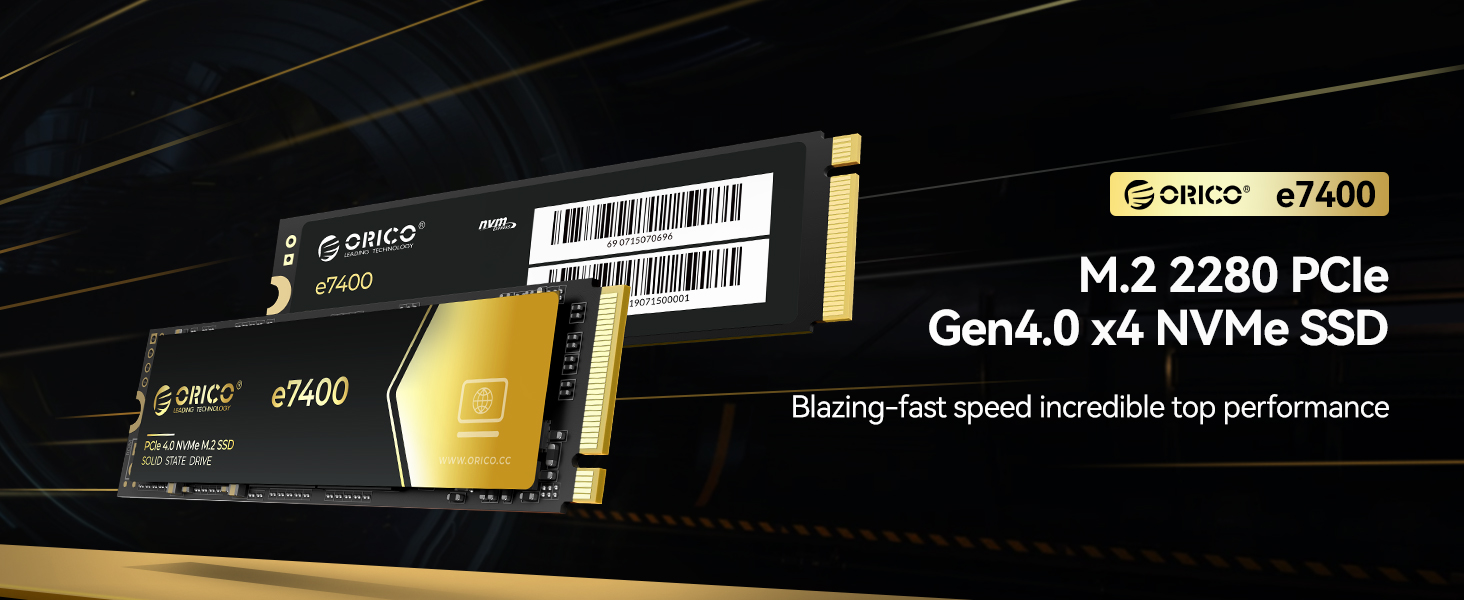
Image: A visual representation of the ORICO e7400 M.2 2280 PCIe Gen4.0 x4 NVMe SSD, highlighting its high-speed capabilities and performance.
2. Setup and Installation
This section provides general guidance for installing your ORICO e7400 NVMe SSD. Specific steps may vary depending on your computer's motherboard or gaming console model. Always refer to your device's manual for detailed installation instructions.
2.1 Physical Installation
- Power Off: Ensure your computer or console is completely powered off and disconnected from the power source.
- Locate M.2 Slot: Open your computer case or console and locate an available M.2 slot on the motherboard. The ORICO e7400 is an M.2 2280 form factor SSD.
- Insert SSD: Gently insert the ORICO e7400 SSD into the M.2 slot at a slight angle.
- Secure SSD: Push the SSD down until it is parallel with the motherboard and secure it with the provided screw.
- Close Case: Reassemble your computer or console.

Image: A close-up view of an ORICO e7400 NVMe SSD being inserted into an M.2 slot on a computer motherboard, illustrating the physical installation process.
2.2 Initializing and Formatting the SSD
After physical installation, new SSDs often need to be initialized and formatted before they can be used by the operating system. This process creates partitions and a file system, making the storage accessible.
For Windows Systems:
Follow these steps to initialize and format your new SSD in Windows:
- Right-click on 'This PC' (or 'My Computer') and select 'Manage'.
- In the Computer Management window, navigate to 'Disk Management' under 'Storage'.
- You will see your new SSD listed as 'Unallocated'. Right-click on the disk and select 'Initialize Disk'.
- Choose 'GPT (GUID Partition Table)' as the partition style and click 'OK'.
- Right-click on the 'Unallocated' space of the initialized disk and select 'New Simple Volume'.
- Follow the 'New Simple Volume Wizard' prompts. Assign a drive letter and choose 'NTFS' as the file system. Perform a quick format.
- Once completed, the new volume will appear in 'This PC' and be ready for use.
For macOS Systems:
Follow these steps to initialize and format your new SSD in macOS:
- Click 'Go' in the Finder menu bar, then select 'Utilities'.
- Open 'Disk Utility'.
- In Disk Utility, select your external ORICO SSD from the sidebar.
- Click the 'Erase' button in the toolbar.
- Enter a name for the volume. For 'Format', select 'ExFat' for compatibility with both Mac and Windows systems. If exclusively using with macOS, you may choose APFS or Mac OS Extended (Journaled).
- Click 'Erase' to confirm. Once the process is complete, click 'Done'.
- The formatted disk will now appear on your desktop and in Finder.
Video: An instructional video from ORICO Direct US Store demonstrating how to format a new SSD for use in Windows and Mac OS systems, addressing common issues like a computer not recognizing the drive.
3. Operating the SSD
Once installed and formatted, your ORICO e7400 NVMe SSD operates like any other storage drive. Its high-speed capabilities will enhance system responsiveness, application loading times, and file transfer speeds.
- Data Storage: Use the SSD for installing operating systems, applications, games, and storing large files to benefit from its fast read/write speeds.
- Gaming Performance: Experience reduced game loading times and smoother gameplay due to the high data throughput.
- Content Creation: Accelerate workflows for video editing, graphic design, and other demanding tasks that involve large datasets.

Image: An illustration showing the ORICO e7400 NVMe SSD's compatibility with various devices, including a PlayStation 5, a laptop, and a desktop computer.
Video: A promotional video from ORICO Direct US Store showcasing the ORICO e7400 SSD's benefits for avid gamers, demonstrating faster game loading and smoother performance.
4. Maintenance
To ensure the longevity and optimal performance of your ORICO e7400 NVMe SSD, consider the following maintenance practices:
- TRIM Support: Ensure your operating system has TRIM enabled. TRIM helps the SSD manage its stored data more efficiently, preventing performance degradation over time. Modern operating systems typically enable TRIM by default for SSDs.
- S.M.A.R.T. Monitoring: Utilize S.M.A.R.T. (Self-Monitoring, Analysis, and Reporting Technology) tools to monitor the health and status of your SSD. This can help predict potential failures.
- Firmware Updates: Periodically check the ORICO official website for any available firmware updates for your e7400 SSD. Firmware updates can improve performance, stability, and compatibility.
- Temperature Management: The integrated graphene heat spreader helps manage the SSD's temperature. Ensure adequate airflow within your computer case to support overall system cooling.
- Avoid Full Capacity: While SSDs perform well even when nearly full, maintaining some free space (e.g., 10-15%) can help sustain optimal performance and extend lifespan.
Image: A diagram illustrating the graphene heat spreader integrated into the ORICO e7400 NVMe SSD, demonstrating its role in dissipating heat for sustained performance.
5. Troubleshooting
If you encounter issues with your ORICO e7400 NVMe SSD, refer to the following common troubleshooting steps:
- SSD Not Detected:
- Ensure the SSD is correctly seated in the M.2 slot and secured.
- Check your system's BIOS/UEFI settings to confirm the M.2 slot is enabled and configured correctly (e.g., NVMe mode).
- If it's a new SSD, it may need to be initialized and formatted. Refer to the Setup and Installation section and the provided video for guidance.
- Slow Performance:
- Verify that your motherboard supports PCIe Gen4.0. If connected to a PCIe Gen3.0 slot, performance will be limited to Gen3 speeds.
- Ensure TRIM is enabled in your operating system.
- Check for available firmware updates for the SSD.
- Monitor SSD temperature using S.M.A.R.T. tools; overheating can cause throttling.
- Data Corruption/Errors:
- Run a disk check utility (e.g., `chkdsk` on Windows, Disk Utility's First Aid on macOS).
- Ensure your operating system and drivers are up to date.
- Back up your data immediately if you suspect data corruption.
For further assistance, please contact ORICO customer support.