
ORICO e3500
ORICO e3500 M.2 NVMe SSD User Manual
Model: e3500 | Brand: ORICO
1. Introduction
This user manual provides comprehensive instructions for the installation, operation, maintenance, and troubleshooting of your ORICO e3500 M.2 NVMe Solid State Drive. Please read this manual carefully before using the product to ensure optimal performance and longevity.
2. Product Overview
The ORICO e3500 is a high-performance M.2 NVMe SSD designed to significantly enhance your computer's speed and responsiveness. Utilizing the PCIe Gen3x4 interface and 3D NAND flash technology, it offers rapid data transfer rates, making it ideal for demanding applications, gaming, and large file management.
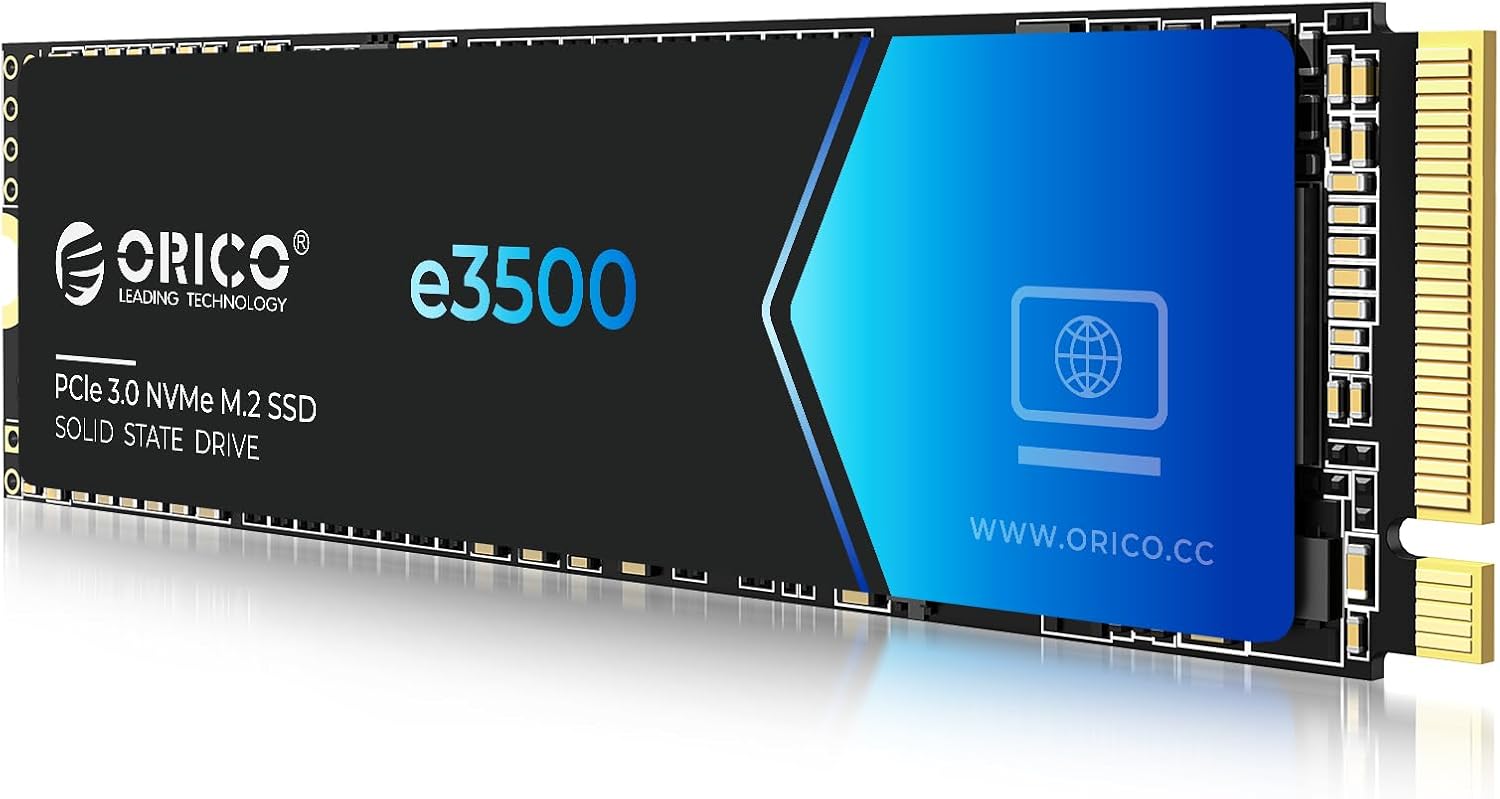
Figure 2.1: The ORICO e3500 M.2 NVMe SSD, a compact and high-speed storage solution.
3. Key Features
- Blazing-Fast Speeds: Equipped with the speedy PCIe Gen3x4 interface, the M.2 SSD boasts impressive sequential read speeds of up to 2800MB/s and write speeds of up to 1300MB/s. This is significantly faster than traditional SATA drives, improving data crunching, video editing, and gaming experiences.

Figure 3.1: Visual representation of ORICO e3500's read and write speeds.

Figure 3.2: The e3500 SSD offers up to 6 times faster load times compared to SATA drives.
- Durable 3D NAND QLC Flash: Features advanced 3D NAND flash technology, providing higher storage density, extended lifespan, and reduced power consumption for enhanced energy efficiency.

Figure 3.3: Illustration of the 3D NAND technology for reliable performance.
- Unmatched Durability and Reliability: Includes built-in bad block management, S.M.A.R.T. monitoring, ECC error correction, TRIM support, and PLP technology to ensure data integrity and long-term stability under various workloads.

Figure 3.4: Overview of data protection mechanisms including TRIM, ECC, PLP, S.M.A.R.T., and BBM.
- Efficient Cooling: Adopts graphene material to cover the controller and memory chips, significantly reducing thermal build-up and maintaining consistent performance during extended use.

Figure 3.5: Graphene heat spreader for efficient cooling of the SSD components.
- Large Capacity, Easy Installation: Supports NVMe 1.4 standard and is compatible with desktops, laptops, and AIOs. Available in capacities up to 4TB to accommodate large files, games, and creative projects. A screw and screwdriver are included for hassle-free installation.
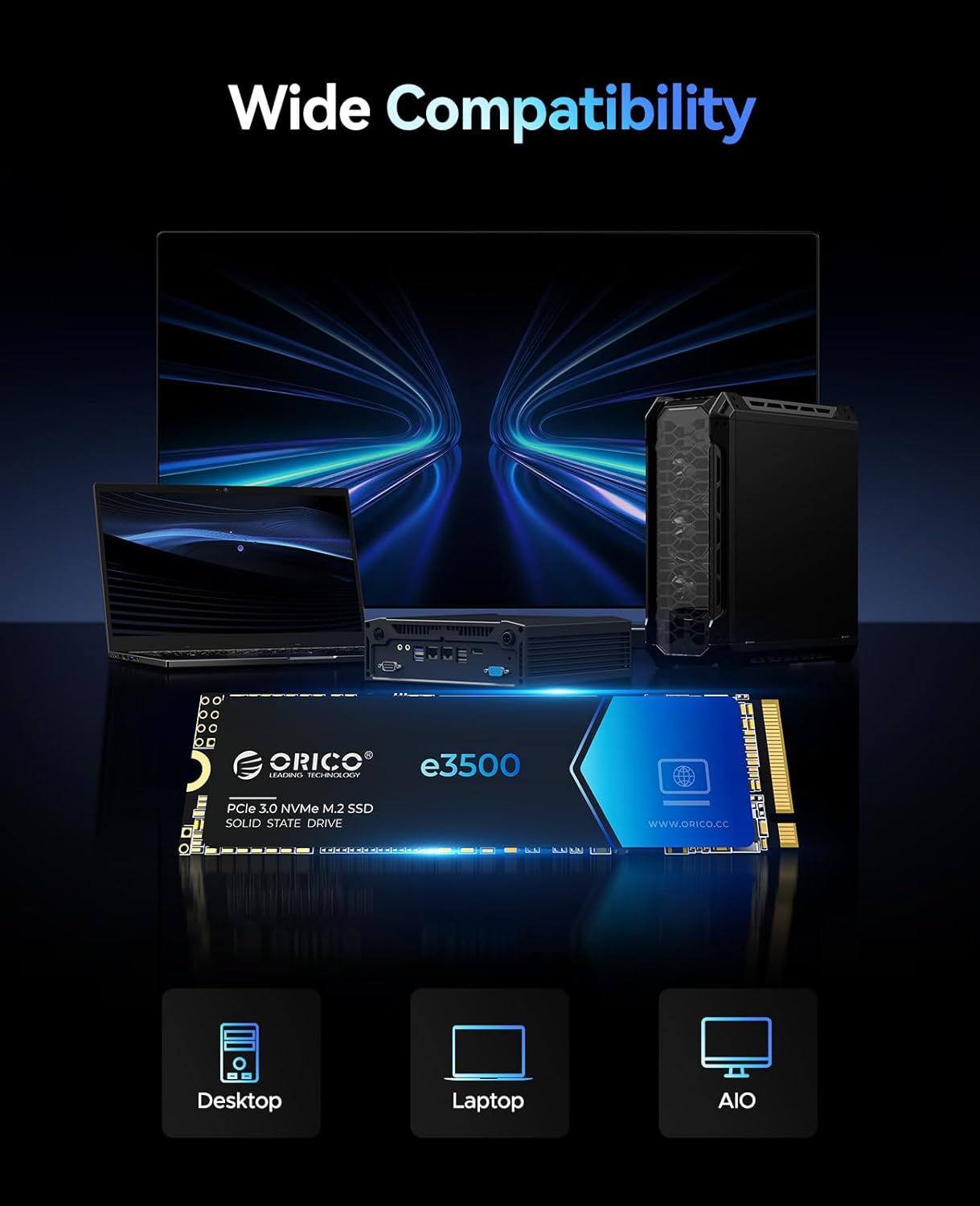
Figure 3.6: The ORICO e3500 SSD offers massive storage capacities up to 4TB.

Figure 3.7: The ORICO e3500 is compatible with desktops, laptops, and All-in-One PCs.
4. Package Contents
Upon opening the package, please verify that all the following items are included:
- ORICO e3500 M.2 NVMe SSD
- Packing box
- Mounting Screw
- User Manual (this document)
- Screwdriver

Figure 4.1: Contents included in the ORICO e3500 SSD package.
5. Setup and Installation
5.1. Installing the SSD in a Laptop/Desktop
The ORICO e3500 M.2 NVMe SSD is designed for easy installation into compatible M.2 slots on motherboards. Ensure your system supports NVMe PCIe Gen3x4 M.2 2280 SSDs before proceeding.
- Power Off and Disconnect: Completely shut down your computer and disconnect all power cables. For laptops, remove the battery if possible.
- Open Case/Panel: Open your computer case or the access panel for the M.2 slot. Refer to your computer's manual for specific instructions.
- Locate M.2 Slot: Identify the M.2 slot on your motherboard. It typically has a small screw hole at the end.
- Insert SSD: Gently insert the ORICO e3500 SSD into the M.2 slot at a 30-degree angle. Push it in firmly until it is fully seated.
- Secure SSD: Press the SSD down towards the motherboard and secure it with the provided screw using the included screwdriver.
- Close Case/Panel: Reassemble your computer and reconnect power.
Figure 5.1: Demonstrating the installation of the ORICO e3500 SSD into a laptop's M.2 slot.
5.2. Using the SSD with an External Enclosure
For everyday use or as a portable storage solution, the ORICO e3500 SSD can be connected to an external hard drive enclosure (sold separately). This allows for convenient DIY external storage.
Video 5.1: This video demonstrates the installation of the ORICO e3500 SSD into a laptop and its use with an external enclosure for portable storage. It highlights the speed benefits for launching programs and transferring files.
6. Operating Instructions
Once installed, the ORICO e3500 SSD operates as a standard storage device. For new installations, you may need to initialize and format the drive through your operating system's Disk Management utility before it can be used.
- System Boot Drive: Install your operating system on the SSD for significantly faster boot times and overall system responsiveness.
- Application Storage: Install frequently used applications and games on the SSD to reduce load times and improve performance.
- Data Storage: Store large files, multimedia content, and creative projects to benefit from rapid file transfers.

Figure 6.1: The ORICO e3500 enables instant transfer of massive files.

Figure 6.2: Experience enhanced gaming performance with the ORICO e3500 SSD.

Figure 6.3: Accelerate video editing workflows and creative projects with the fast SSD.
7. Maintenance
Solid State Drives generally require less maintenance than traditional hard drives. However, adhering to these practices can help ensure optimal performance and longevity:
- TRIM Command: Ensure your operating system has TRIM enabled. TRIM helps the SSD manage its storage space efficiently, preventing performance degradation over time. Most modern operating systems enable TRIM by default for SSDs.
- S.M.A.R.T. Monitoring: Utilize S.M.A.R.T. (Self-Monitoring, Analysis, and Reporting Technology) tools to monitor the health and status of your SSD. This can help predict potential issues before they lead to data loss.
- Firmware Updates: Periodically check the ORICO official website for any available firmware updates for your e3500 SSD. Firmware updates can improve performance, stability, and compatibility.
- Avoid Extreme Temperatures: While the graphene cooling helps, avoid exposing the SSD to extreme temperatures (both hot and cold) outside its specified operating range (0°C to 70°C).
- Proper Shutdown: Always perform a proper system shutdown. Abrupt power loss can potentially lead to data corruption, although PLP (Power Loss Protection) technology is designed to mitigate this risk.
8. Troubleshooting
If you encounter issues with your ORICO e3500 SSD, consider the following troubleshooting steps:
- SSD Not Detected:
- Ensure the SSD is correctly seated in the M.2 slot.
- Check your BIOS/UEFI settings to confirm the M.2 slot is enabled and configured for NVMe.
- Try the SSD in a different M.2 slot or a compatible external enclosure to rule out motherboard issues.
- Ensure your operating system has the necessary drivers.
- Slow Performance:
- Verify that your system's M.2 slot supports PCIe Gen3x4 speeds. Older slots or SATA M.2 slots will limit performance.
- Ensure TRIM is enabled in your operating system.
- Check for background processes or applications consuming excessive disk I/O.
- Monitor SSD temperature using S.M.A.R.T. tools; excessive heat can cause thermal throttling.
- Data Corruption/Errors:
- Run disk error checking utilities provided by your operating system.
- Check S.M.A.R.T. data for any reported errors or declining health indicators.
- Ensure stable power supply to your system.
- New SSD Not Showing Up:
- For a brand new SSD, it needs to be initialized and formatted in Disk Management (Windows) or Disk Utility (macOS) before it can be used.
If issues persist, please contact ORICO customer support for further assistance.
9. Specifications

Figure 9.1: Detailed product parameters for the ORICO e3500 series SSDs.
| Feature | Detail |
|---|---|
| Brand | ORICO |
| Model Series | e3500 |
| Digital Storage Capacity | 512 GB |
| Hard Disk Interface | PCIE x 4 |
| Connectivity Technology | PCIe 3.0X4 |
| Form Factor | M.2 2280 |
| Sequential Read Speed (Max) | Up to 2800MB/s |
| Sequential Write Speed (Max) | Up to 1300MB/s |
| Flash Type | 3D NAND QLC |
| Special Feature | Backward Compatible, Graphene Cooling |
| Compatible Devices | Desktop, Gaming Console, Laptop |
| Installation Type | Internal Hard Drive |
| Item Weight | ~1 ounce |
| Operating Temperature | 0°C to 70°C |
| Storage Temperature | -40°C to 85°C |
| Included Components | 512GB NVMe SSD, Screw, Screwdriver |
10. Warranty and Support
The ORICO e3500 M.2 NVMe SSD comes with a 5-year manufacturer's warranty, ensuring peace of mind regarding its durability and reliability.
For technical support, warranty claims, or any product-related inquiries, please contact the ORICO Direct US Store or visit the official ORICO website for detailed support resources.
- Manufacturer: SHENZHEN ORICO TECHNOLOGIES CO.,LTD
- Seller Support: ORICO Direct US Store
- Official Website: www.orico.cc (Please check for the most current support information)
Related documentse3500


Ask a question about this manual
Ask about setup, troubleshooting, compatibility, parts, safety, or missing instructions. Manuals+ will review the question and use this page’s manual context to help answer it.