
ORICO S500PRO-1TB
ORICO S500PRO 2.5" SATA III SSD User Manual
Model: S500PRO-1TB
1. Introduction
Thank you for choosing the ORICO S500PRO 2.5-inch SATA III Solid State Drive. This high-performance internal SSD is engineered to provide a significant upgrade to your computing experience, offering superior speed, reliability, and durability compared to traditional hard disk drives (HDDs). With advanced 3D NAND flash technology and a robust aluminum shell, the S500PRO is designed for efficient data management and long-term stability. This manual provides essential information for installation, operation, maintenance, and troubleshooting.
2. Package Contents
- ORICO S500PRO 2.5-inch SATA III SSD
- Installation Screws
- Screwdriver

3. Setup and Installation
The ORICO S500PRO SSD is compatible with a wide range of devices that support a 2.5-inch SATA interface, including desktops, laptops, PS4 consoles, and NAS systems. Always ensure your device is powered off and disconnected from the power source before beginning installation.
3.1 For Desktops and Laptops:
- Backup Data: If replacing an existing drive, ensure all important data is backed up.
- Open Device Casing: Carefully open your computer's casing to access the drive bay. Refer to your computer's manual for specific instructions.
- Mount the SSD: Secure the ORICO S500PRO SSD into an available 2.5-inch drive bay using the provided screws.
- Connect Cables: Connect a SATA data cable from the SSD to an available SATA port on your motherboard, and a SATA power cable from your power supply unit to the SSD.
- Close Casing: Reassemble your computer's casing.
- Operating System Installation/Migration: Install a new operating system or migrate your existing one to the SSD.
3.2 For PS4 and NAS Systems:
Consult the specific instruction manual for your PS4 or NAS device for detailed steps on replacing or installing a 2.5-inch internal drive. The process typically involves locating the drive bay, removing the old drive (if applicable), inserting the new SSD, and then re-installing the system software or configuring storage.

4. Operating the SSD
Once installed and configured, the ORICO S500PRO SSD operates seamlessly within your system, providing enhanced performance and reliability.
4.1 Performance Benefits:
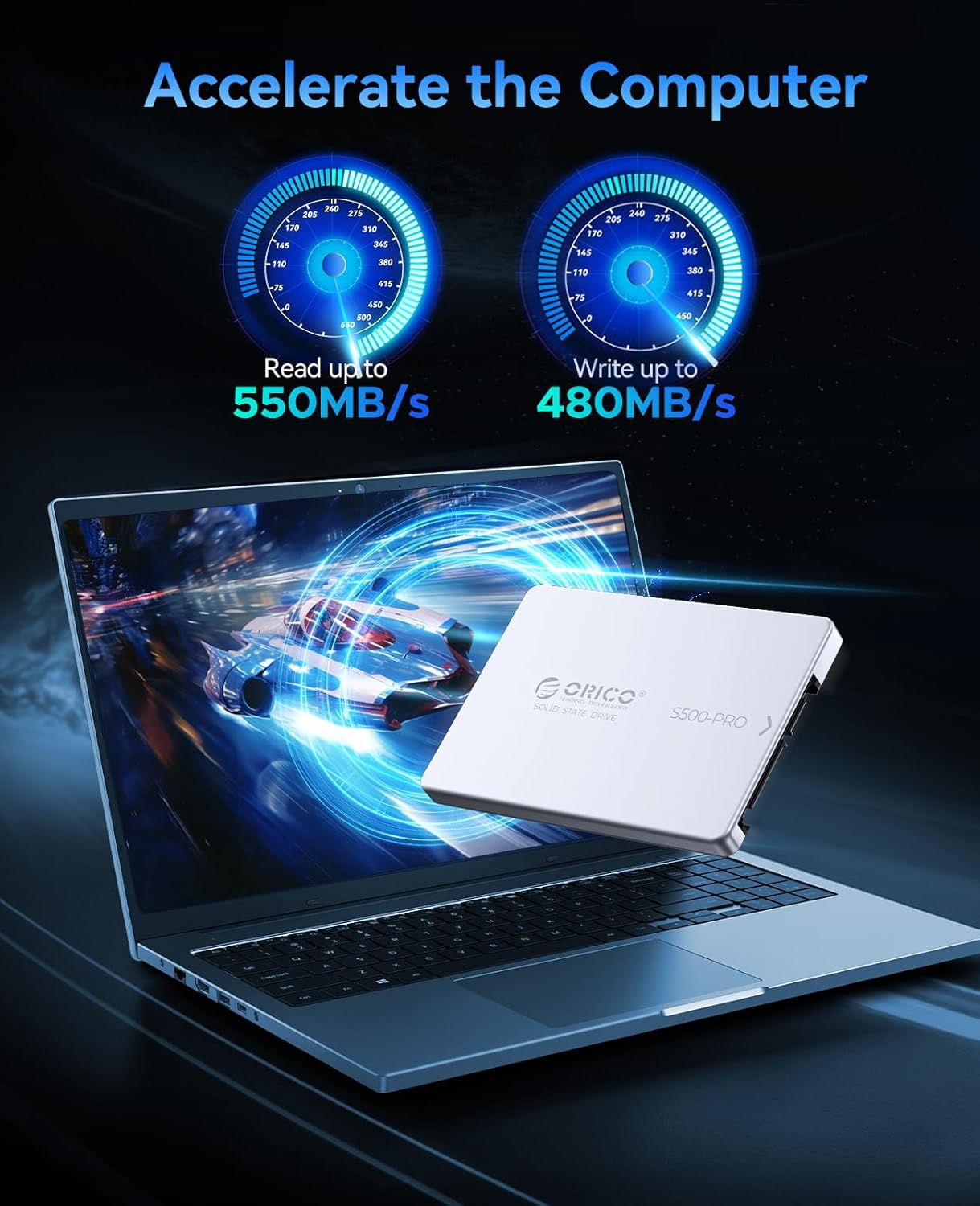
- Faster Boot Times: Experience significantly reduced operating system startup times.
- Quicker Application Loading: Programs and applications will launch and run more responsively.
- Rapid File Transfers: Copying and moving large files will be noticeably faster.

4.2 Data Protection Mechanisms:
The S500PRO incorporates several advanced technologies to ensure data integrity and drive longevity:
- TRIM Support: Helps maintain optimal performance by allowing the operating system to inform the SSD which data blocks are no longer in use and can be wiped.
- ECC (Error-Correcting Code): Detects and corrects data corruption, enhancing data reliability.
- S.M.A.R.T. (Self-Monitoring, Analysis and Reporting Technology): Monitors the drive's health and performance, providing early warnings of potential issues.
- PLP (Power Loss Protection): Safeguards data during unexpected power outages.

5. Maintenance and Care
SSDs generally require less maintenance than HDDs due to their lack of moving parts. However, following these guidelines can help ensure optimal performance and longevity:
- Keep Firmware Updated: Periodically check the ORICO website for firmware updates for your SSD.
- Avoid Extreme Temperatures: Operate the SSD within its specified temperature range (0°C to 55°C).
- Ensure Proper Ventilation: For desktop and NAS installations, ensure adequate airflow around the drive to assist with heat dissipation. The aluminum shell provides excellent thermal management.
- Regular Backups: While SSDs are highly reliable, regular data backups are always recommended for critical data.


6. Troubleshooting
If you encounter issues with your ORICO S500PRO SSD, consider the following common troubleshooting steps:
- SSD Not Detected:
- Ensure SATA data and power cables are securely connected to both the SSD and the motherboard/power supply.
- Check if the SATA port on your motherboard is enabled in the BIOS/UEFI settings.
- Try connecting the SSD to a different SATA port or using different cables.
- Verify that the SSD is properly seated in its drive bay.
- Slow Performance:
- Ensure your operating system's TRIM function is enabled.
- Check if your SATA controller is running in AHCI mode in BIOS/UEFI.
- Verify that your system drivers (especially chipset and SATA drivers) are up to date.
- Ensure the SSD is not excessively full (it's recommended to leave some free space for optimal performance).
- Operating System Errors/Crashes:
- Run a disk check utility (e.g., CHKDSK on Windows, Disk Utility on macOS) to check for file system errors.
- Consider reinstalling your operating system if issues persist and are not hardware-related.
If these steps do not resolve the issue, please contact ORICO customer support for further assistance.
7. Specifications
| Feature | Description |
|---|---|
| Model | S500PRO |
| Interface | SATA III 6Gb/s |
| Capacity | 1TB (Available in 128GB/256GB/512GB/1TB/2TB/4TB variants) |
| Sequential Read Speed (1TB) | Up to 550MB/s |
| Sequential Write Speed (1TB) | Up to 480MB/s |
| NAND Flash Type | 3D NAND |
| Operating Temperature | 0°C to 55°C |
| Storage Temperature | -55°C to 85°C |
| Dimensions (L x W x H) | 100mm x 69.8mm x 7.0mm (3.94 x 2.75 x 0.28 inches) |
| Weight | 40g (0.088 lbs) |
| Shell Material | Aluminum Alloy |
| Special Features | TRIM Support, ECC, S.M.A.R.T., Power Loss Protection |
8. Warranty and Support
The ORICO S500PRO SSD comes with a 3-year limited warranty from the date of purchase. This warranty covers defects in materials and workmanship under normal use. It does not cover damage caused by misuse, accident, unauthorized modification, or improper installation.
8.1 How to Obtain Warranty Service:
If you believe your product is defective and falls within the warranty period, please contact ORICO customer support through the official ORICO website or your point of purchase. You may be required to provide proof of purchase and product serial number.
8.2 Technical Support:
For technical assistance, troubleshooting, or general inquiries about your ORICO S500PRO SSD, please visit the official ORICO support page or contact their customer service team. Support resources often include FAQs, driver downloads, and contact information for direct assistance.
Ask a question about this manual
Ask about setup, troubleshooting, compatibility, parts, safety, or missing instructions. Manuals+ will review the question and use this page’s manual context to help answer it.