
1. Product Overview
The WisFox 2.4G Wireless Mouse is designed for comfortable and efficient use with laptops, desktops, PCs, and MacBooks. It features an ergonomic design, adjustable DPI settings, and a stable wireless connection.

Image: The WisFox 2.4G Wireless Mouse in mint green, shown alongside its USB receiver and Type-C adapter.
Package Contents:
- WisFox 2.4G Wireless Mouse
- USB Receiver (stored inside the mouse)
- Type-C Adapter
- User Manual (this document)
2. Setup Guide
2.1 Battery Installation
- Locate the battery compartment on the underside of the mouse.
- Open the battery cover.
- Insert one (1) AA battery, ensuring correct polarity (+/-).
- Close the battery cover securely.

Image: The bottom of the mouse, illustrating the battery slot and the dedicated storage for the USB receiver.
2.2 Connecting the Receiver
- Remove the USB receiver from its storage slot within the battery compartment of the mouse.
- For standard USB-A ports: Plug the USB receiver directly into an available USB-A port on your computer.
- For Type-C ports: Attach the Type-C adapter to the USB receiver, then plug the combined unit into an available Type-C port on your computer.
- Turn on the mouse using the ON/OFF switch located on the underside.
- The mouse should automatically connect to your computer. No additional drivers are typically required.
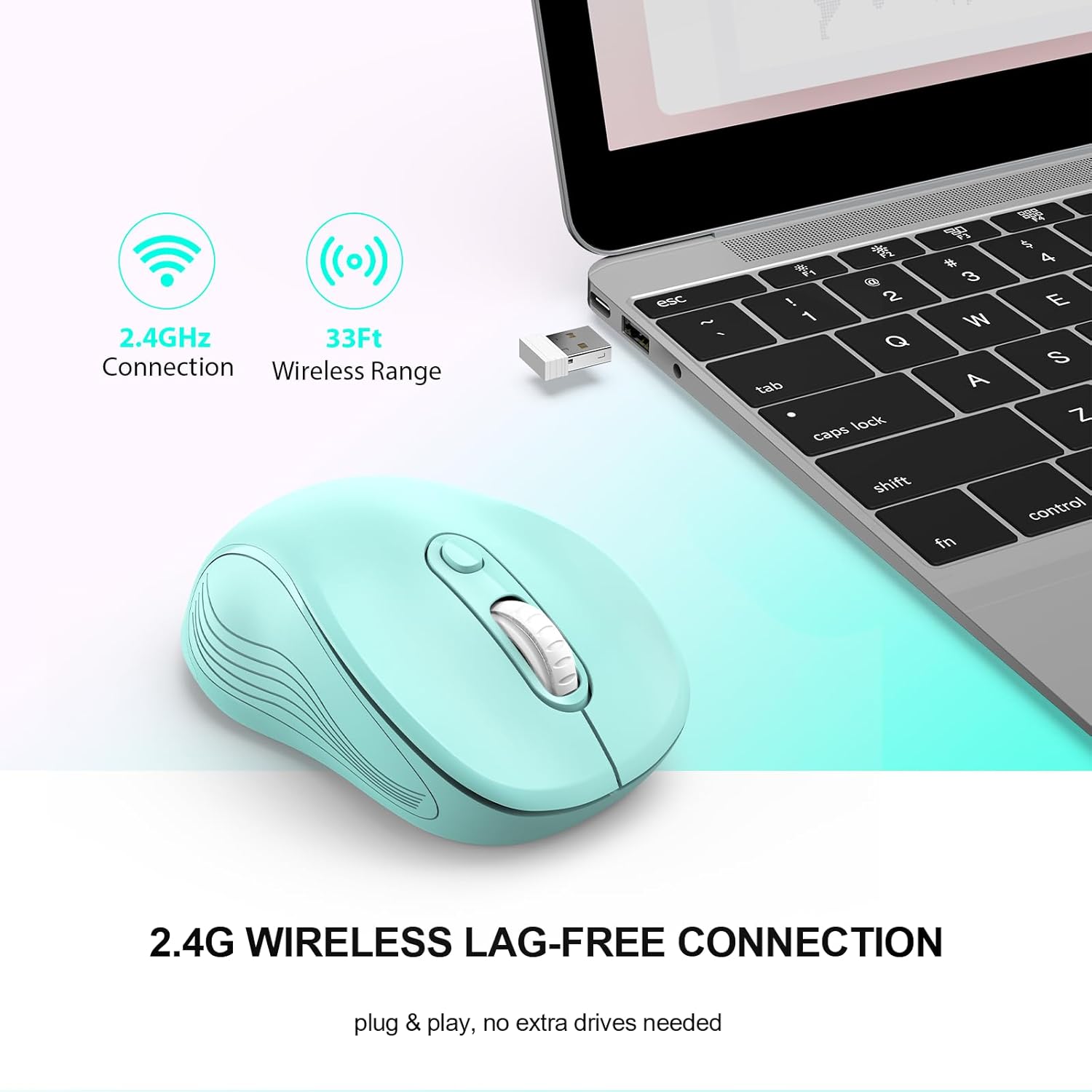
Image: The mouse in use with a laptop, demonstrating the 2.4GHz wireless connection and 33ft wireless range.
3. Operating Instructions
3.1 Basic Functions
- Left Button: Primary click function.
- Right Button: Secondary click function, typically for context menus.
- Scroll Wheel: Scroll up or down through documents and web pages. Can also be clicked for middle-click functionality.
- Page Up/Page Down Buttons: Located on the side, these buttons facilitate quick navigation in documents or web browsers.
Image: A detailed diagram highlighting the six buttons of the WisFox wireless mouse, including the DPI switch, scroll wheel, and side buttons.
3.2 Adjusting DPI (Sensitivity)
The mouse features 3 adjustable DPI levels to control cursor speed and precision.
- Press the DPI Switch Button (located below the scroll wheel) to cycle through the available DPI settings: 800, 1200 (default), and 1600.
- Select the DPI level that best suits your task, whether for precise work or fast navigation.

Image: A visual representation of the three adjustable DPI settings (800, 1200, 1600) and how to change them using the DPI button.
3.3 Ergonomic Design
The contoured shape and sweat-resistant coating are designed for maximum hand comfort during extended use, reducing strain and fatigue.

Image: A hand comfortably gripping the WisFox wireless mouse, highlighting its ergonomic design for prolonged use.
4. Maintenance
4.1 Cleaning the Mouse
- To clean the mouse, gently wipe its surface with a soft, damp cloth.
- Avoid using harsh chemicals or abrasive materials, as these can damage the surface.
- Ensure the mouse is turned off before cleaning.
4.2 Battery Replacement
Replace the AA battery when the mouse performance degrades or it stops responding. Refer to Section 2.1 for battery installation steps.
4.3 Auto Sleep Mode
The mouse is designed with an energy-saving feature. It will enter auto power-saving mode after 1 minute of idling and a deeper sleep mode after 8 minutes of idling. To wake the mouse, simply double-click any button.

Image: A graphic explaining the low power consumption feature, indicating the mouse enters sleep mode after 10 minutes of inactivity.
5. Troubleshooting
| Problem | Possible Cause | Solution |
|---|---|---|
| Mouse not responding | Low battery; Receiver not connected; Mouse is off; Mouse in sleep mode. | Replace battery; Ensure receiver is firmly plugged in; Turn mouse ON; Double-click to wake mouse. |
| Lag or intermittent connection | Too far from receiver; Wireless interference. | Move mouse closer to receiver (within 33 feet); Avoid placing receiver near other wireless devices. |
| Cursor movement is too fast/slow | DPI setting is not optimal. | Press the DPI Switch Button to adjust sensitivity (800/1200/1600 DPI). |
| Side buttons not working | Software conflict or specific application does not support. | Ensure the application supports forward/backward navigation; Check for any conflicting mouse software. |
6. Specifications
- Brand: WisFox
- Model: B0DKDVB4D2
- Color: Mint Green
- Connectivity Technology: 2.4Ghz RF Wireless Technology
- Movement Detection Technology: Optical
- DPI Levels: 800, 1200, 1600 (Adjustable)
- Buttons: 6 (Left, Right, Scroll Wheel, DPI Switch, Page Up, Page Down)
- Battery Type: 1 AA battery (not included)
- Item Weight: 2.4 ounces
- Package Dimensions: 7.17 x 2.68 x 1.73 inches
- Special Feature: Soundless clicks, Auto Sleep Mode
- Compatibility: Windows 7/8/10/11/XP, Vista 7/8, Linux, Mac OS (V10.4 or higher)

Image: A graphic illustrating the wide compatibility of the WisFox wireless mouse with various operating systems, including Windows, Mac, and Linux.
7. Warranty and Support
WisFox products are manufactured to high quality standards. For specific warranty information, please refer to the product packaging or contact the seller directly through your purchase platform.
If you encounter any issues or have questions regarding your WisFox 2.4G Wireless Mouse, please contact WisFox customer support for assistance. Contact details can typically be found on the product packaging or the official WisFox website.