
1. Introduction
Thank you for choosing the NOTODD 14-inch Laptop N200. This manual provides essential information for setting up, operating, maintaining, and troubleshooting your new laptop. Please read this guide thoroughly to ensure proper use and to maximize your device's performance and longevity.
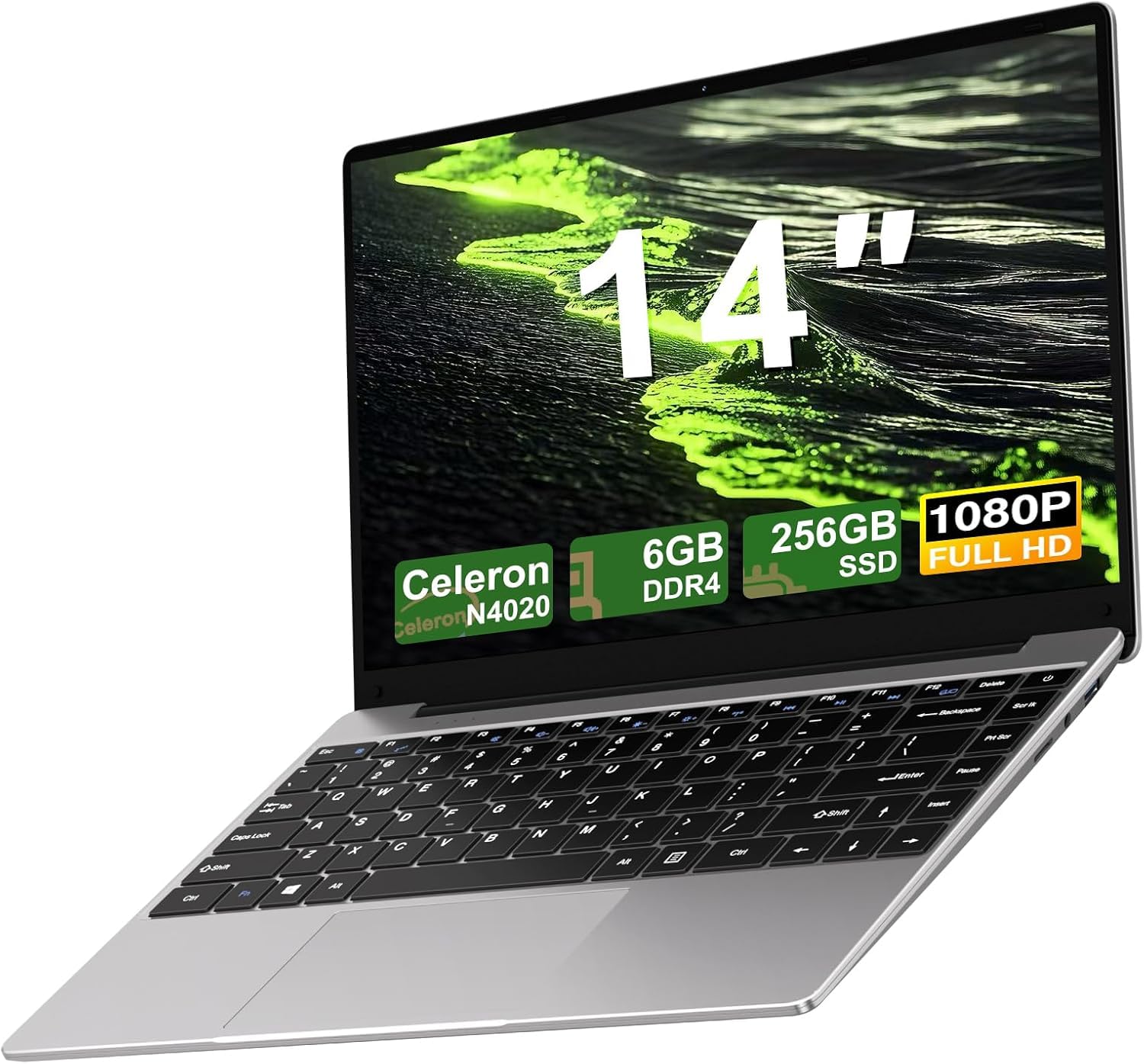
Figure 1.1: NOTODD 14-inch Laptop N200
2. Setup
2.1 Unpacking and Initial Inspection
Carefully remove all components from the packaging. Verify that all items listed in the package contents are present and undamaged. If any items are missing or damaged, contact customer support immediately.
2.2 Charging the Laptop
Before first use, connect the included 12V DC charger to the laptop's DC charging port and a power outlet. Allow the laptop to charge fully. The charging indicator light will typically change color or turn off when charging is complete.
2.3 Powering On and Initial Windows 11 Setup
Press the power button to turn on the laptop. Follow the on-screen instructions to complete the initial Windows 11 setup, including language selection, network connection, and user account creation.
2.4 Connecting the Wireless Mouse
The package includes a wireless mouse. Insert the USB receiver for the mouse into an available USB 3.0 port on the laptop. The laptop should automatically detect and install the necessary drivers for the mouse.
3. Operating Instructions
3.1 Performance and Storage
The NOTODD N200 laptop is equipped with an Intel Celeron N4020 processor (up to 2.8GHz), 6GB DDR4 RAM, and a 256GB high-speed SSD. This configuration is suitable for everyday tasks such as web browsing, online learning, office applications, and video streaming.

Figure 3.1: Intel Celeron N4020 Processor
For additional storage, the laptop supports up to 512GB TF card expansion and 1TB SSD expansion. Refer to Section 4.3 for upgrade instructions.
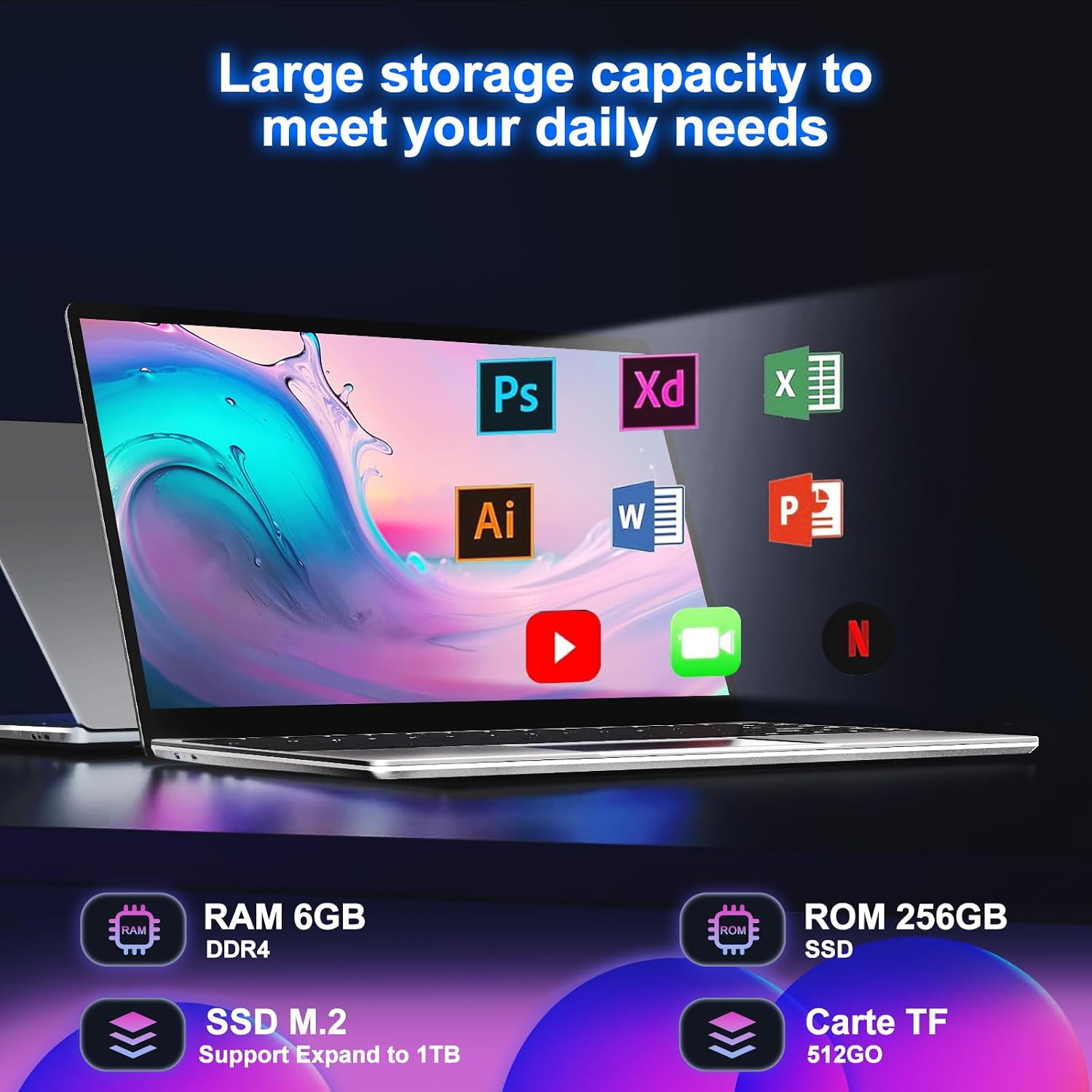
Figure 3.2: Storage Capacity and Expansion
3.2 Display and Visual Experience
The 14-inch Full HD IPS display offers a resolution of 1920 x 1080 pixels. It features an anti-glare screen with a wide viewing angle and narrow bezels, designed to reduce eye strain during extended use. The laptop also features a 180-degree hinge for flexible viewing angles.

Figure 3.3: Full HD Display

Figure 3.4: Thin Design and 180-degree Hinge
3.3 Battery Life and Portability
The built-in 5000mAh rechargeable battery provides approximately 5-7 hours of usage, depending on brightness settings, applications, and network conditions. The laptop weighs 1.3 kg, making it portable for travel, school, or business.

Figure 3.5: Battery and Connectivity Features

Figure 3.6: Laptop Usage Scenarios
3.4 Connectivity and Ports
The laptop features WiFi5 and Bluetooth 4.2 for stable wireless connections. It includes the following ports:
- 2 x USB 3.0 Type-A ports
- 1 x Headphone jack
- 1 x DC charging port
- 1 x Micro-SD slot
- 1 x Screen projection interface (Mini HDMI)

Figure 3.7: Laptop Ports and Expansion Slots
3.5 Audio and Video Communication
Built-in stereo speakers provide clear audio. The integrated webcam and microphone facilitate online meetings and video calls.
4. Maintenance
4.1 Cleaning the Laptop
Use a soft, lint-free cloth to clean the screen and exterior surfaces. For stubborn marks, dampen the cloth slightly with water or a screen-safe cleaner. Avoid harsh chemicals or abrasive materials. Regularly clean the keyboard with compressed air to remove dust and debris.
4.2 Battery Care
To prolong battery life, avoid fully discharging the battery frequently. It is recommended to keep the battery charge between 20% and 80% when possible. Store the laptop in a cool, dry place when not in use for extended periods.
4.3 Storage Upgrades
The laptop supports expansion of its storage. You can upgrade the M.2 SSD up to 1TB or expand storage with a TF card up to 512GB. Refer to Figure 3.7 for visual guidance on accessing these components. It is recommended to seek professional assistance for SSD replacement to avoid damaging internal components.
5. Troubleshooting
This section addresses common issues you might encounter. For problems not listed here, please contact customer support.
5.1 Laptop Does Not Power On
- Ensure the charger is securely connected to both the laptop and a working power outlet.
- Verify the power outlet is functional by plugging in another device.
- Allow the laptop to charge for at least 30 minutes before attempting to power on again.
5.2 Display Issues (No Image, Flickering)
- Adjust the screen brightness using the function keys.
- If connected to an external monitor, ensure the cable is secure and the correct display output is selected (Fn + F key, typically F7 or F8).
- Restart the laptop.
5.3 Wi-Fi or Bluetooth Connectivity Problems
- Ensure Wi-Fi and Bluetooth are enabled in Windows settings.
- Restart your router/modem for Wi-Fi issues.
- Forget and reconnect to the Wi-Fi network or Bluetooth device.
- Update network adapter drivers through Device Manager.
5.4 Slow Performance
- Close unnecessary applications running in the background.
- Check for available Windows updates and install them.
- Run a disk cleanup and defragmentation (for HDD, not SSD).
- Ensure your SSD has sufficient free space (at least 15-20%).
6. Specifications
| Feature | Specification |
|---|---|
| Model | N200 |
| Processor | Intel Celeron N4020 (up to 2.8 GHz) |
| RAM | 6 GB DDR4 |
| Storage | 256 GB SSD (expandable up to 1TB) |
| Display | 14-inch Full HD IPS (1920 x 1080 pixels) |
| Operating System | Windows 11 |
| Graphics | Integrated (UHD Graphics 500) |
| Battery | 5000 mAh Lithium Polymer (5-7 hours usage) |
| Connectivity | WiFi5 (802.11ac), Bluetooth 4.2 |
| Ports | 2x USB 3.0, 1x Headphone Jack, 1x DC Charging, 1x Micro-SD Slot, 1x Mini HDMI |
| Weight | 1.36 kg |
| Dimensions | 32.2 x 20.8 x 2.1 cm |
| Camera | Front-facing |
| Audio | Built-in Stereo Speakers, Microphone |
7. Warranty and Support
7.1 Warranty Information
This NOTODD laptop comes with a 2-year warranty from the date of purchase. This warranty covers manufacturing defects under normal use. Please retain your proof of purchase for warranty claims.
7.2 Customer Support
For technical assistance, warranty claims, or any questions regarding your NOTODD laptop, please refer to the contact information provided with your product packaging or visit the official NOTODD support website. When contacting support, please have your model number (N200) and purchase details ready.