
1. Introduction
This manual provides detailed instructions for the installation, operation, and maintenance of your FLIPSKY TFT Advanced Display V2.0. This display is designed to enhance your e-bike experience with its advanced features, including GPS functionality, IP65 waterproofing, and a clear TFT color screen. Please read this manual thoroughly before using the product to ensure proper function and safety.
2. Product Overview
The FLIPSKY TFT Advanced Display V2.0 offers a comprehensive interface for monitoring your e-bike's performance. Its robust design and intuitive interface make it a valuable addition to your setup.
Key Features:
- Clear TFT Display: 3.2-inch RGB color display with 240*320 resolution for enhanced readability.
- GPS Functionality: Built-in GPS module for automatic time calibration and tracking.
- IP65 Waterproof Rating: Ensures durability and performance in various weather conditions.
- Multi-language Support: Supports Chinese, English, and Russian for broader user accessibility.
- Real-time Data Display: Provides instant access to cycling and ESC data, including speed, mileage, riding time, power output, energy recovery, and temperatures.
- Compact and Lightweight: Dimensions of 124.4*68.1*18.5mm and a weight of 116g for easy integration.
- Enhanced Human-Computer Interaction: Displays ESC energy consumption and maximum data records.
What's in the Box:
The package includes the FLIPSKY TFT Advanced Display V2.0 and a user manual. Please ensure all components are present upon unboxing.

Image: FLIPSKY TFT Advanced Display V2.0 with various connection cables and accessories.
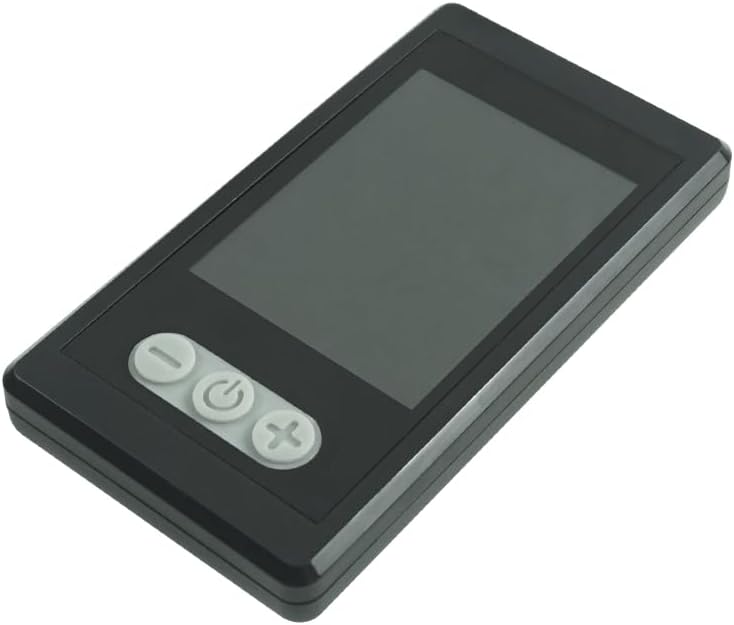
Image: Front view of the FLIPSKY TFT Advanced Display V2.0, highlighting the display screen and the three control buttons.

Image: FLIPSKY TFT Advanced Display V2.0 with its physical dimensions (length, width, thickness) clearly labeled in millimeters.
3. Setup
Proper installation and wiring are crucial for the display's functionality. Follow the diagram and instructions carefully.
Wiring Diagram:

Image: Detailed wiring diagram illustrating the connection of the FLIPSKY TFT Advanced Display V2.0 to an Electronic Speed Controller (ESC) using a UART communication mode, including waterproof M6 male and female connectors and a USB cable.
Connect the display to your Electronic Speed Controller (ESC) using the provided UART communication cable. Ensure the waterproof M6 connectors are securely fastened. The USB cable is typically used for firmware updates or advanced configuration via a computer.
Supported ESC Types:
- FTESC: Flipsky Non VESC ESCs
- FSESC: ESCs based on VESC
- FOCBOX: FOCBOX Unity
Ensure your ESC is compatible with one of the listed types for proper communication with the display.
Setup Video:
Video: An official product video demonstrating the setup and features of the FLIPSKY TFT Advanced Display V2.0. This video provides a visual guide to connecting and configuring the display.
4. Operating Instructions
The display features three buttons for navigation and control. Familiarize yourself with their functions for optimal use.
Button Functions:
| Button | Action | Function |
|---|---|---|
| "-" Button | Short press | Switch to the left interface/menu item. |
| Long press | Enter/Exit navigation bar. | |
| "Power" Button | Short press | Select current item/Confirm. |
| Long press | Power ON/OFF. | |
| "+" Button | Short press | Switch to the right interface/menu item. |
| Long press | Enter/Exit settings menu. |
Display Modes and Data:
The display provides various screens to show real-time data and cycling records. Navigate between screens using the "-" and "+" buttons.
- Riding Interface: Displays current speed, battery level, mileage, and other essential real-time riding data.
- ESC Interface: Shows detailed ESC data, including power output, energy recovery, and temperature.
- Settings Interface: Allows configuration of various parameters such as speed units, battery settings, and language.
- Record Interface: View historical cycling data, including total mileage, average speed, and maximum values.
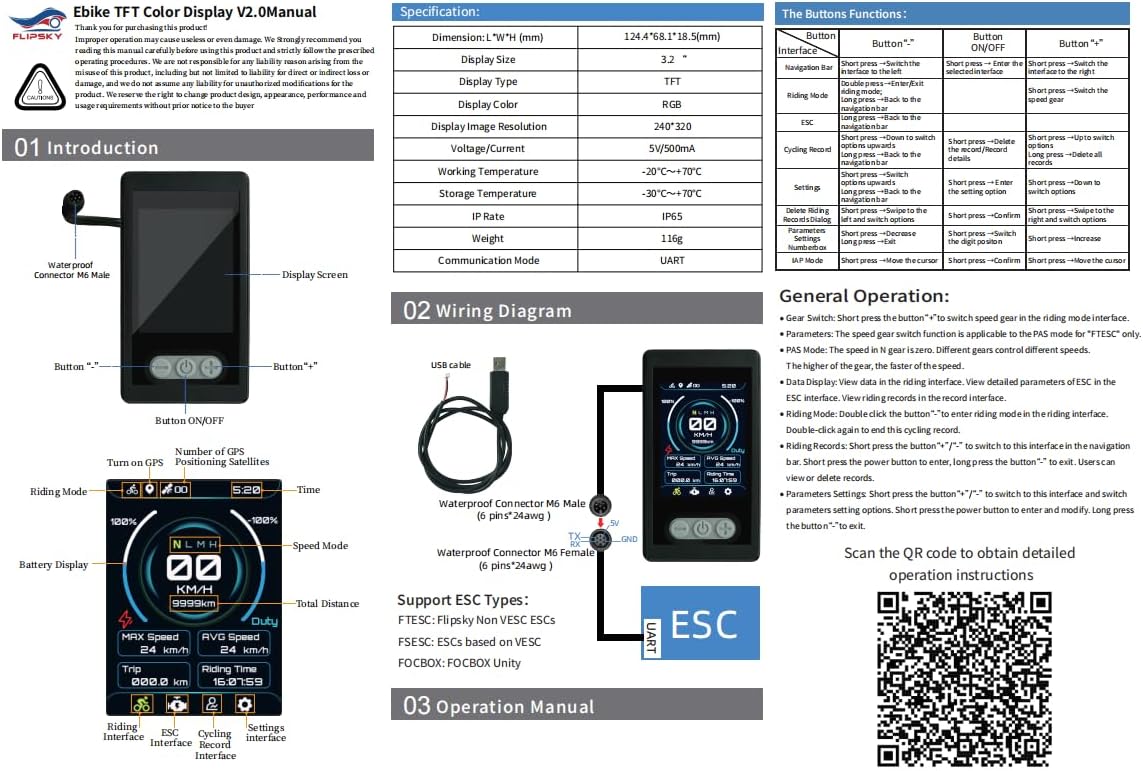
Image: A comprehensive manual page detailing the display's layout, button functionalities, and the wiring diagram, providing a quick reference for users.
GPS Functionality:
The built-in GPS module automatically calibrates the date and time. You can manually set your time zone in the settings menu. The display will synchronize time while riding.
Language Settings:
The display supports Chinese, English, and Russian. You can switch between languages in the settings menu to suit your preference.
Firmware Update (IAP Mode):
Video: A short official product video demonstrating the IAP (In-Application Programming) mode, which supports online firmware updates for the display. This shows how to access and confirm a firmware update.
The display supports firmware updates via IAP mode. Refer to the video above for a demonstration on how to access this feature and update your device's software.
5. Maintenance
To ensure the longevity and optimal performance of your FLIPSKY TFT Advanced Display V2.0, follow these maintenance guidelines:
- Cleaning: Use a soft, damp cloth to clean the display screen and casing. Avoid abrasive cleaners or solvents that may damage the surface.
- Water Resistance: The display has an IP65 rating, meaning it is protected against dust ingress and low-pressure water jets from any direction. While it can withstand splashes and rain, avoid submerging the device in water.
- Storage: When not in use for extended periods, store the display in a cool, dry place away from direct sunlight and extreme temperatures.
- Cable Connections: Periodically check all cable connections for tightness and signs of wear. Ensure waterproof connectors are clean and properly sealed.
6. Troubleshooting
If you encounter issues with your display, refer to the following common troubleshooting steps:
- Display Not Turning On:
- Check all power connections to ensure they are secure.
- Verify that the e-bike's battery has sufficient charge.
- Ensure the power button is pressed and held for the required duration to turn on the device.
- No Data Displayed / Incorrect Readings:
- Confirm that the UART communication cable is correctly connected between the display and the ESC.
- Ensure your ESC type is supported (FTESC, FSESC, FOCBOX Unity).
- Check ESC settings to ensure data output via UART is enabled and configured correctly.
- If GPS data is incorrect, ensure the device has a clear view of the sky for satellite acquisition.
- Buttons Unresponsive:
- Ensure the display is not in a locked mode (if applicable).
- Restart the display by powering it off and on again.
- Check for any physical obstructions or damage to the buttons.
- Firmware Update Issues:
- Ensure a stable power supply during the update process.
- Follow the firmware update instructions precisely.
- If using a computer, ensure the correct drivers are installed for the USB connection.
For further assistance, please contact FLIPSKY customer support or refer to the official resources provided in the support section.
7. Specifications
| Parameter | Value |
|---|---|
| Dimension (L*W*H) | 124.4 x 68.1 x 18.5 mm (4.9"L x 2.68"W x 0.73"H) |
| Display Size | 3.2 inches |
| Display Type | TFT RGB Color |
| Image Resolution | 240*320 |
| Voltage/Current | 5V/500mA |
| Working Temperature | -20℃ to +70℃ (-4°F to 158°F) |
| Storage Temperature | -30℃ to +70℃ (-22°F to 158°F) |
| IP Rate | IP65 |
| Weight | 116g |
| Communication Mode | UART |
| Sensor Type | GPS Sensor |
| Mounting Type | Handlebar Mount, Stem Mount (Mounting hardware not included) |
| Human Interface Input | Buttons |
| Model Number | PJTFTN002 |
| UPC / GTIN | 762104406842 |
8. Warranty and Support
Warranty: This product comes with a 2-month warranty from the manufacturer, Flipsky. Please retain your proof of purchase for warranty claims.
Support: For technical support, troubleshooting beyond this manual, or warranty inquiries, please contact FLIPSKY directly. Additional resources, including updated manuals and software, may be available through their official channels.
Online Resources: For more detailed information and downloads, please visit the official FLIPSKY support page or the following link:
