
ORICO Y20M-2242
ORICO M.2 2242 SATA SSD User Manual
Model: Y20M-2242
1. Introduction
This user manual provides comprehensive instructions for the ORICO M.2 2242 SATA Solid State Drive (SSD). It covers product features, installation procedures, operational guidelines, maintenance tips, and troubleshooting information to ensure optimal performance and longevity of your SSD.
The ORICO Y20M-2242 SSD is a compact internal storage solution designed for ultra-thin laptops and mini PCs, offering reliable data storage and enhanced system responsiveness.
2. Safety Information
- Always handle the SSD by its edges to avoid touching the gold connectors or components.
- Ensure your system is powered off and unplugged before installation.
- Discharge static electricity by touching a grounded metal object before handling the SSD.
- Do not expose the SSD to extreme temperatures, humidity, or direct sunlight.
- Avoid dropping or subjecting the SSD to physical shock.
3. Package Contents
Verify that all items are present in the package:
- 1 x ORICO 2242 SATA SSD
- 1 x Mounting Screw
- 1 x Packing Box
- 1 x Screwdriver
- 1 x User Manual

Image: Contents of the ORICO 2242 SATA SSD package, showing the SSD, a small screw, the product box, a screwdriver, and the user manual.
4. Product Overview
The ORICO Y20M-2242 is an M.2 2242 form factor SATA SSD, designed for compact computing environments. It utilizes TLC NAND Flash technology for efficient and reliable data storage.

Image: A detailed view of the ORICO M.2 2242 SATA SSD, highlighting its compact design and the M.2 B+M key interface.
Key Features:
- M.2 2242 SATA III Interface: Compact form factor suitable for ultra-thin laptops and mini PCs.
- High-Speed Performance: Read speeds up to 460MB/s and write speeds up to 420MB/s for faster boot times and data transfers.
- TLC NAND Flash Technology: Maximizes storage capacity, enhances durability, and ensures reliable performance.
- Broad Compatibility: Supports desktops, laptops, and mini PCs with an M.2 SATA interface, compatible with Windows, Linux, and other operating systems. Note: This is an M.2 SATA SSD and is not compatible with M.2 NVMe or mSATA interfaces. Verify your device's M.2 slot type before installation.
- Reliable Data Management: Features like TRIM support, S.M.A.R.T., PLP (Power Loss Protection), and ECC (Error-Correcting Code) ensure data integrity and drive longevity.

Image: Illustration of the M.2 2242 SATA SSD installed in a compatible M.2 slot, with a note on checking for SATA compatibility and B+M key support.

Image: Visual representation of the SSD's compatibility with multiple device types, including laptops, mini PCs, and single-board computers.
5. Specifications
| Feature | Description |
|---|---|
| Model | Y20M-2242 |
| Form Factor | M.2 2242 |
| Interface | SATA III 6Gb/s |
| NAND Flash Type | TLC |
| Capacity | 128GB (Other capacities available: 256GB, 512GB, 1TB) |
| Max. Read Speed | Up to 460MB/s |
| Max. Write Speed | Up to 420MB/s |
| Dimensions | 4.96 x 3.5 x 0.83 inches (Package) |
| Weight | 0.176 ounces |
| Operating System Support | Windows, Linux, etc. |
| Special Features | TRIM Support, S.M.A.R.T., PLP, ECC |
Note: Performance may vary depending on the SSD's firmware version, system hardware, and configuration.
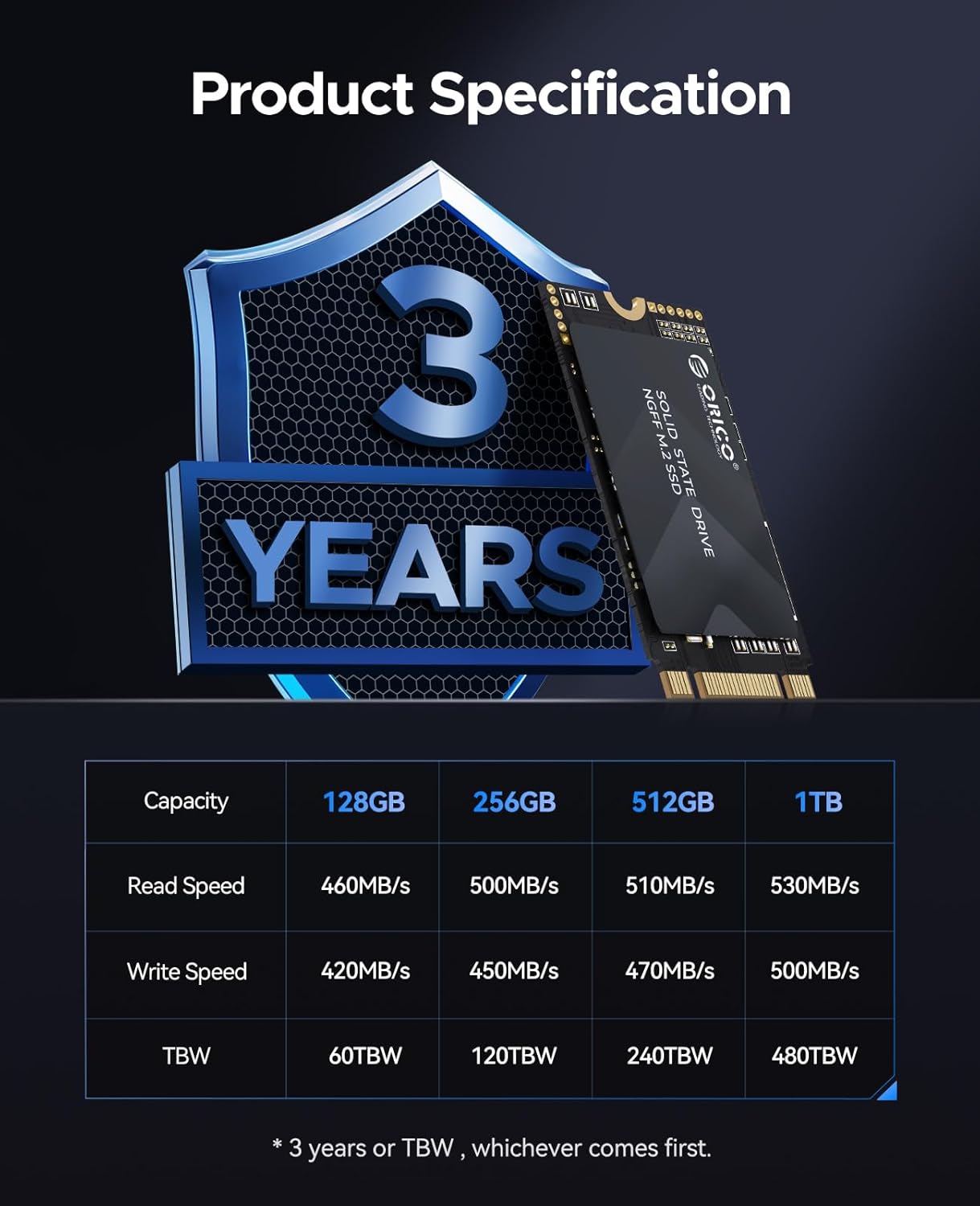
Image: A table detailing the read speeds, write speeds, and Total Bytes Written (TBW) for various capacities of the ORICO M.2 SSD, along with a 3-year warranty badge.
6. Setup and Installation
Follow these steps to install your ORICO M.2 2242 SATA SSD into a compatible device. Ensure you have backed up any important data before proceeding.
- Prepare Your Device: Power off your laptop or mini PC completely and disconnect it from the power source. Remove the battery if applicable.
- Access the M.2 Slot: Carefully open your device's casing to expose the motherboard and the M.2 slot. Refer to your device's specific service manual for instructions on accessing internal components.
- Discharge Static Electricity: Before touching any internal components, touch a grounded metal object (e.g., an unpainted metal part of your computer chassis) to discharge any static electricity from your body.
- Insert the SSD: Align the notch on the ORICO M.2 2242 SATA SSD with the key in the M.2 slot. Gently insert the SSD into the slot at a slight angle (approximately 30 degrees).
- Secure the SSD: Once fully seated, push the SSD down towards the motherboard. Use the provided mounting screw to secure the SSD in place at the end of the slot.
- Reassemble Your Device: Carefully close your device's casing, ensuring all screws are tightened and connections are secure.
- Power On and Initialize: Reconnect the power source and turn on your device. You may need to enter the BIOS/UEFI settings to confirm the SSD is recognized. For new installations, you will need to initialize and format the SSD through your operating system's Disk Management utility before it can be used.

Image: Step-by-step visual guide demonstrating the insertion of the M.2 SATA SSD into a compatible M.2 slot on a motherboard.
7. Operating Instructions
Initializing and Formatting the SSD (New Installation):
For a newly installed SSD, it must be initialized and formatted before it can be used for storage.
- Windows:
- Right-click on the Start button and select "Disk Management".
- Locate your new SSD (it will likely appear as "Disk X, Unallocated").
- Right-click on the unallocated space and select "New Simple Volume".
- Follow the on-screen wizard to assign a drive letter and format the drive (NTFS is recommended for Windows).
- Linux:
- Use disk utility tools like GParted or fdisk/mkfs commands to partition and format the drive.
Data Transfer:
Once formatted, the SSD will appear as a regular drive. You can drag and drop files, or use cloning software to migrate your operating system from an old drive to the new SSD.
8. Maintenance
- Enable TRIM: Ensure TRIM is enabled in your operating system. TRIM helps maintain the performance of your SSD over time by allowing the OS to inform the SSD which data blocks are no longer in use and can be wiped. Most modern operating systems enable TRIM by default for SSDs.
- Avoid Defragmentation: Do not defragment an SSD. Defragmentation is designed for HDDs and can reduce the lifespan of an SSD without providing any performance benefit.
- Keep Firmware Updated: Periodically check the ORICO website for firmware updates for your SSD. Firmware updates can improve performance, stability, and compatibility.
- Maintain Free Space: Try to keep at least 10-15% of the SSD's capacity free. This allows the SSD's wear-leveling algorithms to function optimally and helps maintain performance.
- Regular Backups: While SSDs are reliable, regular data backups are always recommended to protect against data loss from any hardware failure or unforeseen circumstances.
9. Troubleshooting
| Problem | Possible Solution |
|---|---|
| SSD not detected by system. |
|
| SSD detected but not showing in "My Computer" / "File Explorer". |
|
| Slow performance. |
|
| System crashes or freezes after SSD installation. |
|
10. Warranty and Support
The ORICO Y20M-2242 M.2 SATA SSD comes with a 3-year limited warranty from the date of purchase. This warranty covers defects in materials and workmanship under normal use.
The warranty period is 3 years or up to the specified Total Bytes Written (TBW) rating, whichever comes first. Refer to the specifications table for TBW values for different capacities.
Warranty Exclusions:
- Damage caused by improper installation, accident, abuse, misuse, natural disaster, or unauthorized modification.
- Use of the product in an environment or application for which it was not intended.
- Loss of data.
Customer Support:
For technical support, warranty claims, or further assistance, please contact ORICO customer service through their official website or the retailer from whom you purchased the product.
Visit the official ORICO website for the most up-to-date support information and resources: www.orico.com.cn
Note: No official product videos from the seller were found in the provided data.
Related documentsY20M-2242


Ask a question about this manual
Ask about setup, troubleshooting, compatibility, parts, safety, or missing instructions. Manuals+ will review the question and use this page’s manual context to help answer it.